Note
Access to this page requires authorization. You can try signing in or changing directories.
Access to this page requires authorization. You can try changing directories.
Microsoft Entra ID Governance integrates with SAP Identity Access Governance (IAG) to help you manage user access across both platforms. With this integration, you can include SAP business roles in Microsoft Entra access packages, streamlining the provisioning process and providing a unified access management experience.
This integration enables you to:
- Add SAP IAG business roles as resources in entitlement management catalogs
- Grant users access to SAP applications through Microsoft Entra access packages
- Automate role assignments in SAP IAG based on approvals in Microsoft Entra
- Maintain consistent access governance policies across both Microsoft and SAP environments
This article guides you through connecting your SAP IAG instance to Microsoft Entra, configuring the necessary prerequisites in both platforms, and creating access packages that include SAP business roles.
License requirements
Using this feature requires Microsoft Entra ID Governance or Microsoft Entra Suite licenses. To find the right license for your requirements, see Microsoft Entra ID Governance licensing fundamentals.
Prerequisites
To utilize the Microsoft Entra Entitlement Management integration with SAP IAG, your organization's SAP deployments must meet the following prerequisites:
SAP Cloud Identity Services instance that is already integrated with Microsoft Entra for:
User Provisioning
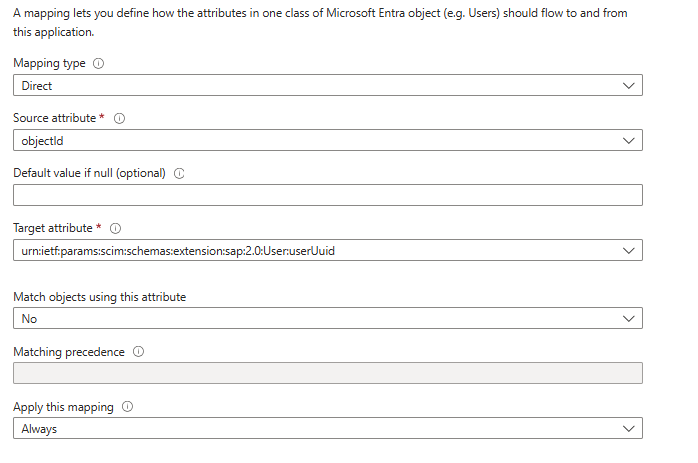
In your attribute mapping, add a new mapping to sync Microsoft Entra ObjectId to be mapped as SAP Global User ID. This is required to allow the correct object lookup between the two systems.
Click Add New Mapping and set the attribute mapping as below:
- Source Attribute: objectId
- Target Attribute: urn:ietf:params:scim:schemas:extension:sap:2.0:User:userUuid
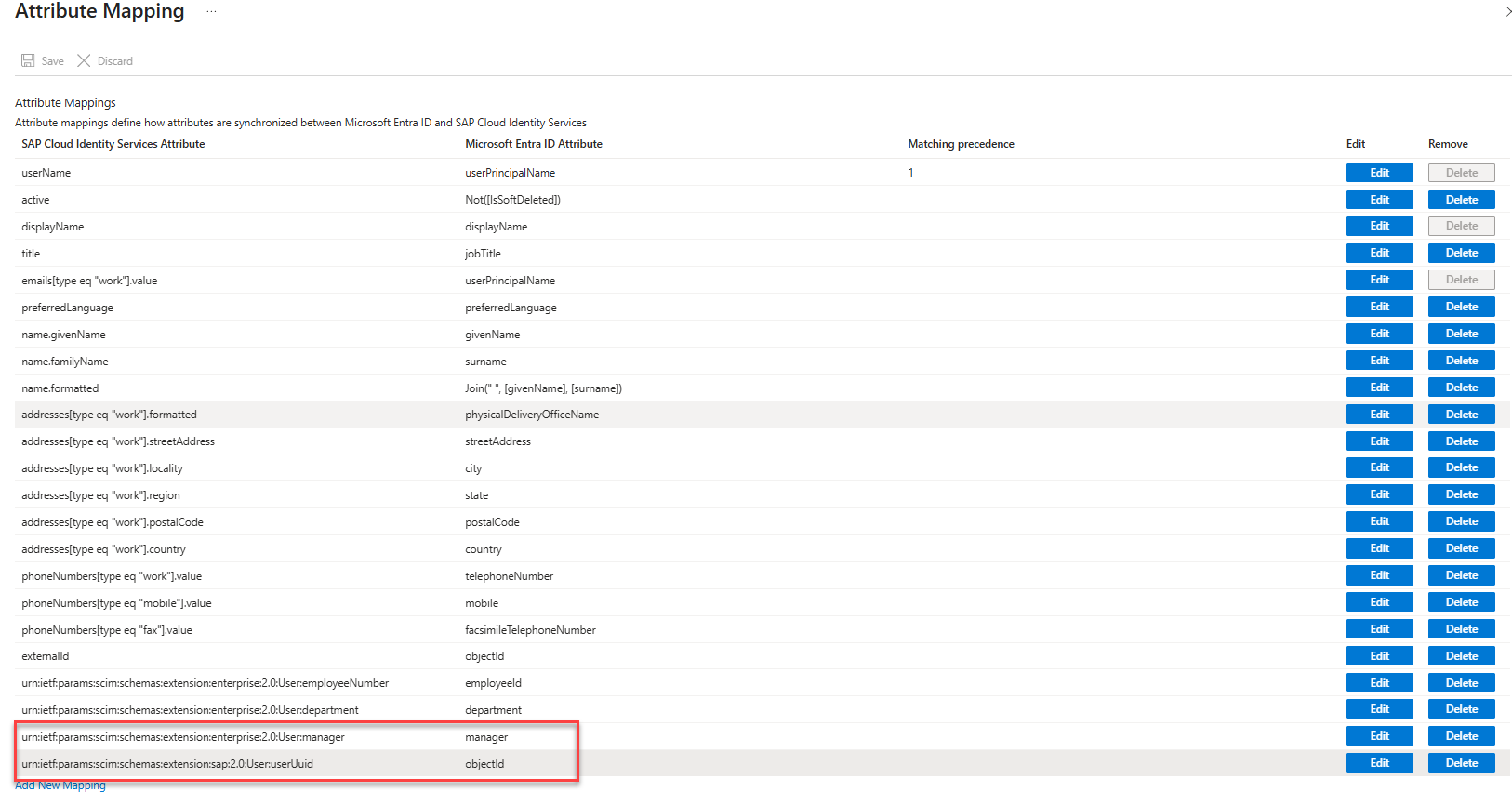
Add a mapping for the manager attribute. This allows manager information to be synchronized from Microsoft Entra to SAP Cloud Identity Services.
- Click Add New Mapping and set the attribute mapping as below:
- Source Attribute: manager
- Target Attribute: urn:ietf:params:scim:schemas:extension:enterprise:2.0:User:manager
- Click Add New Mapping and set the attribute mapping as below:
Your Attribute Mapping should look like this when the prerequisites are complete:
- User single sign-on (Optional)
- An existing SAP IAG Business Role.
SAP Cloud Identity and Access Governance (IAG) tenant license:
- You need the SAP BTP administrator to add the Microsoft Entra User Account to the
IAG_SUPER_ADMINgroup, and have theCIAG_Super_Adminrole in SAP BTP to add SAP IAG Access Rights as Resource in Entitlement Management. - The Microsoft Entra User Account configuring the connector and Access Packages must be synced to SAP Cloud Identity Services (IAS) and SAP IAG.
- Make sure you run the “Repository Sync” and “SCI User Group Sync Job” on SAP IAG after you provision the Microsoft Entra users to SAP Cloud Identity Services.
You also need an Azure subscription, containing an Azure Key Vault, to store your credentials for Microsoft Entra to interact with SAP IAG.
Prepare your SAP Identity Access Governance instance to connect with Microsoft Entra
Before integrating Microsoft Entra entitlement management with SAP Cloud Identity Access Governance (IAG), ensure that Microsoft Entra and SAP IAG have the same lists of the user identities. When entitlement management then refer to a user in an access request it sends to SAP IAG, SAP IAG can recognize that user. You can synchronize the user lists by connecting Microsoft Entra to provision users into SAP Cloud Identity Services, and then connecting SAP Cloud Identity Services to SAP IAG.
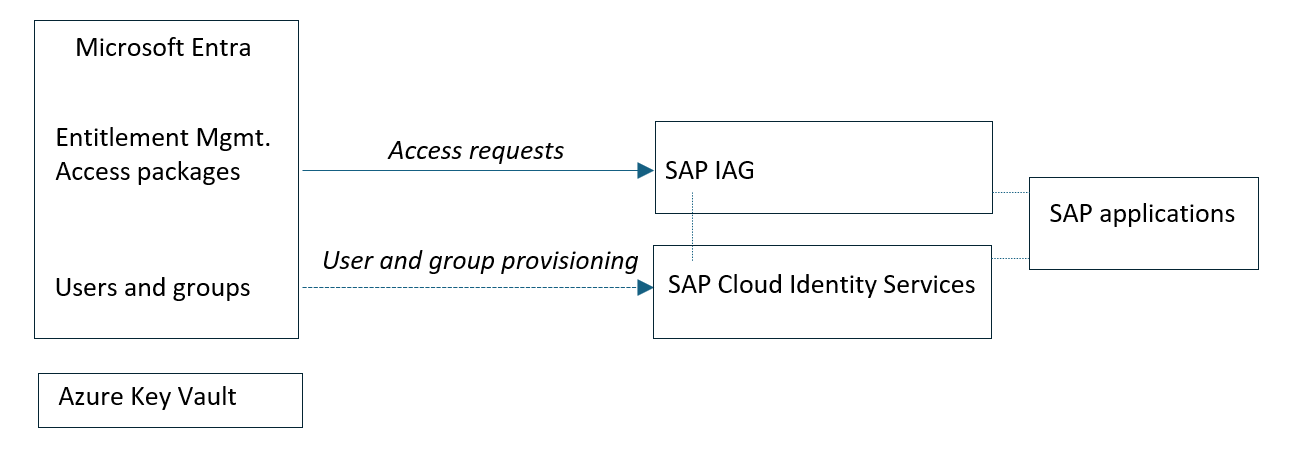
Once you have provisioned the users from Microsoft Entra into SAP Cloud Identity Services, then to synchronize user-group and attribute data from SAP Cloud Identity Services to SAP Cloud Identity Access Governance (IAG), complete these steps:
1. Register IAG Sync system administrator
Sign in to your SAP Cloud Identity Services Admin Console,
https://<tenantID>.accounts.ondemand.com/admin,orhttps://<tenantID>.trial-accounts.ondemand.com/adminif using a trial. Navigate to Users & Authorizations > Administrators.Press the +Add button on the left hand panel in order to add a new administrator to the list. Choose Add System and enter the name of the system.
Give it a name, such as IAG Sync, and assign the provisioning roles (Manage Users, Manage Groups, Proxy System API, Real-Time Provisioning API, Identity Provisioning Tenant Admin API)
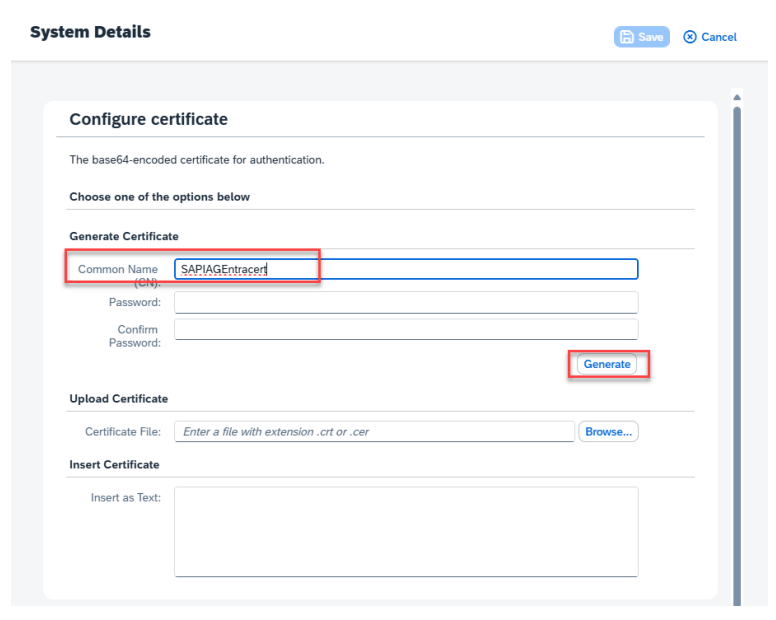
Under Configure System Authentication > Certificate, generate a certificate and save it. You can either keep the downloaded certificate p12 file and the password for the certificate, or you can upload a .p12 certificate.
2. Create the BTP HTTP destination
- In your SAP BTP subaccount, navigate to Connectivity > Destination Certificates > Create and use Generation method ‘Import’. Upload the p12 certificate file generated in the Register IAG Sync system administrator step.
- In your SAP BTP subaccount, navigate to Connectivity > Destinations > New Destination > From Scratch.
- Set Name to SAP_Identity_Services_Identity_Directory, Type to HTTP, URL to https://<SCI_TENANT_ID>.accounts.ondemand.com, Proxy Type to Internet and Authentication to ClientCertificate.
- Configure Authentication using the certificate that was created and uploaded in the Register IAG Sync system administrator step. Set Store Source as ‘DestinationService’, Key Store location select the certificate from the drop-down list and should be same as uploaded in Destination Certificates
- Add the following properties:
- Accept = application/scim+json
- GROUPSURL = /Groups
- USERSURL = /Users
- serviceURL = /scim
3. Point IAG at the destination
In IAG’s Configuration app, select Application Parameters, locate UserSource > SourceSystem > edit. On the edit page, enter SAP_Identity_Services_Identity_Directory.
4. Execute the SCI User Group Sync job
- Open Job Scheduler in IAG, select Schedule Job, select SCI User Group Sync, choose Start Immediately (or set a recurrence), and confirm.
- Track execution and logs in Job History.
5. Create IPS_PROXY destination in BTP subaccount
Prerequisite: The Administrator user is created in IAS.
To create the IPS_Proxy destination in the BTP subaccount within the portal Navigate to Destination > Create > From Scratch, and add the following details:
| Name | Properties |
|---|---|
| Name | IPS_PROXY |
| Authentication | BasicAuthentication |
| Type | HTTP |
| User | Client ID of the administrator user in IAS (user IAG Sync created in the Register IAG Sync system administrator step) |
| Password | User P/W of IAS administrator user |
| Description | IPS Destination |
| Proxy Type | Internet |
| URL | Use the IPS URL - https://{YOUR_IPS_TENANT}>.{DOMAIN}>.hana.ondemand.com |
| Other Properties | Accept = application/scim+json ServiceURL = /ipsproxy/service/api/v1/scim/ USERSURL = /Users GROUPSURL = /Groups |
6. Create application in IAG
Prerequisite: IPS Proxy systems are created in Cloud Identity Services.
To create an application in IAG, within the portal go to Application > + to create > Add description.
For more comprehensive instructions, including detailed role assignments, destination configurations, and scheduling options, see SAP documentation: Syncing User Groups from SAP Identity Services into IAG.
7. Create an Azure Key Vault
To connect your SAP IAG instance in Microsoft Entra your Azure subscriptions requires using a Key Vault to store credentials for Microsoft Entra. To create an Azure Key Vault, do the following steps:
- From the Azure portal menu, or from the Home page, select Create a resource.
- In the Search box, enter Key Vault.
- From the results list, choose Key Vault.
- On the Key Vault section, choose Create.
- On the Create key vault section, provide the following information:
- Name: A unique name is required.
- Subscription: Choose a subscription.
- Under Resource Group, choose Create new and enter a resource group name.
- In the Location pull-down menu, choose a location.
- Leave the other options to their defaults.
- Select Create.
8. Set the secret within Azure Key Vault
The SAP IAG instance secret created in Register IAG Sync system administrator must be added to the Azure Key Vault. Copy the clientsecret parameter from your SAP IAG service credentials and add it to your Key Vault as a new secret. To add a secret to an Azure Key Vault, do the following steps:
- Navigate to the key vault you created in the Create an Azure Key Vault in the Azure portal.
- On the Key Vault left-hand sidebar, select Objects then select Secrets.
- Select + Generate/Import.
- On the Create a secret screen, choose the following values:
- Upload options: Manual.
- Name: Create a unique name for the SAP IAG secret
- Value: Enter the client identifier from your SAP BTP credentials.
- To obtain this value: Sign in to SAP BTP Cockpit, navigate to Instances and Subscriptions, locate your SAP IAG Service instance (Service Technical Name:
grc-iag-api), select View Credentials, and copy theclientIDvalue.
- To obtain this value: Sign in to SAP BTP Cockpit, navigate to Instances and Subscriptions, locate your SAP IAG Service instance (Service Technical Name:
- Leave the other values to their defaults. Select Create.
For more information, see Set and retrieve a secret from Azure Key Vault using the Azure portal.
Connect your SAP IAG instance in Microsoft Entra
Now that you have set up an Azure subscription containing an Azure Key Vault with a credential for Microsoft Entra to use to authenticate to SAP IAG, you can connect Entitlement Management to that SAP IAG and have Microsoft Entra rely upon the credential in that Key Vault.
Sign in to the Microsoft Entra admin center as at least an Identity Governance Administrator.
Browse to ID Governance > Entitlement management > Control configurations.
On the Control Configurations page, there is a Manage External Connectors card. Select View Connectors.

On the Connectors page, select New connector.
In the New Connector context, select SAP IAG from the drop-down list.
After you select SAP IAG, you'll see the option to fill out the following fields:
Type: This field is set to IAG by default.
Name: Enter a custom name for your connector.
Description: Provide a description for the connector.
Subscription ID: Select your Azure Subscription ID where your Azure Key Vault resource is located.
Key Vault Name: From the dropdown, select the Azure Key Vault resource where your IAG secret is stored.
Secret Name: Select the secret that contains your SAP IAG client secret.
Client ID: Enter the client identifier from your SAP BTP credentials. This was added to the key vault in the step Set the secret within Azure Key Vault.
SAP IAG Access token URL: Enter the base URL for generating an authentication token to call SAP IAG services.
- To obtain this value: In SAP BTP Cockpit, navigate to Instances and Subscriptions, locate your SAP IAG Service instance (Service Technical Name:
grc-iag-api), select View Credentials, copy theurlparameter, and add the suffix/oauth/tokenbefore entering it in this field.
- To obtain this value: In SAP BTP Cockpit, navigate to Instances and Subscriptions, locate your SAP IAG Service instance (Service Technical Name:
IAG URL: Enter the base URL of all services exposed by SAP IAG.
- To obtain this value: In SAP BTP Cockpit, navigate to Instances and Subscriptions, locate your SAP IAG Service instance (Service Technical Name:
grc-iag-api), select View Credentials, and copy theARQAPIvalue.
- To obtain this value: In SAP BTP Cockpit, navigate to Instances and Subscriptions, locate your SAP IAG Service instance (Service Technical Name:
Select Create to create the connector.
Catalog Administrators within Microsoft Entra are now able to add SAP business roles from your SAP IAG instance to Entitlement Management catalogs and access packages.
Set up catalog and access package with SAP business role
Now that you have the external connector to SAP IAG configured, you can then add a business role from that SAP IAG as a resource role in an access package.
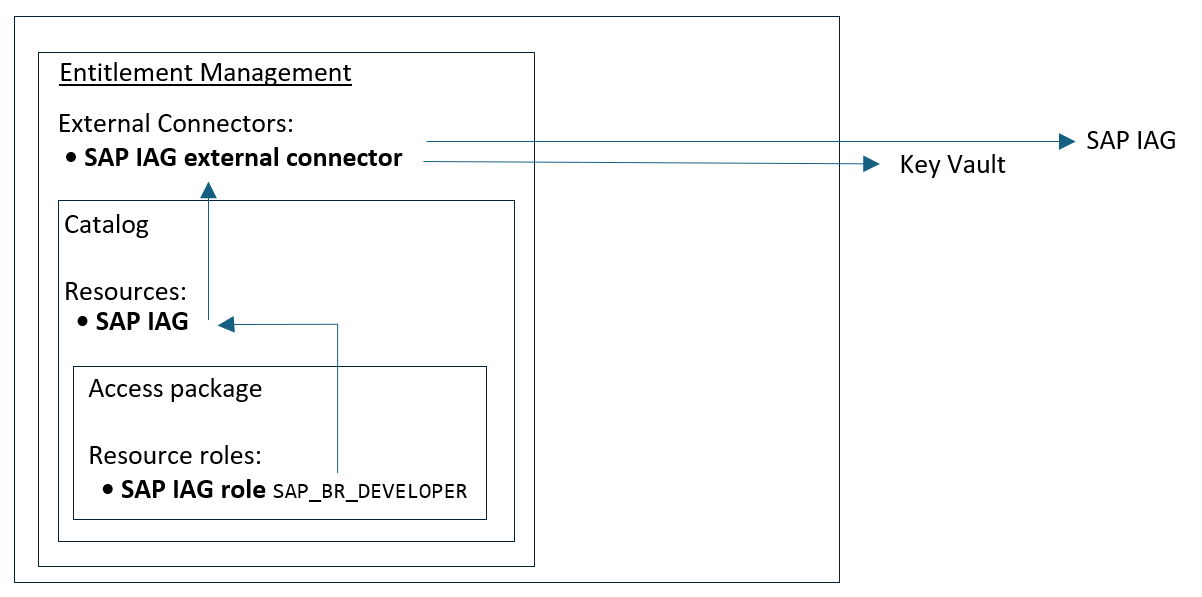
Sign in to the Microsoft Entra admin center as at least an Identity Governance Administrator.
Browse to ID Governance > Entitlement management > Catalogs.
Create a new catalog, or select an existing catalog where you'll want to add the SAP business role.
Once the catalog is created or chosen, go to its Resource section and select Add resources.
Select the SAP IAG button to open a context pane where you can select the SAP IAG instance you want to include in this catalog as a resource. In the dropdown, select the SAP IAG instance you connected.
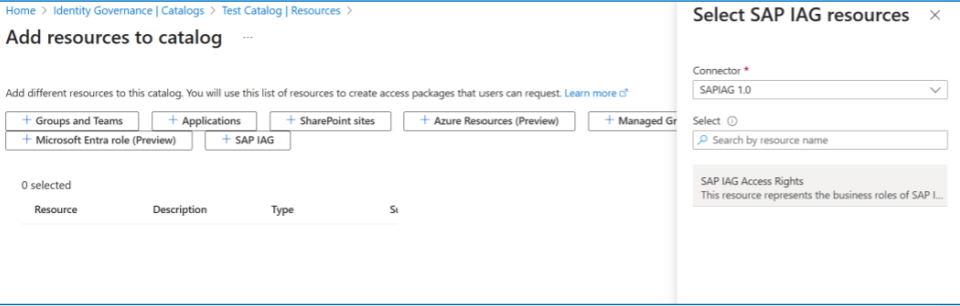
Once you’ve added the SAP IAG instance to your catalog, go to the Access packages tab within the catalog and select the New access package button. Enter in basic information and select Next see Resource roles that can be added to the access package.
In the Resource roles tab, select SAP IAG. Here, you're able to select the SAP IAG Access Rights.
In the resources table, you can select the specific business roles you want to include in the access package and select Next.
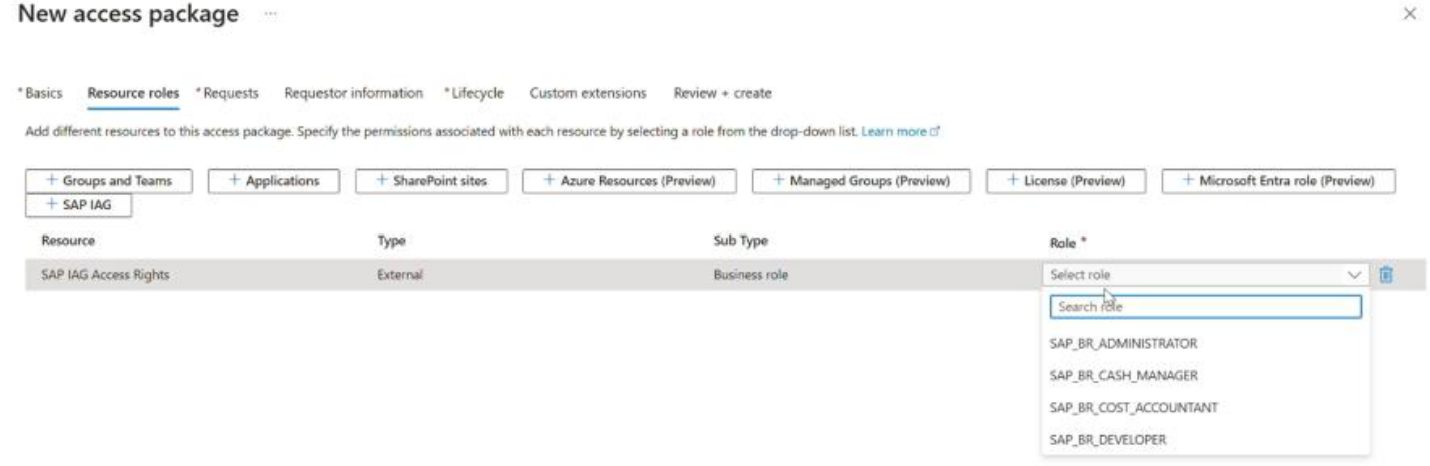
On the Requests tab, you create the first policy to specify who can request the access package. You also configure approval settings for that policy.
- Select “For Users, service principals, and agent identities in your Directory”
- Select “Specific Users and Groups” to limit the usage of this access package only to certain users. We recommend you create a new Microsoft Entra Group for it.
- Define Approval setting as desired
- Make sure “self” is selected within Who can request access.
- Select Next: Requestor Information
On Requestor Information Tab, select Next: Lifecycle
On Lifecycle Tab, enter the number of days you want to grant access, make sure Require Access Review is unselected, and select Next: Rules.
Select Create to finish setting up the access package with your settings. For more information on creating an access package, see: Create an access package in entitlement management.
Testing Integration
Once you've configured the new SAP IAG Connector, You can follow these steps for an end-to-end test scenario:
- As an Identity Governance Administrator, you can directly assign an identity to the access package.
- As a user, request the access package created in the Set up catalog and access package with SAP business role step. For information on how to request an access package, see: Request access to an access package in entitlement management.