Note
Access to this page requires authorization. You can try signing in or changing directories.
Access to this page requires authorization. You can try changing directories.
You can use Microsoft Entra Kerberos to perform Microsoft Entra hybrid join for a device without requiring Active Directory Federation Services (AD FS) or Microsoft Entra Connect sync. You get the Microsoft Entra hybrid join behavior instantly without the AD FS setup.
Use cases
The following use cases are enabled for preview:
- Deploy non-persistent Virtual Desktop Infrastructure (VDI) with Microsoft Entra hybrid join in a managed environment.
- Deploy Microsoft Entra hybrid join for customers who have or want to use Microsoft Entra Cloud Sync.
- Improve provisioning experience for Azure Virtual Desktop and Windows 365 hybrid deployment.
- Deploy Microsoft Entra hybrid join for a disconnected forest setup where Microsoft Entra Connect Sync can't be used.
Prerequisites
Make sure you have the following permissions and configuration set up to perform Microsoft Entra hybrid join using Microsoft Entra Kerberos. There are no license requirements.
Role requirements: The user who creates and configures Entra Kerberos Trusted Domain Object needs the following roles:
- A member of the Domain Admins and Enterprise Admins group in Active Directory Domain Services on-premises
- A Hybrid Identity Administrator in Microsoft Entra ID
For more information, see Create and configure Microsoft Entra Kerberos Trusted Domain Object.
Configure the Key Distribution Center (KDC) proxy server Group Policy Object (GPO): This prerequisite is only required if you deployed a KDC Proxy Server GPO to your client computer. The user who configures the GPO must be a Domain Admin or be delegated permissions to configure a GPO.
Configure Microsoft Entra Device Registration Service Principal: Add a Kerberos entry to the Microsoft Entra device registration service principal. The user who configures the service principal must have the Application Administrator role.
Deploy a domain controller that runs Windows Server 2025: Install at least one domain controller that runs Windows Server 2025 build 26100.6905 or later in the Active Directory domain.
Configure client computer for Entra Kerberos based join: You need to deploy Windows 11 build 26100.6584 or later on the client computer that you want to register with Entra as Entra hybrid join using Entra Kerberos.
Note
The client computer must have unimpeded network connectivity with the domain controller that runs Windows Server 2025 during join.
Configure Service Connection Point (SCP): You can use Microsoft Entra Connect or write to Active Directory Domain Services (AD DS) by using PowerShell. For more information, see Configure a service connection point.
Create and configure Microsoft Entra Kerberos Trusted Domain Object
Follow the steps in How to set up Windows Authentication for Microsoft Entra ID with the incoming trust-based flow.
Configure the KDC proxy server GPO
Skip this section if you didn't deploy the KDC proxy server GPO on your client computers.
- Find your Microsoft Entra tenant ID.
- Deploy the following Group Policy setting to client machines using the incoming trust-based flow:
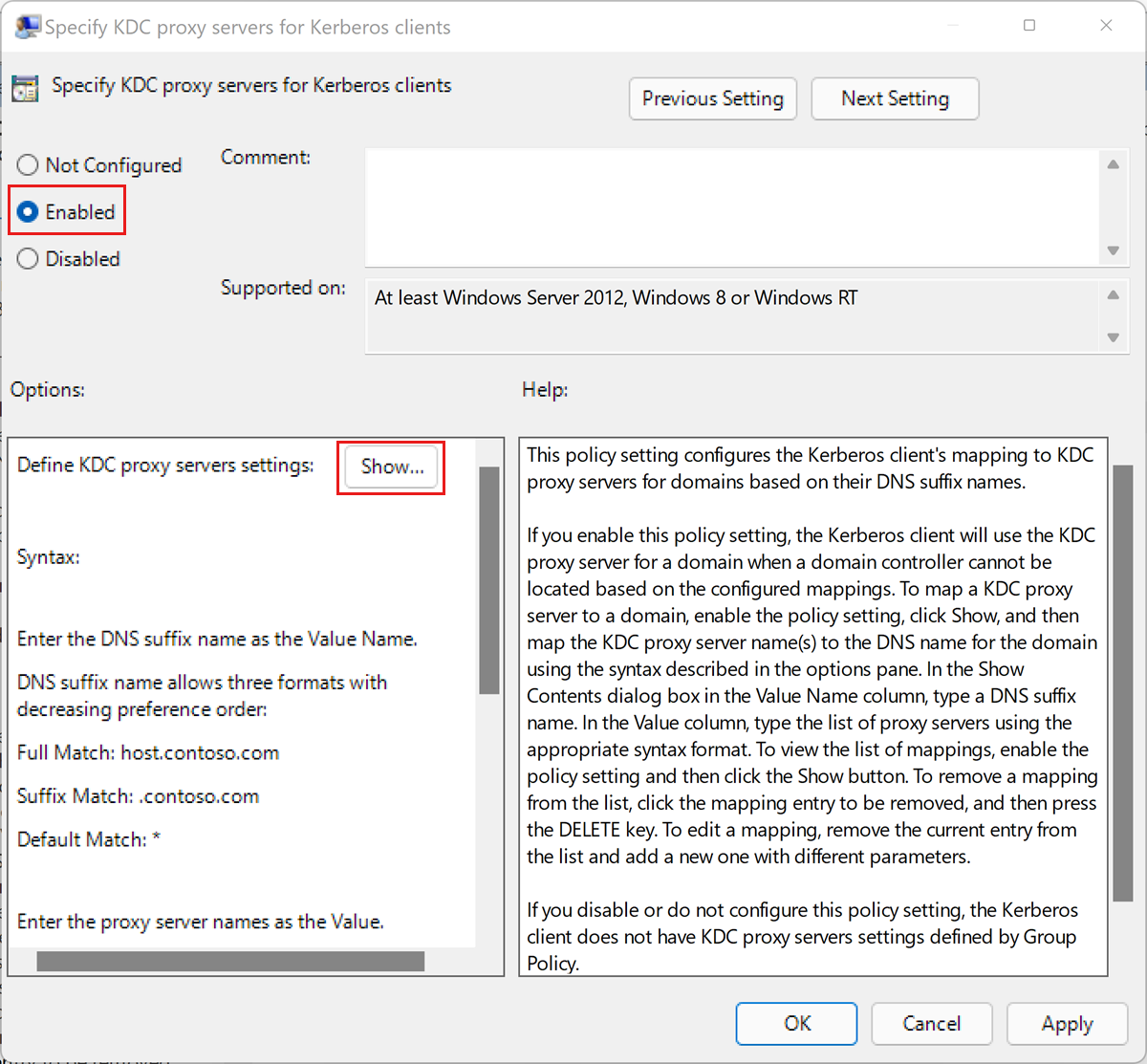
Edit the Administrative Templates\System\Kerberos\Specify KDC proxy servers for Kerberos clients policy setting.
- If the policy is Not Configured, go to step e.
- If the policy is Disabled, select Enabled.
Under Options, select Show.... This opens the Show Contents dialog box.
Define the KDC proxy servers setting by using the following mapping. Replace
your_Microsoft Entra_tenant_idwith your Microsoft Entra tenant ID. A blank space appears after https and before the closing / in the value mapping.Value name Value KERBEROS.MICROSOFTONLINE.COM https login.partner.microsoftonline.cn:443:your_Microsoft Entra_tenant_id/kerberos /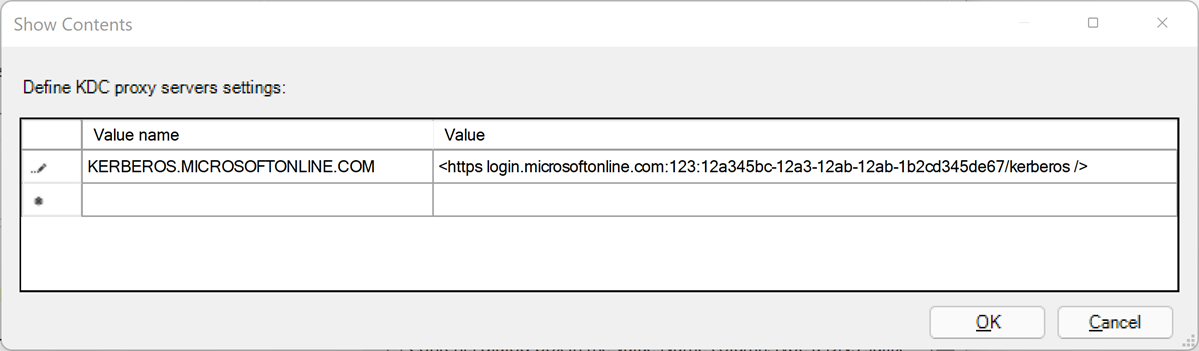
Select OK to close the Show Contents dialog box.
In the Specify KDC proxy servers for Kerberos clients dialog box, select Apply.
Configure Microsoft Entra Device Registration Service Principal
Install Microsoft Entra PowerShell.
Open an elevated PowerShell session by choosing Run as administrator.
Run the following PowerShell command and authenticate by using a Microsoft Entra account with the Application Administrator role.
Connect-Entra -Environment China -ClientId 'YOUR_CLIENT_ID' -TenantId 'YOUR_TENANT_ID' -Scopes "Application.ReadWrite.All"Run the following command to check your service principal settings:
$drsSP = Get-EntraServicePrincipal -Filter "AppId eq '01cb2876-7ebd-4aa4-9cc9-d28bd4d359a9'"
$drsSP.ServicePrincipalNames
Check the displayed service principal names. If
adrs/enterpriseregistration.partner.microsoftonline.cnisn't listed, run the following command to add it:$spns = [System.Collections.Generic.List[string]]::new($drsSP.ServicePrincipalNames) $kerbSpn = "adrs/enterpriseregistration.partner.microsoftonline.cn" $spns.Add($kerbSpn) Set-EntraServicePrincipal -ObjectId $drsSp.ObjectId -ServicePrincipalNames $spns $drsSP.ServicePrincipalNamesNote
Check the displayed service principal names again. The
adrs/enterpriseregistration.partner.microsoftonline.cnservice principal name should be listed. Azure for Microsoft sovereign clouds have different service principal names.Run the following command to check the tags of the service principal:
$drsSP.TagsCheck the displayed tags. If
KerberosPolicy:ExchangeForJwtisn't listed, run the following command to add it.$tags = [System.Collections.Generic.List[string]]::new($drsSP.Tags) $tags.Add("KerberosPolicy:ExchangeForJwt") Set-EntraServicePrincipal -ObjectId $drsSP.ObjectId -Tags $tags
Or you can run the following script:
# Use specific environment for your sovereign cloud
# Run Get-EntraEnvironment to retrieve the list of predefined environments

Connect-Entra -Environment China -ClientId 'YOUR_CLIENT_ID' -TenantId 'YOUR_TENANT_ID' -Scopes "Application.ReadWrite.All"

# Get the service principal

$drsSP = Get-EntraServicePrincipal -Filter "AppId eq '01cb2876-7ebd-4aa4-9cc9-d28bd4d359a9'"

# Prepare both updates

$needsUpdate = $false
$spns = [System.Collections.Generic.List[string]]::new($drsSP.ServicePrincipalNames)
$tags = [System.Collections.Generic.List[string]]::new($drsSP.Tags)

# Configure Kerberos SPN

$kerbSpn = "adrs/enterpriseregistration.partner.microsoftonline.cn"
if ($drsSP.ServicePrincipalNames -notcontains $kerbSpn) {
Write-Host "Kerberos SPN needs to be added"
$spns.Add($kerbSpn)
$needsUpdate = $true

}

# Configure Kerberos policy tag

$kerberosTag = "KerberosPolicy:ExchangeForJwt"
if ($drsSP.Tags -notcontains $kerberosTag) {
Write-Host "Kerberos policy tag needs to be added"
$tags.Add($kerberosTag)
$needsUpdate = $true

}

# Single update operation

if ($needsUpdate) {
Write-Host "Updating service principal configuration..."
Set-EntraServicePrincipal -ObjectId $drsSP.Id -ServicePrincipalNames $spns -Tags $tags
Write-Host "Service principal configuration updated successfully"
} else {
Write-Host "Service principal already configured correctly"

}

# Display final configuration

$drsSP = Get-EntraServicePrincipal -Filter "AppId eq '01cb2876-7ebd-4aa4-9cc9-d28bd4d359a9'"
Write-Host "`nFinal Configuration:"
Write-Host "SPNs:"
$drsSP.ServicePrincipalNames | ForEach-Object { Write-Host " $_" }
Write-Host "Tags:"
$drsSP.Tags | ForEach-Object { Write-Host " $_" }
Deploy a domain controller that runs Windows Server 2025
Follow these instructions to deploy a domain controller to your domain. Make sure the domain controller runs Windows Server 2025 build 26100.6905 or later.
Note
You need to install a domain controller that runs Windows Server 2025 in every domain that you want to perform Microsoft Entra hybrid join using Microsoft Entra Kerberos.
Configure the client computer for Microsoft Entra Kerberos join
- Deploy Windows 11 build 26100.6584 or later on a client computer, or use Windows update to update your existing Windows 11 client computer.
- Join the client computer to the Active Directory domain and restart it.
FAQ
Question: Can Microsoft Entra hybrid join using Entra Kerberos fail?
Answer: A failure can occur if network connectivity is impeded with the domain controller that runs Windows Server 2025 during join, or if other prerequisites are incomplete.
Troubleshooting
For help with troubleshooting errors, you can follow these articles:
To collect Kerberos logs, follow these steps:
Download and unzip the logging scripts from https://aka.ms/authscripts.
If you have multiple domain controllers that run Windows Server 2025, disable KDC services on all of them except one. Run the following command to stop the KDC service on a domain controller:
net stop kdcOn the remaining domain controller that runs Windows Server 2025 with the KDC service running, open a PowerShell window with administrator privileges, run the following script:
start-auth.ps1On your client computer, open a PowerShell window with administrator privileges, run the following script:
start-auth.ps1On your client computer, open a cmd window with administrator privileges, run the following command:
dsregcmd /joinOn your client computer, in the PowerShell window, run the following script:
stop-auth.ps1On your domain controller that runs Windows Server 2025 with the KDC service running, in the PowerShell window, run the following script:
stop-auth.ps1You can restart KDC services on your extra domain controllers that run Windows Server 2025. Run the following command to start the KDC service on a domain controller:
net start kdc
Kerberos errors
| Error code | Description | Reason | Resolution |
|---|---|---|---|
| DSREG_TOKEN_MISSING_ON_PREM_ID(0x801c0095) | The token doesn't contain an on-premises ID. | The Kerberos ticket from the on-premises Kerberos authority doesn't contain information required by Microsoft Entra ID. | On every domain controller that runs Windows Server 2025 within the Active Directory domain, run the tool EnableKerbHaadj.exe and restart. |
| SEC_E_NO_AUTHENTICATING_AUTHORITY(0x80090311) | No authority could be contacted for authentication. | No functional domain controller that runs Windows Server 2025 can be contacted. | Install at least one domain controller that runs Windows Server 2025 in the Active Directory domain. Run the tool EnableKerbHaadj.exe and restart. Make sure the KDC service is running on this domain controller, and this domain controller can be contacted by the computer trying to perform the hybrid join. Run dcdiag.exe on the domain controller and make sure it's advertising itself. |
| SEC_E_TARGET_UNKNOWN (0x80090303) error code in Kerberos event log: KDC_ERR_S_PRINCIPAL_UNKNOWN (0x7) | The specified target is unknown or unreachable. | ||
| SEC_E_LOGON_DENIED (0x8009030c) error code in Kerberos event log: KDC_ERR_NULL_KEY (0x9) | The logon attempt failed. Kerberos error: No KerberosKeyInformation Keys found. |
Kerberos key for the Microsoft Entra device registration service principal isn't found. | Add the tag KerberosPolicy:ExchangeForJwt to the service principal. |