Note
Access to this page requires authorization. You can try signing in or changing directories.
Access to this page requires authorization. You can try changing directories.
Kubernetes network policies are essential for controlling component-level communication in many modern, microservices-based applications. This article shows you how to create and manage network policies for AKS clusters directly in the Azure portal.
For more information on network policies, you can visit the Kubernetes documentation or review the Best practices for network policies in Azure Kubernetes Service (AKS).
Prerequisites
An AKS cluster with a network policy engine installed. If you don't have one, see Enable a network policy engine on an Azure Kubernetes Service (AKS) cluster.
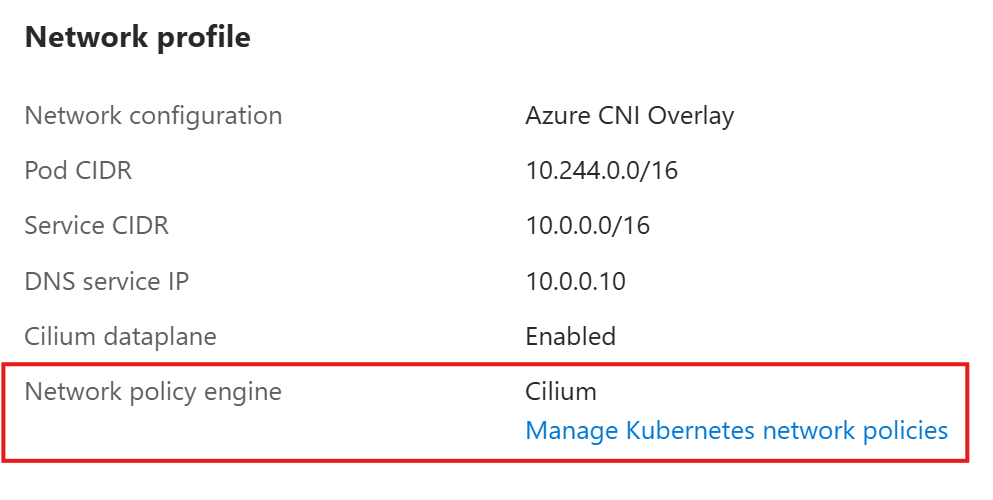
To confirm whether your cluster has a managed network policy engine installed, go to the Azure portal and navigate to your AKS cluster resource. From the service menu, select Networking. Under the Network profile, verify you have a Network policy engine. For example:
Create a network policy
- In the Azure portal, navigate to your AKS cluster resource.
- From the service menu, under Kubernetes resources, select Network policies.
- Select + Create > Network policy.
Define a policy scope
On the Create a network policy page, update the following fields:
- Name
- Namespace
- Pod selector
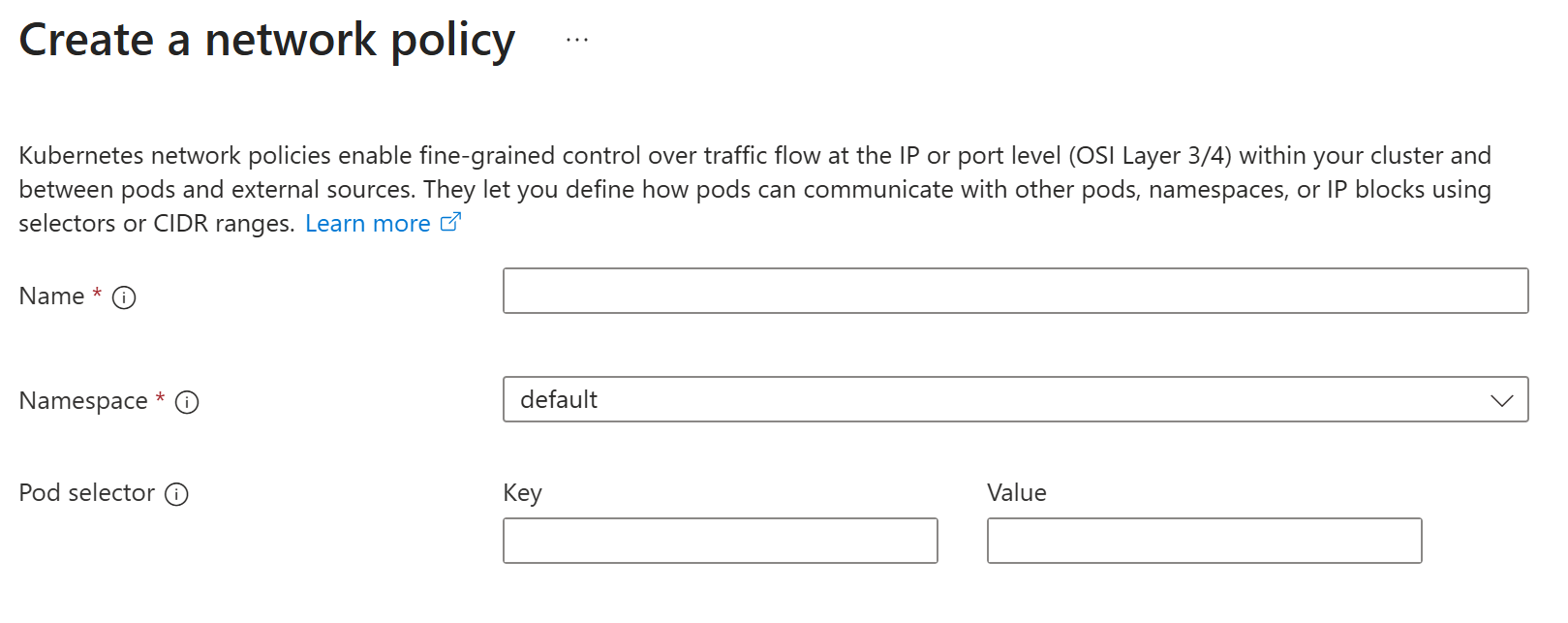
This network policy affects any traffic to or from pods that fall under specified pod selectors in your namespace. If you don't provide a selector, all pods in the specified namespace fall under your policy scope. Your network policy resource is also created in this namespace.
Add policy rules
Note
If you don't add any rules before creating your network policy, Kubernetes automatically denies all ingress traffic to pods in your policy scope.
On the Create a network policy page, under Policy rules, select + Add rule.
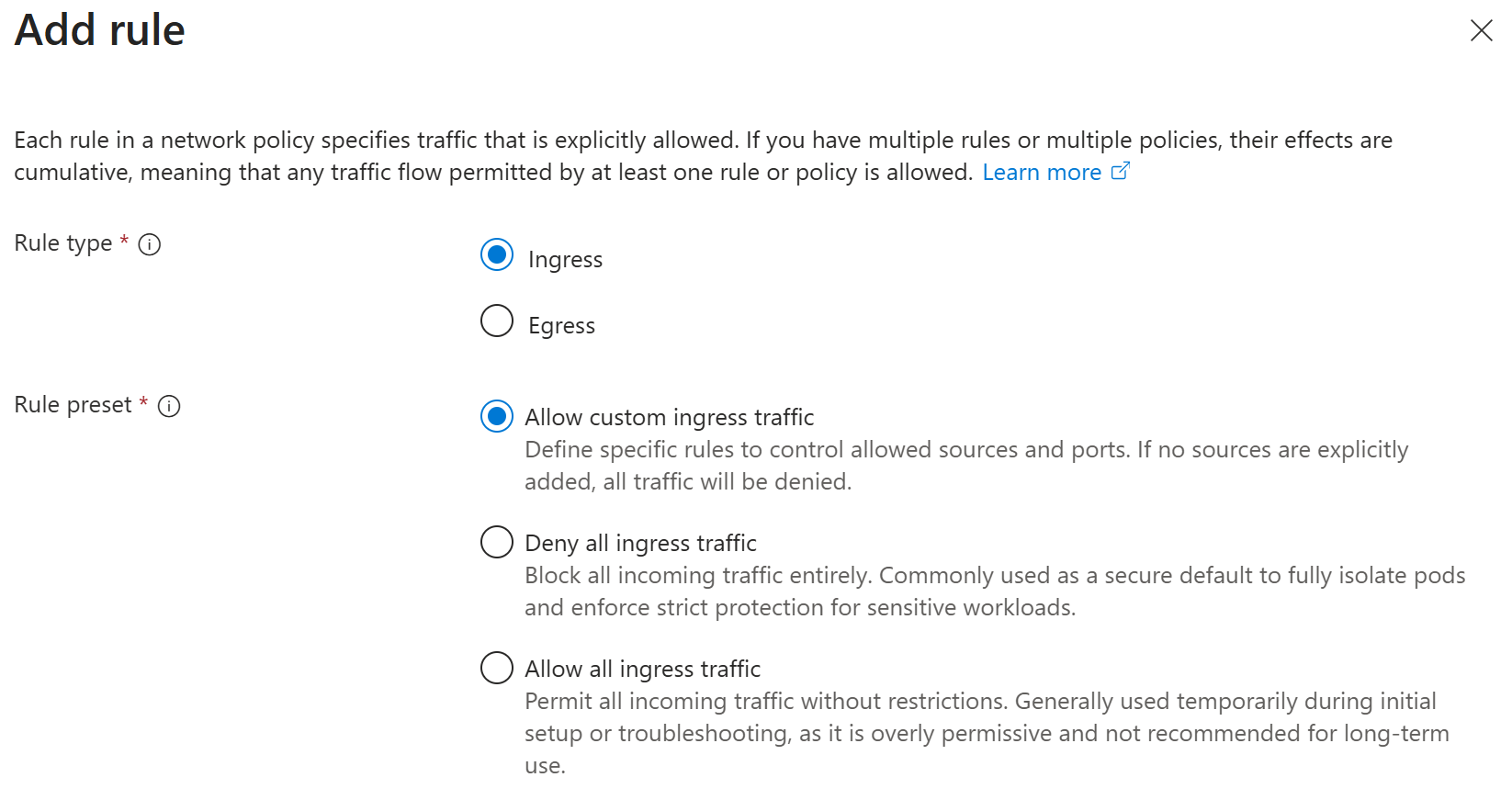
On the Add rule page, select your Rule type and Rule preset. Each rule can apply to ingress or egress traffic. To control both ingress and egress traffic in one policy, you can add multiple rules. You can also apply rule presets to allow or deny all ingress or egress traffic. For more granular control, you can select Allow custom traffic.
Add allowed sources or destinations
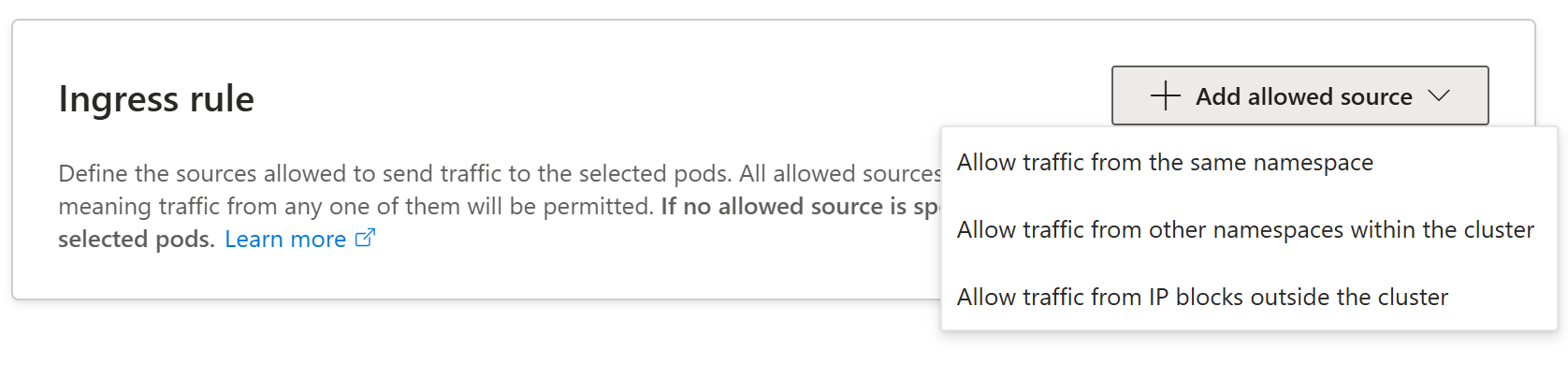
On the Add rule page, select either + Add allowed source or + Add allowed destination depending on your rule type (ingress or egress).
Select one of the following options for an allowed source or destination for Kubernetes network policies:
Allow traffic from the same namespace
Allow traffic from other namespaces within the cluster
Allow traffic from IP blocks outside the cluster
Important
We don't recommend identifying pods using pod IP addresses as these IP addresses are ephemeral in nature. Instead, use pod selectors and/or namespace selectors to specify targeted pods.
Note
If you select Allow custom traffic without specifying any allowed sources or destinations, Kubernetes interprets this rule as denying all traffic for your selected rule type (ingress/egress).
Configure settings for the allowed source or destination option you selected:
- To target specific pods, you can apply a pod selector with the appropriate key-value identifiers. If this pod selector is left blank or you select Allow all pods, all pods in specified namespaces are targeted.
- To target other namespaces in the cluster, you can apply a namespace selector and pod selector that function independently to select specific combinations of namespaces and pods. To target all pods in all namespaces, select Allow traffic from other namespaces within the cluster, Allow all namespaces, and Allow all pods.
- To allow traffic from or to external IP addresses, you can specify a specific IP block or CIDR with optional excluded addresses or ranges. Similarly to the pod and namespace selectors, if the CIDR field is left blank, all external IP addresses are allowed.
Important
Any selector fields left blank under a source or destination allow traffic to or from all entities of this type (IP addresses, namespaces, pods, etc.). To prevent unintentionally allowing any traffic, delete any sources or destinations that shouldn't be allowed.

Specify allowed ports
On the Add rule page, under Ports, the Allow all ports option is selected by default. This setting permits traffic on all ports. If you want to specify which ports can receive or send traffic, deselect Allow all ports, select a Protocol, and optionally enter a Port or port range.
Important
When restricting outbound egress communication, make sure that all Azure or AKS required traffic is explicitly allowed. These requirements might differ based on your cluster configurations. For more information, see Outbound network and FQDN rules for Azure Kubernetes Service (AKS) clusters.
Select Add.
Manage network policies
Once you create your network policy, you can view your existing policies by selecting Network policies from the service menu. From here, you can create another network policy, delete network policies, or view more details about your network policy resources by selecting the policy.

Frequently asked questions (FAQ)
What happens if I have multiple policies enabled that allow different traffic streams? Does one policy override another?
Kubernetes network policies are additive in effect. For example, if one policy allows ingress from pods in namespace A, and another policy allows ingress from pods in namespace B, ingress from pods in both namespaces A and B is allowed. As long as the traffic is permitted by at least one policy, it's allowed.
Are CiliumNetworkPolicy or CiliumClusterWideNetworkPolicy resources supported?
At this time, the Azure portal only supports Kubernetes NetworkPolicy creation and management: Layer 3 and Layer 4 policy control. To learn more about advanced container network security for AKS, see What is Container Network Security?
What happens if I create a network policy without a network policy engine installed?
You can create network policies without a network policy engine on your AKS cluster. However, these policies aren't enforced until you install a network policy engine. For more information, see Secure traffic between pods using network policies in Azure Kubernetes Service (AKS).