Note
Access to this page requires authorization. You can try signing in or changing directories.
Access to this page requires authorization. You can try changing directories.
You can use the Azure CLI to enable the application gateway ingress controller (AGIC) add-on for a new Azure Kubernetes Services (AKS) cluster.
In this tutorial, you'll create an AKS cluster with the AGIC add-on enabled. Creating the cluster will automatically create an Azure application gateway instance to use. You'll then deploy a sample application that will use the add-on to expose the application through application gateway.
The add-on provides a much faster way to deploy AGIC for your AKS cluster than previously through Helm. It also offers a fully managed experience.
In this tutorial, you learn how to:
- Create a resource group.
- Create a new AKS cluster with the AGIC add-on enabled.
- Deploy a sample application by using AGIC for ingress on the AKS cluster.
- Check that the application is reachable through application gateway.
If you don't have an Azure account, create a trial account before you begin.
Prerequisites
If you prefer to run CLI reference commands locally, install the Azure CLI. If you're running on Windows or macOS, consider running Azure CLI in a Docker container. For more information, see How to run the Azure CLI in a Docker container.
If you're using a local installation, sign in to the Azure CLI by using the az login command. To finish the authentication process, follow the steps displayed in your terminal. For other sign-in options, see Sign in with the Azure CLI.
When you're prompted, install the Azure CLI extension on first use. For more information about extensions, see Use extensions with the Azure CLI.
Run az version to find the version and dependent libraries that are installed. To upgrade to the latest version, run az upgrade.
Create a resource group
In Azure, you allocate related resources to a resource group. Create a resource group by using az group create. The following example creates a resource group named myResourceGroup in the China North 2 location (region):
az group create --name myResourceGroup --location chinanorth2
Deploy an AKS cluster with the add-on enabled
You'll now deploy a new AKS cluster with the AGIC add-on enabled. If you don't provide an existing application gateway instance to use in this process, you'll automatically create and set up a new application gateway instance to serve traffic to the AKS cluster.
Note
The application gateway ingress controller add-on supports only application gateway v2 SKUs (Standard and WAF), and not the application gateway v1 SKUs. When you're deploying a new application gateway instance through the AGIC add-on, you can deploy only an application gateway Standard_v2 SKU. If you want to enable the add-on for an application gateway WAF_v2 SKU, use either of these methods:
- Enable WAF on application gateway through the portal.
- Create the WAF_v2 application gateway instance first, and then follow instructions on how to enable the AGIC add-on with an existing AKS cluster and existing application gateway instance.
In the following example, you'll deploy a new AKS cluster named myCluster by using Azure CNI and managed identities. The AGIC add-on will be enabled in the resource group that you created, myResourceGroup.
Deploying a new AKS cluster with the AGIC add-on enabled without specifying an existing application gateway instance will automatically create a Standard_v2 SKU application gateway instance. You'll need to specify a name and subnet address space for the new application gateway instance. The address space must be from 10.224.0.0/12 prefix used by the AKS virtual network without overlapping with 10.224.0.0/16 prefix used by the AKS subnet. In this tutorial, use myApplicationGateway for the application gateway name and 10.225.0.0/16 for its subnet address space.
az aks create -n myCluster -g myResourceGroup --network-plugin azure --enable-managed-identity -a ingress-appgw --appgw-name myApplicationGateway --appgw-subnet-cidr "10.225.0.0/16" --generate-ssh-keys
Enable the add-on for the existing AKS cluster
You already have an existing AKS cluster and will enable the AGIC add-on. The add-on can be enabled either through the Azure portal or by using the Azure CLI.
In this page in the screenshot, you can create it simply by selecting the checkbox. If you want to specify a subnet prefix, select Create new and configure it manually.
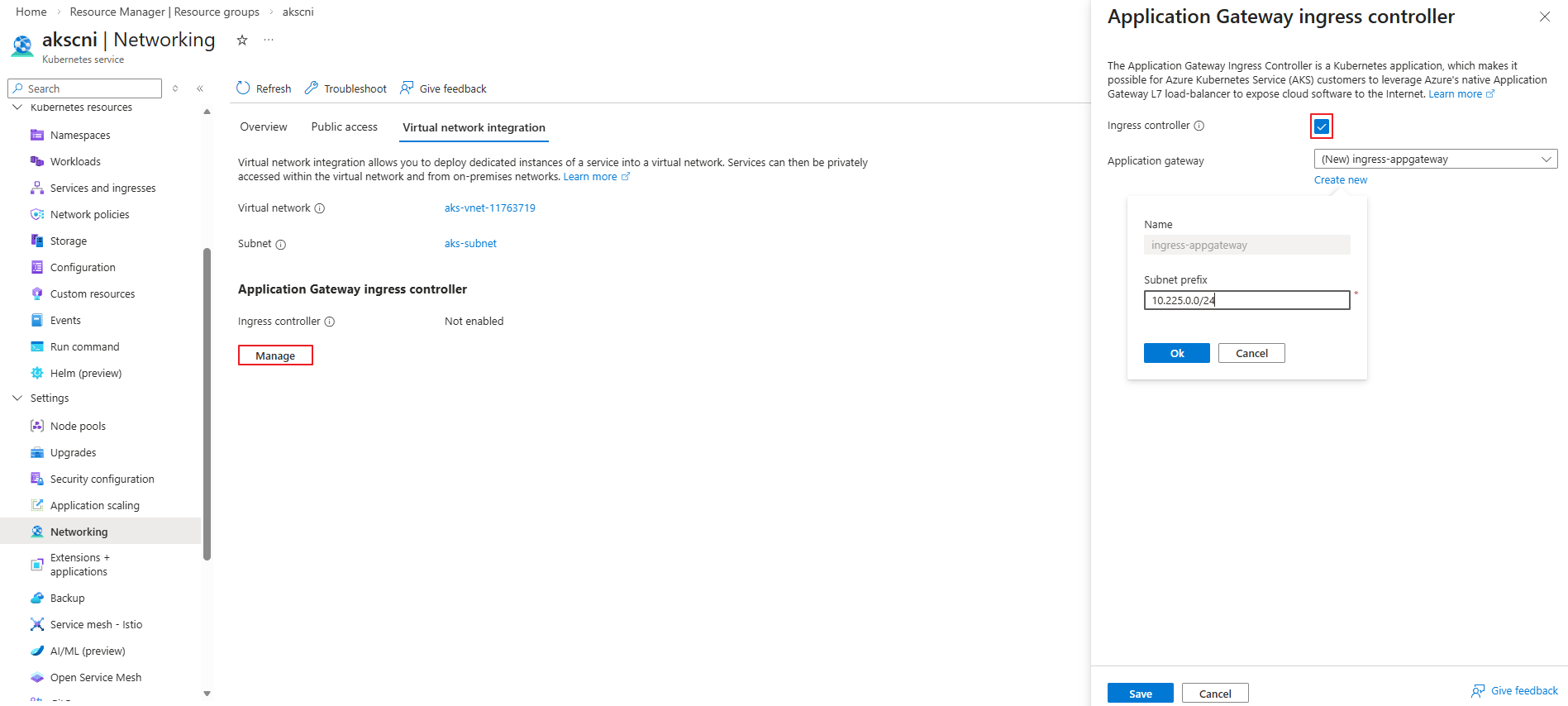
In most cases, enabling the add-on automatically assigns the required permissions. However, depending on the environment, the permissions may not be granted automatically. In such cases, you should verify the permissions and assign them manually if necessary.
Note
Please ensure the identity used by AGIC has the proper permissions. A list of permissions needed by the identity can be found here: Configure Infrastructure - Permissions. If a custom role is not defined with the required permissions, you may use the Network Contributor role.
# Get application gateway id from AKS addon profile
appGatewayId=$(az aks show -n myCluster -g myResourceGroup -o tsv --query "addonProfiles.ingressApplicationGateway.config.effectiveApplicationGatewayId")

# Get Application Gateway subnet id
appGatewaySubnetId=$(az network application-gateway show --ids $appGatewayId -o tsv --query "gatewayIPConfigurations[0].subnet.id")

# Get AGIC addon identity
agicAddonIdentity=$(az aks show -n myCluster -g myResourceGroup -o tsv --query "addonProfiles.ingressApplicationGateway.identity.clientId")

# Assign network contributor role to AGIC addon identity to subnet that contains the Application Gateway
az role assignment create --assignee $agicAddonIdentity --scope $appGatewaySubnetId --role "Network Contributor"
To configure more parameters for the above command, see az aks create.
Note
The AKS cluster that you created will appear in the resource group that you created, myResourceGroup. However, the automatically created application gateway instance will be in the node resource group, where the agent pools are. The node resource group is named MC_resource-group-name_cluster-name_location by default, but can be modified.
Deploy a sample application by using AGIC
You'll now deploy a sample application to the AKS cluster that you created. The application will use the AGIC add-on for ingress and connect the application gateway instance to the AKS cluster.
First, get credentials to the AKS cluster by running the az aks get-credentials command:
az aks get-credentials -n myCluster -g myResourceGroup
Now that you have credentials, run the following command to set up a sample application that uses AGIC for ingress to the cluster. AGIC will update the application gateway instance that you set up earlier with corresponding routing rules to the sample application you're deploying.
kubectl apply -f https://raw.githubusercontent.com/Azure/application-gateway-kubernetes-ingress/master/docs/examples/aspnetapp.yaml
Check that the application is reachable
Now that the application gateway instance is set up to serve traffic to the AKS cluster, let's verify that your application is reachable. First, get the IP address of the ingress:
kubectl get ingress
Check that the sample application that you created is running by either:
- Visiting the IP address of the application gateway instance that you got from running the preceding command.
- Using
curl.
Application gateway might take a minute to get the update. If application gateway is still in an Updating state on the portal, let it finish before you try to reach the IP address.
Clean up resources
When you no longer need them, delete all resources created in this tutorial by deleting myResourceGroup and MC_myResourceGroup_myCluster_chinanorth2 resource groups:
az group delete --name myResourceGroup
az group delete --name MC_myResourceGroup_myCluster_chinanorth2
Next steps
In this tutorial, you:
- Created new AKS cluster with the AGIC add-on enabled
- Deployed a sample application by using AGIC for ingress on the AKS cluster
To learn more about AGIC, see What is Application Gateway Ingress Controller and Disable and re-enable AGIC add-on for your AKS cluster.
To learn how to enable application gateway ingress controller add-on for an existing AKS cluster with an existing application gateway, advance to the next tutorial.