Note
Access to this page requires authorization. You can try signing in or changing directories.
Access to this page requires authorization. You can try changing directories.
In this article, you learn how to plan, install, and use Azure Managed Lustre in Azure Kubernetes Service (AKS) with the Azure Lustre CSI Driver for Kubernetes. This driver is based on the Container Support Interface (CSI) specification.
You can use the Azure Lustre CSI Driver for Kubernetes to access Azure Managed Lustre storage as persistent storage volumes from Kubernetes containers deployed in AKS.
Compatible Kubernetes versions
The Azure Lustre CSI Driver for Kubernetes is compatible with AKS. Other Kubernetes installations are not currently supported.
AKS Kubernetes versions 1.21 and later are supported. This support includes all versions currently available when you're creating a new AKS cluster.
Important
Version 0.4.0 provides images for Ubuntu 22.04 (Ubuntu2204) and Ubuntu 24.04 (Ubuntu2404) node pools.
Compatible Lustre versions
The Azure Lustre CSI Driver for Kubernetes is compatible with Azure Managed Lustre. Other Lustre installations are not currently supported.
Azure Lustre CSI Driver Versions
This article documents v0.4.0, the latest generally available (GA) release. Use a versioned release instead of the main branch for production deployments.
Starting with v0.4.0, the driver uses separate node images for Ubuntu 22.04 (Jammy) and Ubuntu 24.04 (Noble). The installer deploys both node DaemonSets. Kubernetes schedules the appropriate driver pod by using the kubernetes.azure.com/os-sku-effective node label.
| Driver version | Image | AKS node OS SKU | Supported k8s version | Lustre client version | Dynamic Provisioning |
|---|---|---|---|---|---|
| v0.4.0 (Jammy) | mcr.microsoft.com/oss/v2/kubernetes-csi/azurelustre-csi:v0.4.0-jammy | Ubuntu2204; |
1.21+ | 2.15.7 | ✅ |
| v0.4.0 (Noble) | mcr.microsoft.com/oss/v2/kubernetes-csi/azurelustre-csi:v0.4.0-noble | Ubuntu2404 |
1.21+ | 2.16.1 | ✅ |
| v0.3.1 | mcr.microsoft.com/oss/v2/kubernetes-csi/azurelustre-csi:v0.3.1 | Ubuntu Linux | 1.21+ | 2.15.7 | ✅ |
| v0.3.0 | mcr.microsoft.com/oss/v2/kubernetes-csi/azurelustre-csi:v0.3.0 | Ubuntu Linux | 1.21+ | 2.15.5 | ✅ |
| v0.2.0 | mcr.microsoft.com/oss/v2/kubernetes-csi/azurelustre-csi:v0.2.0 | Ubuntu Linux | 1.21+ | 2.15.5 | ❌ |
| v0.1.18 | mcr.microsoft.com/oss/kubernetes-csi/azurelustre-csi:v0.1.18 | Ubuntu Linux | 1.21+ | 2.15.5 | ❌ |
| v0.1.17 | mcr.microsoft.com/oss/kubernetes-csi/azurelustre-csi:v0.1.17 | Ubuntu Linux | 1.21+ | 2.15.5 | ❌ |
| v0.1.15 | mcr.microsoft.com/oss/kubernetes-csi/azurelustre-csi:v0.1.15 | Ubuntu Linux | 1.21+ | 2.15.4 | ❌ |
| v0.1.14 | mcr.microsoft.com/oss/kubernetes-csi/azurelustre-csi:v0.1.14 | Ubuntu Linux | 1.21+ | 2.15.3 | ❌ |
| v0.1.13 | mcr.microsoft.com/oss/kubernetes-csi/azurelustre-csi:v0.1.13 | Ubuntu Linux | 1.21+ | 2.15.4 | ❌ |
| v0.1.12 | mcr.microsoft.com/oss/kubernetes-csi/azurelustre-csi:v0.1.12 | Ubuntu Linux | 1.21+ | 2.15.3 | ❌ |
| v0.1.11 | mcr.microsoft.com/oss/kubernetes-csi/azurelustre-csi:v0.1.11 | Ubuntu Linux | 1.21+ | 2.15.1 | ❌ |
| v0.1.10 | mcr.microsoft.com/oss/kubernetes-csi/azurelustre-csi:v0.1.10 | Ubuntu Linux | 1.21+ | 2.15.2 | ❌ |
For a complete list of all driver releases and their changelog, see the Azure Lustre CSI driver releases page.
Note
Version 0.4.0 requires AKS node pools that report the kubernetes.azure.com/os-sku-effective label, in addition to the Kubernetes version requirement shown in the table.
Prerequisites
- An Azure account with an active subscription. Create an account for trial.
- A terminal environment with the Azure CLI tools installed. See Get started with the Azure CLI.
- kubectl, the Kubernetes management tool, installed in your terminal environment. See Quickstart: Deploy an Azure Kubernetes Service (AKS) cluster by using the Azure CLI.
- An Azure Managed Lustre deployment. See the Azure Managed Lustre documentation.
- Network connectivity between your AKS cluster and Azure Managed Lustre virtual network. See network architecture planning below for configuration options.
Plan your AKS deployment
When you're deploying Azure Kubernetes Service, several options affect the operation between AKS and Azure Managed Lustre.
Determine the network type to use with AKS
AKS supports multiple networking models, each with different capabilities and use cases. All networking models work with the Azure Lustre CSI Driver for Kubernetes, but they have different requirements for virtual networking and cluster setup.
For comprehensive information about choosing the right networking model for your specific requirements, see Azure Kubernetes Service CNI networking overview.
When creating an AKS cluster in the Azure portal, you'll see the following networking options:
Recommended Options:
Azure CNI Overlay (Recommended)
- Conserves VNet IP address space by using logically separate CIDR ranges for pods
- Supports maximum cluster scale (5000 nodes and 250 pods per node)
- Simple IP address management
- Best choice for most scenarios
Azure CNI Pod Subnet
- Pods get full VNet connectivity and can be directly reached via their private IP address
- Requires larger, non-fragmented VNet IP address space
- Choose this if you need direct external access to pod IPs
Legacy Options (Not Recommended for New Deployments):
Azure CNI Node Subnet (Legacy)
- Limited scale and inefficient use of VNet IPs
- Only recommended if you specifically need a managed VNet for your cluster, see AKS Legacy Container Networking Interfaces (CNI)
Kubenet (Retiring)
- Being retired March 31, 2028. For more information, see AKS use Kubenet.
- Limited scale and requires manual route management
- Plan to migrate to Azure CNI Overlay before the retirement date
For detailed information on networking models, see Azure Kubernetes Service CNI networking overview.
Determine the network architecture for interconnectivity of AKS and Azure Managed Lustre
Azure Managed Lustre operates within a private virtual network. Your AKS instance must have network connectivity to the Azure Managed Lustre virtual network. There are two common ways to configure the networking between Azure Managed Lustre and AKS:
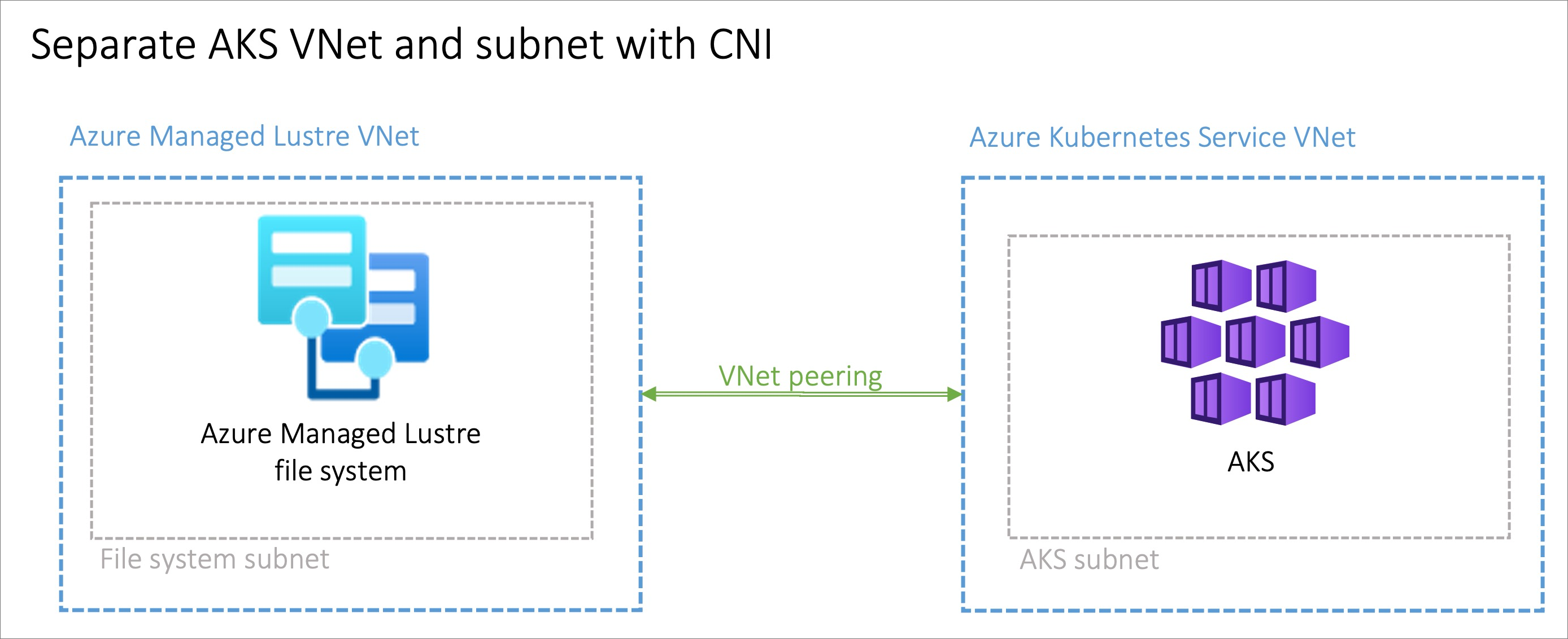
- Install AKS in its own virtual network and create a virtual network peering with the Azure Managed Lustre virtual network.
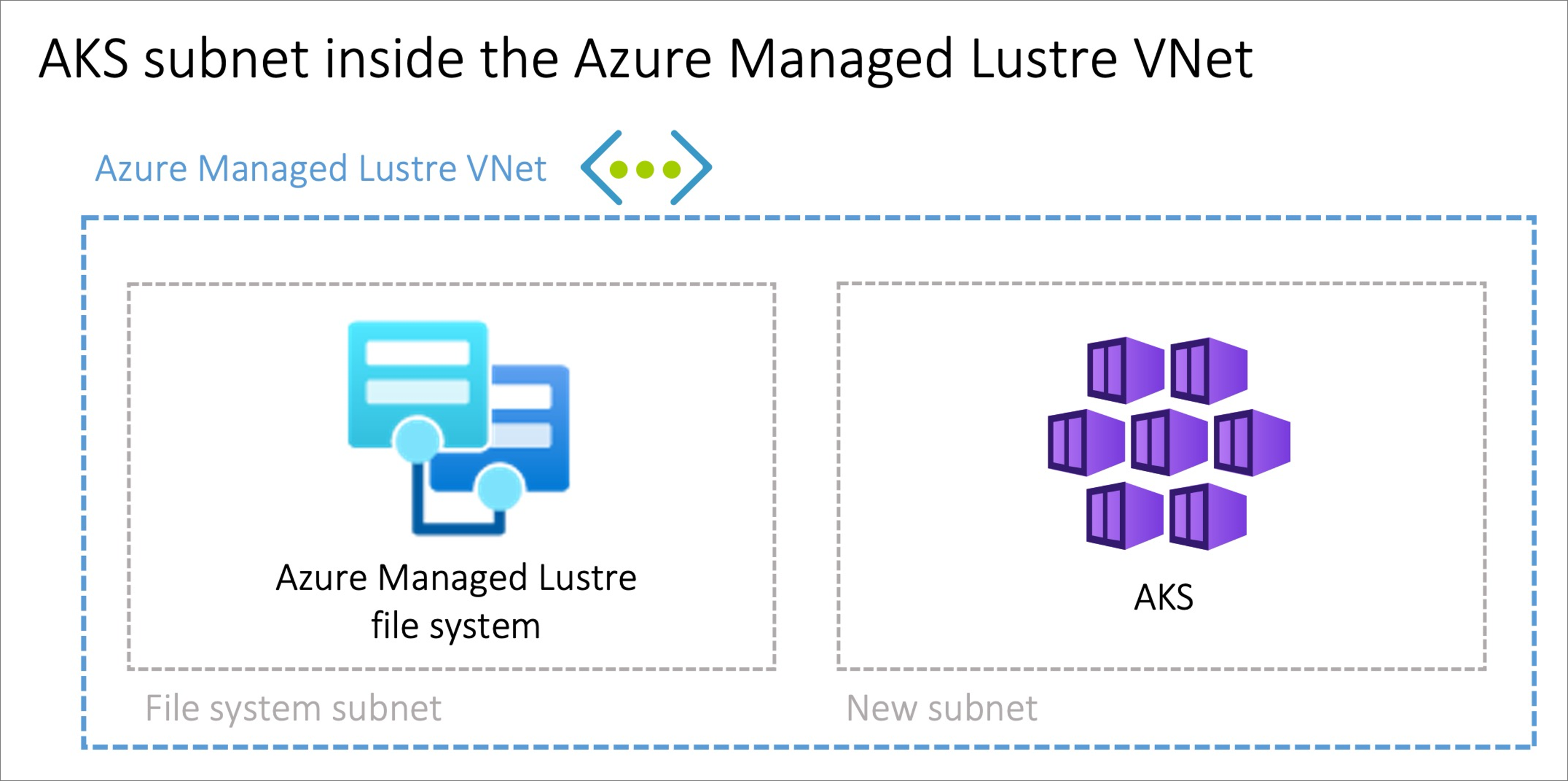
- Use the Bring your own Azure virtual network option in AKS to install AKS in a new subnet on the Azure Managed Lustre virtual network.
Note
We don't recommend that you install AKS in the same subnet as Azure Managed Lustre.
Peering AKS and Azure Managed Lustre virtual networks
The option to peer two virtual networks has the advantage of separating the management of the networks into different privileged roles. Peering can also provide additional flexibility, because you can implement it across Azure subscriptions or regions. Virtual network peering requires coordination between the two networks to avoid choosing conflicting IP network spaces.
Installing AKS in a subnet on the Azure Managed Lustre virtual network
The option to install the AKS cluster in the Azure Managed Lustre virtual network with the Bring your own Azure virtual network feature in AKS can be advantageous in scenarios where the network is managed singularly. You'll need to create an additional subnet, sized to meet your AKS networking requirements, in the Azure Managed Lustre virtual network.
There is no privilege separation for network management when you're provisioning AKS on the Azure Managed Lustre virtual network. The AKS service principal needs privileges on the Azure Managed Lustre virtual network.
Provisioning Methods
The Azure Lustre CSI Driver supports two provisioning methods:
Dynamic Provisioning (Available in v0.3.0+)
Dynamic provisioning allows the CSI driver to automatically create Azure Managed Lustre file systems on-demand when persistent volume claims are created.
Note
Dynamic provisioning is available starting with Azure Lustre CSI Driver version 0.3.0. For more information, see the v0.3.0 release notes.
Static Provisioning
Static provisioning uses an existing Azure Managed Lustre file system. This method involves:
- Creating storage classes that reference existing Lustre clusters
- Manually specifying the Lustre file system name and MGS IP address
- Suitable for scenarios where you have preexisting Lustre infrastructure
Choose the method that best fits your use case. Dynamic provisioning is documented first below, followed by static provisioning instructions.
Dynamic Provisioning
Dynamic provisioning automatically creates Azure Managed Lustre file systems on-demand when persistent volume claims are created. This feature became available in CSI driver version 0.3.0.
Prerequisites for dynamic provisioning
Permissions
Important
Before using this CSI driver to dynamically create Azure Managed Lustre clusters, the kubelet identity must have the correct permissions granted to it.
The kubelet identity requires the following permissions:
- Read and write access to the resource group where clusters will be created
- Network permissions to create and manage subnets if needed
- Azure Managed Lustre service permissions
For detailed permission requirements, see the v0.4.0 Driver Parameters documentation.
Network requirements
- An existing virtual network and subnet for the Azure Managed Lustre cluster
- Sufficient IP addresses available in the subnet for the cluster
- Proper network security group rules to allow Lustre traffic
Create an AKS cluster for dynamic provisioning
If you haven't already created your AKS cluster, create a cluster deployment. See Deploy an Azure Kubernetes Service (AKS) cluster by using the Azure portal.
Create a virtual network peering for dynamic provisioning
Note
Skip this network peering step if you installed AKS in a subnet on the Azure Managed Lustre virtual network.
The AKS virtual network is created in a separate resource group from the AKS cluster's resource group. You can find the name of this resource group by going to your AKS cluster in the Azure portal, going to Properties, and finding the Infrastructure resource group. This resource group contains the virtual network that needs to be paired with the Azure Managed Lustre virtual network. It matches the pattern MC_<aks-rg-name>_<aks-cluster-name>_<region>.
To peer the AKS virtual network with your Azure Managed Lustre virtual network, consult Virtual network peering.
Tip
Due to the naming of the MC_ resource groups and virtual networks, names of networks can be similar or the same across multiple AKS deployments. When you're setting up peering, be careful to choose the AKS networks that you intend to choose.
Connect to the AKS cluster for dynamic provisioning
Open a terminal session with access to the Azure CLI tools and sign in to your Azure account:
az loginSign in to the Azure portal.
Find your AKS cluster. On the Overview pane, select the Connect button, and then copy the command for Download cluster credentials.
In your terminal session, paste in the command to download the credentials. The command is similar to:
az aks get-credentials --subscription <AKS_subscription_id> --resource_group <AKS_resource_group_name> --name <name_of_AKS>Install kubectl if it's not present in your environment:
az aks install-cliVerify that the current context is the AKS cluster where you just installed the credentials and that you can connect to it:
kubectl config current-context
kubectl get deployments --all-namespaces=true
Install the driver for dynamic provisioning
To install the Azure Lustre CSI Driver for Kubernetes, run the following command:
curl -sSL --fail https://raw.githubusercontent.com/kubernetes-sigs/azurelustre-csi-driver/v0.4.0/deploy/install-driver.sh | bash -s v0.4.0
Important
Specify v0.4.0 in both the script URL and the script argument so the command installs the release described in this article. Without the argument, the installer can install a different release from the main branch.
For the corresponding source and deployment manifests, see the v0.4.0 release.
Create a Storage Class for dynamic provisioning
Create a file called storageclass_dynprov_lustre.yaml and copy in the following YAML. Edit the parameters as needed for your environment:
apiVersion: storage.k8s.io/v1
kind: StorageClass
metadata:
  name: azurelustre-dynprov
provisioner: azurelustre.csi.azure.com
parameters:
  sku-name: "AMLFS-Durable-Premium-125"  # Choose appropriate SKU
  zone: "1"  # Specify zone if required for your SKU/location
  maintenance-day-of-week: "Sunday"
  maintenance-time-of-day-utc: "22:00"
  location: "chinanorth3"  # Optional: defaults to AKS cluster location
  resource-group: "my-resource-group"  # Optional: defaults to AKS cluster RG
  vnet-name: "my-vnet"  # Optional: defaults to AKS cluster VNET
  subnet-name: "my-subnet"  # Optional: defaults to AKS cluster subnet
reclaimPolicy: Delete  # Change to "Retain" to keep clusters after PVC deletion
volumeBindingMode: Immediate
---
# Optional: Resource quota to limit number of clusters
apiVersion: v1
kind: ResourceQuota
metadata:
  name: pvc-lustre-dynprov-quota
spec:
  hard:
    azurelustre-dynprov.storageclass.storage.k8s.io/persistentvolumeclaims: "1"
Apply the Storage Class to your AKS cluster:
kubectl apply -f storageclass_dynprov_lustre.yaml
Create a Persistent Volume Claim for dynamic provisioning
Create a file called pvc_storageclass_dynprov.yaml and copy in the following YAML:
apiVersion: v1
kind: PersistentVolumeClaim
metadata:
  name: pvc-lustre-dynprov
spec:
  accessModes:
    - ReadWriteMany
  storageClassName: azurelustre-dynprov
  resources:
    requests:
      storage: 48Ti  # Minimum size for AMLFS-Durable-Premium-125
Apply the PVC to your AKS cluster:
kubectl apply -f pvc_storageclass_dynprov.yaml
Monitor cluster creation
The Azure Managed Lustre cluster creation may take 10 minutes or more. You can monitor the progress:
kubectl describe pvc pvc-lustre-dynprov
While creating, the status will be Pending with a message like:
Waiting for a volume to be created either by the external provisioner 'azurelustre.csi.azure.com'...
Once ready, it will have a Bound status with a success message.
Create a pod for dynamic provisioning
Create a file called pod_echo_date_dynprov.yaml and copy in the following YAML:
apiVersion: v1
kind: Pod
metadata:
  name: lustre-echo-date-dynprov
spec:
  containers:
  - image: mcr.microsoft.com/oss/nginx/nginx:1.15.5-alpine
    name: lustre-echo-date-dynprov
    command:
      - "/bin/sh"
      - "-c"
      - "while true; do echo $(date) >> /mnt/lustre/outfile; sleep 1; done"
    volumeMounts:
    - name: lustre-storage
      mountPath: /mnt/lustre
  volumes:
  - name: lustre-storage
    persistentVolumeClaim:
      claimName: pvc-lustre-dynprov
Apply the pod to your AKS cluster:
kubectl apply -f pod_echo_date_dynprov.yaml
Verify dynamic provisioning
After the pod is running, you can verify that the dynamically created Azure Managed Lustre file system is mounted correctly:
kubectl exec -it lustre-echo-date-dynprov -- df -h
You should see the Azure Managed Lustre file system mounted at /mnt/lustre.
Clean up dynamic resources
To delete the dynamically created resources:
kubectl delete pvc pvc-lustre-dynprov
If the storage class has reclaimPolicy: Delete, this will also delete the Azure Managed Lustre cluster. If set to Retain, you must delete the cluster manually when no longer needed.
Static Provisioning
Static provisioning allows you to use an existing Azure Managed Lustre file system with your AKS cluster by manually creating the necessary Kubernetes resources.
Prerequisites for static provisioning
- An existing Azure Managed Lustre file system. For more information on creating an Azure Managed Lustre file system, see Create an Azure Managed Lustre file system.
- The MGS IP address and internal file system name from your Azure Managed Lustre cluster
Create an Azure Managed Lustre file system cluster for static provisioning
If you haven't already created your Azure Managed Lustre file system cluster, create the cluster now. For instructions, see Create an Azure Managed Lustre file system by using the Azure portal. Static provisioning requires an existing Azure Managed Lustre file system.
Create an AKS cluster for static provisioning
If you haven't already created your AKS cluster, create a cluster deployment. See Deploy an Azure Kubernetes Service (AKS) cluster by using the Azure portal.
Create a virtual network peering for static provisioning
Note
Skip this network peering step if you installed AKS in a subnet on the Azure Managed Lustre virtual network.
The AKS virtual network is created in a separate resource group from the AKS cluster's resource group. You can find the name of this resource group by going to your AKS cluster in the Azure portal, going to Properties, and finding the Infrastructure resource group. This resource group contains the virtual network that needs to be paired with the Azure Managed Lustre virtual network. It matches the pattern MC_<aks-rg-name>_<aks-cluster-name>_<region>.
To peer the AKS virtual network with your Azure Managed Lustre virtual network, consult Virtual network peering.
Tip
Due to the naming of the MC_ resource groups and virtual networks, names of networks can be similar or the same across multiple AKS deployments. When you're setting up peering, be careful to choose the AKS networks that you intend to choose.
Connect to the AKS cluster for static provisioning
Open a terminal session with access to the Azure CLI tools and sign in to your Azure account:
az loginSign in to the Azure portal.
Find your AKS cluster. On the Overview pane, select the Connect button, and then copy the command for Download cluster credentials.
In your terminal session, paste in the command to download the credentials. The command is similar to:
az aks get-credentials --subscription <AKS_subscription_id> --resource_group <AKS_resource_group_name> --name <name_of_AKS>Install kubectl if it's not present in your environment:
az aks install-cliVerify that the current context is the AKS cluster where you just installed the credentials and that you can connect to it:
kubectl config current-context
kubectl get deployments --all-namespaces=true
Install the driver for static provisioning
To install the Azure Lustre CSI Driver for Kubernetes, run the following command:
curl -sSL --fail https://raw.githubusercontent.com/kubernetes-sigs/azurelustre-csi-driver/v0.4.0/deploy/install-driver.sh | bash -s v0.4.0
Important
Specify v0.4.0 in both the script URL and the script argument so the command installs the release described in this article. Without the argument, the installer can install a different release from the main branch.
For the corresponding source and deployment manifests, see the v0.4.0 release.
Create and configure a persistent volume for static provisioning
To create a persistent volume for an existing Azure Managed Lustre file system:
Copy the following configuration files from the /docs/examples/ folder in the v0.4.0 azurelustre-csi-driver source.
- storageclass_existing_lustre.yaml
- pvc_storageclass.yaml
If you don't want to clone the entire repository, you can download each file individually. Open each of the following links, copy the file's contents, and then paste the contents into a local file with the same file name.
In the storageclass_existing_lustre.yaml file, update the internal name of the Lustre cluster and the Lustre Management Service (MGS) IP address.
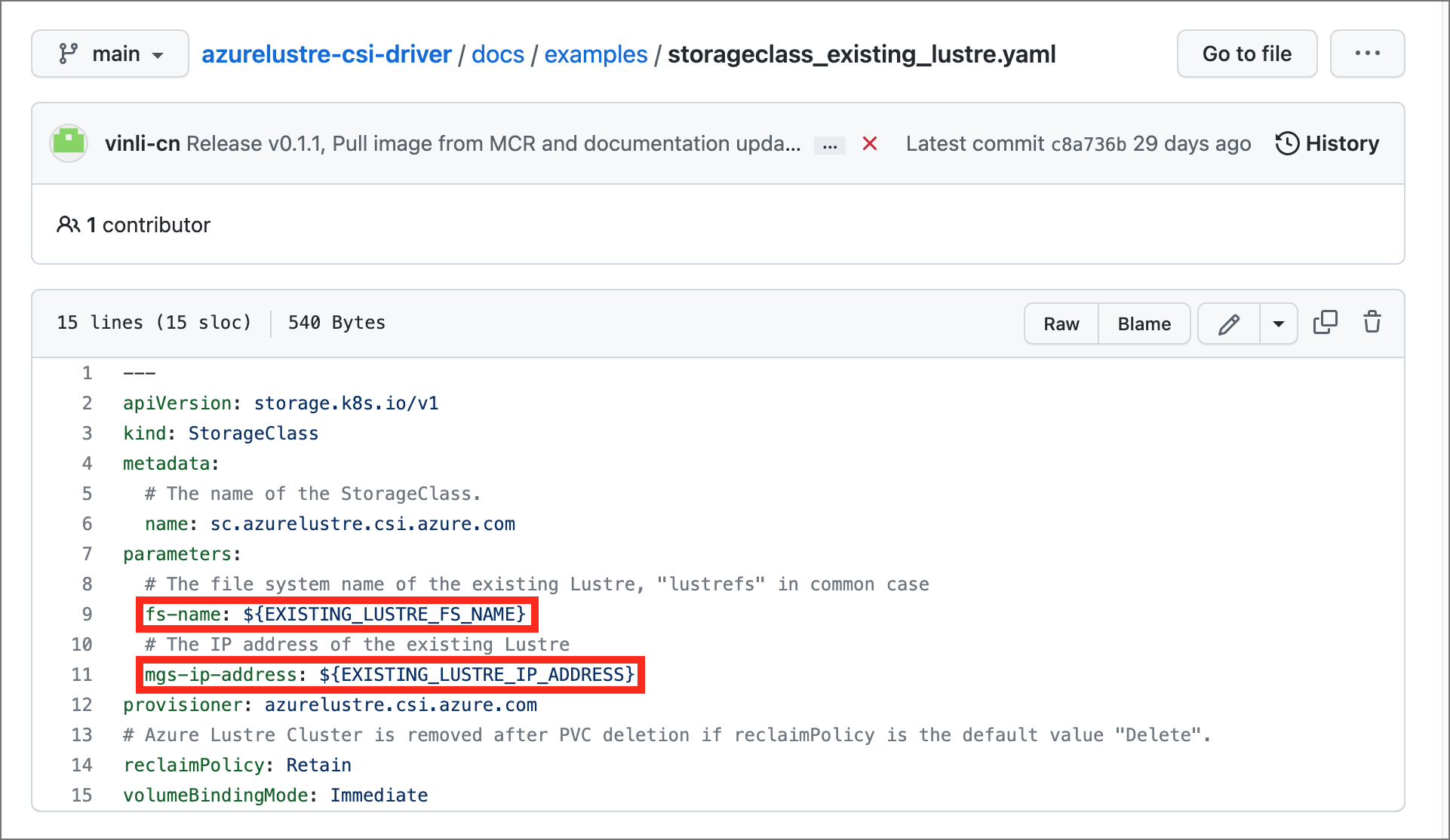
Both settings are displayed in the Azure portal, on the Client connection pane for your Azure Managed Lustre file system.
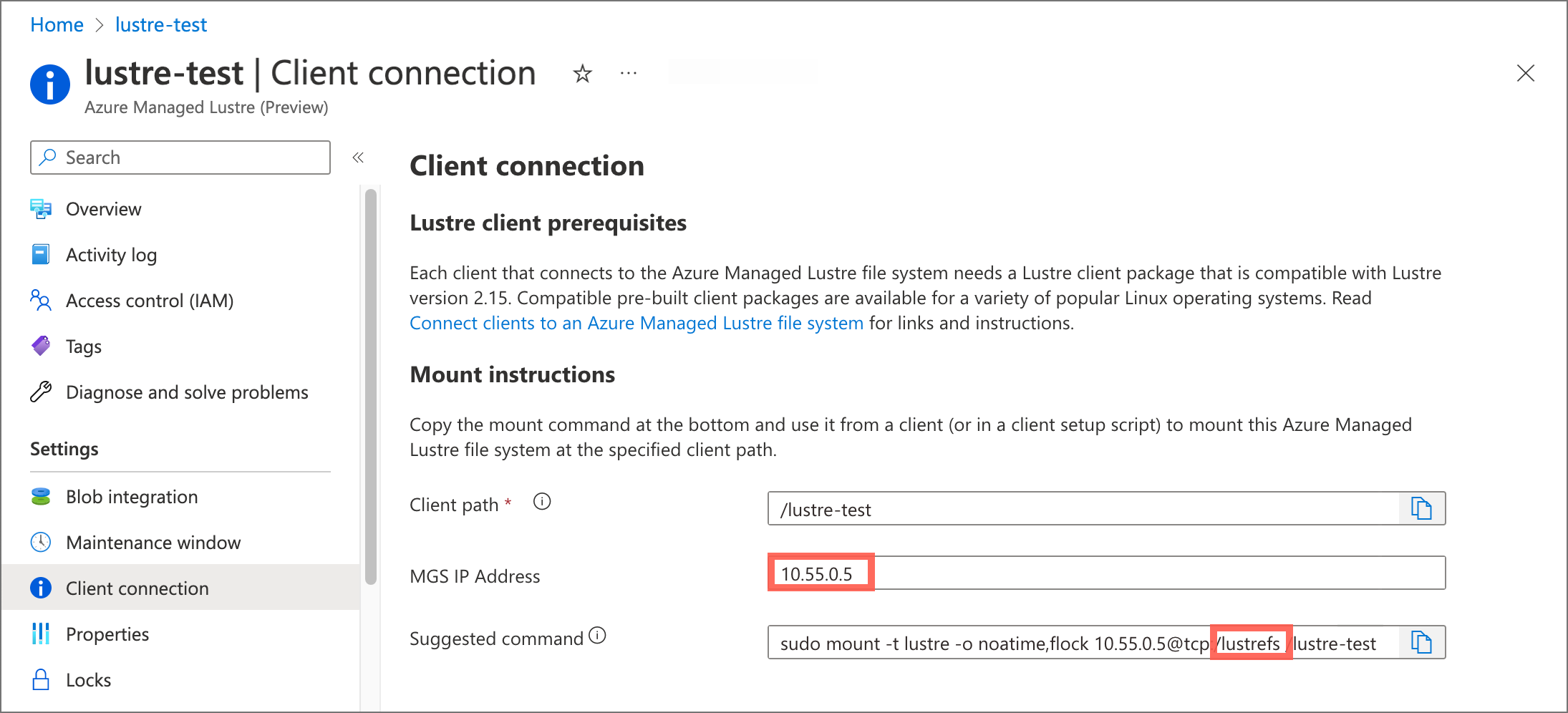
Make these updates:
Replace
EXISTING_LUSTRE_FS_NAMEwith the system-assigned internal name of the Lustre cluster in your Azure Managed Lustre file system. The internal name is usuallylustrefs. The internal name isn't the name that you gave the file system when you created it.The suggested
mountcommand includes the name highlighted in the following address string.
Replace
EXISTING_LUSTRE_IP_ADDRESSwith the MGS IP address.
To create the storage class and the persistent volume claim, run the following
kubectlcommand:kubectl create -f storageclass_existing_lustre.yaml kubectl create -f pvc_storageclass.yaml
Create a pod for static provisioning
Create a pod that uses the PVC to mount the Azure Managed Lustre file system.
Create a file called pod_echo_date.yaml and copy in the following YAML:
apiVersion: v1
kind: Pod
metadata:
  name: lustre-echo-date
spec:
  containers:
  - image: mcr.microsoft.com/oss/nginx/nginx:1.15.5-alpine
    name: lustre-echo-date
    command:
      - "/bin/sh"
      - "-c"
      - "while true; do echo $(date) >> /mnt/lustre/outfile; sleep 1; done"
    volumeMounts:
    - name: lustre-storage
      mountPath: /mnt/lustre
  volumes:
  - name: lustre-storage
    persistentVolumeClaim:
      claimName: pvc-lustre
Apply the pod to your AKS cluster:
kubectl apply -f pod_echo_date.yaml
Verify static provisioning
After the pod is running, you can verify that the Azure Managed Lustre file system is mounted correctly:
kubectl exec -it lustre-echo-date -- df -h
You should see the Azure Managed Lustre file system mounted at /mnt/lustre.
To view timestamps in the console during writes, run the following command:
kubectl logs -f lustre-echo-date
Clean up static resources
To clean up resources when you're done:
kubectl delete pod lustre-echo-date
kubectl delete pvc pvc-lustre
kubectl delete storageclass azurelustre-static
Important
This only deletes the Kubernetes resources. The Azure Managed Lustre file system itself will continue to exist and can be reused.
Upgrade the CSI driver
Use this procedure to upgrade the Azure Lustre CSI driver from v0.2.0 or later to v0.4.0. If your cluster runs a release earlier than v0.2.0, contact Azure Support before you upgrade.
Important
Plan a maintenance window and stop every workload that mounts Azure Managed Lustre before the upgrade. You can't replace the Lustre client kernel modules while a Lustre mount is active. Don't continue until no running workload uses an Azure Managed Lustre PersistentVolumeClaim.
Stopping workloads doesn't delete PersistentVolumes, PersistentVolumeClaims, or dynamically provisioned Azure Managed Lustre file systems. Don't delete these storage resources as part of the driver upgrade.
Prepare for the upgrade
Check the effective OS SKU for every node:
kubectl get nodes -L kubernetes.azure.com/os-sku-effectiveAll nodes in the node pools where you intend to run Azure Managed Lustre workloads must report
Ubuntu2204, orUbuntu2404. Don't continue if a required node has a missing or unsupported value. AKS manages this label. Don't change it manually.Confirm the following prerequisites:
- You have
cluster-adminpermissions. - The machine running
kubectlcan reachraw.githubusercontent.com. - Every node pool can reach
mcr.microsoft.comandpackages.microsoft.com. - Any network allow list includes the
amlfs-jammyandamlfs-noblepackage repositories onpackages.microsoft.com. Theamlfs-noblerepository is new in v0.4.0.
- You have
List the PersistentVolumes that use the Azure Lustre CSI driver:
printf 'PV\tCLAIM\tSTATUS\tDELETING\n'
kubectl get pv -o jsonpath='{range .items[?(@.spec.csi.driver=="azurelustre.csi.azure.com")]}{.metadata.name}{"\t"}{.spec.claimRef.namespace}{"/"}{.spec.claimRef.name}{"\t"}{.status.phase}{"\t"}{.metadata.deletionTimestamp}{"\n"}{end}'
Use the claim references to account for every bound Azure Lustre claim, even if its StorageClass no longer exists.
List the storage classes that use the Azure Lustre CSI driver:
kubectl get storageclass -o jsonpath='{range .items[?(@.provisioner=="azurelustre.csi.azure.com")]}{.metadata.name}{"\n"}{end}'List all PersistentVolumeClaims and use the preceding storage class list to identify unbound Azure Lustre claims:
kubectl get pvc --all-namespaces -o custom-columns='NAMESPACE:.metadata.namespace,NAME:.metadata.name,STORAGECLASS:.spec.storageClassName,STATUS:.status.phase,VOLUME:.spec.volumeName,DELETING:.metadata.deletionTimestamp'Account for every Azure Lustre claim, including claims with
Pendingstatus. Don't continue if an Azure Lustre PV or PVC has a deletion timestamp, or while an Azure Lustre volume creation or deletion is in progress.List pods and the PersistentVolumeClaims that they reference:
kubectl get pods --all-namespaces -o jsonpath='{range .items[*]}{.metadata.namespace}{"\t"}{.metadata.name}{"\t"}{range .spec.volumes[?(@.persistentVolumeClaim)]}{.persistentVolumeClaim.claimName}{" "}{end}{"\n"}{end}'Stop every workload that uses an Azure Managed Lustre claim. Scale controllers to zero replicas, suspend scheduled workloads, and pause any deployment or GitOps process that recreates the pods.
Repeat the preceding pod query. Don't continue while it lists a pod that references an Azure Managed Lustre claim, including a pod in
Terminatingstate.List the CSI node pods:
kubectl get pods -n kube-system -l app=csi-azurelustre-node -o wideCompare the
NODEcolumn with the node list from the first step. Don't continue unless every node where you intend to run Azure Managed Lustre workloads has a CSI node pod inRunningstate.Check every CSI node pod for remaining Lustre mounts:
(
  set -e
  pods=$(kubectl get pods -n kube-system -l app=csi-azurelustre-node -o name)
  if [ -z "$pods" ]; then
    echo "No Azure Lustre CSI node pods found." >&2
    exit 1
  fi
  for pod in $pods; do
    echo "$pod"
    kubectl exec -n kube-system "$pod" -c azurelustre -- \
      sh -c 'grep " - lustre " /proc/self/mountinfo; status=$?; [ "$status" -eq 1 ]'
  done
)
The command displays each CSI node pod and exits with an error if it finds a Lustre mount or can't inspect a pod. Don't continue if the command fails.
Install v0.4.0
After you stop all Azure Managed Lustre workloads, run the version-pinned v0.4.0 installer:
curl -sSL --fail https://raw.githubusercontent.com/kubernetes-sigs/azurelustre-csi-driver/v0.4.0/deploy/install-driver.sh | bash -s v0.4.0
Specify v0.4.0 in both the script URL and the script argument so the command installs the expected release instead of a different release from main.
If the installer reports a rollout timeout, run the checks in Verify the upgrade before you retry the installer.
Verify the upgrade
Wait for the controller and node DaemonSets to be ready:
kubectl rollout status deployment/csi-azurelustre-controller -n kube-system --timeout=300s
kubectl rollout status daemonset/csi-azurelustre-node-jammy -n kube-system --timeout=1800s
kubectl rollout status daemonset/csi-azurelustre-node-noble -n kube-system --timeout=1800s
Confirm that each node DaemonSet has the expected number of ready pods:
kubectl get daemonset -n kube-system csi-azurelustre-node-jammy csi-azurelustre-node-nobleA DaemonSet can have zero desired pods when the cluster doesn't contain node pools for that Ubuntu version. For every DaemonSet with desired pods,
READYmust equalDESIRED.Compare the node and pod lists to confirm that every intended node has a CSI node pod:
kubectl get nodes -L kubernetes.azure.com/os-sku-effective
kubectl get pods -n kube-system -l app=csi-azurelustre-node -o wide
Every node where you intend to run Azure Managed Lustre workloads must appear in the
NODEcolumn of the pod list. A node without a CSI node pod can't mount Azure Managed Lustre, even when both DaemonSets report ready.Confirm that every CSI node pod is ready and uses the expected v0.4.0 image:
kubectl get pods -n kube-system -l app=csi-azurelustre-node -o wide
kubectl get pods -n kube-system -l app=csi-azurelustre-node -o jsonpath='{range .items[*]}{.metadata.name}{"\t"}{.spec.nodeName}{"\t"}{.spec.containers[?(@.name=="azurelustre")].image}{"\n"}{end}'
Every node pod must show
3/3in theREADYcolumn andRunningin theSTATUScolumn. A pod that is running with fewer than three ready containers isn't ready to serve mounts. The Azure Lustre container image must end inv0.4.0-jammyorv0.4.0-noble.
Restart workloads
Keep Azure Managed Lustre workloads stopped until every required CSI node pod is ready. Then restart the workloads and verify that a representative workload can access its Azure Managed Lustre mount:
kubectl exec -n <namespace> <pod-name> -- df -h <mount-path>
Recover from an unsuccessful upgrade
Important
Keep Azure Managed Lustre workloads stopped while recovering from an unsuccessful upgrade. Don't install an arbitrary older driver release, because it might not support the node operating system, kernel, or Lustre client version in the cluster.
Use the v0.4.0 troubleshooting guide and v0.4.0 error reference to correct the installation failure. Then rerun the pinned installer from Install v0.4.0. If you can't complete the installation, contact Azure Support. Support might direct you to reinstall the previously working release as a cluster-specific recovery step.
Uninstall the driver
Stop every workload that mounts Azure Managed Lustre before you uninstall the driver.
Run the uninstall script from a local clone of the release that's installed on the cluster. The machine running the command must have git installed and access to github.com. The following example uninstalls v0.4.0:
git clone --branch v0.4.0 --depth 1 https://github.com/kubernetes-sigs/azurelustre-csi-driver.git
cd azurelustre-csi-driver
./deploy/uninstall-driver.sh
The script removes the CSI controller, node DaemonSets, CSIDriver object, and RBAC resources. It doesn't delete PersistentVolumes, PersistentVolumeClaims, or Azure Managed Lustre file systems.
Validate Container Image Signatures
Azure Lustre CSI Driver signs its container images to allow users to verify the integrity and origin of the images they use. Signing utilizes a public/private key pair to prove that Microsoft built a container image by creating a digital signature and adding it to the image. This section provides the steps to verify that an image was signed by Microsoft.
Understanding Image Security in Kubernetes System Components
Container images used by the Azure Lustre CSI Driver are deployed in the kube-system namespace, which is considered a trusted system namespace in Kubernetes. For security and operational reasons, image integrity policies are typically not enforced on system namespaces because:
- Bootstrap Requirements: System components like CSI drivers must start before policy enforcement systems (like Gatekeeper and Ratify) are available
- Trusted Components: Images in
kube-systemare core Kubernetes infrastructure components managed by trusted providers - Operational Stability: Enforcing policies on policy enforcement components themselves could prevent cluster functionality
However, you can still verify the integrity of CSI driver images before deployment.
Pre-Deployment Image Verification
Before deploying the Azure Lustre CSI Driver, you can verify the digital signatures and authenticity of the container images using Microsoft's public signing certificates:
Verify Image Signatures with Notation CLI
Download Notation CLI:
export NOTATION_VERSION=1.3.2
curl -LO https://github.com/notaryproject/notation/releases/download/v$NOTATION_VERSION/notation_$NOTATION_VERSION\_linux_amd64.tar.gz
sudo tar xvzf notation_$NOTATION_VERSION\_linux_amd64.tar.gz -C /usr/bin/ notation
Download the Microsoft signing public certificate:
curl -sSL "https://www.microsoft.com/pkiops/certs/Microsoft%20Supply%20Chain%20RSA%20Root%20CA%202022.crt" -o msft_signing_cert.crtAdd the certificate to notation CLI:
notation cert add --type ca --store supplychain msft_signing_cert.crtCheck the certificate in notation:
notation cert lsThe output of the command looks like the following example:
STORE TYPE  STORE NAME  CERTIFICATE
ca          supplychain msft_signing_cert.crt
Create a trustpolicy file for Azure Lustre CSI Driver images:
Create a file called
trustpolicy.json:{ "version": "1.0", "trustPolicies": [ { "name": "supplychain", "registryScopes": [ "*" ], "signatureVerification": { "level" : "strict" }, "trustStores": [ "ca:supplychain" ], "trustedIdentities": [ "x509.subject: CN=Microsoft SCD Products RSA Signing,O=Microsoft Corporation,L=Redmond,ST=Washington,C=US" ] } ] }Use notation to verify Azure Lustre CSI Driver images:
notation policy import trustpolicy.json
export NOTATION_EXPERIMENTAL=1

# Verify the Jammy image used by the controller and Jammy node pods
notation verify --allow-referrers-api mcr.microsoft.com/oss/v2/kubernetes-csi/azurelustre-csi:v0.4.0-jammy

# Verify the Noble image used by Noble node pods
notation verify --allow-referrers-api mcr.microsoft.com/oss/v2/kubernetes-csi/azurelustre-csi:v0.4.0-noble
The output of a successful verification looks like the following example:
Successfully verified signature for mcr.microsoft.com/oss/v2/kubernetes-csi/azurelustre-csi@sha256:a1b2c3d4e5f6789012345678901234567890abcdef1234567890abcdef123456
Application Workload Image Integrity
For enhanced security in production environments, consider enabling AKS Image Integrity to automatically validate container image signatures for your application workloads. While CSI driver images in the kube-system namespace are typically excluded from policy enforcement, you can configure image integrity policies for your application namespaces.
To learn more about implementing image integrity policies for your application workloads, see Image Integrity in Azure Kubernetes Service (AKS).
Troubleshooting
For troubleshooting issues with the Azure Lustre CSI Driver, see the v0.4.0 CSI driver troubleshooting guide in the GitHub repository.
Common issues include:
- Network connectivity problems - verify virtual network peering or subnet configuration between AKS and Azure Managed Lustre.
- Incorrect configuration - verify the MGS IP address and file system name in your storage class.
- Pod scheduling issues - verify that the node's effective OS SKU is
Ubuntu2204, orUbuntu2404. - No v0.4.0 node pod on an AKS node - verify that the
kubernetes.azure.com/os-sku-effectivelabel is present and matched by the Jammy or Noble DaemonSet. - A DaemonSet has zero desired pods - this condition is expected if the cluster has no node pools for that Ubuntu version.
- Upgrade rollout timeout - inspect the DaemonSet status, affected pod events, and Azure Lustre container logs before retrying.
- Image pull or Lustre client installation failures - verify node egress to
mcr.microsoft.comandpackages.microsoft.com. - Permission issues - verify that the AKS identity has the required permissions.
For dynamic provisioning specific issues:
- Authentication/authorization errors - verify kubelet identity permissions for creating Azure Managed Lustre clusters
- SKU and zone validation errors - ensure the specified SKU is supported in your region and zone configuration is correct
- Network IP address availability - confirm sufficient IP addresses are available in the target subnet
- Quota limitations - check both Kubernetes resource quotas and Azure subscription quotas for Azure Managed Lustre clusters
For additional troubleshooting resources, see:
- Troubleshoot Azure Managed Lustre CSI driver extension errors
- Azure Managed Lustre troubleshooting
- Azure Lustre CSI Driver GitHub repository