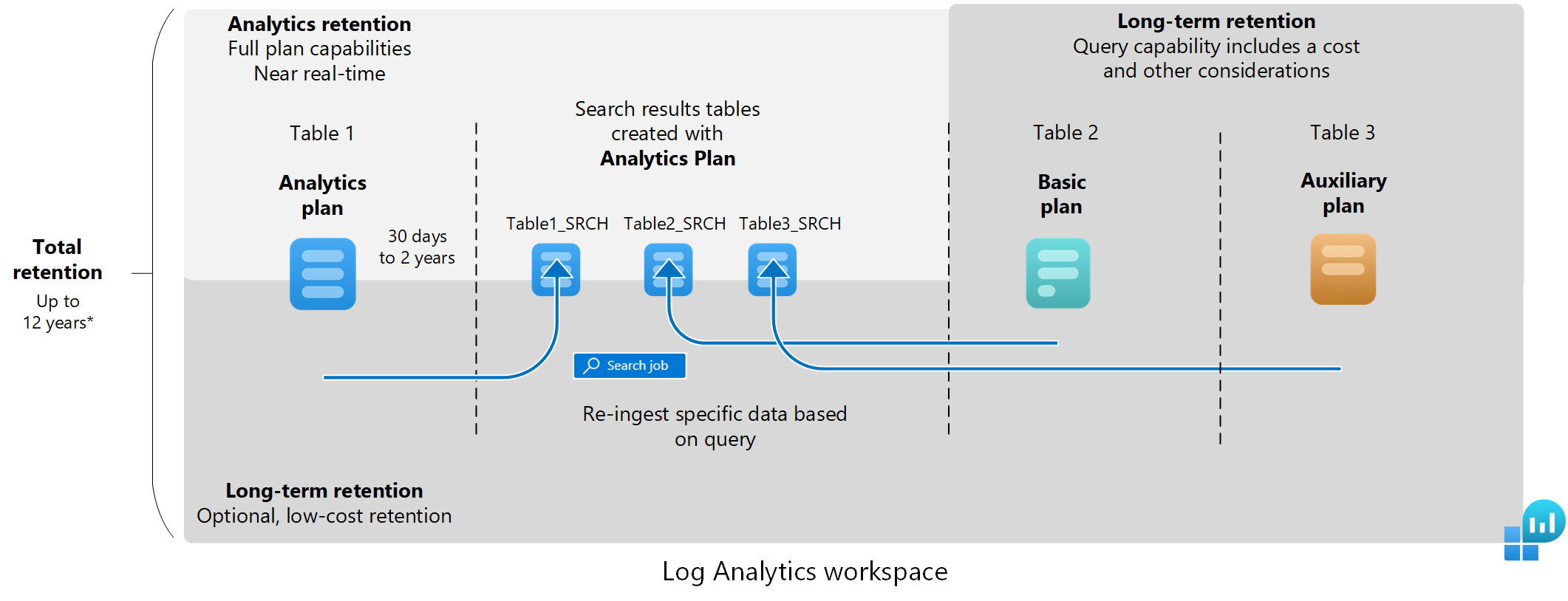
A Log Analytics workspace retains data in two states:
- Analytics retention: In this state, data is available for monitoring, troubleshooting, and near-real-time analytics.
- Long-term retention: In this low-cost state, Analytics and Basic data is available through search jobs. Auxiliary data remains queryable throughout its total retention period.
This article explains how Log Analytics workspaces retain data and how to manage the data retention of tables in your workspace.
Analytics, long-term, and total retention
By default, all tables in a Log Analytics workspace retain data for 30 days, except for log tables with 90-day default retention. Tables with the Analytics plan make your data available for real-time queries during this Analytics retention period. All table plans can retrieve the stored data through queries or search jobs, and the data is available for visualizations, alerts, and other features and services, based on the table plan.
Extend the analytics retention period of tables with the Analytics plan up to two years. Basic plan tables have a fixed period of 30 days for queries while Auxiliary plan tables can be queried for the total retention period. Both Basic and Auxiliary tables have additional considerations however. For more information, see Query data in Basic and Auxiliary tables.
Note
You can reduce the analytics retention period of Analytics tables to as little as four days using the API or CLI. However, since 31 days of analytics retention are included in the ingestion price, lowering the retention period below 31 days doesn't reduce costs.
To retain data in the same table beyond the default retention period, extend the table's total retention to up to 12 years. Analytics data remains in the table after Analytics retention for the remainder of the configured total retention period. Run a search job to retrieve Analytics data after Analytics retention or Basic data older than 30 days when the query doesn't include an Auxiliary table. Auxiliary data remains queryable throughout its total retention period.
How retention modifications work
When you shorten a table's total retention, Azure Monitor Logs waits 30 days before removing the data, so you can revert the change and avoid data loss if you made an error in configuration.
When you increase total retention, the new retention period applies to all data that was already ingested into the table and wasn't yet removed.
When you change the long-term retention settings of a table with existing data, the change takes effect immediately.
Example:
- You have an existing Analytics table with 180 days of analytics retention and no long-term retention.
- You change the analytics retention to 90 days without changing the total retention period of 180 days.
- Azure Monitor automatically treats the remaining 90 days of total retention as low-cost, long-term retention, so that data that's 90-180 days old isn't lost.
Permissions required
| Action |
Permissions required |
| Configure default analytics retention for Analytics tables in a Log Analytics workspace |
Microsoft.OperationalInsights/workspaces/write and microsoft.operationalinsights/workspaces/tables/write permissions to the Log Analytics workspace, as provided by the Log Analytics Contributor built-in role, for example |
| Get retention setting by table for a Log Analytics workspace |
Microsoft.OperationalInsights/workspaces/tables/read permissions to the Log Analytics workspace, as provided by the Log Analytics Reader built-in role, for example |
The default retention period of Analytics tables in a Log Analytics workspace is 30 days. Change the default analytics period of Analytics tables up to two years by modifying the workspace-level data retention setting. Basic and Auxiliary tables only have a total retention period, which is 30 days by default.
Changing the default workspace-level data retention setting automatically affects all Analytics tables to which the default setting still applies in your workspace. If you've already changed the analytics retention of a particular table, that table isn't affected when you change the workspace default data retention setting.
Important
Workspaces with 30-day retention might keep data for 31 days. If you need to retain data for 30 days only to comply with a privacy policy, configure the default workspace retention to 30 days by using the API and update the immediatePurgeDataOn30Days workspace property to true. Use the Workspaces - Update API for this operation.
The following examples set the workspace's default analytics retention to 30 days. The REST example also enables immediate removal after 30 days.
To set the default analytics retention period of Analytics tables within a Log Analytics workspace:
From the Log Analytics workspaces menu in the Azure portal, select your workspace.
In the Settings section, select Usage and estimated costs in the left pane.
Select Data Retention at the top of the page.
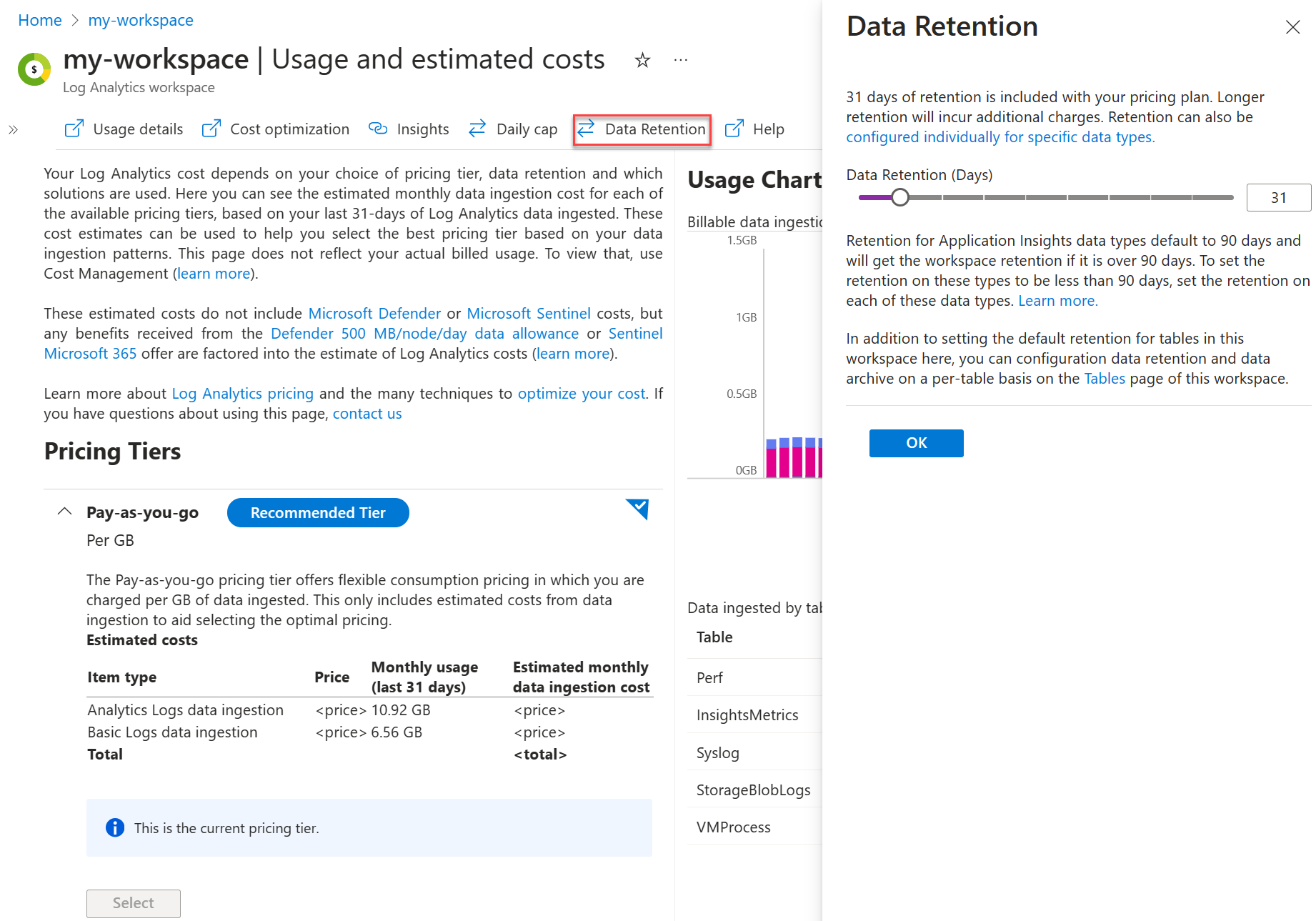
Move the slider to increase or decrease the number of days, and then select OK.
The following Azure CLI example uses the az monitor log-analytics workspace update command. It sets the default analytics retention period by using the --retention-time parameter.
# Set variables
resourceGroupName="<ResourceGroupName>"
workspaceName="<WorkspaceName>"
retentionInDays="30"

# Update the default workspace retention
az monitor log-analytics workspace update \
  --resource-group "$resourceGroupName" \
  --workspace-name "$workspaceName" \
  --retention-time "$retentionInDays"
Note
Azure CLI commands use the Azure Resource Manager endpoint from the current CLI context, so management.chinacloudapi.cn doesn't need to be specified in the command syntax.
The following Azure PowerShell example uses the Set-AzOperationalInsightsWorkspace cmdlet. It sets the default analytics retention period by using the -RetentionInDays parameter.
# Set variables
$resourceGroupName = "<ResourceGroupName>"
$workspaceName = "<WorkspaceName>"
$retentionInDays = 30

# Define parameters for Set-AzOperationalInsightsWorkspace
$setAzOperationalInsightsWorkspaceParams = @{
    ResourceGroupName = $resourceGroupName
    Name              = $workspaceName
    RetentionInDays   = $retentionInDays
}

# Update the default workspace retention
Set-AzOperationalInsightsWorkspace @setAzOperationalInsightsWorkspaceParams
Note
Azure PowerShell cmdlets use the Azure Resource Manager endpoint from the current Az context, so management.chinacloudapi.cn doesn’t need to be specified in the cmdlet syntax.
The following REST example uses the Workspaces - Update REST API operation. It sets the default analytics retention period for Analytics tables in a Log Analytics workspace.
It also ensures that data is immediately removed after 30 days and is nonrecoverable.
PATCH https://management.chinacloudapi.cn/subscriptions/{subscriptionId}/resourceGroups/{resourceGroupName}/providers/Microsoft.OperationalInsights/workspaces/{workspaceName}?api-version={apiVersion}
Authorization: Bearer {accessToken}
Content-Type: application/json

{
  "properties": {
    "retentionInDays": 30,
    "features": {
      "immediatePurgeDataOn30Days": true
    }
  }
}
Request body properties:
The request body includes the values in the following table.
| Name |
Type |
Description |
properties.retentionInDays |
integer |
The workspace data retention in days. Allowed values are per pricing plan. See pricing tiers documentation for details. |
properties.features.immediatePurgeDataOn30Days |
boolean |
Flag that indicates whether data is immediately removed after 30 days and is nonrecoverable. Applicable only when workspace retention is set to 30 days. |
Response example:
Status code: 200
{
  "properties": {
    "retentionInDays": 30,
    "features": {
      "legacy": 0,
      "searchVersion": 1,
      "immediatePurgeDataOn30Days": true
    }
  }
}
Note
Bicep deployments are create-or-update operations, not partial PATCH operations. For a retention-only update, use the Azure CLI, Azure PowerShell, or REST tab.
The following Bicep example uses the Microsoft.OperationalInsights/workspaces resource type.
This template includes the workspace resource declaration and its default retention setting. Before using it to update an existing workspace:
- Set
workspaceName and azureRegion to the existing workspace's name and region.
- Use the
retentionInDays parameter to set properties.retentionInDays to 30. Don't replace the existing properties object with only this member.
- Retain the workspace's identity, SKU, location, tags, network settings, all other properties, and existing array entries from your maintained definition.
- Leave
properties.features.immediatePurgeDataOn30Days unchanged. The REST tab shows the separate immediate-removal behavior.
- Don't deploy this example unchanged over an existing workspace. It shows the retention setting, not your workspace's complete configuration.
param workspaceName string = '<WorkspaceName>'
param azureRegion string = '<AzureRegion>'
param retentionInDays int = 30

resource logAnalyticsWorkspace 'Microsoft.OperationalInsights/workspaces@<ApiVersion>' = {
  name: workspaceName
  location: azureRegion
  properties: {
    retentionInDays: retentionInDays
  }
}
Note
ARM template deployments are create-or-update operations, not partial PATCH operations. For a retention-only update, use the Azure CLI, Azure PowerShell, or REST tab.
The following ARM template example uses the Microsoft.OperationalInsights/workspaces resource type.
This template includes the workspace resource declaration and its default retention setting. Before using it to update an existing workspace:
- Set
workspaceName and azureRegion to the existing workspace's name and region.
- Use the
retentionInDays parameter to set properties.retentionInDays to 30. Don't replace the existing properties object with only this member.
- Retain the workspace's identity, SKU, location, tags, network settings, all other properties, and existing array entries from your maintained definition.
- Leave
properties.features.immediatePurgeDataOn30Days unchanged. The REST tab shows the separate immediate-removal behavior.
- Don't deploy this example unchanged over an existing workspace. It shows the retention setting, not your workspace's complete configuration.
{
  "$schema": "https://schema.management.azure.com/schemas/2019-04-01/deploymentTemplate.json#",
  "contentVersion": "1.0.0.0",
  "parameters": {
    "workspaceName": {
      "type": "string",
      "defaultValue": "<WorkspaceName>"
    },
    "azureRegion": {
      "type": "string",
      "defaultValue": "<AzureRegion>"
    },
    "retentionInDays": {
      "type": "int",
      "defaultValue": 30
    }
  },
  "resources": [
    {
      "type": "Microsoft.OperationalInsights/workspaces",
      "apiVersion": "<ApiVersion>",
      "name": "[parameters('workspaceName')]",
      "location": "[parameters('azureRegion')]",
      "properties": {
        "retentionInDays": "[parameters('retentionInDays')]"
      }
    }
  ]
}
By default, all tables with the Analytics data plan inherit the Log Analytics workspace's default retention setting and have no long-term retention. You can increase the analytics retention period of Analytics tables to up to 730 days at an extra cost.
To add long-term retention to a table with any data plan, set total retention to up to 12 years (4,383 days).
Note
The Azure CLI --total-retention-time parameter supports up to 2,556 days (seven years). For longer retention, use the Azure portal, REST API, or a version of Update-AzOperationalInsightsTable that supports the requested value. The PowerShell reference lists values through 4,383 days.
The following examples set an Analytics table's analytics retention to 30 days and total retention to two years (730 days), leaving 700 days of long-term retention. For Basic and Auxiliary tables, set only total retention; retentionInDays is read-only.
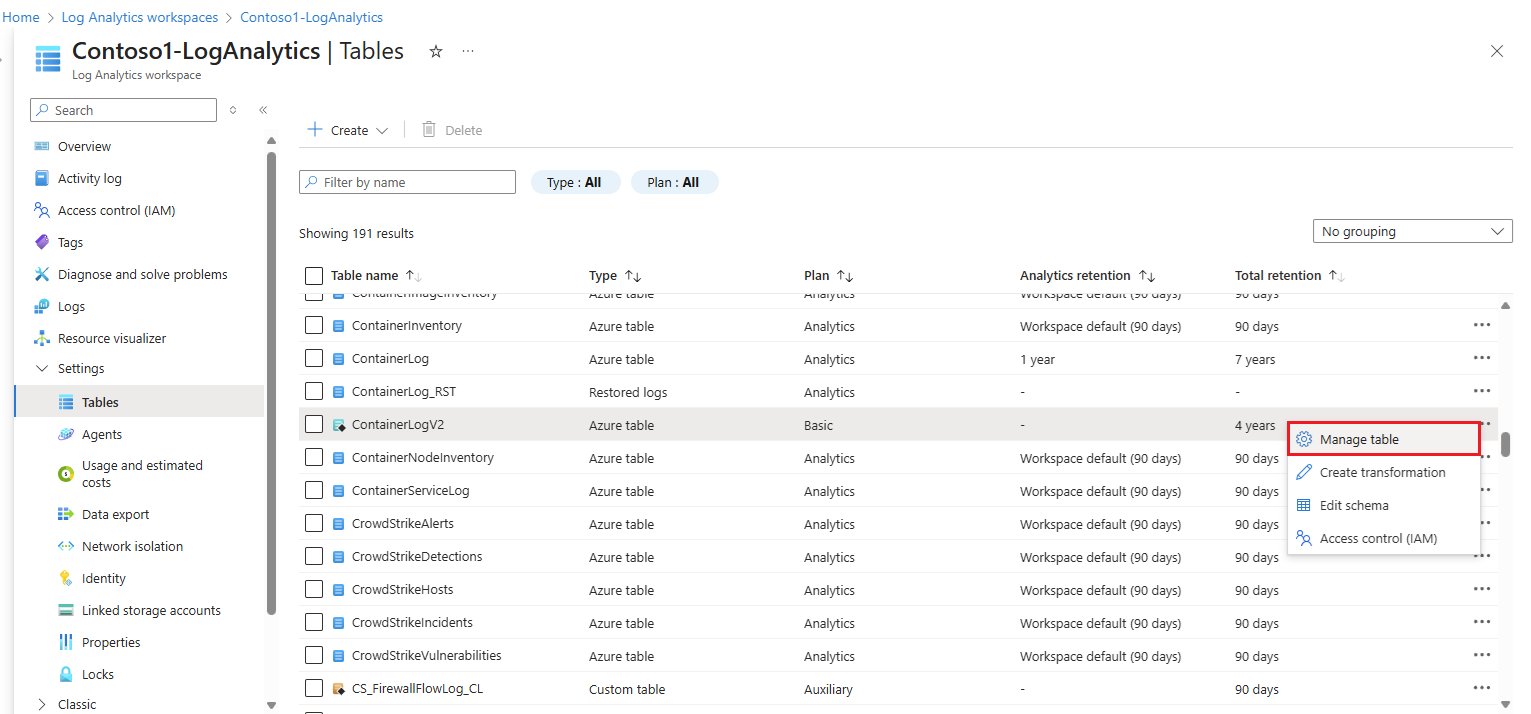
To modify the retention setting for a table in the Azure portal:
From the Log Analytics workspaces menu, select Tables.
The Tables screen lists all the tables in the workspace.
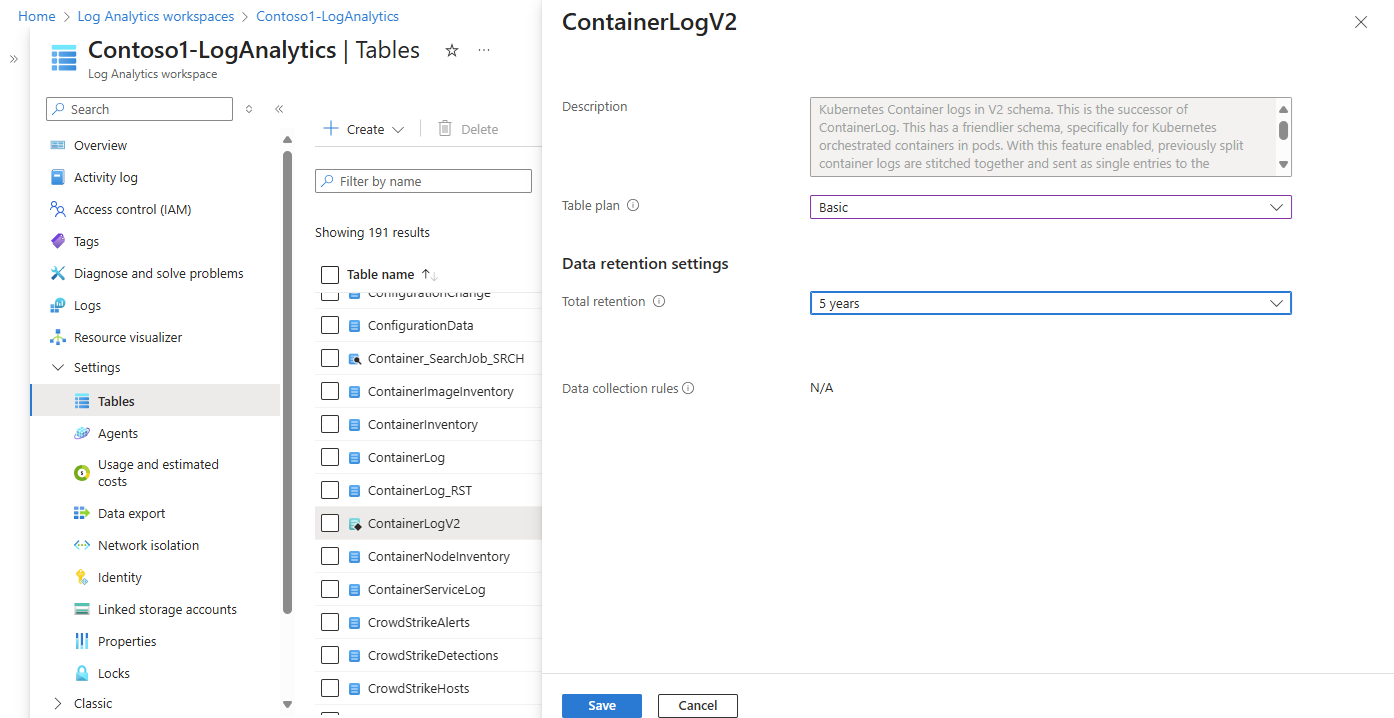
Select the context menu for the table you want to configure and select Manage table.
Configure the analytics retention and total retention settings in the Data retention settings section of the table configuration screen.
The following Azure CLI example uses the az monitor log-analytics workspace table update command. It modifies a table's retention settings by using the --retention-time and --total-retention-time parameters.
Set custom retention:
# Set variables
resourceGroupName="<ResourceGroupName>"
workspaceName="<WorkspaceName>"
tableName="<TableName>"
retentionInDays="30"
totalRetentionInDays="730"

# Update the table retention settings
az monitor log-analytics workspace table update \
  --resource-group "$resourceGroupName" \
  --workspace-name "$workspaceName" \
  --name "$tableName" \
  --retention-time "$retentionInDays" \
  --total-retention-time "$totalRetentionInDays"
Reset to workspace defaults:
To inherit the workspace's analytics retention and set total retention to the same period, set both --retention-time and --total-retention-time to -1. This removes the table's separate long-term retention period; it doesn't set total retention to zero.
# Set variables
resourceGroupName="<ResourceGroupName>"
workspaceName="<WorkspaceName>"
tableName="<TableName>"
retentionInDays="-1"
totalRetentionInDays="-1"

# Update the table retention settings
az monitor log-analytics workspace table update \
  --resource-group "$resourceGroupName" \
  --workspace-name "$workspaceName" \
  --name "$tableName" \
  --retention-time "$retentionInDays" \
  --total-retention-time "$totalRetentionInDays"
Note
Azure CLI commands use the Azure Resource Manager endpoint from the current CLI context, so management.chinacloudapi.cn doesn't need to be specified in the command syntax.
The following Azure PowerShell example uses the Update-AzOperationalInsightsTable cmdlet. It modifies a table's retention settings by using the -RetentionInDays and -TotalRetentionInDays parameters.
Set custom retention:
# Set variables
$resourceGroupName = "<ResourceGroupName>"
$workspaceName = "<WorkspaceName>"
$tableName = "<TableName>"
$retentionInDays = 30
$totalRetentionInDays = 730

# Define parameters for Update-AzOperationalInsightsTable
$updateAzOperationalInsightsTableParams = @{
    ResourceGroupName    = $resourceGroupName
    WorkspaceName        = $workspaceName
    TableName            = $tableName
    RetentionInDays      = $retentionInDays
    TotalRetentionInDays = $totalRetentionInDays
}

# Update the table retention settings
Update-AzOperationalInsightsTable @updateAzOperationalInsightsTableParams
Reset to workspace defaults:
To inherit the workspace's analytics retention and set total retention to the same period, set both -RetentionInDays and -TotalRetentionInDays to -1. This removes the table's separate long-term retention period; it doesn't set total retention to zero.
# Set variables
$resourceGroupName = "<ResourceGroupName>"
$workspaceName = "<WorkspaceName>"
$tableName = "<TableName>"
$retentionInDays = -1
$totalRetentionInDays = -1

# Define parameters for Update-AzOperationalInsightsTable
$updateAzOperationalInsightsTableParams = @{
    ResourceGroupName    = $resourceGroupName
    WorkspaceName        = $workspaceName
    TableName            = $tableName
    RetentionInDays      = $retentionInDays
    TotalRetentionInDays = $totalRetentionInDays
}

# Update the table retention settings
Update-AzOperationalInsightsTable @updateAzOperationalInsightsTableParams
Note
Azure PowerShell cmdlets use the Azure Resource Manager endpoint from the current Az context, so management.chinacloudapi.cn doesn’t need to be specified in the cmdlet syntax.
The following REST example uses the Tables - Update REST API operation. It modifies the retention settings for a specific table.
You can use either PUT or PATCH, with the following difference:
- The PUT API sets
retentionInDays and totalRetentionInDays to the default value if you don't set non-null values.
- The PATCH API doesn't change the
retentionInDays or totalRetentionInDays values if you don't specify values.
PATCH https://management.chinacloudapi.cn/subscriptions/{subscriptionId}/resourceGroups/{resourceGroupName}/providers/Microsoft.OperationalInsights/workspaces/{workspaceName}/tables/{tableName}?api-version={apiVersion}
Authorization: Bearer {accessToken}
Content-Type: application/json

{
  "properties": {
    "retentionInDays": 30,
    "totalRetentionInDays": 730
  }
}
Request body properties:
The request body includes the values in the following table.
| Name |
Type |
Description |
properties.retentionInDays |
integer |
Analytics retention, from 4 to 730 days. Set to -1 to inherit workspace retention. This property is read-only for Basic and Auxiliary tables. Omit it from a PATCH request to leave it unchanged. |
properties.totalRetentionInDays |
integer |
Total retention, including long-term retention. The REST API range is 4 to 4,383 days. Set to -1 to use retentionInDays, with no separate long-term retention period. Omit it from a PATCH request to leave it unchanged. |
Example response:
Status code: 200
{
  "properties": {
    "retentionInDays": 30,
    "totalRetentionInDays": 730,
    "archiveRetentionInDays": 700
  }
}
Note
Bicep deployments are create-or-update operations, not partial PATCH operations. Preserve the existing table's schema, plan, and other settings. Use the REST tab for a retention-only PATCH.
The following Bicep example uses the Microsoft.OperationalInsights/workspaces/tables resource type.
This template includes the table resource declaration and its retention settings. Before using it to update an existing table:
- Set
workspaceName and tableName to the existing workspace and table names.
- For an Analytics table, edit only
properties.retentionInDays and properties.totalRetentionInDays as shown.
- For Basic and Auxiliary tables, remove
properties.retentionInDays and its parameter from this example. Set only properties.totalRetentionInDays; retentionInDays is read-only for these plans.
- Retain the table's schema, including all column-array entries, plan, and every other setting from your maintained definition. Don't replace the existing
properties object with only the retention members.
- Don't deploy this example unchanged over an existing table. It doesn't include your table's complete configuration.
- Don't update the existing workspace.
- Keep the parent workspace as an
existing reference. Don't mark the table you're updating as existing.
param workspaceName string = '<WorkspaceName>'
param tableName string = '<TableName>'
param retentionInDays int = 30
param totalRetentionInDays int = 730

resource logAnalyticsWorkspace 'Microsoft.OperationalInsights/workspaces@<ApiVersion>' existing = {
  name: workspaceName
}

resource workspaceTable 'Microsoft.OperationalInsights/workspaces/tables@<ApiVersion>' = {
  parent: logAnalyticsWorkspace
  name: tableName
  properties: {
    retentionInDays: retentionInDays
    totalRetentionInDays: totalRetentionInDays
  }
}
Note
ARM template deployments are create-or-update operations, not partial PATCH operations. Preserve the existing table's schema, plan, and other settings. Use the REST tab for a retention-only PATCH.
The following ARM template example uses the Microsoft.OperationalInsights/workspaces/tables resource type.
This template includes the table resource declaration and its retention settings. Before using it to update an existing table:
- Set
workspaceName and tableName to the existing workspace and table names.
- For an Analytics table, edit only
properties.retentionInDays and properties.totalRetentionInDays as shown.
- For Basic and Auxiliary tables, remove
properties.retentionInDays and its parameter from this example. Set only properties.totalRetentionInDays; retentionInDays is read-only for these plans.
- Retain the table's schema, including all column-array entries, plan, and every other setting from your maintained definition. Don't replace the existing
properties object with only the retention members.
- Don't deploy this example unchanged over an existing table. It doesn't include your table's complete configuration.
- Don't update the existing workspace.
- Keep the table's existing workspace-qualified resource name and the rest of its complete definition. Don't add a workspace resource declaration.
{
  "$schema": "https://schema.management.azure.com/schemas/2019-04-01/deploymentTemplate.json#",
  "contentVersion": "1.0.0.0",
  "parameters": {
    "workspaceName": {
      "type": "string",
      "defaultValue": "<WorkspaceName>"
    },
    "tableName": {
      "type": "string",
      "defaultValue": "<TableName>"
    },
    "retentionInDays": {
      "type": "int",
      "defaultValue": 30
    },
    "totalRetentionInDays": {
      "type": "int",
      "defaultValue": 730
    }
  },
  "resources": [
    {
      "type": "Microsoft.OperationalInsights/workspaces/tables",
      "apiVersion": "<ApiVersion>",
      "name": "[format('{0}/{1}', parameters('workspaceName'), parameters('tableName'))]",
      "properties": {
        "retentionInDays": "[parameters('retentionInDays')]",
        "totalRetentionInDays": "[parameters('totalRetentionInDays')]"
      }
    }
  ]
}
Get retention settings by table
Retrieve the retention settings for a table or list the settings for all tables in a workspace.
To view a table's retention settings in the Azure portal, from the Log Analytics workspaces menu, select Tables.
The Tables screen shows the analytics retention and total retention periods for all the tables in the workspace.
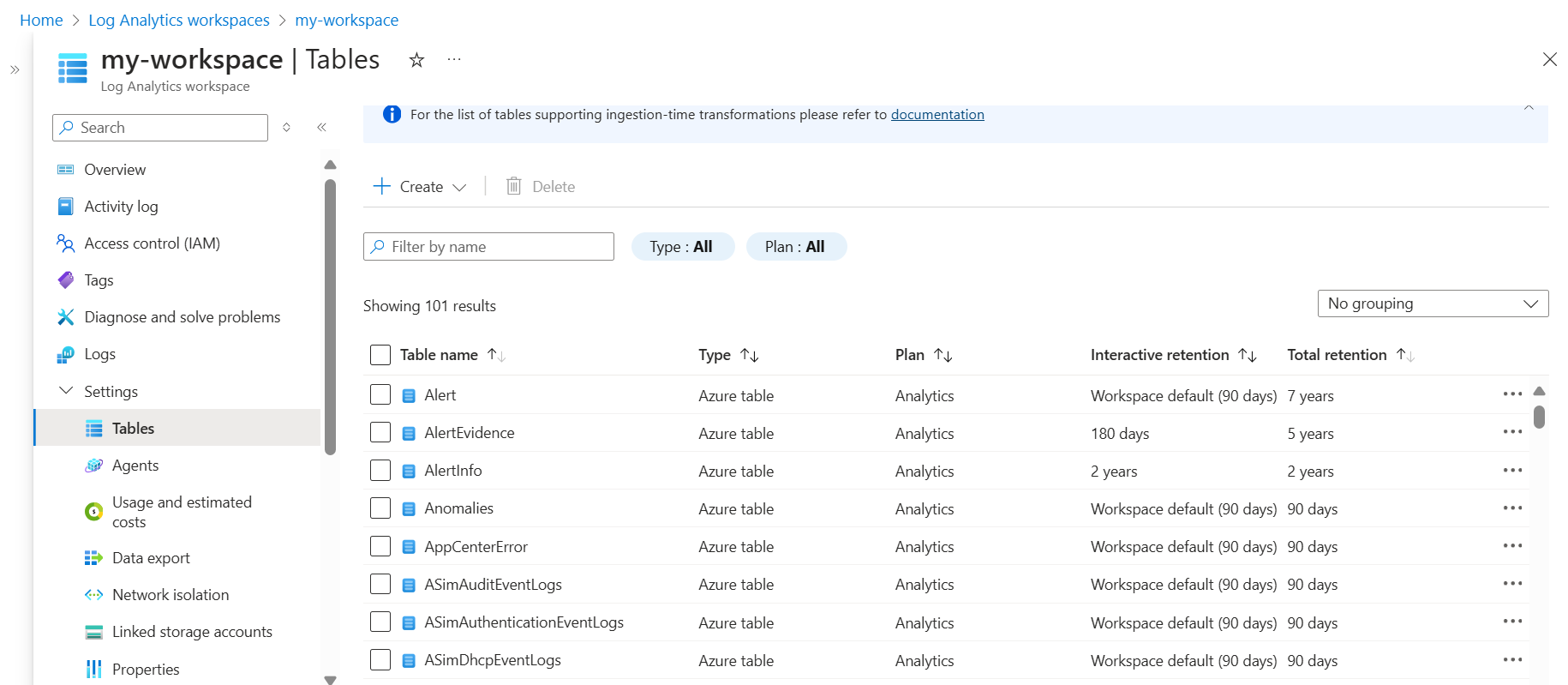
The following Azure CLI example uses the az monitor log-analytics workspace table show command. It retrieves a table's retention settings.
# Set variables
resourceGroupName="<ResourceGroupName>"
workspaceName="<WorkspaceName>"
tableName="<TableName>"

# Retrieve the table retention settings
az monitor log-analytics workspace table show \
  --resource-group "$resourceGroupName" \
  --workspace-name "$workspaceName" \
  --name "$tableName"
Note
Azure CLI commands use the Azure Resource Manager endpoint from the current CLI context, so management.chinacloudapi.cn doesn't need to be specified in the command syntax.
The following Azure PowerShell example uses the Get-AzOperationalInsightsTable cmdlet. It retrieves a table's retention settings.
# Set variables
$resourceGroupName = "<ResourceGroupName>"
$workspaceName = "<WorkspaceName>"
$tableName = "<TableName>"

# Define parameters for Get-AzOperationalInsightsTable
$getAzOperationalInsightsTableParams = @{
    ResourceGroupName = $resourceGroupName
    WorkspaceName     = $workspaceName
    TableName         = $tableName
}

# Retrieve the table retention settings
Get-AzOperationalInsightsTable @getAzOperationalInsightsTableParams
Note
Azure PowerShell cmdlets use the Azure Resource Manager endpoint from the current Az context, so management.chinacloudapi.cn doesn’t need to be specified in the cmdlet syntax.
The following REST example uses the Tables - Get REST API operation. It retrieves a table's retention settings.
GET https://management.chinacloudapi.cn/subscriptions/{subscriptionId}/resourceGroups/{resourceGroupName}/providers/Microsoft.OperationalInsights/workspaces/{workspaceName}/tables/{tableName}?api-version={apiVersion}
Authorization: Bearer {accessToken}
The following REST example uses the Tables - List By Workspace REST API operation. It retrieves retention settings for all tables in the workspace.
GET https://management.chinacloudapi.cn/subscriptions/{subscriptionId}/resourceGroups/{resourceGroupName}/providers/Microsoft.OperationalInsights/workspaces/{workspaceName}/tables?api-version={apiVersion}
Authorization: Bearer {accessToken}
What happens to data when you delete a table in a Log Analytics workspace?
A Log Analytics workspace can contain several types of tables. What happens when you delete the table is different for each:
| Table type |
Data retention |
Recommendations |
Recovery |
| Azure table |
An Azure table holds logs from an Azure resource, or solution. When you stop sending data from your resource, or solution, data remains in the workspace until the end of the retention period defined for the table, and charged accordingly. |
To reduce charges, set table-level retention to four days, which is the minimum supported period. If the table being deleted is associated with a solution that should be removed (for example, Sentinel), remove the solution after the four-day retention period has passed. |
Enable the solution. Data recovery is subjected to table retention. |
Custom log table (table_CL) |
Custom log table holds logs from logs ingestion API, or HTTP data collector API (deprecated).
When you delete a table, the table name remains reserved for fifteen days. Deleting a table in Analytics or Basic plans doesn't delete data. Table retention is set to workspace retention after fifteen days where retention charges adheres to the retention in table.
Deleting a table in Auxiliary plan, deletes data permanently after fifteen days. |
To minimize charges, set table-level retention to four days, and delete the table after four days when data is trimmed. |
Analytics or Basic plans: Create the table with the same name and schema. Data recovery is subjected to table retention.
Auxiliary plan: Create the table with the same name and schema during the soft delete period. |
Search results table (table_SRCH) |
Deletes the table and data immediately and permanently. |
|
|
Restored table (table_RST) |
Deletes the hot cache provisioned for the restore, but source table data isn't deleted. |
|
|
Log tables with 90-day default retention
By default, the Usage and AzureActivity tables keep data for at least 90 days at no charge. When you increase the workspace retention to more than 90 days, you also increase the retention of these tables. These tables are also free from data ingestion charges.
Tables related to Application Insights resources also keep data for 90 days at no charge. You can adjust the retention of each of these tables individually:
AppAvailabilityResultsAppBrowserTimingsAppDependenciesAppExceptionsAppEventsAppMetricsAppPageViewsAppPerformanceCountersAppRequestsAppSystemEventsAppTraces
Pricing model
Analytics and long-term retention is calculated based on the GB volume of data and the number of days data is retained. Billing for data retention happens daily (based on days in the UTC time zone). Log data that has _IsBillable == false isn't subject to ingestion or retention charges.
For more information, see the following articles:
Related content
Learn more about:
