Note
Access to this page requires authorization. You can try signing in or changing directories.
Access to this page requires authorization. You can try changing directories.
This article describes how to migrate to the SQL Server infrastructure for hosting the Azure App Service on Azure Stack Hub Resource Provider databases, including appservice_hosting and appservice_metrics.
Back up App Service secrets
When you prepare to migrate, you must back up the App Service keys used by the initial deployment. Use the administrator portal to back up App Service secrets by following these steps:
Sign in to the Azure Stack Hub administrator portal as the service admin.
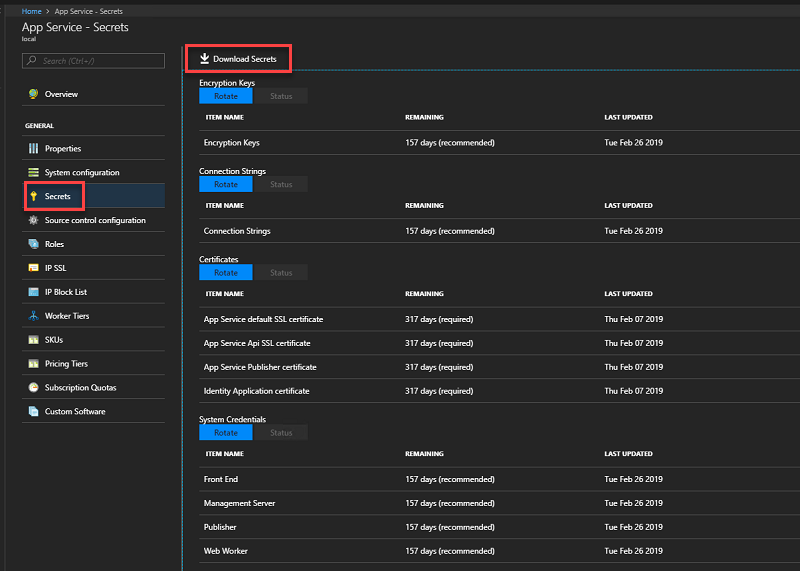
Browse to App Service -> Secrets.
Select Download Secrets.
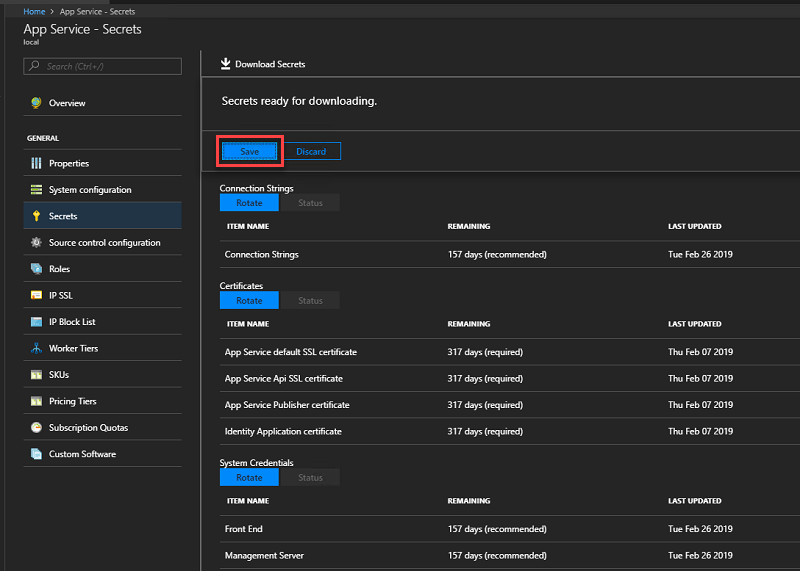
When the secrets are ready for downloading, select Save and store the App Service secrets (SystemSecrets.JSON) file in a safe location.
Back up the App Service databases from the current server
To restore App Service, you need the Appservice_hosting and Appservice_metering database backups. We recommend using SQL Server maintenance plans or Azure Backup Server to ensure these databases are backed up and saved securely regularly. However, you can use any method that ensures regular SQL database backups are created.
To manually back up these databases while logged into SQL Server, use the following PowerShell commands:
$s = "<SQL Server computer name>"
$u = "<SQL Server login>"
$p = read-host "Provide the SQL admin password"
sqlcmd -S $s -U $u -P $p -Q "BACKUP DATABASE appservice_hosting TO DISK = '<path>\hosting.bak'"
sqlcmd -S $s -U $u -P $p -Q "BACKUP DATABASE appservice_metering TO DISK = '<path>\metering.bak'"
Note
If you need to back up SQL AlwaysOn databases, follow these instructions.
After you successfully back up all databases, copy the .bak files to a safe location along with the App Service secrets info.
Restore the App Service databases on a new production ready SQL Server instance
The App Service SQL Server databases should be restored on a production-ready SQL Server instance.
After you prepare the SQL Server instance to host the App Service databases, use these steps to restore databases from backup:
Sign in to the SQL Server that will host the recovered App Service databases with admin permissions.
Use the following commands to restore the App Service databases from a command prompt running with admin permissions:
sqlcmd -U <SQL admin login> -P <SQL admin password> -Q "RESTORE DATABASE appservice_hosting FROM DISK='<full path to backup>' WITH REPLACE"
sqlcmd -U <SQL admin login> -P <SQL admin password> -Q "RESTORE DATABASE appservice_metering FROM DISK='<full path to backup>' WITH REPLACE"
Verify that both App Service databases were successfully restored, then exit SQL Server Management Studio.
Migrate the SQL Server
In the Azure Stack Hub administrator portal, navigate to Network Security Groups and view the ControllersNSG Network Security Group.
By default, Remote Desktop is disabled for all App Service infrastructure roles. Change the Inbound_Rdp_3389 rule action to Allow access.
Navigate to the resource group containing the App Service Resource Provider deployment. By default, the resource group is named in the format AppService.<region>.
Connect to CN0-VM.
Open an administrator PowerShell session and run
net stop webfarmservice.Repeat steps 3 and 4 for all other controllers.
Return to the CN0-VM Remote Desktop session and copy the secrets file to the controller.
In an administrator PowerShell session run:
Restore-AppServiceStamp -FilePath <local secrets file> -OverrideDatabaseServer <new database server> -CoreBackupFilePath <filepath>- A prompt appears that confirms the key values. Press Enter to continue, or close the PowerShell session to cancel.
Once the cmdlet completes, all worker instances from the custom worker tiers are removed, and those instances are added back in the next step.
In the same PowerShell session or in a new administrative PowerShell session, run the following PowerShell script. The script inspects all the associated Virtual Machine Scale Sets and performs corresponding actions, including adding back the instances of custom worker tiers:
Restore-AppServiceRolesIn the same, or in a new administrative PowerShell session, run the command
net start webfarmservice.Repeat the previous step for all other controllers.
In the Azure Stack administrator portal, navigate back to the ControllersNSG Network Security Group.
Modify the Inbound_Rdp_3389 rule to deny access.
Next steps
Backup App Service on Azure Stack Hub Restore App Service on Azure Stack Hub