Note
Access to this page requires authorization. You can try signing in or changing directories.
Access to this page requires authorization. You can try changing directories.
Unlike Azure, Azure Stack Hub resources have physical constraints for memory and storage based on the configuration and number of available physical nodes. You have several options for limiting the amount of storage consumed by your user's containers and OCI artifacts.
Set storage capacity
You can manage your container registry in the Azure Stack Hub administrative portal.
- Sign in to the Azure Stack Hub administrator portal.
- Type
Container Registryin the search. - Select Configure.
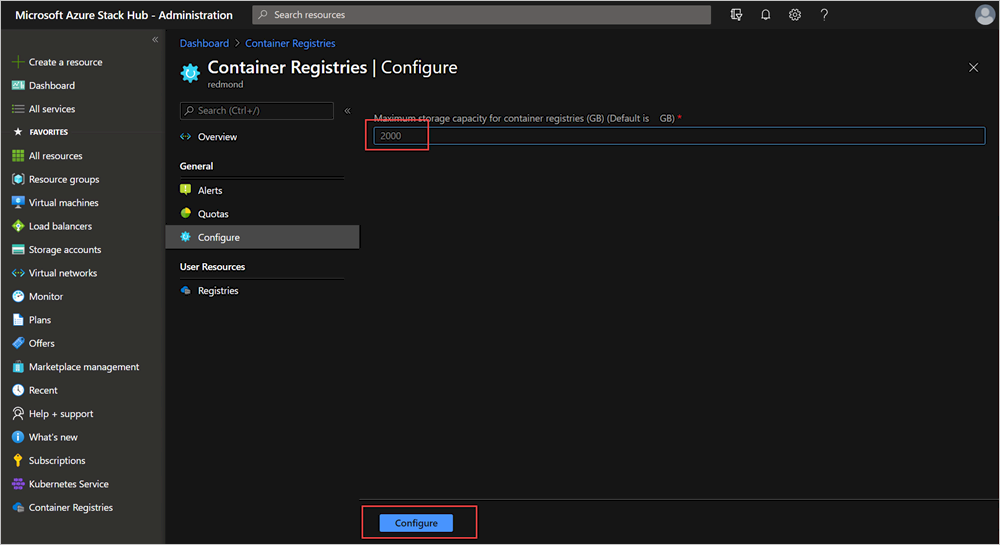
- You can increase or decrease the capacity from the default of 2000 GB. Add your number, and then select Configure.
View storage use
You can view the current storage usage by container registries in the Azure Stack Hub administrative portal. In the same view, you can compare utilized capacity to the maximum allocated capacity for the ACR in your Azure Stack Hub.
- Sign in to the Azure Stack Hub administrator portal.
- Type
Container Registryin the search.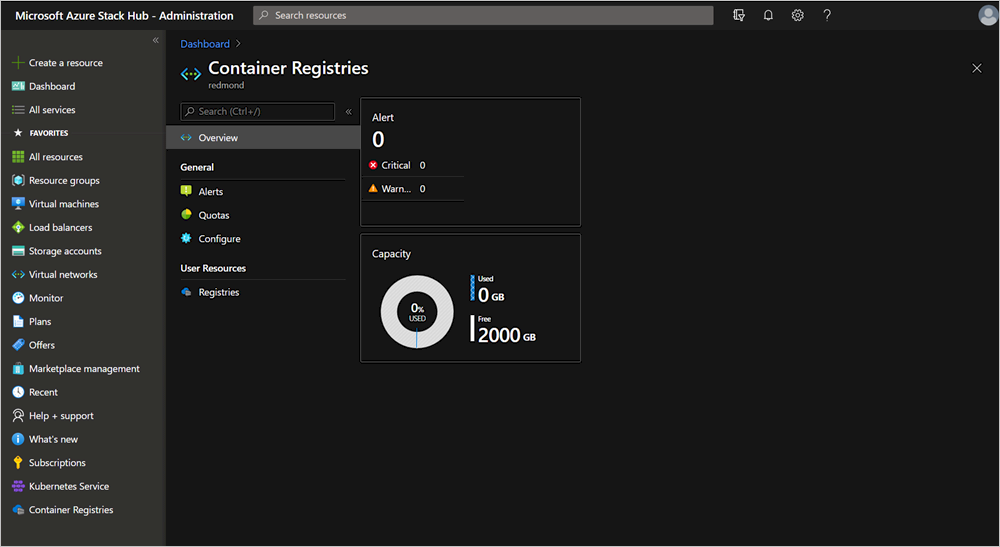
- Select Overview.
Quota settings
In addition to restricting overall storage capacity used by container registries, you can limit the use of the container registry service with the following quotas:
Storage capacity per registry (GB)
The maximum amount of storage that can be used by any registry. Registries by default are limited to a maximum of 100 GB of storage, but you can offer more limited quotas based on user deployments and user requirements.Maximum number of registries
You can limit the number of registries that can be created per subscription.
You can find more guidance on offers, plans, and quotas in the Azure Stack Hub services, plans, offers, subscriptions overview.