Note
Access to this page requires authorization. You can try signing in or changing directories.
Access to this page requires authorization. You can try changing directories.
This article describes how to prepare for the upcoming Azure Stack Hub update and its changes to CreateUiDefinition.json. This JSON file is used to create the user experience when deploying solution templates.
Description of CreateUiDefinition issues
CreateUiDefinition.json will be updated to work with the UI changes in the upcoming release. The changes provide a more complete user experience when deploying a solution template. For more information about the new experience, see the CreateUiDefinition overview.
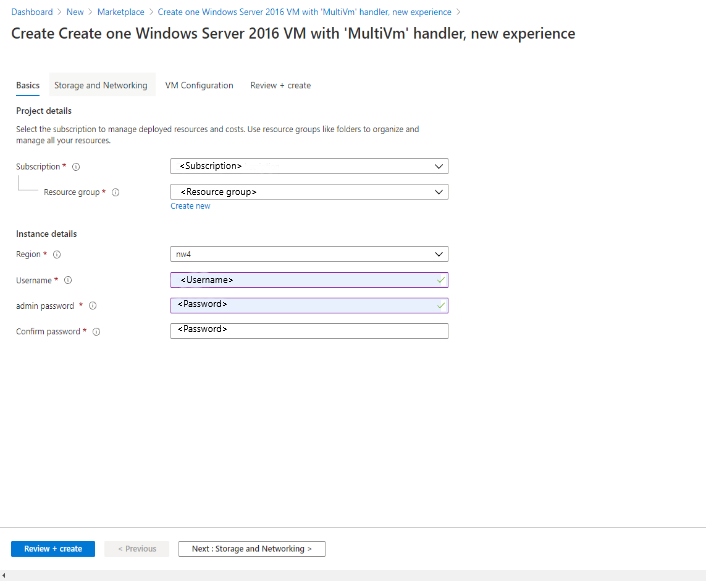
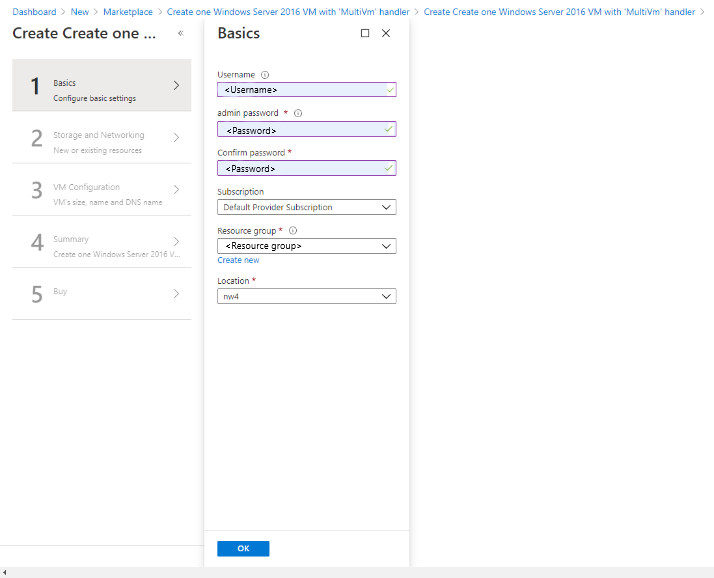
However, we are aware of an issue in which certain solution templates are unable to work with the new changes to the UI, unless the templates are updated. To ensure that there are minimal disruptions, we have outlined a series of steps you can take to make sure all your items are compatible with the latest update. The following images are a side-by-side comparison between the old (bottom) and the new experience (top).
New:
Old:
Validation steps
The first step is to determine which solution templates on your Azure Stack Hub marketplace need to be updated. The following JavaScript snippet can help you find the different items you may need to validate.
Run the script in the web console in which you are signed into the admin portal. The console can usually be found in the web browser's development tools (can vary depending on browser). Once the console is open, copy and paste the following script into the console, and then hit Enter. The output is a list of solution templates from your Azure Stack Hub marketplace that are not compatible with the new CreateUiDefinition format:
uri = "/providers/Microsoft.Gallery/GalleryItems?api-version=2015-04-01"
let galleryItemsResult = await MsPortalFx.Base.Net2.ajax({uri: uri, useFxArmEndpoint: true});
const result = [];
console.log("Checking....");
for (let i=0;i<galleryItemsResult.length;i++) {
   const v = galleryItemsResult[i];
   const uidef = await MsPortalFx.Base.Net2.ajax({uri: v.uiDefinitionUri, useRawAjax: true});
   const createBlade = uidef.createDefinition.createBlade;
   if (createBlade.name === "CreateMultiVmWizardBlade" && createBlade.extension === "Microsoft_Azure_Compute") {
       result.push(v);
   }
}
if (result.length === 0) {
    console.log("\n\n You don't have to update any item :)");
} else {
    console.log("\n\nThese items need to be updated:");
    result.forEach((v)=>{
        console.log(v.itemDisplayName);
    });
}
With the list of incompatible solution templates, use the following chart to determine next steps:
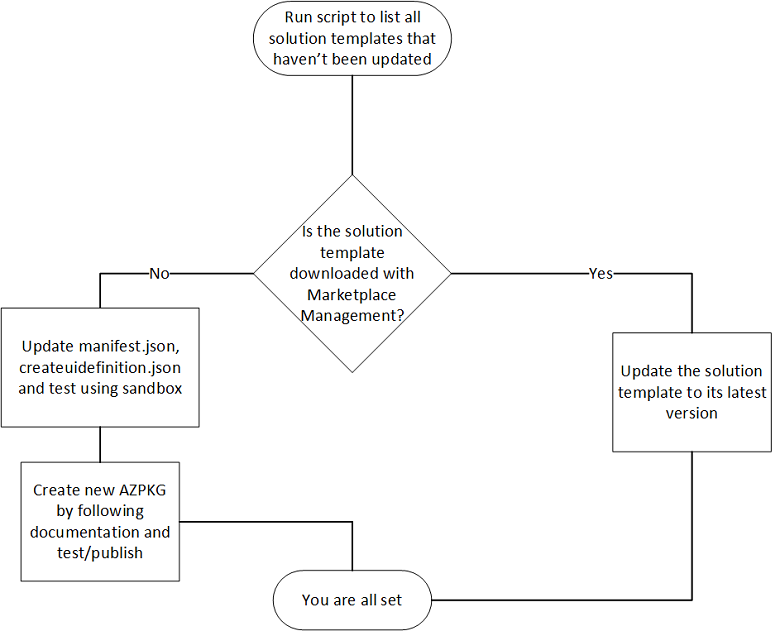
If your solution template is downloaded with Marketplace management, update the template to the latest version. Solution templates from marketplace management will be updated in the coming months, so watch for the latest versions of your marketplace items.
However, if your solution template is not from marketplace management or it's a custom template that was created in-house, you may need to take additional steps to ensure compatibility with the upcoming create UI. The following steps would need to be completed before the new CreateUiDefinition experience is released (sometime in the coming months) to ensure that your custom solution templates work with the new UX.
First, obtain the AZPKG file for the solution template. After extracting the .AZPKG file for the template, follow these steps to update your solution templates.
Step 1: modify UIDefinition.json file
Change the schema to the following code:
"$schema": "https://gallery.azure.com/schemas/2018-02-12/UIDefinition.json#",Change the "create blade" section to the following code:
"createBlade": {
      "name": "CreateUIDefinitionBlade",
      "extension": "Microsoft_Azure_CreateUIDef"
},
Step 2: modify CreateUiDefinition.json
Change the schema, handler, and version to the following code:
"$schema": "https://schema.management.azure.com/schemas/0.1.2-preview/CreateUIDefinition.MultiVm.json#",
"handler": "Microsoft.Azure.CreateUIDef",
"version": "0.1.2-preview",
Go to
https://<your portal uri>/#blade/Microsoft_Azure_CreateUIDef/SandboxBlade, and follow the instructions to test the modified CreateUiDefinition.json content. Address any issues reported by the sandbox blade.
Step 3: update Manifest.json and create new AZPKG
Update the
versionproperty in the Manifest.json file to a newer version to allow for publishing the updated template.The final step is to create the new AZPKG using the Gallery Packager tool and to run the packager command in PowerShell as follows:
AzureStackHubGallery.exe package -m <azpkg file\manifest.json> -o <outfile path>This command creates a new AZPKG from the file that holds the different files above. This AZPKG can then be used to publish the new solution template onto the marketplace.