Note
Access to this page requires authorization. You can try signing in or changing directories.
Access to this page requires authorization. You can try changing directories.
This article describes how to prepare for the upcoming Azure Stack Hub update and its changes to CreateUiDefinition.json. Use this JSON file to create the user experience when deploying solution templates.
Description of CreateUiDefinition issues
The upcoming update to CreateUiDefinition.json aligns the file with the UI changes in the upcoming release. The changes provide a more complete user experience when deploying a solution template. For more information about the new experience, see CreateUiDefinition overview.
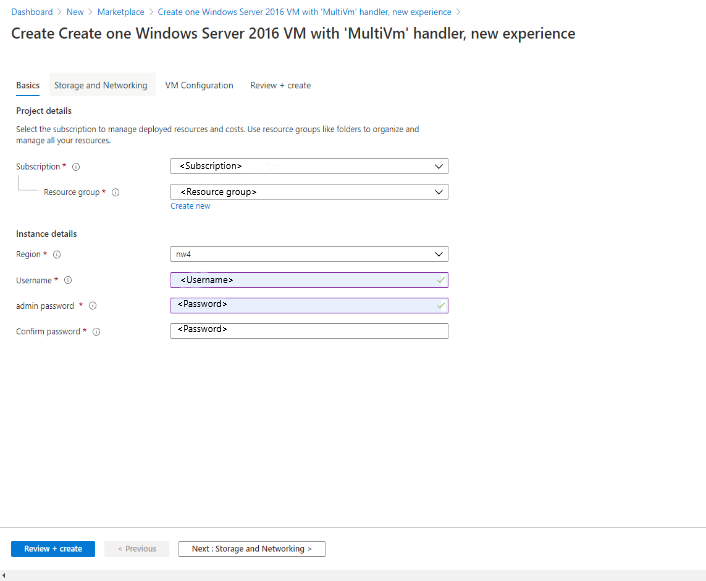
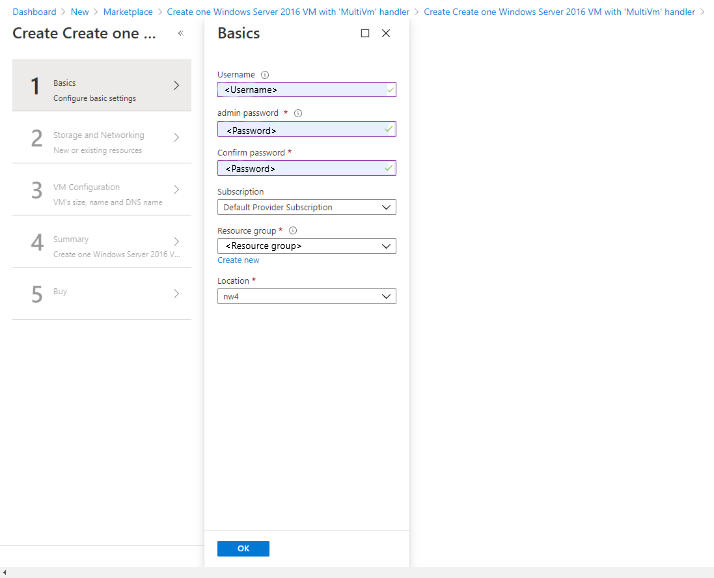
Certain solution templates can't work with the new changes to the UI unless you update the templates. To minimize disruptions, follow the steps in this article to make sure all your items are compatible with the latest update. The following images are a side-by-side comparison between the old (bottom) and the new experience (top).
New:
Old:
Validation steps
First, determine which solution templates on your Azure Stack Hub marketplace need to be updated. The following JavaScript snippet can help you find the different items you might need to validate.
Run the script in the web console where you're signed into the admin portal. You can usually find the console in the web browser's development tools (this location can vary depending on the browser). When the console is open, paste the following script into the console, and then select Enter. The output is a list of solution templates from your Azure Stack Hub marketplace that aren't compatible with the new CreateUiDefinition format:
uri = "/providers/Microsoft.Gallery/GalleryItems?api-version=2015-04-01"
let galleryItemsResult = await MsPortalFx.Base.Net2.ajax({uri: uri, useFxArmEndpoint: true});
const result = [];
console.log("Checking....");
for (let i=0;i<galleryItemsResult.length;i++) {
   const v = galleryItemsResult[i];
   const uidef = await MsPortalFx.Base.Net2.ajax({uri: v.uiDefinitionUri, useRawAjax: true});
   const createBlade = uidef.createDefinition.createBlade;
   if (createBlade.name === "CreateMultiVmWizardBlade" && createBlade.extension === "Microsoft_Azure_Compute") {
       result.push(v);
   }
}
if (result.length === 0) {
    console.log("\n\n You don't have to update any item :)");
} else {
    console.log("\n\nThese items need to be updated:");
    result.forEach((v)=>{
        console.log(v.itemDisplayName);
    });
}
Use the following chart to determine next steps with the list of incompatible solution templates:
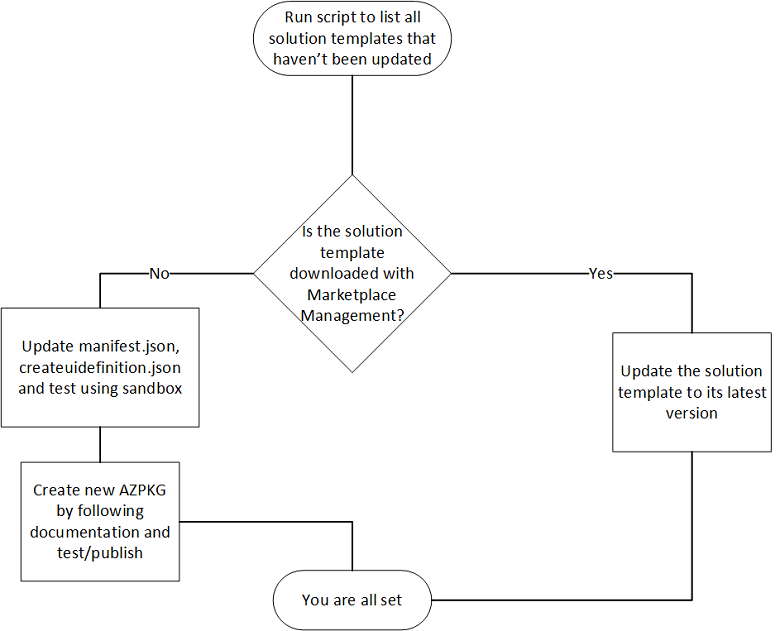
If you download your solution template by using Marketplace management, update the template to the latest version. In the coming months, Microsoft updates solution templates from Marketplace management, so watch for the latest versions of your marketplace items.
If your solution template isn't from Marketplace management or it's a custom template that you created in-house, you might need to take extra steps to ensure compatibility with the upcoming create UI. Complete the following steps before the new CreateUiDefinition experience is released (sometime in the coming months) to ensure that your custom solution templates work with the new UX.
First, get the AZPKG file for the solution template. After extracting the .AZPKG file for the template, follow these steps to update your solution templates.
Step 1: modify UIDefinition.json file
Change the schema to the following code:
"$schema": "https://gallery.azure.com/schemas/2018-02-12/UIDefinition.json#",Change the "create blade" section to the following code:
"createBlade": {
      "name": "CreateUIDefinitionBlade",
      "extension": "Microsoft_Azure_CreateUIDef"
},
Step 2: Modify CreateUiDefinition.json
Change the schema, handler, and version to the following code:
"$schema": "https://schema.management.azure.com/schemas/0.1.2-preview/CreateUIDefinition.MultiVm.json#",
"handler": "Microsoft.Azure.CreateUIDef",
"version": "0.1.2-preview",
Go to
https://<your portal uri>/#blade/Microsoft_Azure_CreateUIDef/SandboxBlade, and follow the instructions to test the modified CreateUiDefinition.json content.
Address any issues reported by the sandbox page.
Step 3: Update Manifest.json and create new AZPKG
Update the
versionproperty in the Manifest.json file to a newer version to allow for publishing the updated template.Create the new AZPKG by using the Gallery Packager tool. Run the packager command in PowerShell as follows:
AzureStackHubGallery.exe package -m <azpkg file\manifest.json> -o <outfile path>This command creates a new AZPKG from the file that holds the different files. You can use this AZPKG to publish the new solution template onto the marketplace.