Note
Access to this page requires authorization. You can try signing in or changing directories.
Access to this page requires authorization. You can try changing directories.
You can use the Azure Stack Hub user portal, in the Azure Kubernetes Service (AKS), to discover, create, scale, upgrade, and delete AKS clusters.
Verify your resource providers
You will need to have the Microsoft.ContainerService resource provider available for your subscription. To find the services available in your subscription:
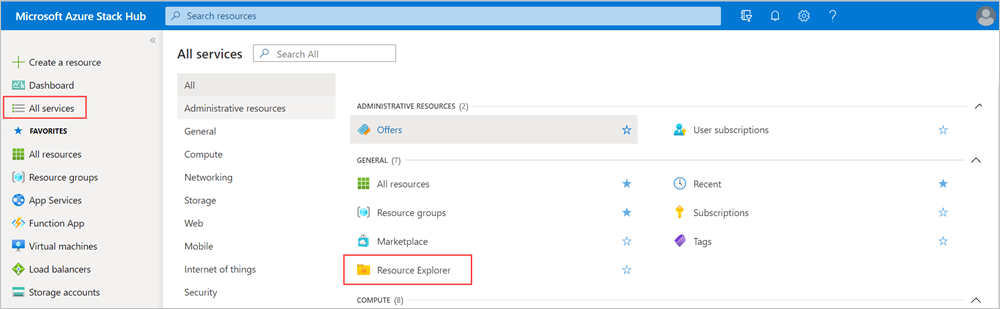
Sign in to the Azure Stack user portal. Select All services > Resource Explorer in the General group.
In the Resource Explorer, find the
Microsoft.ContainerService.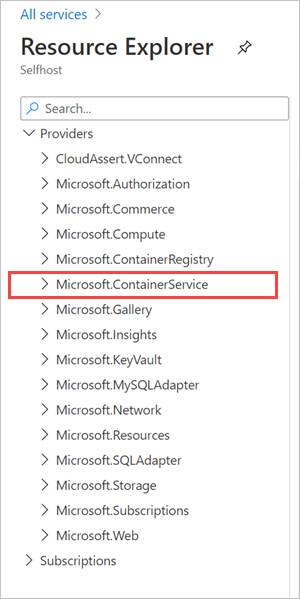
If your subscription doesn't have
Microsoft.ContainerService, you will need to have your cloud operator add the resource provider to your subscription, or you will need to subscribe to a subscription with the provider. Contact your cloud operator.
Discover available AKS clusters
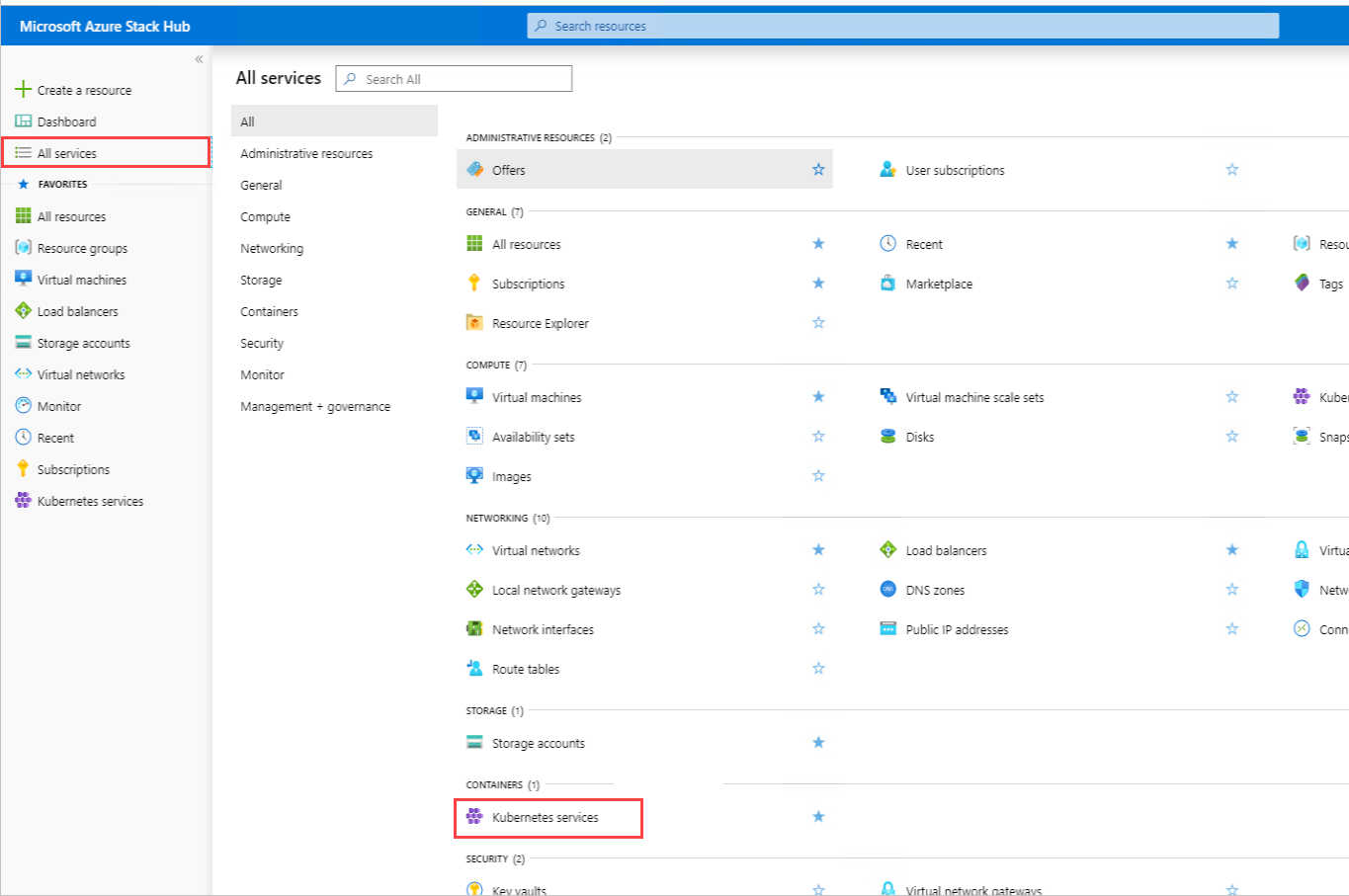
In the Azure Stack tenant portal, find All Services, and select Kubernetes services.
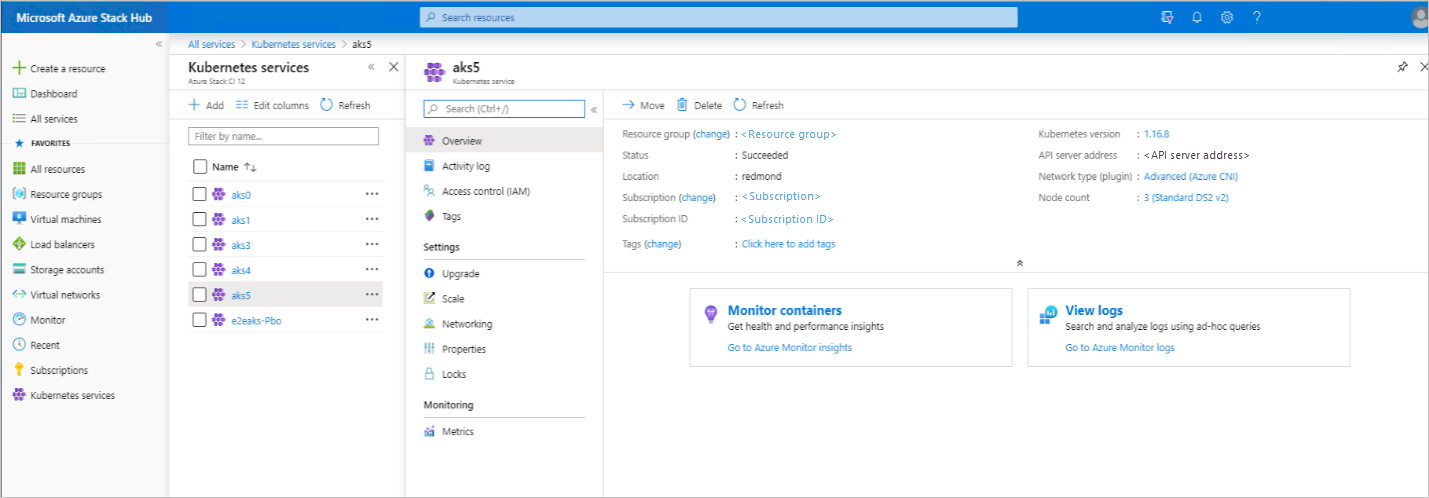
Verify that all clusters that you have created appear in Kubernetes service:
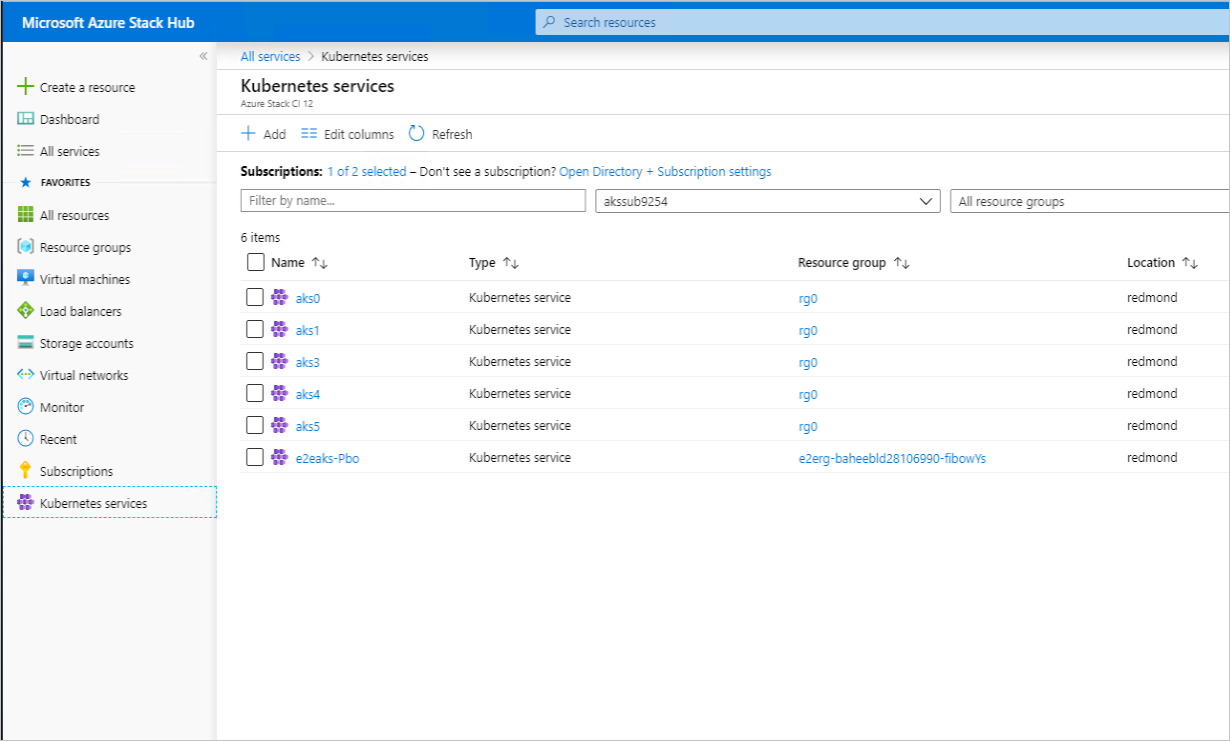
Verify that you can view the details of any of the clusters:
Create cluster
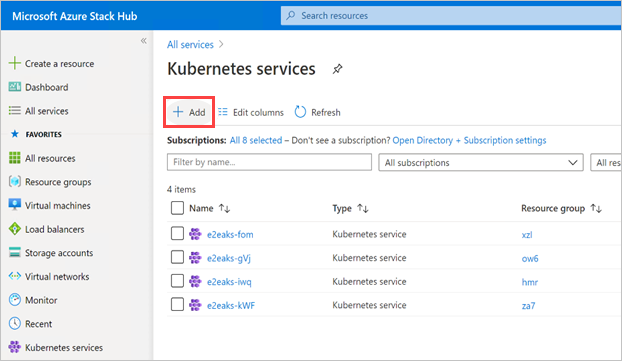
In Kubernetes services, select Add.
Follow the steps to create an AKS cluster. The first step collects the basic cluster properties:
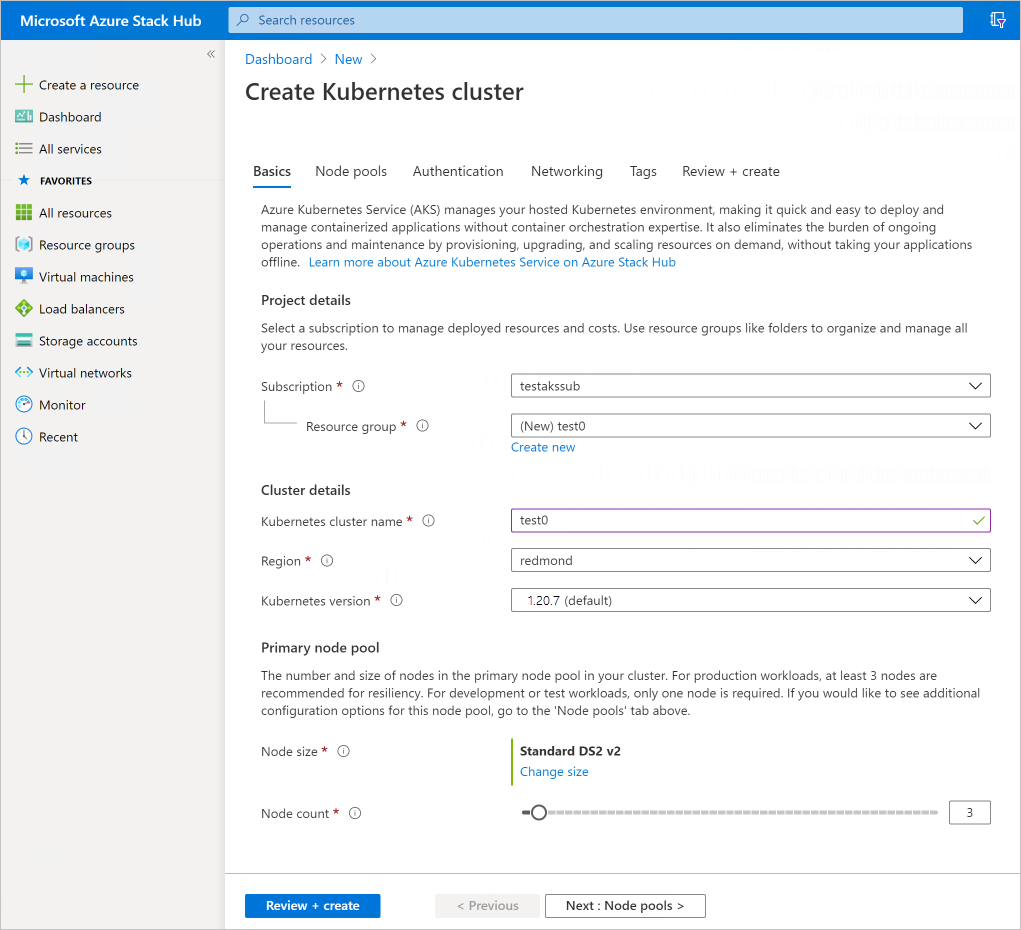
Use a version of Kubernetes 1.20 or greater. For more information, see Applications deployed to AKS clusters fail to access persistent volumes.
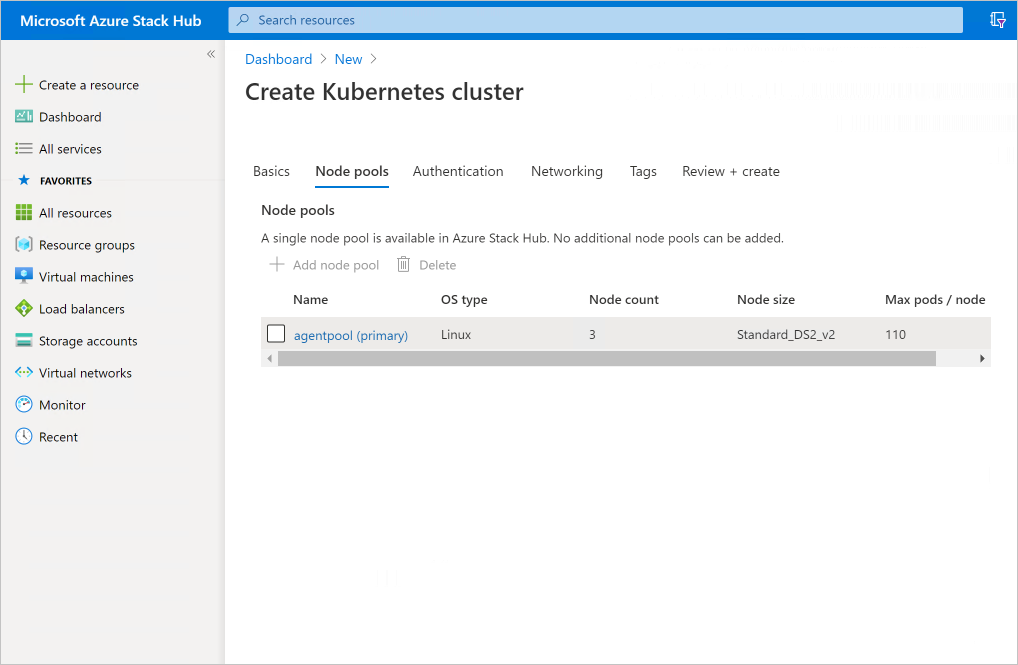
In Node pools you can see that only a single node pool is allowed in Azure Stack Hub:
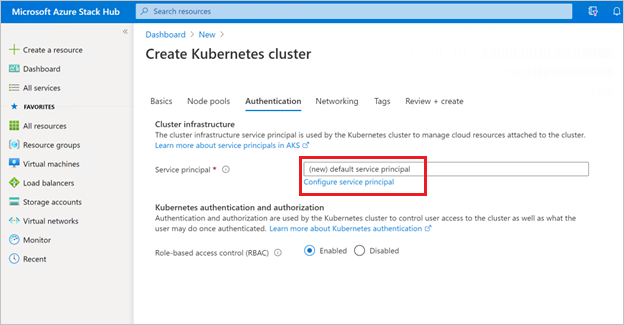
In Authentication, provide the service principal (SPN). The SPN won't be automatically generated as in Azure. Select the Configure service principal link and add the service principal. You can find the instructions to create one.
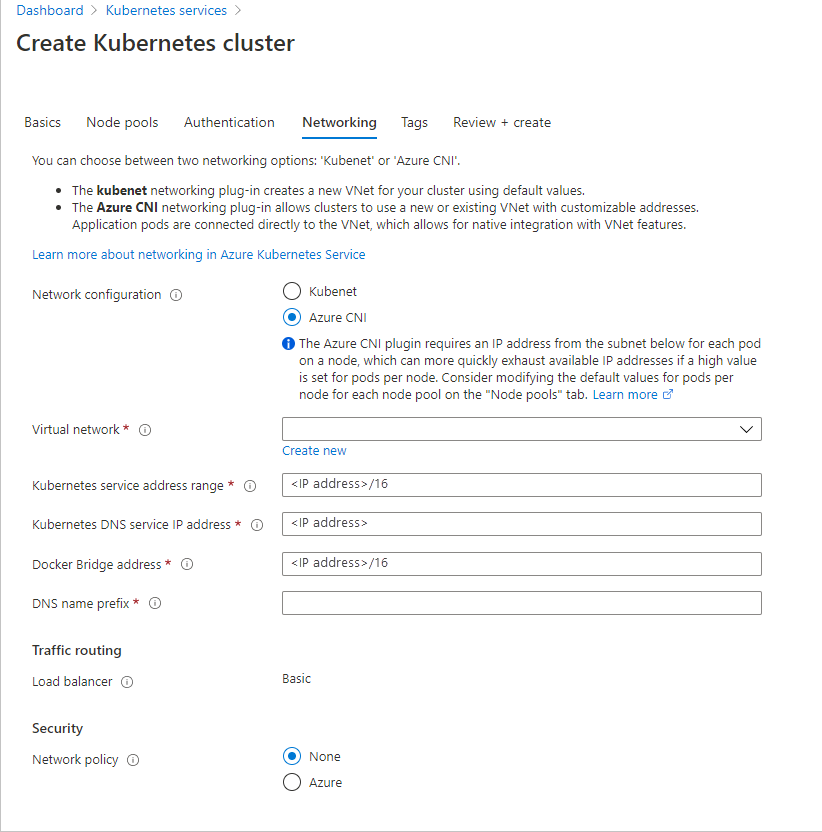
In Networking, select Azure CNI, and then continue to create the cluster.
Scale cluster
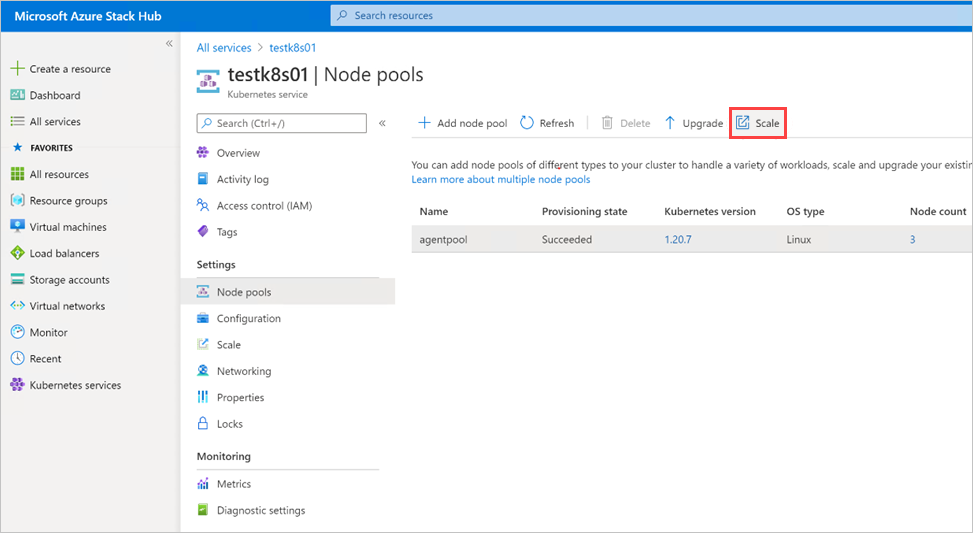
In cluster details, select Node pools, then select the node pool and select Scale
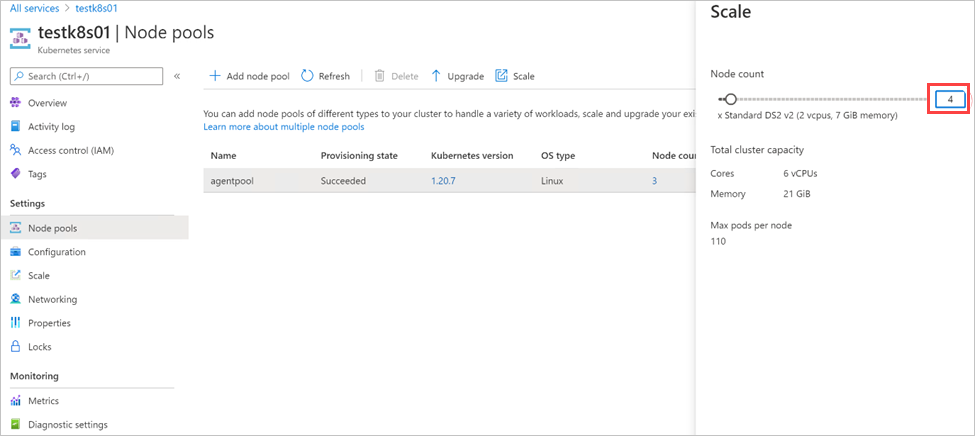
In the scale panel on the right, select the new node count
Delete cluster
In the overview for the AKS cluster, find and select Delete as in the image below.
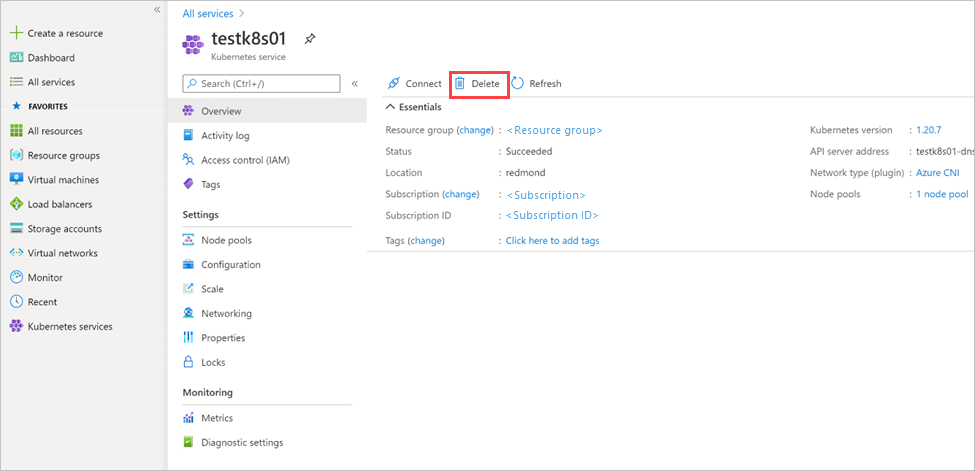
Verify the cluster is deleted. Also, check that the associated resource group is deleted. In Resource groups, look for a resource group with the following pattern
<…>_clustername_location. If a resource can't be found, it was properly deleted.