Note
Access to this page requires authorization. You can try signing in or changing directories.
Access to this page requires authorization. You can try changing directories.
This article covers protection and recovery of storage accounts within Azure Storage accounts on Azure Stack Hub.
Elements of the solution
This section describes the overall structure of the solution and its major parts.
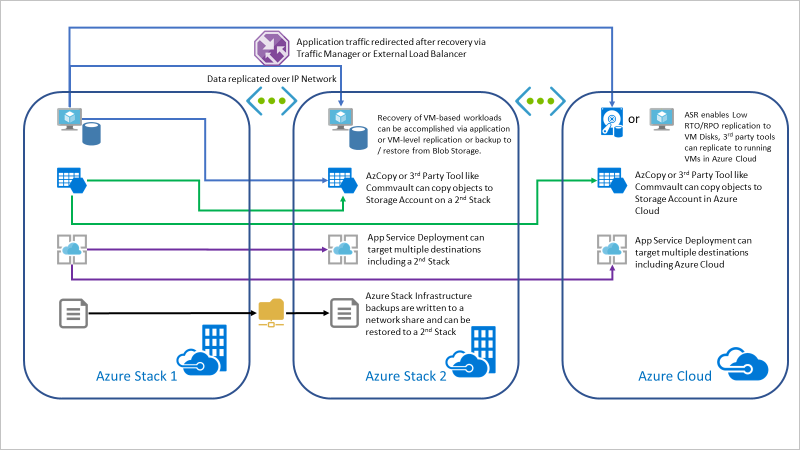
Application layer
You can replicate data between storage accounts on separate Azure Stack Hub scale units by issuing multiple PUT Blob or Put Block operations to write objects to multiple locations. Alternatively, the application can issue the Copy Blob operation to copy the blob to a storage account hosted on a separate scale unit after the Put operation to the primary account finishes.
Scheduled copy task
AzCopy is a tool that you can use to copy data from local filesystems, Azure Cloud Storage, Azure Stack Hub Storage, and s3. Currently, AzCopy can't copy data between two Azure Stack Hub Storage Accounts. Copying objects from a source Azure Stack Hub Storage account to a target Azure Stack Hub Storage account requires an intermediary local filesystem.
For more information, see the AzCopy section in the Use data transfer tools in Azure Stack Hub Storage article.
Azure Stack Hub (source)
This storage account is the source of the data you want to back up.
You need the Source Storage Account URL and SAS Token. For instructions on working with a storage account, see Get started with Azure Stack Hub storage development tools.
Azure Stack Hub (target)
This target stores the account data you want to back up. The target Azure Stack Hub instance must be in a different location from your source Azure Stack Hub. The source needs to connect to the target.
You need the Source Storage Account URL and SAS Token. For instructions on working with a storage account, see Get started with Azure Stack Hub storage development tools.
Intermediary local filesystem
You need a place to run AzCopy and store data when copying from your source and then writing to your target Azure Stack Hub. This place is an intermediate server in your source Azure Stack Hub.
You can create a Linux or Windows server as your intermediate server. The server will need to have enough space to store all of the objects in the source Storage account containers.
- For instructions on setting up a Linux Server, see Create a Linux server VM by using the Azure Stack Hub portal.
- For instructions on setting a Windows Server, see Create a Windows server VM with the Azure Stack Hub portal.
After you set up your Windows Server, install Azure Stack Hub PowerShell and Azure Stack Hub Tools.
Set up backup for storage accounts
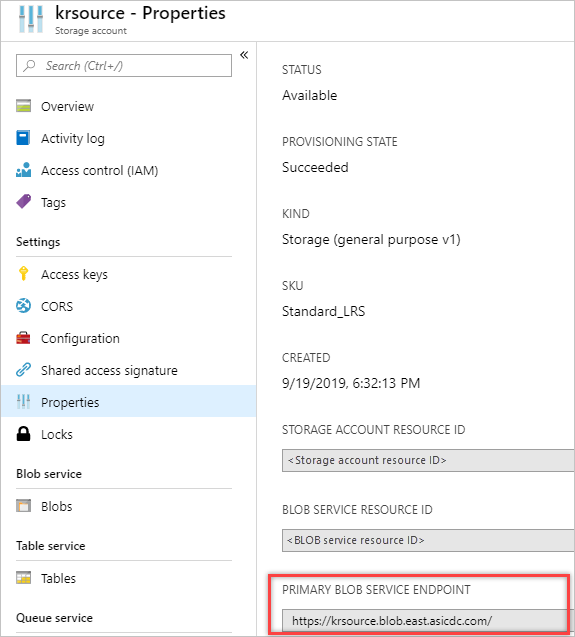
Retrieve the Blob Endpoint for the source and target storage accounts.
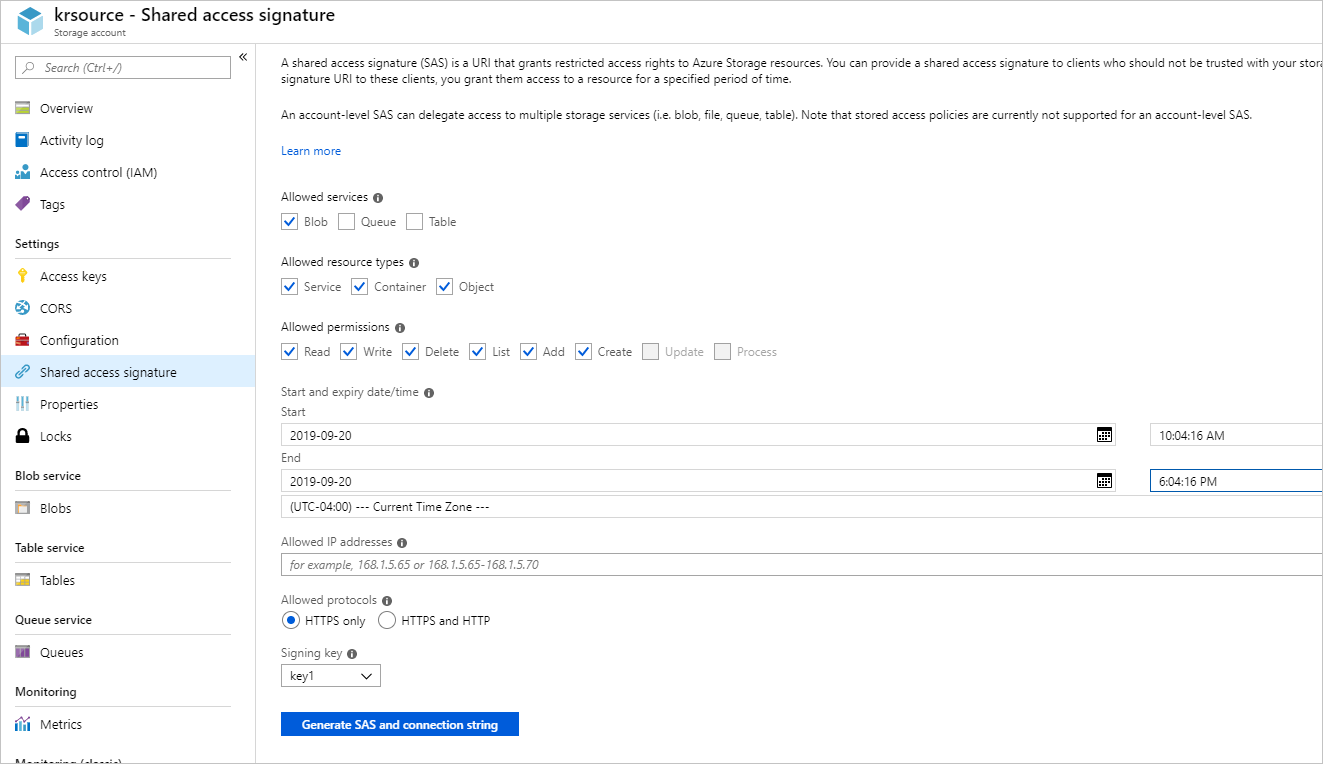
Create and record SAS Tokens for the source and target storage accounts.
Install AzCopy on the intermediary server and set the API Version to account for Azure Stack Hub Storage Accounts.
- For a Windows server:
set AZCOPY_DEFAULT_SERVICE_API_VERSION=2017-11-09 PowerShell use: $env:AZCOPY_DEFAULT_SERVICE_API_VERSION="2017-11-09"- For a Linux (Ubuntu) server:
export AZCOPY_DEFAULT_SERVICE_API_VERSION=2017-11-09On your intermediate server, create script. Update this command with your storage account, SAS key, and local directory path. You run the script to copy data incrementally from the source storage account.
azcopy sync "https:/<storagaccount>/<container>?<SAS Key>" "C:\\myFolder" --recursive=true --delete-destination=trueEnter the storage account, SAS key, and local directory path. You use this information to copy data incrementally to the target storage account.
azcopy sync "C:\\myFolder" "https:// <storagaccount>/<container>?<SAS Key>" --recursive=true --delete-destination=trueUse Cron or Task Scheduler to schedule the copy from the source Azure Stack Hub storage account to local storage on the intermediate server. Then copy from local storage in the intermediate server to the target Azure Stack Hub storage account.
The RPO you can achieve with this solution is determined by the /MO parameter value and the network bandwidth between the source account and the intermediary server and the intermediary server and the target account.
- For a Linux (Ubuntu) server:
schtasks /CREATE /SC minute /MO 5 /TN "AzCopy Script" /TR C:\\<script name>.batParameter Note /SC Use a minute schedule. /MO An interval of XX minutes. /TN The task name. /TR The path to the script.batfile.- For a Windows server:
For information on using the Windows Task schedule, see Task Scheduler for developers.
Use your storage account in a disaster
Each Azure Stack Hub Storage account has a unique DNS name that comes from the name of the Azure Stack Hub region. For example, https://krsource.blob.east.asicdc.com/. Applications that write to and read from this DNS name need to handle the storage account DNS name change when the target account is used during a disaster. For example, the target account might be https://krtarget.blob.west.asicdc.com/.
You can change application connection strings after a disaster is declared to account for the relocation of the objects. If you use a CNAME record in front of an Azure Load Balancer that fronts the source and target storage accounts, you can configure the Load Balancer with a manual failover algorithm that you can use to declare the target.
If SAS is used by the application rather than Microsoft Entra ID or AD FS, the above method will not work and application connection strings will need to be updated with the target storage account URL and the SAS key(s) generated for the target storage account.