Note
Access to this page requires authorization. You can try signing in or changing directories.
Access to this page requires authorization. You can try changing directories.
This article describes how to restore a recovery point created by the v2 (physical backup) experience to an Azure Database for PostgreSQL flexible server and elastic cluster by using the Azure portal.
By using the v2 experience, Azure Backup restores a recovery point as a server. It writes the recovery point contents to the disks of a target server that you create before the restore. The PostgreSQL resource provider then brings the target server online at a transactionally consistent point. This process doesn't require an intermediate storage account or a manual import process.
Note
Restore as Files isn't supported with the v2 experience. You can restore recovery points created by the generally available logical backup experience as files. Recovery points created by the generally available logical backup solution are still restored as files. See Restore Azure PostgreSQL-Flexible server as Files using Azure portal. The recovery point list shows the backup type for each recovery point, so you can tell v1 and v2 recovery points apart.
Prerequisites
Before you restore an Azure PostgreSQL flexible server and elastic cluster (v2) by using the Azure portal, ensure that you meet the following prerequisites:
- Create the target server or elastic cluster before you start the restore. Azure Backup restores the recovery point to an existing target and doesn't create a target. The restore is always an alternate-location restore.
- The target server or elastic cluster meets the following requirements. The portal validates these requirements before you submit the restore request:
- The target server is empty.
- The target server doesn't use the Burstable compute tier.
- The PostgreSQL major version matches the version of the source server when the backup was taken. The restore fails if the major version is lower or higher.
- The disk size is the same as the disk size of the source server. The restore fails if the target disk size is less than the source disk size, even if the recovery point requires less space.
- The disk type matches the source. A Premium SSD v1 recovery point requires a Premium SSD v1 target, and a Premium SSD v2 recovery point requires a Premium SSD v2 target.
- High availability isn't configured.
- A geo-replica isn't configured, and the target isn't a geo-replica.
- Review the access permission if present to assign PostgreSQL Flexible Server Long Term Retention Backup Role on the target flexible server and elastic cluster to the Backup Vault for the restore operation. The Azure portal can assign the missing roles inline. You can also use a user-assigned managed identity.
- Check the recovery point metadata before you create the target server and elastic cluster. Also, verify the PostgreSQL version and disk configuration so that they match the recovery point requirements.
Restore considerations for Azure Database for PostgreSQL flexible server and elastic cluster (v2)
Before you start the restore, review the following considerations:
Restore duration: A v2 restore writes the complete recovery point to the target disks. Restore duration depends on the size of the recovery point rather than the amount of data changed since the previous backup. For multi-terabyte servers or clusters, the restore can take several hours or longer. Consider this duration when planning recovery, compliance, or audit operations.
Post restore server configuration: Azure Backup restores the disk contents. Server-level configuration outside the disks isn't included in the recovery point. After the restore, verify and configure the required extensions, server parameters, and firewall or network settings on the target.
Microsoft Entra authentication: If the restored server or cluster requires Microsoft Entra authentication, enable it and configure the required Microsoft Entra administrators after the restore.
Target server protection: The restored server or cluster is a new Azure Resource Manager resource and doesn't inherit backup protection from the source. To protect the restored resource, configure it as a new datasource after the restore.
Restore a recovery point of Azure Database for PostgreSQL flexible server and elastic cluster (v2) as a server
To restore a recovery point of Azure Database for PostgreSQL flexible server and elastic cluster (v2), follow these steps:
Go to Backup center and select Recover.
On the Recover pane, select the data source type Azure Database for PostgreSQL flexible server/elastic cluster, and choose Select.
On the Select backup instance pane, choose a protected item from the list and choose Select.
On the Recover pane, select Continue.
On the Restore pane, on the Restore point tab, for Restore point, choose Select restore point.
On the Select restore point pane, select the recovery point you want to restore. Change the date range by using Time period if the recovery point you need is older than the default window. Each recovery point shows its creation time, its expiry date, and its details as JSON. Then choose Select.
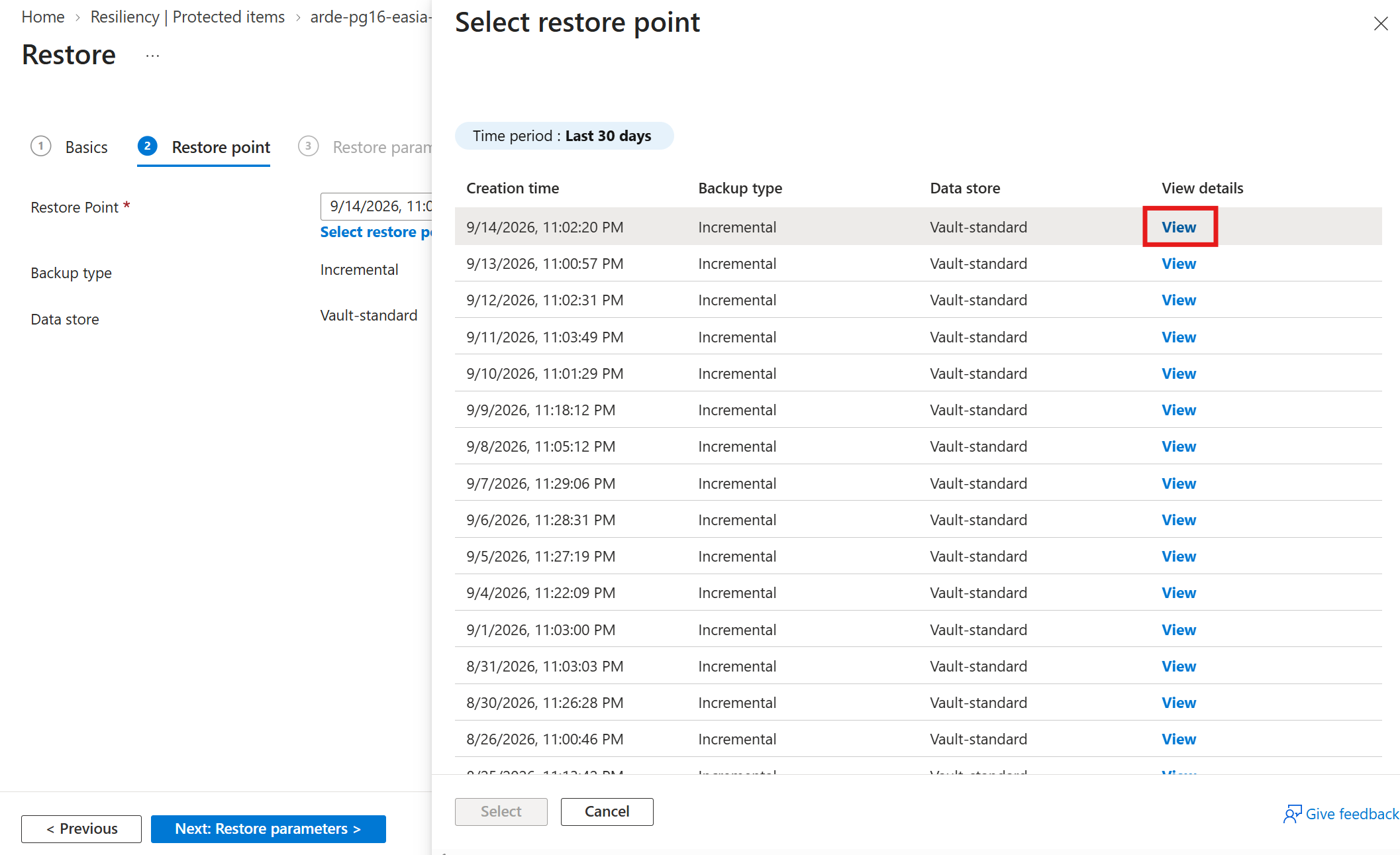
On the Restore pane, on the Restore parameters tab, select the target Azure Database for PostgreSQL flexible server/ elastic cluster.
To check the restore parameters and permissions before the final review, select Validate.
- If permissions are missing on the target, select Assign missing roles and proceed. Validation restarts automatically once role assignment completes.
- If the target doesn't meet the criteria listed under Prerequisites. For example, due to a mismatched PostgreSQL version, a smaller disk, or a non-empty server, validation fails with a user error showing the cause of failure. Correct the target, or create a new one, and revalidate.
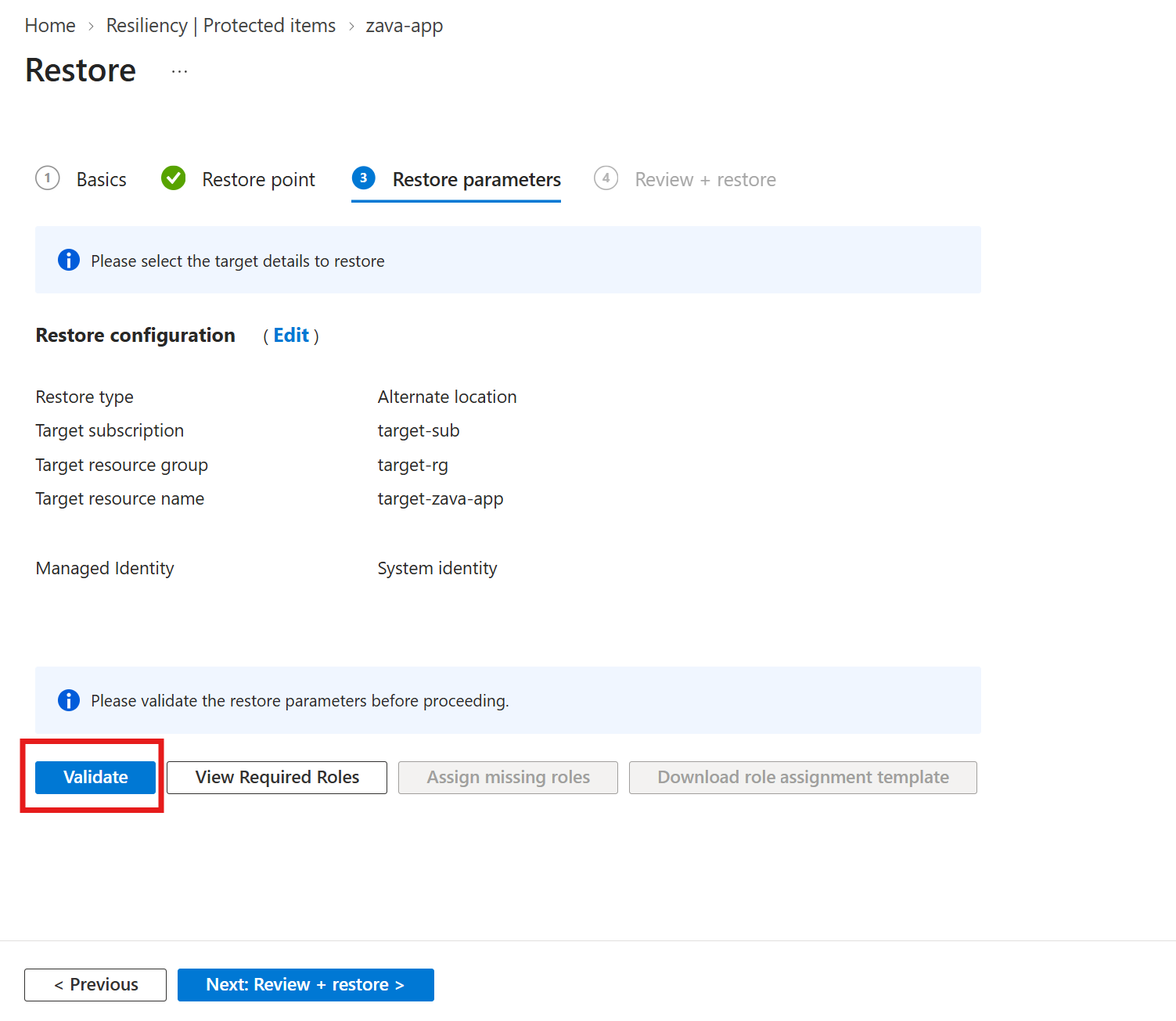
After validation succeeds, select Review + restore.
On the Review + restore pane, review the restore parameters and select Restore.
You can track the triggered job under Backup jobs. When the restore job finishes successfully, the target server comes online with the restored data.