Note
Access to this page requires authorization. You can try signing in or changing directories.
Access to this page requires authorization. You can try changing directories.
This article describes how to enable system‑assigned and user‑assigned managed identities with a vault so Azure Backup can authenticate to dependent Azure resources without storing credentials. The vault uses a managed identity, which acts as a Microsoft Entra ID service principal, and you grant it Azure role‑based access control (Azure RBAC) permissions on target resources such as protected data sources and Azure Key Vault encryption keys.
Azure Backup uses this identity to obtain Microsoft Entra tokens at runtime, eliminating credential handling while enabling secure access at no extra cost. The article also explains when to use each identity type and how their lifecycle and assignment differ.
Supported managed identity types
Azure Backup supports system-assigned and user-assigned managed identities. You can enable both managed identity types on the same vault at the same time.
| Managed identity type | Consideration |
|---|---|
| System-assigned |
Note that the system-assigned identity has the same name as the vault. Use the object ID from the Identity blade for automation. |
| User-assigned |
|
Key differences between system-assigned and user-assigned managed identities
The following table provides a comparison summary of system-assigned and user-assigned managed identities.
| Consideration | System-assigned | User-assigned |
|---|---|---|
| Lifecycle | Tied to the vault; deleted with it | Independent; persists across vault changes |
| Cardinality | One per vault | Many per vault; sharable across vaults |
| Typical use case | Single-vault deployments, simplest setup | Fleet deployments, standardized RBAC, pre-provisioned identities |
| Enable at vault creation | Not supported; enable after the vault is created | Supported on Backup vault at creation |
Prerequisites
Before you enable managed identities for the vault, review the following prerequisites:
- Check that a vault exists, or permission to create one.
- Verify that your account has the Backup Contributor role (or equivalent) on the vault to manage identity and assign roles.
- Identify the resource group of each downstream resource (disk, storage account, key vault, and so on) to scope role assignments correctly.
Enable managed identity
You can enable managed identities for a Backup vault using the Azure portal, Azure CLI, or PowerShell.
Choose a client:
Azure Backup allows you to enable managed identity for a Backup vault either during vault creation or for an existing vault.
Enable managed identity for Backup vault at vault creation
To enable managed identity for Backup vault at vault creation using Azure portal, follow these steps:
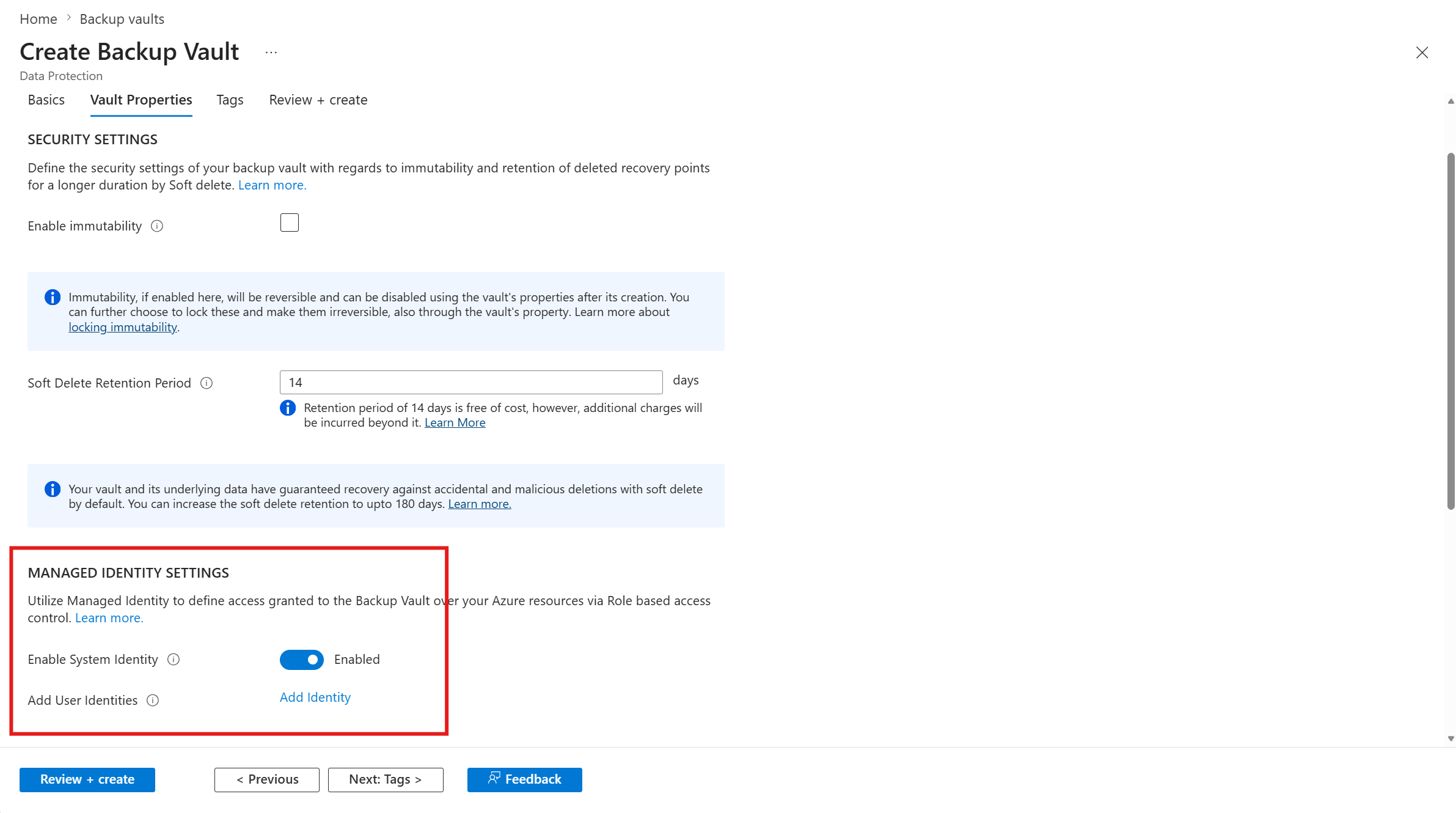
On the Vault Properties tab, under Managed Identity Settings, for Enable System Identity, toggle the state to Enabled
For Add User Identities option, select Add Identity to attach one or more user-assigned identities
Enable managed identity for an existing Backup vault
To enable managed identities for an existing Backup vault, follow these steps:
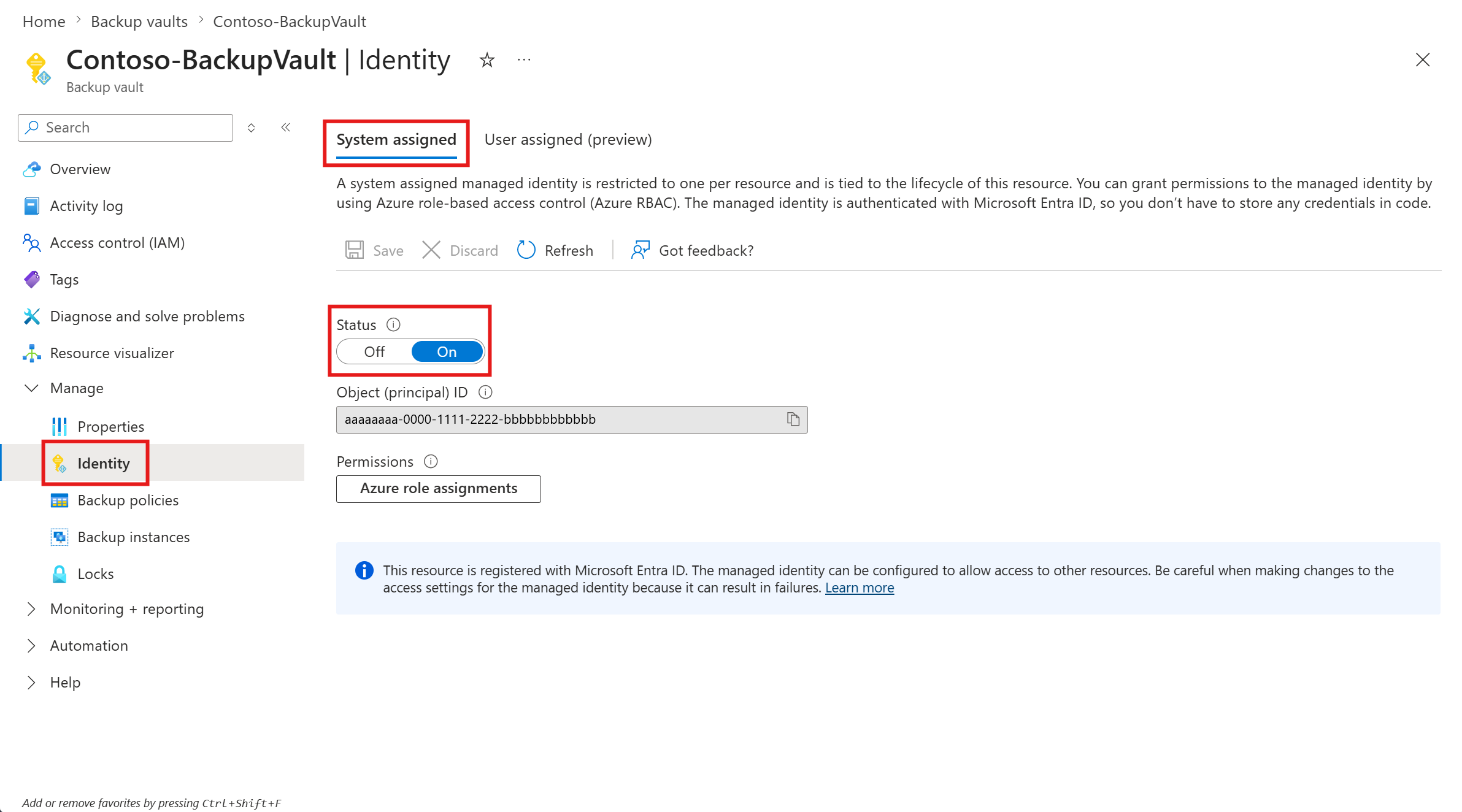
Go to your Backup vault and select Settings > Identity
On the Identity pane, for a system-assigned identity, on the System assigned tab, set Status to On and select Save
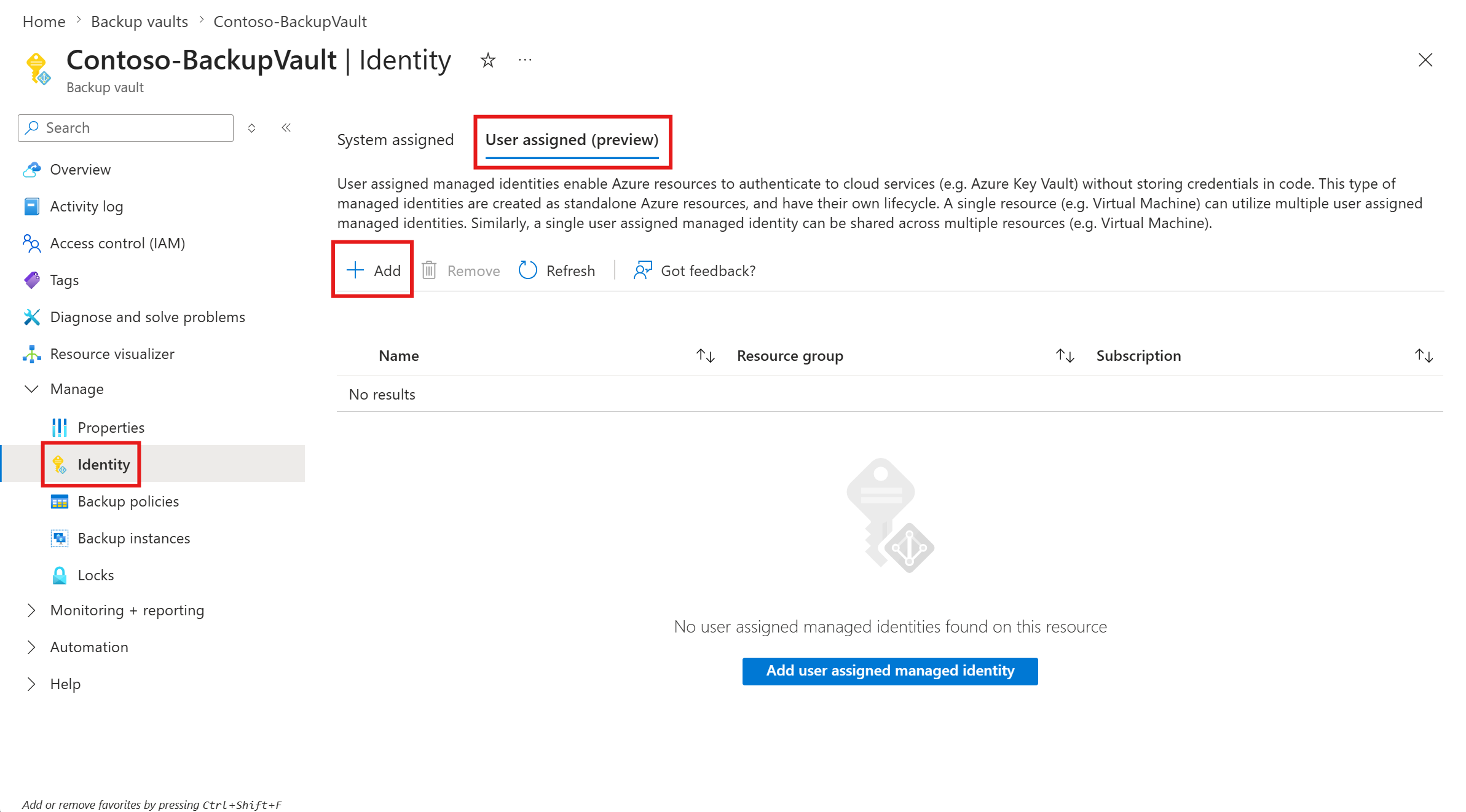
For a user-assigned identity, on the User assigned tab, select + Add to attach one or more user-assigned identities