Note
Access to this page requires authorization. You can try signing in or changing directories.
Access to this page requires authorization. You can try changing directories.
This article describes how to configure private endpoints for Azure Backup when using Microsoft Azure Backup Server (MABS) to back up on-premises data securely.
Azure Backup allows you to back up and restore your data securely from your Recovery Services vaults using private endpoints. Private endpoints use one or more private IP addresses from your Azure Virtual Network, effectively bringing the service into your virtual network.
This feature enables private endpoints for Azure Backup to maintain the security of your resources.
Azure Backup now provides an enhanced experience in creation and use of private endpoints compared to the classic experience (v1).
Learn more about the enhanced capabilities of private endpoints (v2 Experience).
Note
Private endpoints work only with MABS v4 (14.0.30.0) or later.
Considerations
Before you configure private endpoints for Azure Backup, ensure that you review the following considerations:
- A Recovery Services vault works with both Azure Backup and Azure Site Recovery. This article focuses on using private endpoints for Azure Backup only.
- Create private endpoints only for new Recovery Services vaults without any registered or protected items.
- You can't upgrade vaults that include private endpoints created in the classic experience to the new experience. Delete all existing private endpoints and then create new ones using the v2 experience.
- A single virtual network can host private endpoints for multiple Recovery Services vaults. Likewise, one Recovery Services vault can have private endpoints across multiple virtual networks.
- A private endpoint for a vault uses up to 10 private IPs, which might vary by location. When you use private endpoints for Azure Backup, ensure you have
10 + nIPs available (where n equals the number of data sources protected on Azure Backup Server). - MABS configured with a private endpoint can protect up to 80 data sources on a Recovery Services vault under the current configuration.
- Private endpoints for Azure Backup don't include access to Microsoft Entra ID. Enable outbound access for IPs and Fully Qualified Domain Names (FQDNs) required for Microsoft Entra ID in the secured network when you back up using the MARS agent. You can also use Network Security Group (NSG) tags and Azure Firewall tags to allow access to Microsoft Entra ID.
- If your Recovery Services vault uses a private endpoint, all backup data travels through a private IP in your Azure virtual network. In this case, ExpressRoute Private Peering is required to carry backup traffic between on-premises and Azure.
- You can create DNS across subscriptions.
Supported network connections for private endpoints
Private endpoints are essential when you back up workloads in MABS using the MARS agent. Irrespective of the private endpoint configuration, MARS agent connects to Microsoft Entra ID through the FQDNs listed in sections 56 and 59 in Microsoft 365 Common and Office Online.
When MARS agent is installed for Recovery Services vault with private endpoint, the following endpoints are communicated:
| Service | Domain names | Ports |
|---|---|---|
| Azure Backup | *.privatelink.<geo>.backup.windowsazure.cn |
443 |
| Azure Storage | *.blob.core.chinacloudapi.cn *.queue.core.chinacloudapi.cn *.blob.storage.chinacloudapi.cn |
443 |
| Microsoft Entra ID | *.login.microsoft.com Allow access to FQDNs under sections 10 according to this article |
443 As applicable |
In the domain name, \<geo\> refers to the region code (for example, bjb2 for China North 2 and sha2 for China East 2). Learn about the supported geography for the following regions:
For a Recovery Services vault with private endpoint setup, the name resolution for the FQDNs (privatelink.<geo>.backup.windowsazure.cn, *.blob.core.chinacloudapi.cn, *.queue.core.chinacloudapi.cn, *.blob.storage.chinacloudapi.cn) should fetch a private IP address. You can fetch the IP address using the following parameters:
- Azure Private DNS zones
- Custom DNS
- DNS entries in host files
- Conditional forwarders to Azure DNS / Azure Private DNS zones.
Create a Recovery Service vault and disable public access to the vault
To create a Recovery Services vault with private endpoints and disable the public access, follow these steps:
Create a vault in the resource group same as the datasource you want to back up.

After the vault creates successfully, go to the vault > Networking.
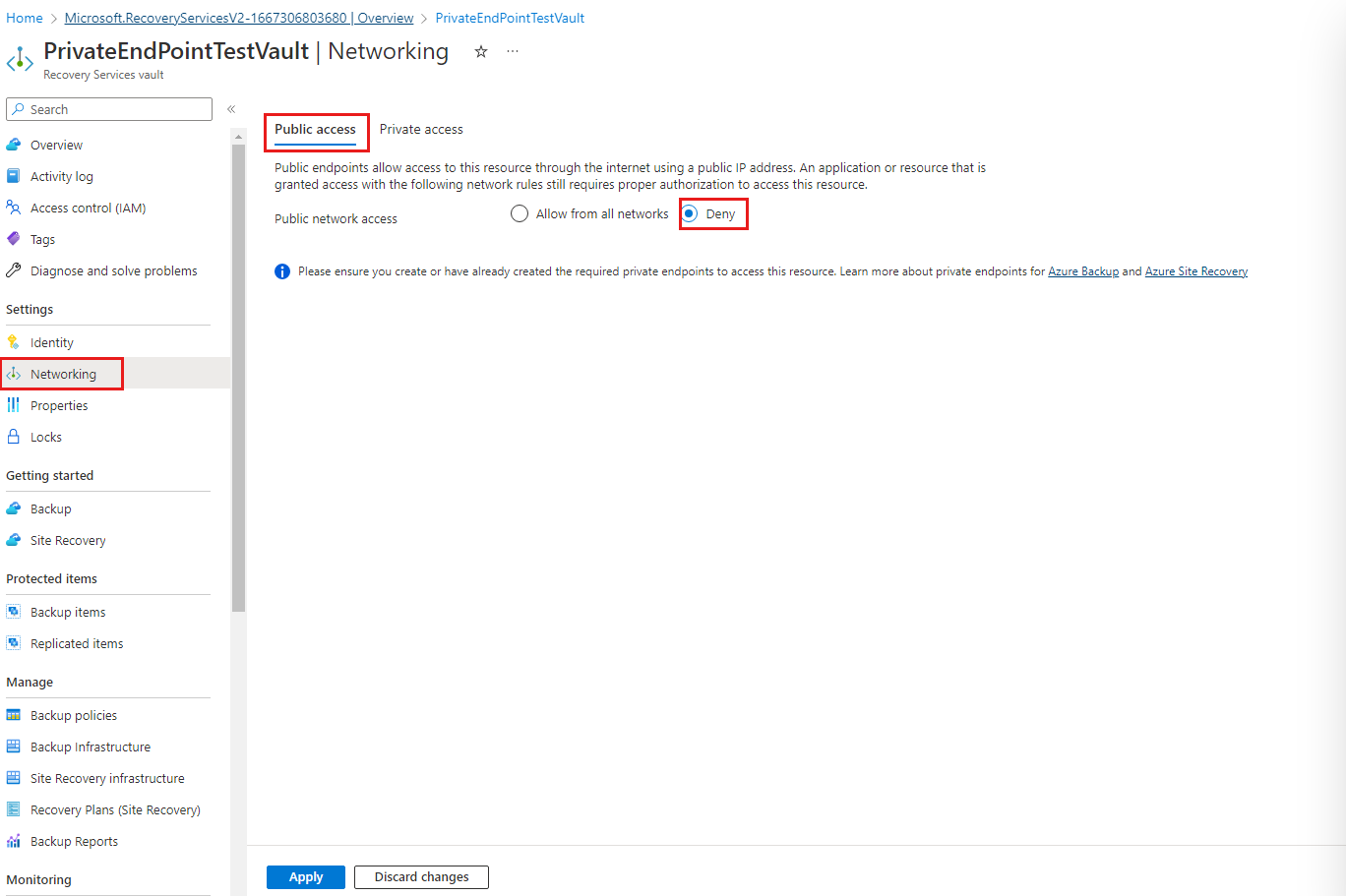
To prevent access from public networks, on the Networking pane, on the Public access tab, select Deny.
Create private endpoints for Azure Backup
To create private endpoints for Azure Backup, follow these steps:
Go to the Recovery Services vault where you disabled public access > Networking > Private access, and then select + Private endpoint.
On the Create a private endpoint pane, specify the required details for creating your private endpoint connection by following these steps.
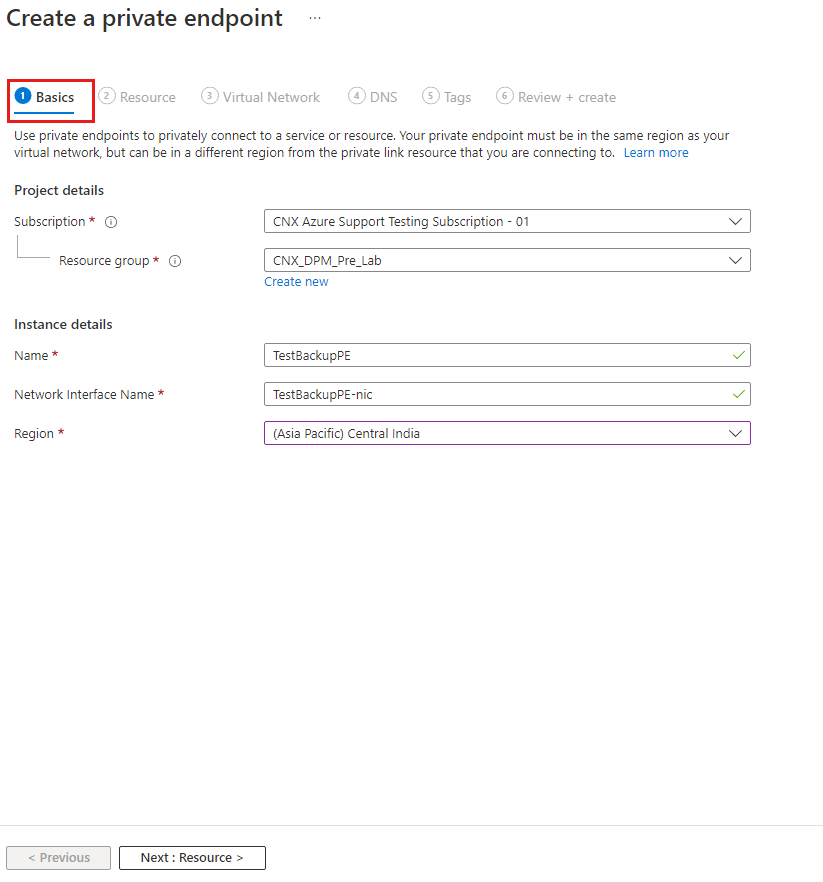
On the Basics tab, enter the basic details for your private endpoints. The region should be the same as the vault and the resource for backup.
On the Resource tab, select the PaaS resource for which you want to create your connection, Resource type as
Microsoft.RecoveryServices/vaults. Then, choose the name of your Recovery Services vault as the Resource and AzureBackup as the Target sub-resource.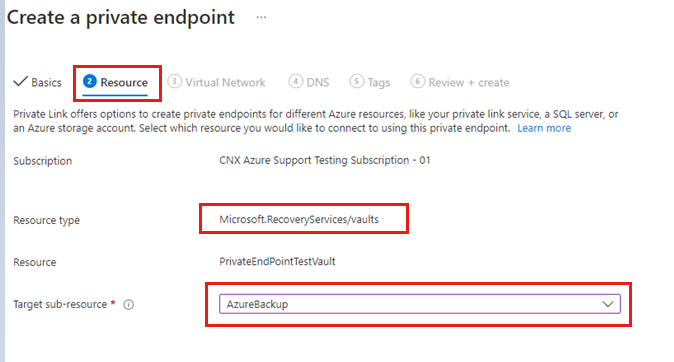
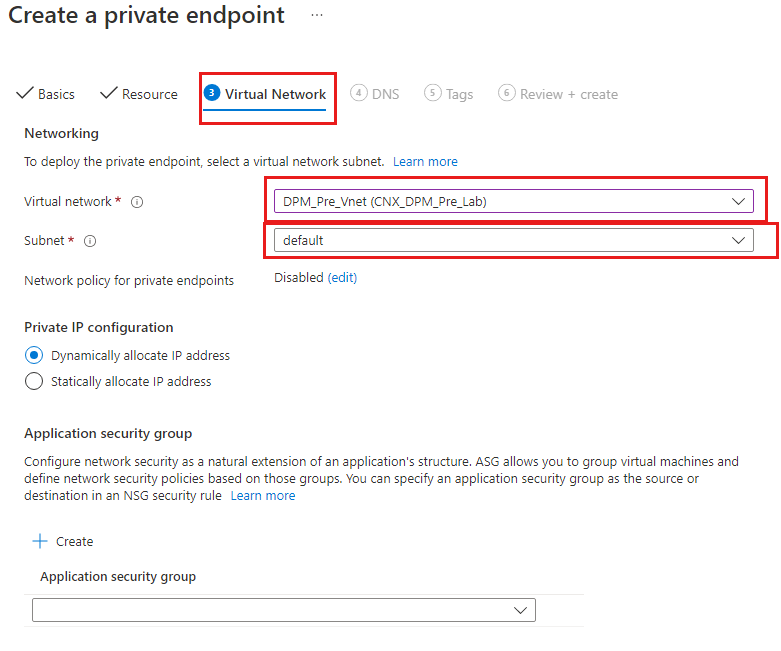
On the Virtual Network tab, specify the virtual network and subnet where you want the private endpoint to be created (the virtual network where the Virtual Machine (VM) is located).
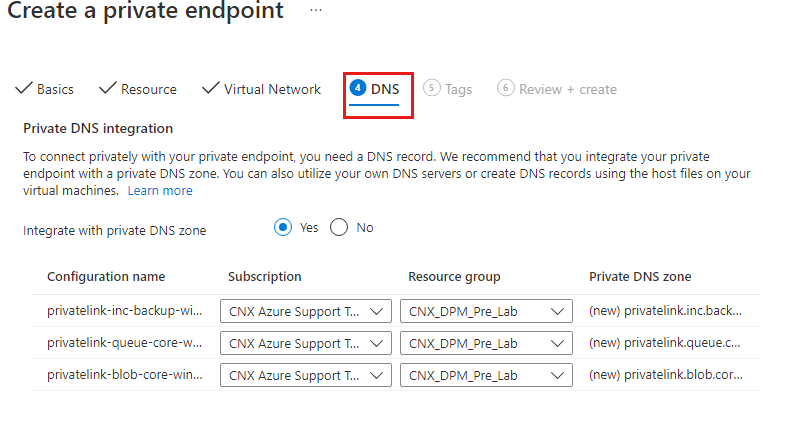
On the DNS tab, configure a DNS record to connect privately through your private endpoint. We recommend integrating the private endpoint with a private DNS zone. Alternatively, you can use your own DNS servers or create DNS records in the host files on your virtual machines.
The following screenshot shows that the private endpoint is integrated with Private DNS Zone.
(Optional) On the Tags tab, add tags for your private endpoint.
On the Review + create tab, review your settings. When the validation completes, select Create to create the private endpoint.
Approve private endpoints for the Recovery Services vault
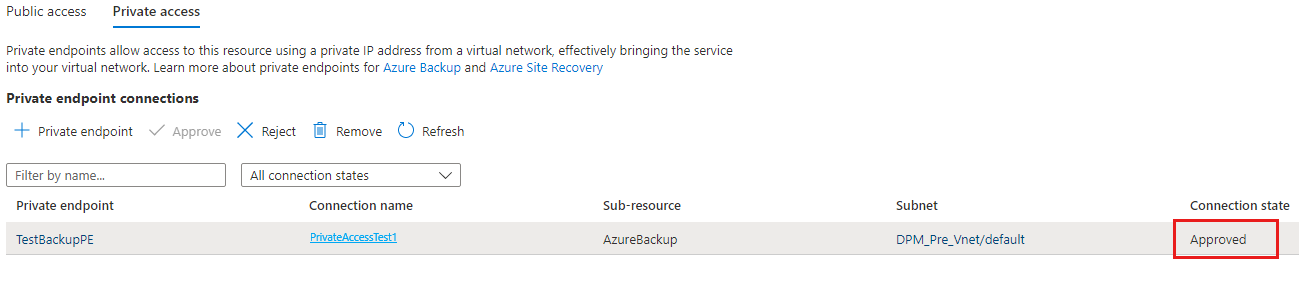
Private endpoints are auto approved when created by the vault owner. If you're not the owner, private endpoints require manual approval in the Azure portal.
This section describes the manual approval process of private endpoints through the Azure portal.
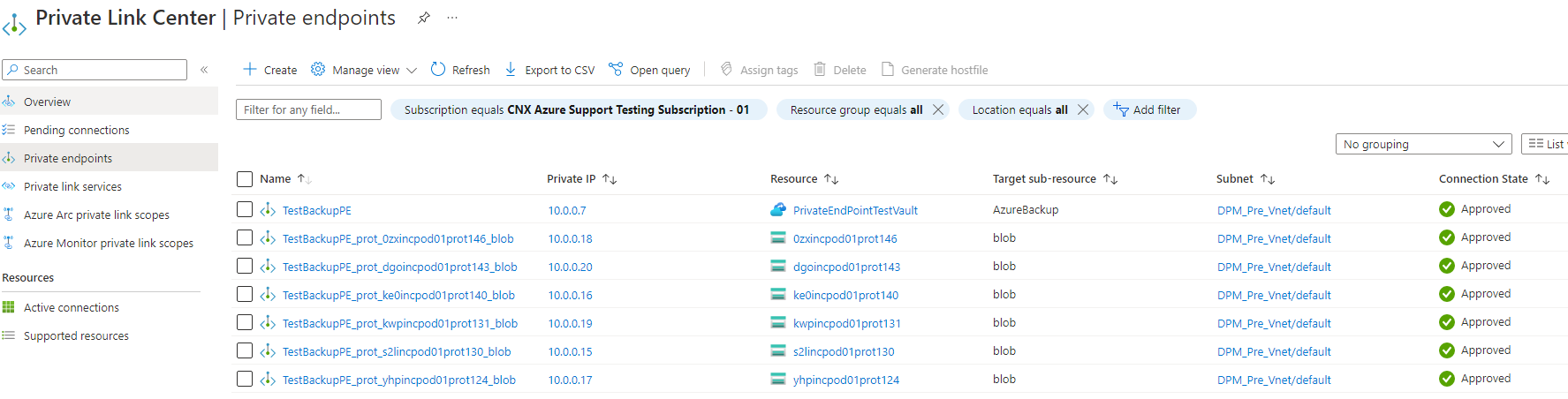
The following screenshot shows an auto approved private endpoint that the owner creates.
To manually approve private endpoints via the Azure portal, follow these steps:
On the Recovery Services vault with private endpoint created, go to Settings > Networking.
On the Networking pane, select Private access > the private endpoint connection from the list that you want to approve.
Select Approve.
Manage DNS records for private endpoints
Private connectivity requires DNS records in private DNS zones or servers. You can integrate the private endpoint to Azure private DNS zones or configure custom DNS servers, depending on your network design. This configuration is required for all three services - Azure Backup, Azure Blobs, and Queues.
Integrate private endpoints with Azure private DNS zones
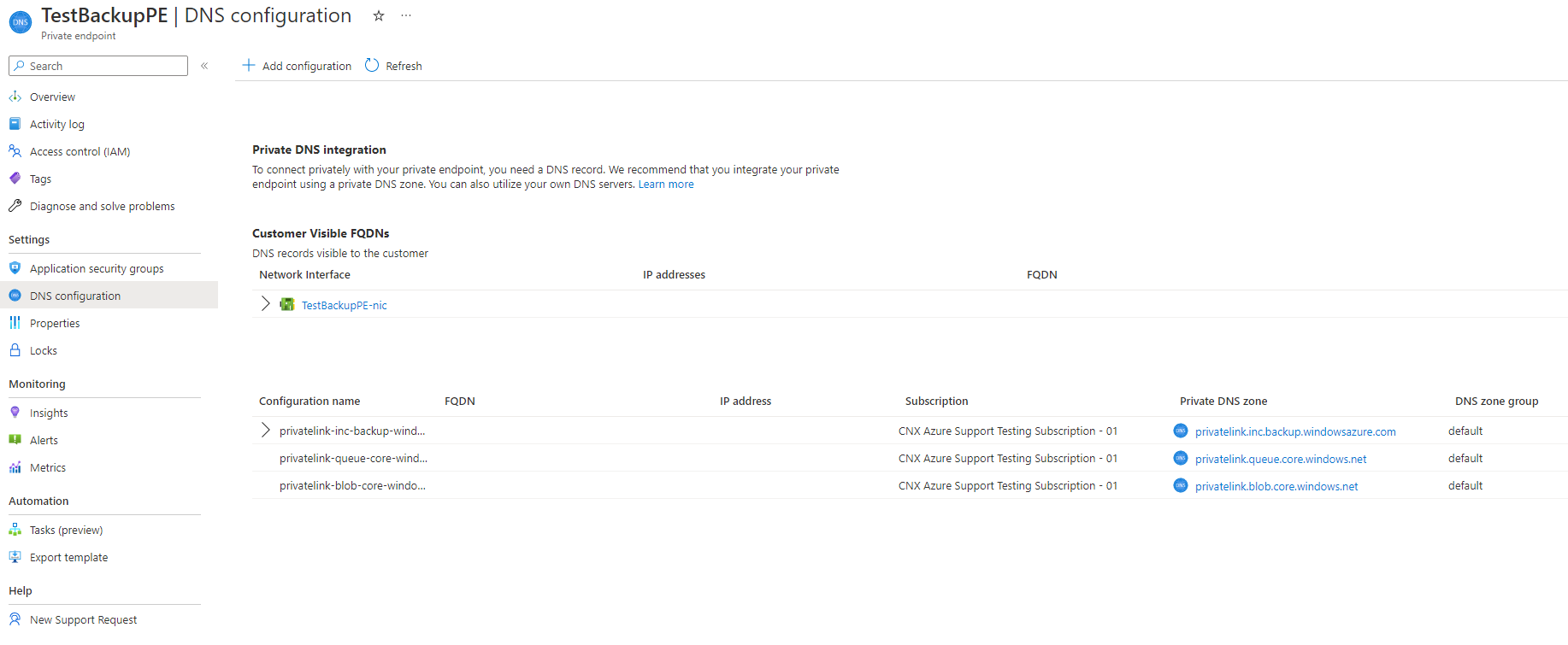
If you choose to integrate your private endpoint with private DNS zones, Azure Backup adds the required DNS records. You can view the private DNS zones that's used under DNS configuration of the private endpoint. If these DNS zones aren't present, they're created automatically when creating the private endpoint.
However, you must verify that your virtual network (which contains the resources to be backed up) is properly linked with all three private DNS zones.
If you're using proxy servers, you can bypass the proxy server or perform your backups through the proxy server. To bypass a proxy server, continue to the following sections. To use the proxy server for performing your backups, see proxy server setup details for Recovery Services vault.
To validate and integrate virtual network links for the preceding private DNS zone (for Backup, Blobs and Queues), follow these steps:
On the Recovery Services vault where you configured private endpoints, go to Networking > Private access, and then select the private endpoint from the list.
On the selected private endpoint pane, select Settings > DNS configuration.
On the DNS configuration pane, select the Private DNS zone link.
On the selected private DNS zone pane, select Virtual Network Links
On the selected virtual network link pane, select Virtual Network Links
A virtual network link entry appears for which you created the private endpoint. The following screenshot shows an example of virtual network links for all three DNS zones.
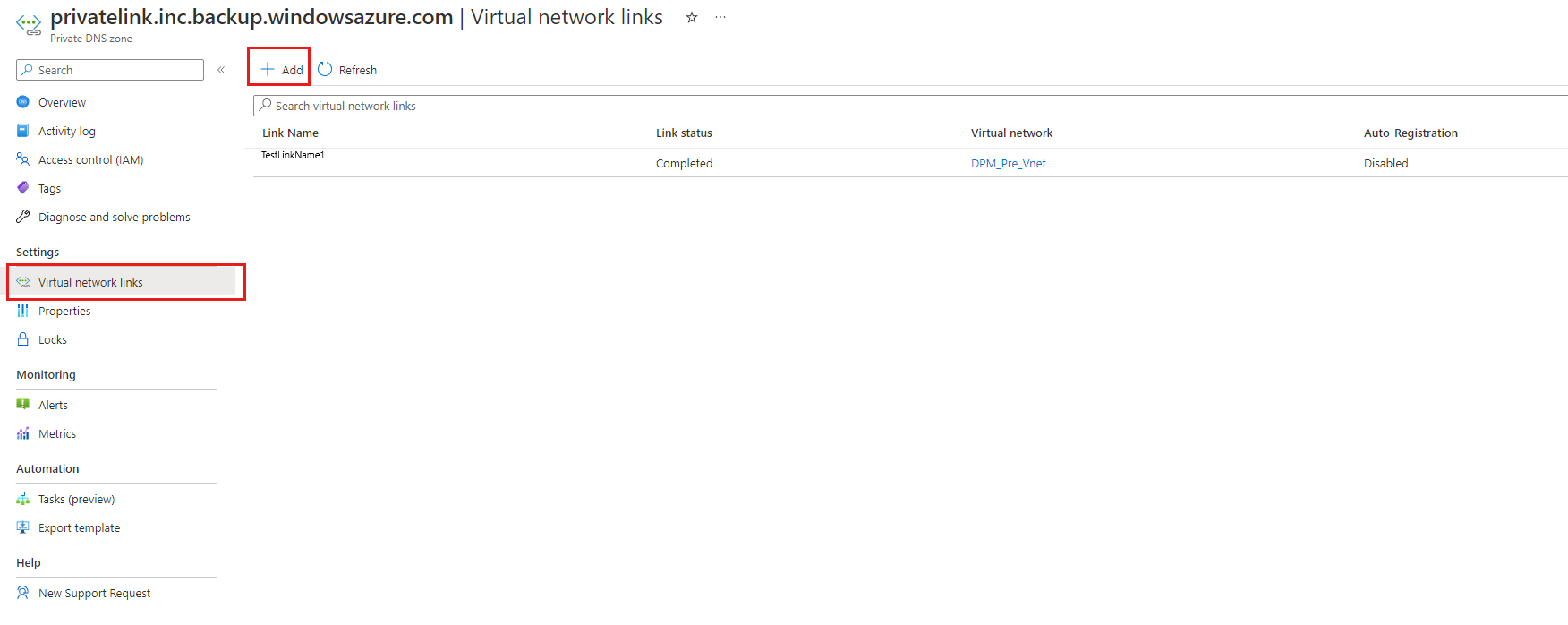
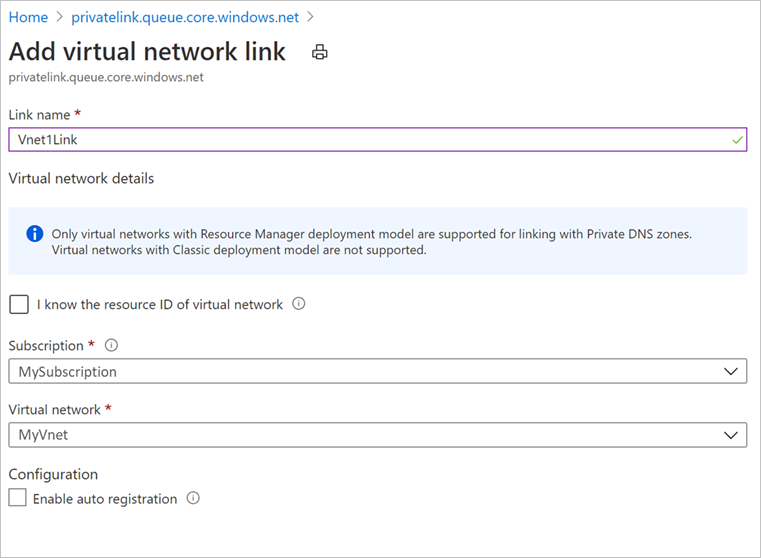
If no entry appears, select + Add and link the virtual network to the required DNS zones.
The following screenshot shows the Add virtual network link pane for linking the virtual network to the DNS zone.
Configure custom DNS servers or host files
- If you're using a custom DNS server, you can use conditional forwarder for backup service, blob, and queue FQDNs to redirect the DNS requests to Azure DNS (168.63.129.16). Azure DNS redirects it to Azure Private DNS zone. In such setup, ensure that a virtual network link for Azure Private DNS zone exists as mentioned in this article.
The following table lists the Azure Private DNS zones required by Azure Backup:
| Service | Zone name |
|---|---|
| Azure Backup | privatelink.<geo>.backup.windowsazure.cn |
| Azure Blobs | privatelink.blob.core.chinacloudapi.cn |
| Azure Queues | privatelink.queue.core.chinacloudapi.cn |
In the zone name, \<geo\> refers to the region code (for example, bjb2 for China North 2 and sha2 for China East 2). Learn about the supported geography for the following regions:
For custom DNS servers, add the private endpoint DNS records to your DNS servers or host file if Azure Private DNS zone isn’t configured. If you're using a host file for name resolution, make corresponding entries in the host file for each IP and FQDN according to the format - \<private ip\>\<space\>\<FQDN\>.
Azure Backup allocates new storage account for the vault you created with private endpoint to store the backup data. The MARS agent accesses the respective endpoints to perform backup and restore operations. Learn how to use private endpoints for backup to add more DNS records after registration and backup.
Back up on-premises resources using MABS with private endpoints
When you use the MARS Agent for backup, ensure your on-premises network is peered with the Azure virtual network that hosts the vault’s private endpoint. You can then continue to install the MARS agent and configure backup that allows the MARS agent to store backup data in the vault through private endpoints. However, you must ensure all communication for backup happens through the peered network only.
Register your MABS Server to the vault you created with private endpoints.
Enable backup on MABS Server for disk and online.
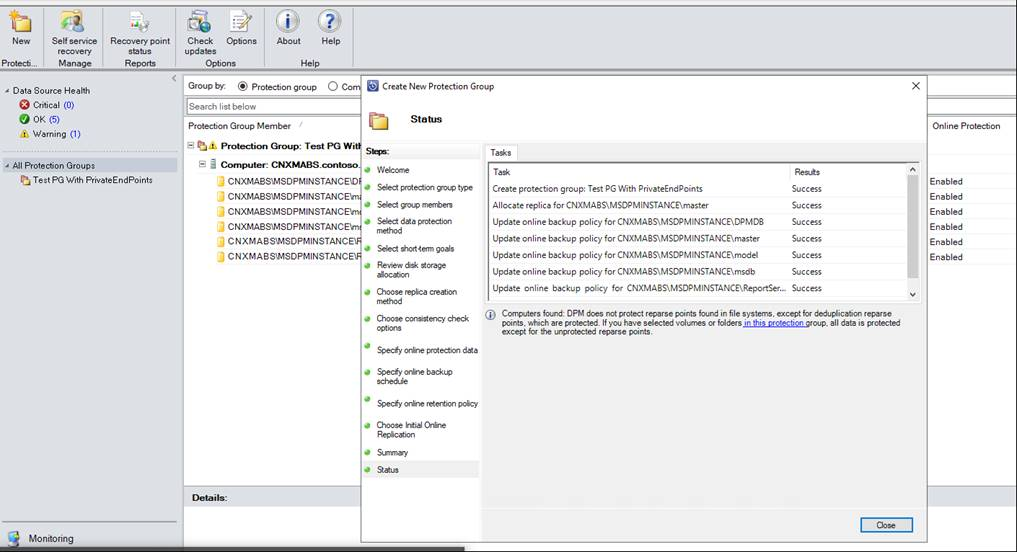
After the registration, wait for the Initial Replica to complete. The online backup operation starts as per the schedule, or you can manually trigger backups for your data sources.
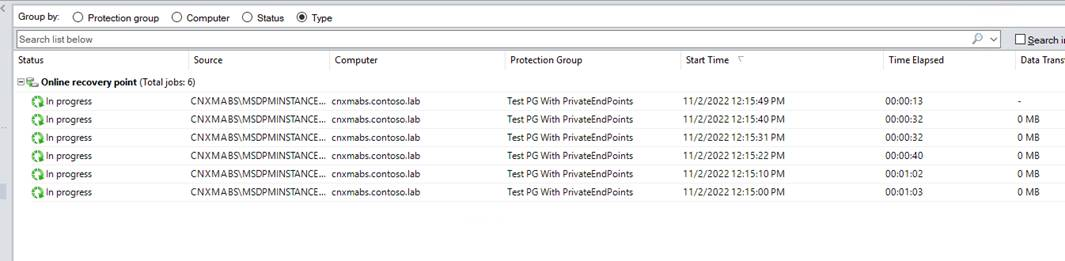
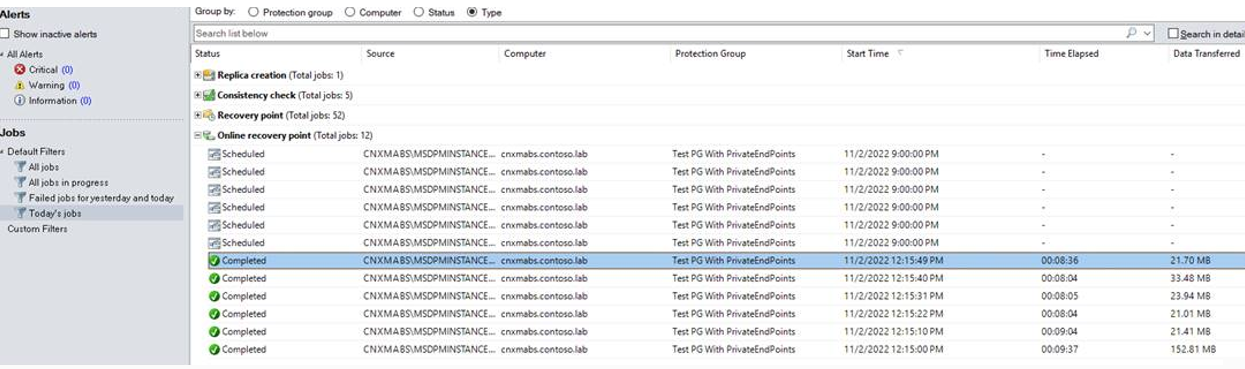
The storage account starts creating a Blob container for each protected data source in the Azure portal. This container allows the MABS server to connect to the vault through private endpoints and perform backups.