Note
Access to this page requires authorization. You can try signing in or changing directories.
Access to this page requires authorization. You can try changing directories.
Warning
Resource Owner Password Credential (ROPC) flow isn't recommended for production Azure Cosmos DB for NoSQL workloads as it requires handling credentials directly, which poses security risks. For more secure authentication, use role-based access control with Microsoft Entra ID. For more information, see role-based access control and Microsoft Entra ID authentication in Azure Cosmos DB for NoSQL.
Azure Cosmos DB for NoSQL allows you to rotate primary and secondary keys to maintain security. This article explains how to regenerate keys while ensuring continuous application access to your database.
Note
Key regeneration can take anywhere from one minute to multiple hours depending on the size of the Azure Cosmos DB for NoSQL account. Ensure your application is consistently using either the primary key or the secondary key before starting the rotation process.
Prerequisites
An existing Azure Cosmos DB for NoSQL account
Application currently using either primary or secondary key consistently
Rotate keys by using safe key rotation
Important
The safe key rotation feature is in public preview. This feature is provided without a service-level agreement, and it isn't recommended for production workloads. For more information, see Supplemental Terms of Use for Azure Previews.
Azure Cosmos DB now offers a feature to ensure safe key rotation or disabling local authentication by using account key usage metadata. This feature provides extra visibility into when an account key was last used, so your team can make informed decisions before rotating keys or migrating to Microsoft Entra ID.
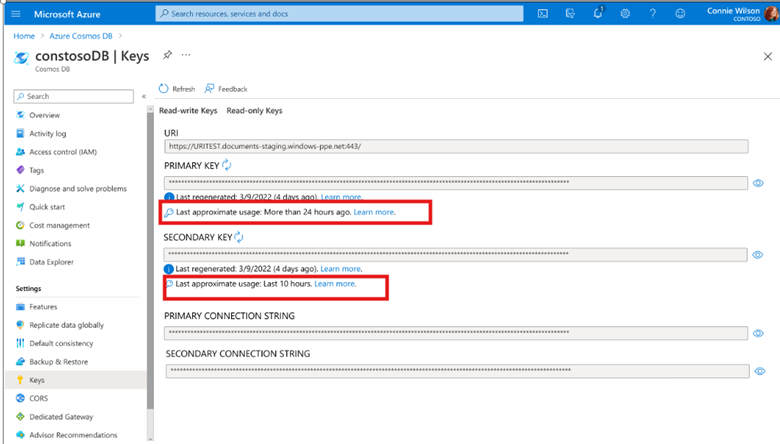
Why is it important?
- Helps with disabling local authentication: Provides confidence that keys are no longer in use before turning off local auth.
- Prevents Outages or disruption to your applications: Avoids accidental rotation of actively used keys.
- Improve Security Hygiene: Encourages safe and intentional key rotation.
This feature is especially valuable for:
- Customers currently using keys but planning to migrate fully to Microsoft Entra ID
- Infrequently used keys: Monthly or yearly jobs that still depend on keys
- Shared keys across teams: Where visibility is often limited
How does it work?
The safe key rotation check runs before any key is regenerated or local authentication is disabled. The process doesn't change any key until the check passes. If the check fails, the operation is blocked and your existing keys remain valid and unchanged. Your application continues to work as before.
Get started
Enable the feature through Azure CLI
az cosmosdb update \
     --resource-group <resource-group-name> \
     --name <account-name> \
     --capabilities EnableAccountKeysLastUsageCheckInDisableLocalAuth EnableKeyCheckBeforeRegenerationPreview
Confirm the safe key rotation feature is enabled
az cosmosdb show \
     --resource-group <resource-group-name> \
     --name <account-name> \
     --query capabilities
If the output shows EnableAccountKeysLastUsageCheckInDisableLocalAuth and EnableKeyCheckBeforeRegenerationPreview, the feature is enabled.
Rotate keys when using the primary key
If your application is currently using the primary key, follow these steps to rotate to the secondary key and regenerate the primary key.
Sign in to the Azure portal (https://portal.azure.cn).
Navigate to your Azure Cosmos DB for NoSQL account.
Select Keys from the navigation menu.
Select Regenerate Secondary Key from the ellipsis menu next to your secondary key.
Validate that the new secondary key works consistently against your Azure Cosmos DB for NoSQL account.
Update your application to use the secondary key instead of the primary key.
Return to the Keys section and select Regenerate Primary Key from the ellipsis menu next to your primary key.
Rotate keys when using the secondary key
If your application is currently using the secondary key, follow these steps to rotate to the primary key and regenerate the secondary key.
In the Keys section of your Azure Cosmos DB for NoSQL account, select Regenerate Primary Key from the ellipsis menu next to your primary key.
Validate that the new primary key works consistently against your Azure Cosmos DB for NoSQL account.
Update your application to use the primary key instead of the secondary key.
Return to the Keys section and select Regenerate Secondary Key from the ellipsis menu next to your secondary key.
Frequently asked questions
What happens if key rotation fails after I enable safe key rotation?
Your keys stay in their current state. The safe key rotation check runs before any key regeneration. If the check finds that a key was used within the last 12 hours, it blocks the regeneration request. An error is returned to indicate the key is still in use. No key changes, so your application keeps working normally with the existing keys.
If you still need to rotate the key, you have two options:
- Wait until the key isn't used for 12 hours. Migrate your application to the other key (or to Microsoft Entra ID), then retry the regeneration after the 12-hour window passes.
- Force the rotation by skipping the check. Bypass the usage check and regenerate the key immediately by setting
SkipAccountKeysLastUsageChecktotruein the request body. Use this option only when you're certain the key is safe to rotate.
Does enabling safe key rotation change my existing keys?
No. Azure Cosmos DB already tracks key usage for all accounts. Enabling safe key rotation activates enforcement so the service checks that usage data before allowing key regeneration or disabling local authentication. It doesn't modify, rotate, or invalidate any existing keys.
Can I still rotate keys manually without this feature?
Yes. The standard key rotation process described in this article works independently of the safe key rotation feature. The feature adds an extra safety layer but isn't required for key rotation.