Note
Access to this page requires authorization. You can try signing in or changing directories.
Access to this page requires authorization. You can try changing directories.
What this feature does
Use integration actions to move between Visual Studio Code and Azure portal while working with Azure Cosmos DB resources.
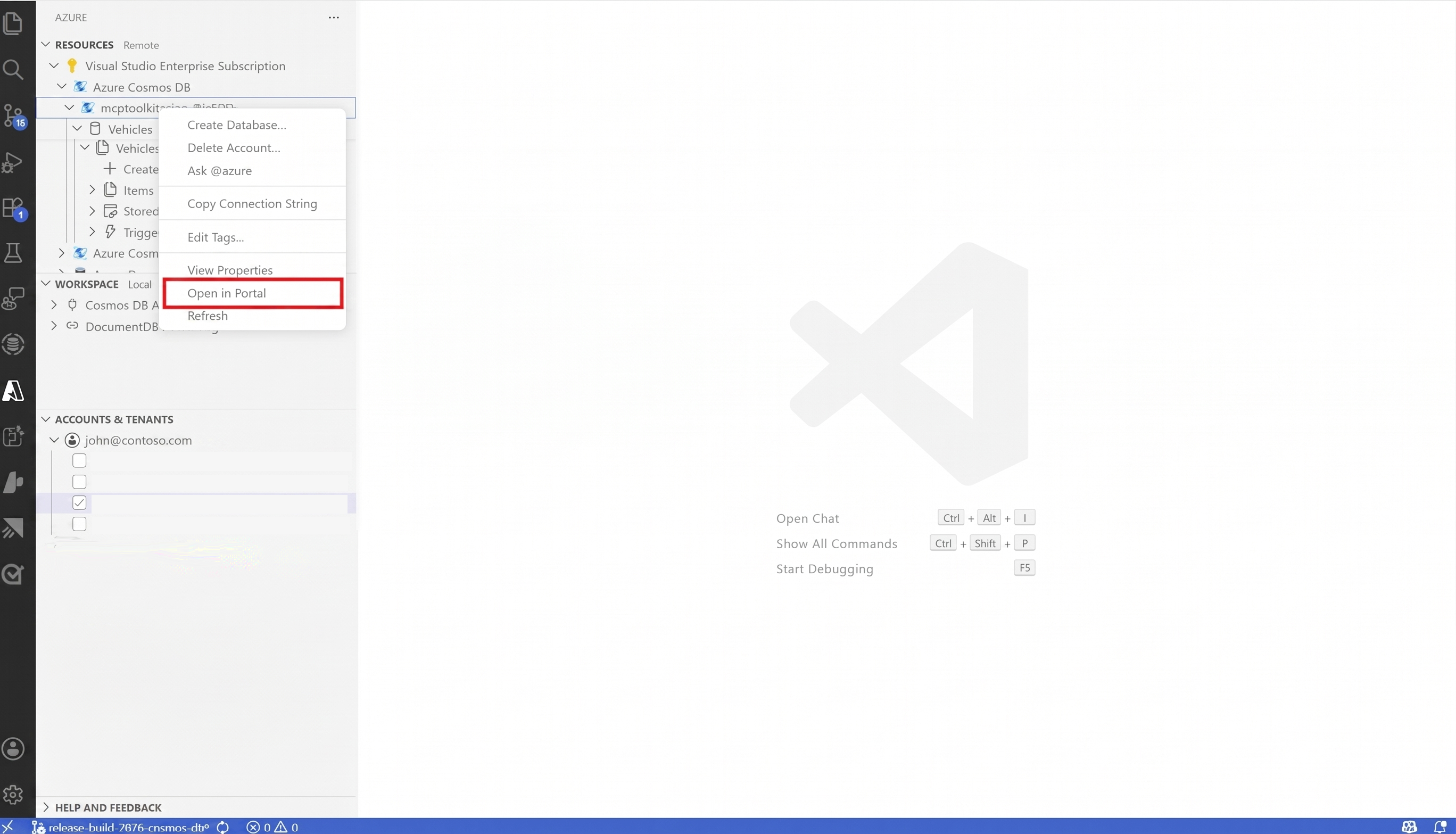
Open an account in the Azure portal from Visual Studio Code
- In Visual Studio Code, open the Azure view.
- Expand your Azure Cosmos DB account.
- Right-click the account node and select the action to open in Azure portal.
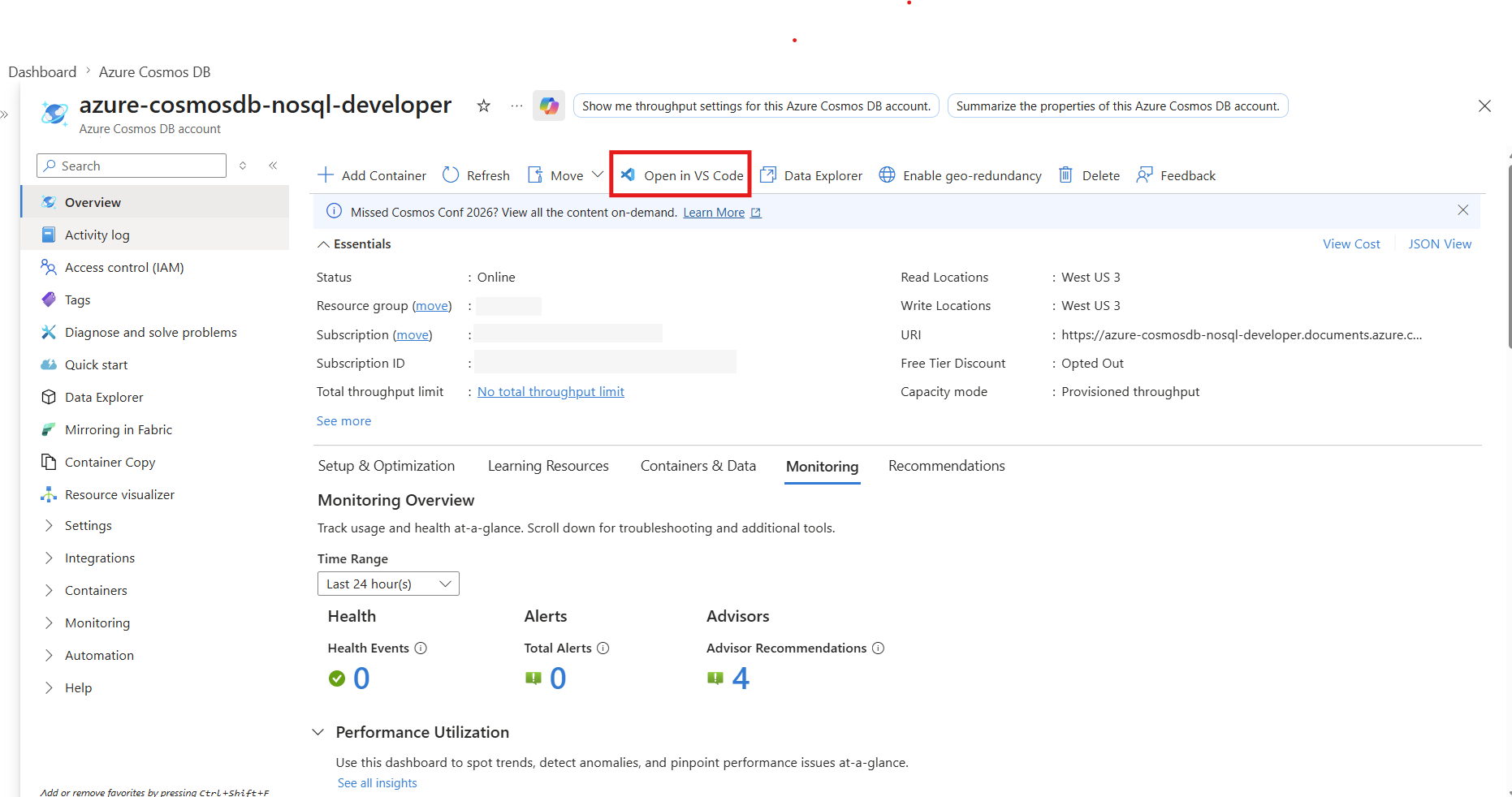
Open in Visual Studio Code from Azure portal
- In Azure portal, open your Azure Cosmos DB account.
- Use the Open in Visual Studio Code action when available.
- In Visual Studio Code, confirm the selected tenant and subscription if prompted.
- Continue your workflow in the Azure extension by expanding the account, databases, and containers.
Open database and container experiences
Use Azure portal when you need operations that are outside your current editor flow, such as:
- Account-level configuration.
- Networking, security, and keys.
- Monitoring and diagnostics views.
Use Visual Studio Code when you want an editor-first workflow, such as:
- Query authoring and iteration.
- Item-level edits and validation.
- Local development with the emulator.
Work between editor and portal
- Make account-level changes in Azure portal.
- Return to Visual Studio Code.
- Refresh the Azure resource tree to pick up metadata changes.
- Validate the change by running a query or opening container data.
Troubleshooting
- If the wrong resource opens, verify tenant and subscription context in Visual Studio Code.
- If portal actions fail, sign in again and retry.
- If the Open in Visual Studio Code action is not available in Azure portal, open Visual Studio Code directly and browse to the same account from the Azure extension.
- If changes do not appear in Visual Studio Code, reload the window and refresh the node.