Note
Access to this page requires authorization. You can try signing in or changing directories.
Access to this page requires authorization. You can try changing directories.
When you accept a Conditional Azure Credit Offer (CACO) in a Microsoft Customer Agreement, Microsoft creates a CACO commitment and one or more provisional (not spendable) credit resources. The commitment and provisional credit resources are placed in a subscription and a resource group. They follow the same setup as other credit resources, as described in Manage an Azure credit resource under a subscription. The provisional credit resources turn into awarded credits if you meet the spending target and other conditions in the CACO.
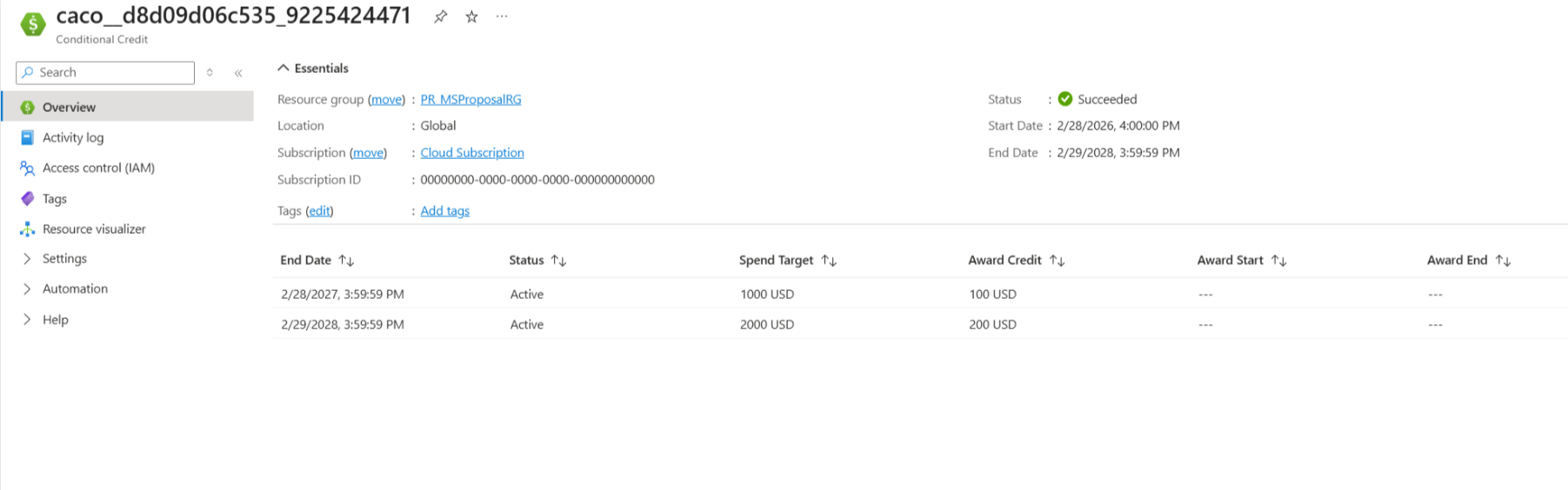
In the Azure portal, you can view metadata for a CACO. The metadata includes the status of the offer, start and end dates, spending target, currency, target end date, award credit, award start date, award end date, and system ID. You can view the metadata under the CACO resource.
Move a CACO resource across resource groups or subscriptions
You can move a CACO resource to another resource group or subscription, just like other Azure resources. This move only changes metadata and doesn't affect the credit or commitment.
The new resource group or subscription must remain within the same billing profile as the original billing profile that contains the CACO resource.
Moving a CACO resource doesn't move any provisional or awarded credits. You have to move those credit resources separately as needed.
Move a CACO resource
Here are the high-level steps to move a CACO resource. For more information about moving an Azure resource, see Move Azure resources to a new resource group or subscription.
In the Azure portal, go to Resource groups.
Select the resource group that contains the CACO resource.
Select the resource.
At the top of the pane, select Move, and then select Move to another subscription or Move to another resource group.
Follow the instructions to move the resource.
After the move is complete, verify that the resource is in the new resource group or subscription.
Moving a CACO resource changes its URI.
View the CACO resource URI
In the Azure portal, enter conditional credit in the search box.
Under Services, select Conditional Credits.
Select the CACO resource.
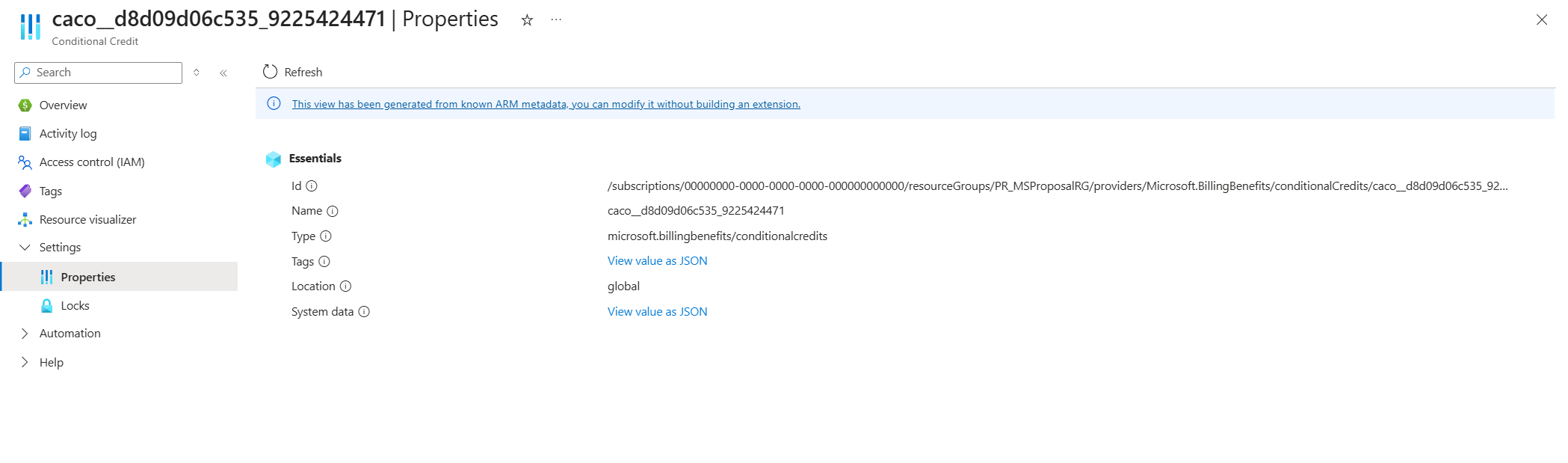
On the left pane, expand Settings, and then select Properties.
The CACO resource URI is the Id value.
Rename a CACO resource
The name of a CACO resource is a part of its URI and can't be changed. However, you can use tags to help identify the CACO resource based on a nomenclature that's relevant to your organization.
Delete a CACO resource
You can delete a CACO resource only if its status is Failed, Canceled, or Expired. Deletion of a CACO resource is a permanent action and can't be undone.
Cancel a CACO
If you have questions about canceling your CACO, contact your Microsoft account team.