Note
Access to this page requires authorization. You can try signing in or changing directories.
Access to this page requires authorization. You can try changing directories.
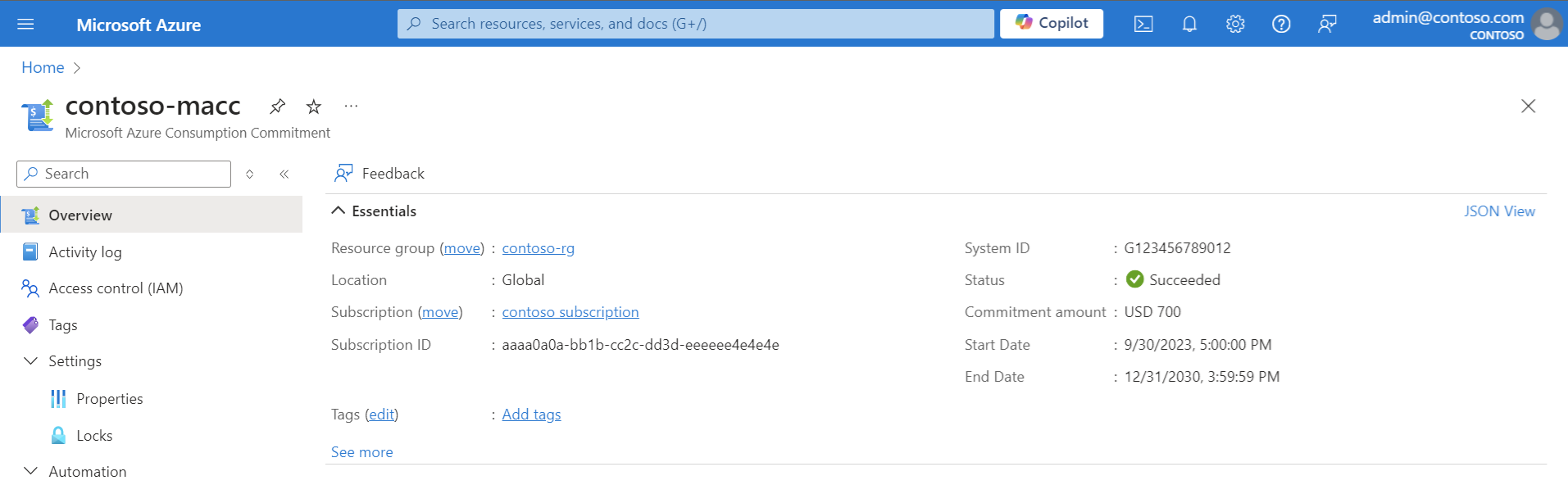
When you accept a Azure Consumption Commitment (MACC) in a Microsoft Customer Agreement, the MACC resource is placed in a subscription and a resource group. The resource contains the metadata for the MACC. This metadata includes the status of the commitment, commitment amount, start date, end date, and system ID. You can view the metadata in the Azure portal.
Move a MACC resource across resource groups or subscriptions
You can move a MACC resource to another resource group or subscription. Moving it works the same way as moving other Azure resources.
Moving a MACC resource to another subscription or resource group is a metadata change. The move doesn't affect the commitment. The destination resource group or subscription must be within the same billing profile that contains the MACC.
Move a MACC resource
Here are the high-level steps to move a MACC resource. For more information about moving an Azure resource, see Move Azure resources to a new resource group or subscription.
In the Azure portal, go to Resource groups.
Select the resource group that contains the MACC resource.
Select the resource.
At the top of the pane, select Move, and then select Move to another subscription or Move to another resource group.
Follow the instructions to move the resource.
After the move is complete, verify that the resource is in the new resource group or subscription.
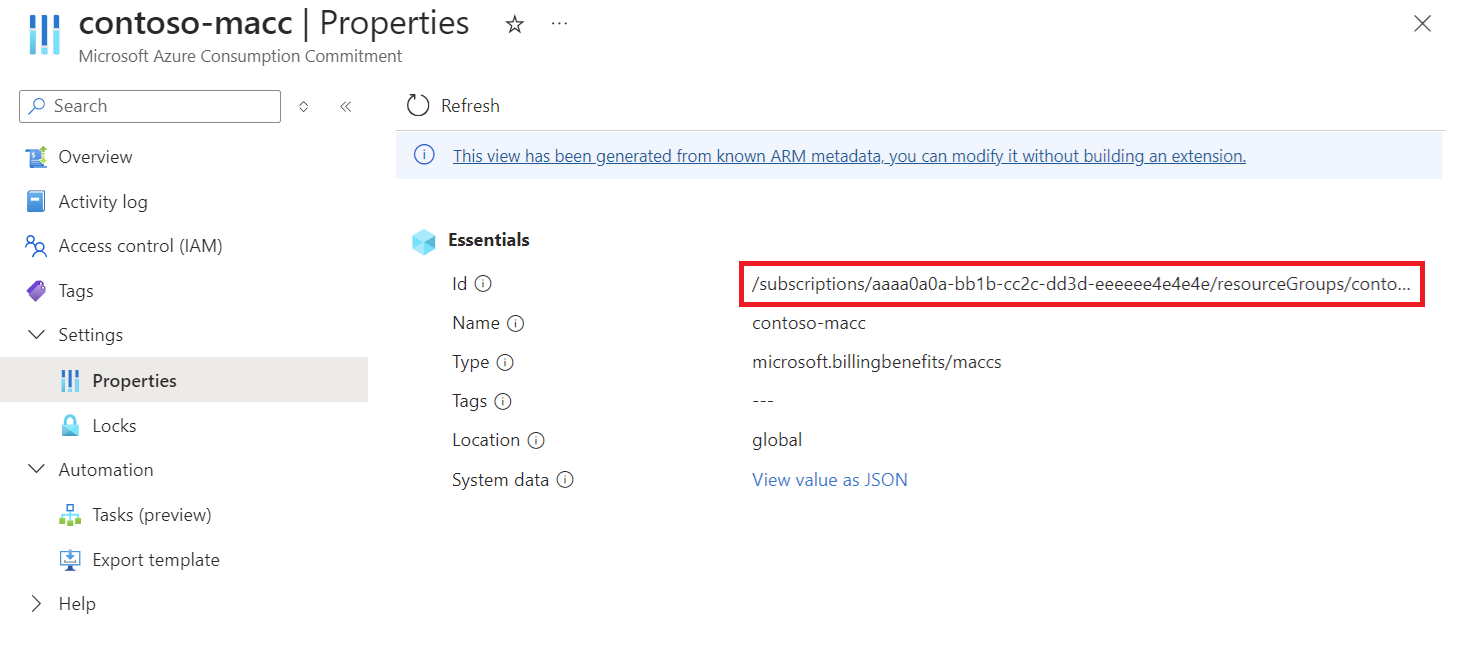
After a MACC resource moves, its URI changes to reflect the new location.
View the MACC resource URI
In the Azure portal, enter Azure Consumption Commitments in the search box.
Under Services, select Azure Consumption Commitments.
Select the MACC resource.
On the left pane, expand Settings, and then select Properties.
The MACC resource URI is the Id value.
Rename a MACC resource
The name of a MACC resource is part of its URI and can't be changed. However, you can use tags to help identify the MACC resource based on a nomenclature that's relevant to your organization.
Delete a MACC resource
You can delete a MACC resource only if its status is Failed or Canceled. Deletion of a MACC resource is a permanent action and can't be undone.
Cancel a MACC
If you have questions about canceling your MACC, contact your Microsoft account team.
Track your MACC
If your organization has a MACC associated with a Microsoft Customer Agreement or Enterprise Agreement billing account, you can track key details through the Azure portal or REST APIs. These details include start and end dates, remaining balance, and eligible spending. For more information, see Track your Azure Consumption Commitment (MACC).
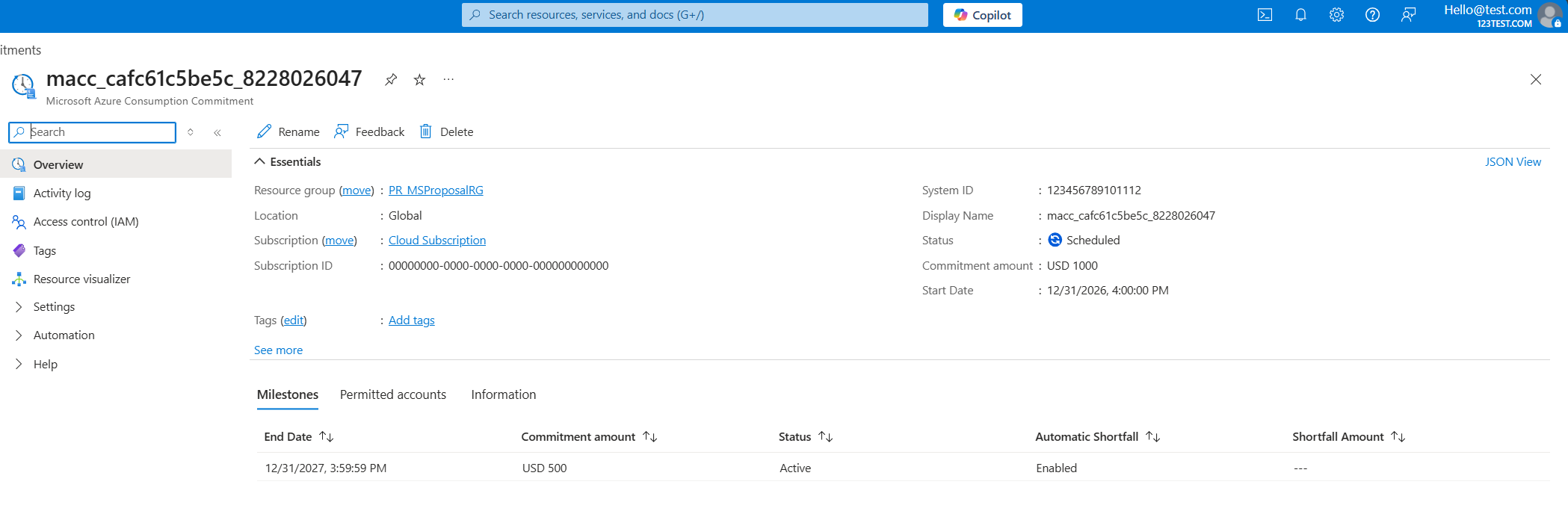
View MACC milestones
If your MACC includes milestones, you can view milestone details in the Azure portal. Go to your MACC resource and select the Milestones tab. For more information about milestones, see Azure Consumption Commitment milestones.
The Milestones tab displays the following information for each milestone:
- End Date: Deadline for reaching the milestone commitment amount.
- Commitment amount: Amount that needs to be consumed by the end date.
- Status: Current status of the milestone (such as Active, Completed, or Failed).
- Automatic Shortfall: Indicator of whether automatic shortfall is applicable for the milestone.
- Shortfall Amount: Any shortfall amount if the commitment isn't met (appears when applicable).