Note
Access to this page requires authorization. You can try signing in or changing directories.
Access to this page requires authorization. You can try changing directories.
When you use Kusto tools and SDKs, network security is a top priority. To protect customer data, queries, and authentication tokens, Kusto enforces DNS restrictions that limit connections to a predefined set of trusted domains. While these restrictions improve security, some scenarios might require bypassing them to support custom configurations, like hosting Kusto behind custom URIs or using older SDK versions. These scenarios include:
- Customers hosting Kusto behind custom URIs
- Customers hosting Kusto behind Azure Front Door for redundancy or high availability
- Customers using an older version of the SDK where new domains aren't yet allowed
- Customers using an older version of the SDK in new clouds
In these cases, Kusto SDK and Tools allow adding custom allowances to bypass the default restrictions.
Important
For the latter two cases, the best way to resolve the issue is to update to the latest version of the SDK or tool you use. Use custom domains and policy overrides only as a short-term solution.
This article gives step-by-step guidance on managing DNS restrictions in Kusto tools, including adding trusted hosts, disabling DNS validation, and customizing validation policies programmatically.
Bypass DNS restrictions with Kusto Explorer
Open Kusto Explorer.
From the Tools ribbon, select Options.
Select Connections.
In Additional Trusted Hosts, add the fully qualified hostname or DNS suffix (preceded with an asterisk
*) you want to work with. You can list multiple FQDNs or DNS suffixes by separating them with a semicolon;.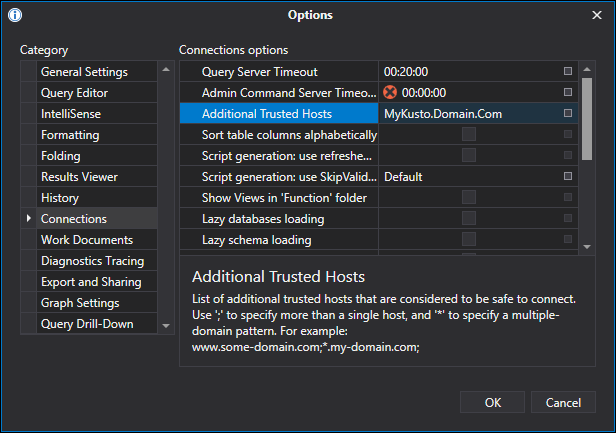
Bypass DNS restrictions with Azure Data Explorer web UI
Open Azure Data Explorer.
Select the Settings icon in the top-right corner.
Select Connection.
In Additional trusted hosts, add the fully qualified hostname or DNS suffix (preceded with an asterisk
*) you want to work with. List multiple FQDNs or DNS suffixes by separating them with a semicolon;.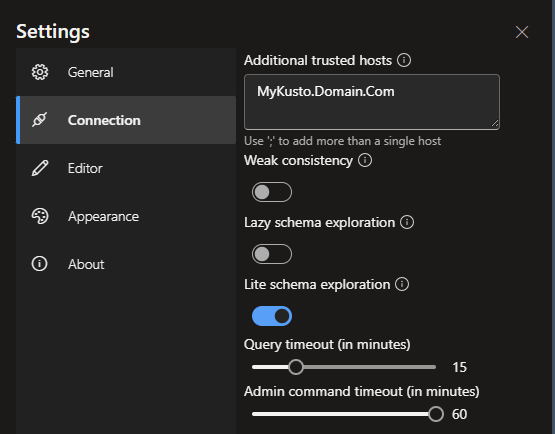
Bypass DNS restrictions with command-line applications and tools
For command-line applications and tools, disable DNS validation entirely by passing a command-line argument or setting an environment variable.
Note
Disabling DNS validation using environment variables affects all applications and tools using the C# SDK, including Kusto Explorer, Light Ingest, Kusto CLI, and any third-party application developed with the C# Kusto SDK.
To disable using a command-line argument, add the following argument to the tool's command line.
-tweaks:Kusto.Cloud.Platform.Data.EnableWellKnownKustoEndpointsValidation=false
To disable using an environment variable:
SET TWEAKS="Kusto.Cloud.Platform.Data.EnableWellKnownKustoEndpointsValidation=false"
Bypass DNS restrictions with Kusto SDKs
Use Kusto SDKs to programmatically control DNS validation by adding trusted hosts and DNS domains, or by providing the SDK with a predicate that takes the target hostname and returns true or false depending on whether the connection is allowed.
using Kusto.Data.Common;

// Add a DNS domain
KustoTrustedEndpoints.AddTrustedHosts(
    new[] { new FastSuffixMatcher<EndpointContext>.MatchRule(".domain.com", exact: false, context: KustoTrustedEndpoints.KustoEndpointContext) },
    replace:false);

// Add a fully qualified domain name
KustoTrustedEndpoints.AddTrustedHosts(
    new[] { new FastSuffixMatcher<EndpointContext>.MatchRule("mykusto.domain.com", exact: true, context: KustoTrustedEndpoints.KustoEndpointContext) },
    replace:false);

// Set a custom validation policy
KustoTrustedEndpoints.SetOverridePolicy(
    (hostname) => true,
    KustoTrustedEndpoints.KustoEndpointContext);