Note
Access to this page requires authorization. You can try signing in or changing directories.
Access to this page requires authorization. You can try changing directories.
APPLIES TO:  Azure Data Factory
Azure Synapse Analytics
Azure Data Factory
Azure Synapse Analytics
By using mapping data flows in Azure Data Factory, you can transform data from fixed-width text files (also known as fixed-length files). In the following task, you define a dataset for a text file without a delimiter and then set up substring splits based on ordinal position.
Create a pipeline
Select +New Pipeline to create a new pipeline.
Add a data flow activity to process fixed-width files:

In the data flow activity, select New mapping data flow.
Add a Source, Derived Column, Select, and Sink transformation:
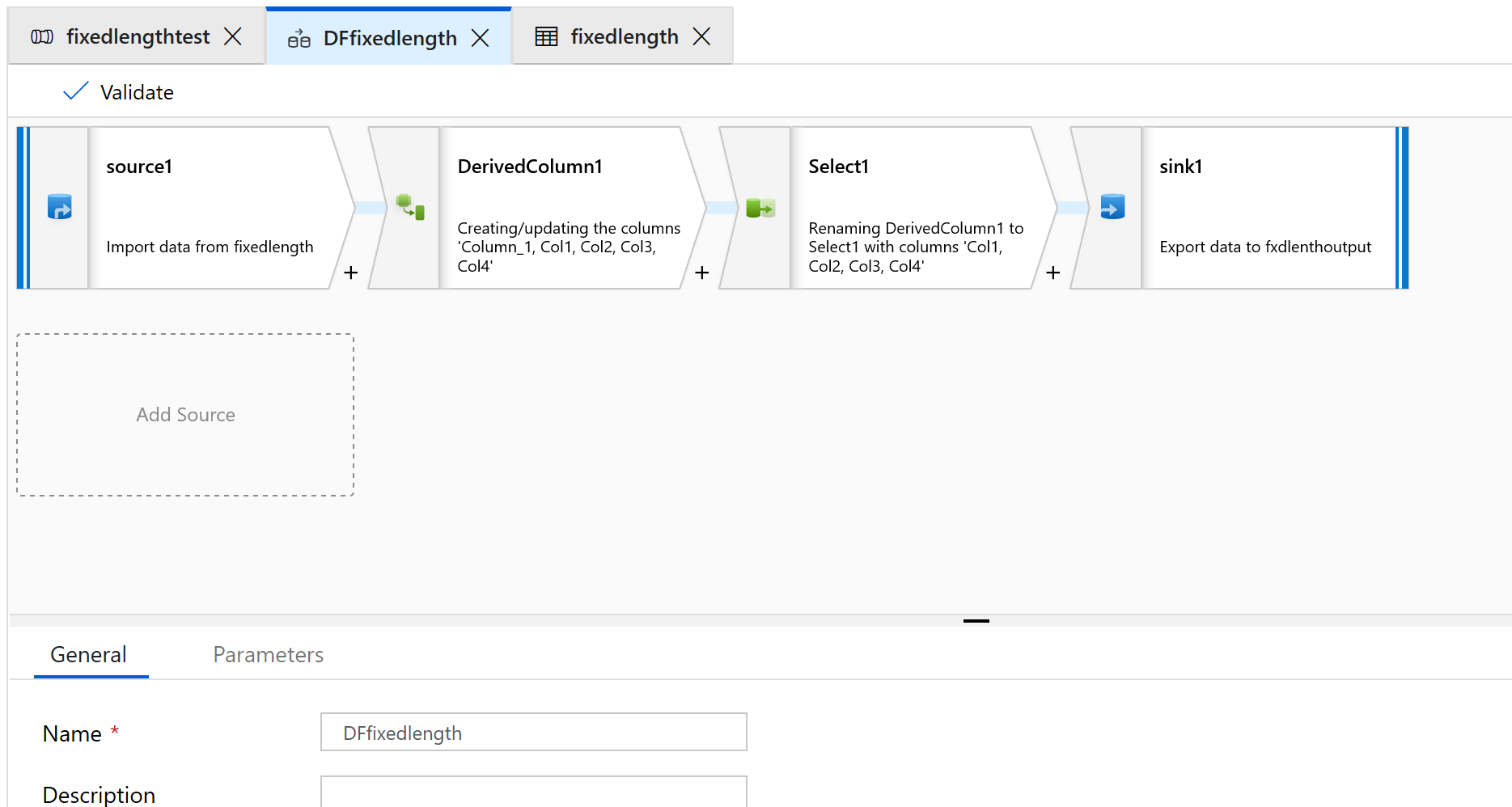
Configure the Source transformation to use a new dataset of the Delimited Text type.
Don't set any column delimiter or headers.
Now, set the field starting points and lengths for the contents of this file:
1234567813572468
1234567813572468
1234567813572468
1234567813572468
1234567813572468
1234567813572468
1234567813572468
1234567813572468
1234567813572468
1234567813572468
1234567813572468
1234567813572468
1234567813572468
On the Projection tab of your Source transformation, you should see a string column that's named Column_1.
In the Derived column, create a new column.
Give the columns simple names like col1.
In the expression builder, type the following:
substring(Column_1,1,4)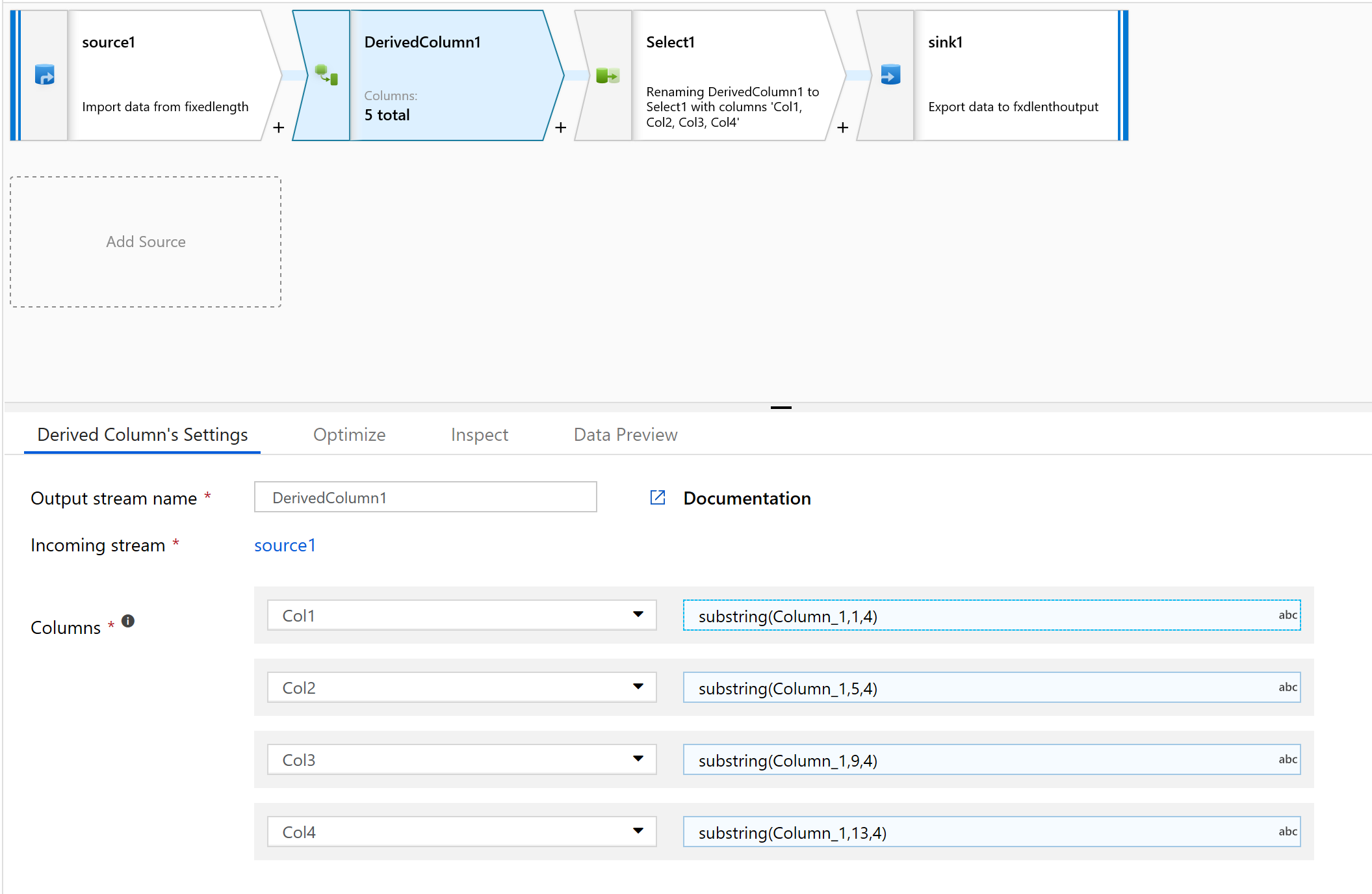
Repeat step 10 for all the columns you need to parse.
Select the Inspect tab to see the new columns:
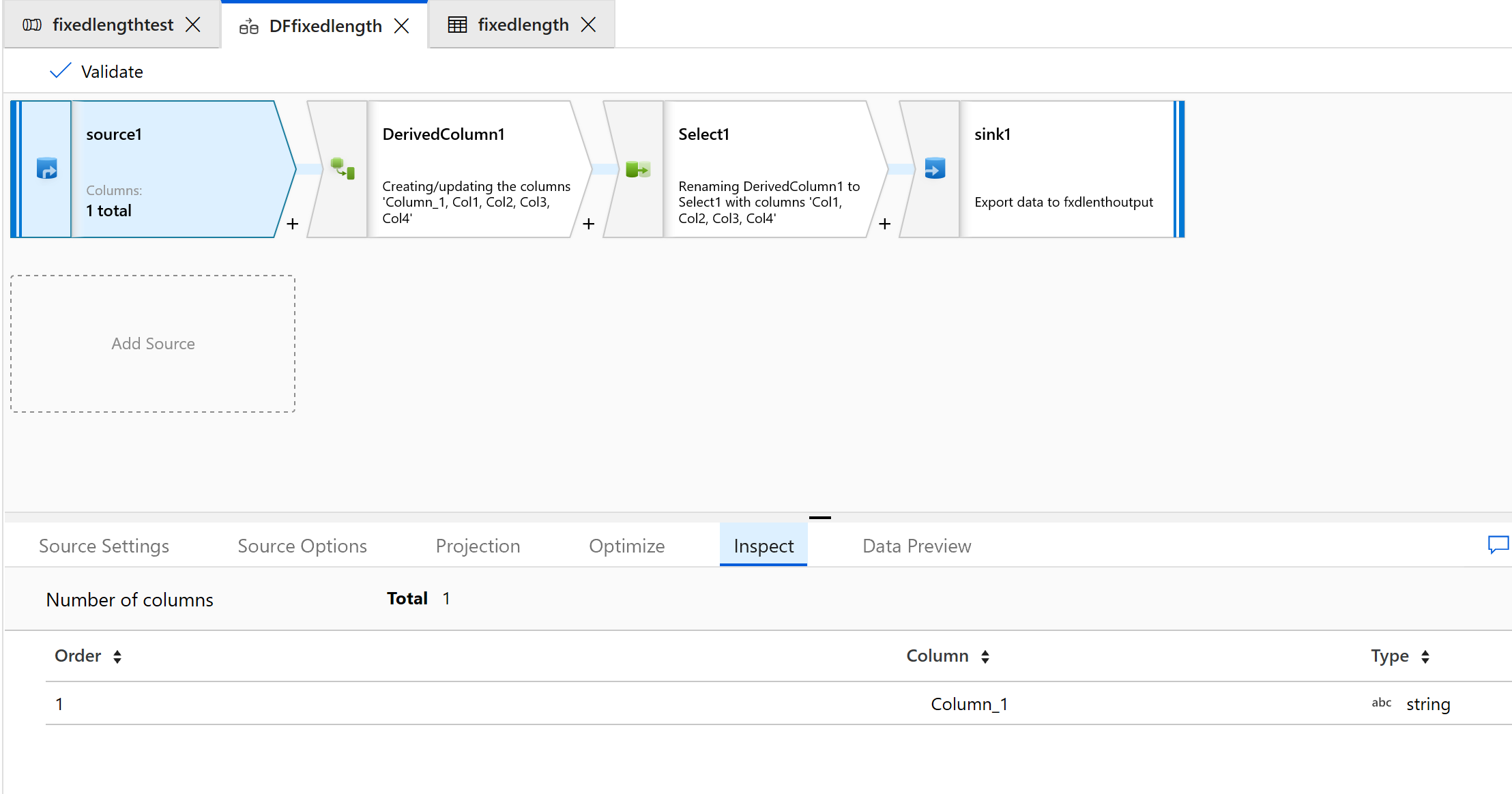
Use the Select transform to remove any of the columns that you don't need for transformation:

Use Sink to output the data to a folder:
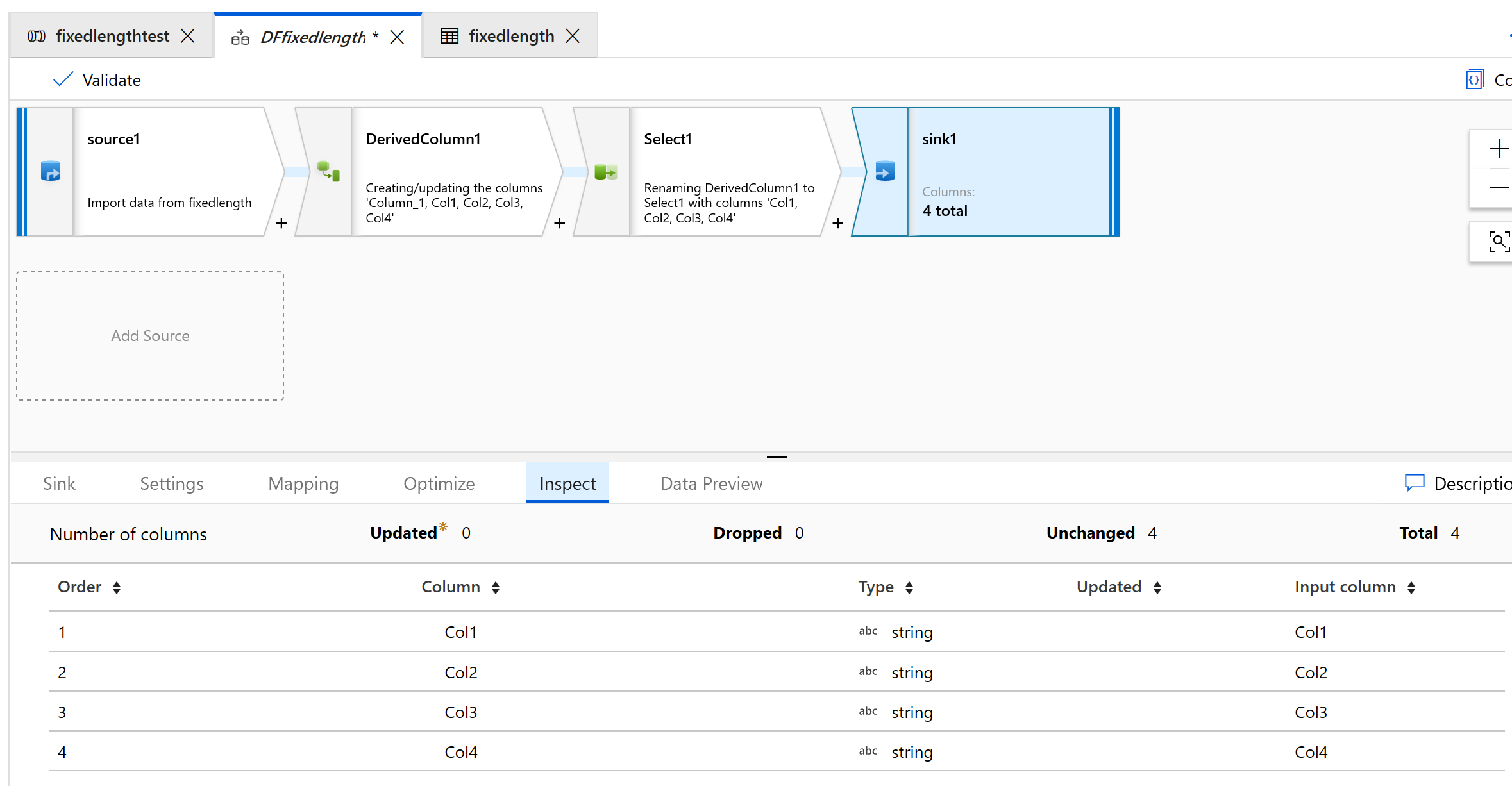
Here's what the output looks like:
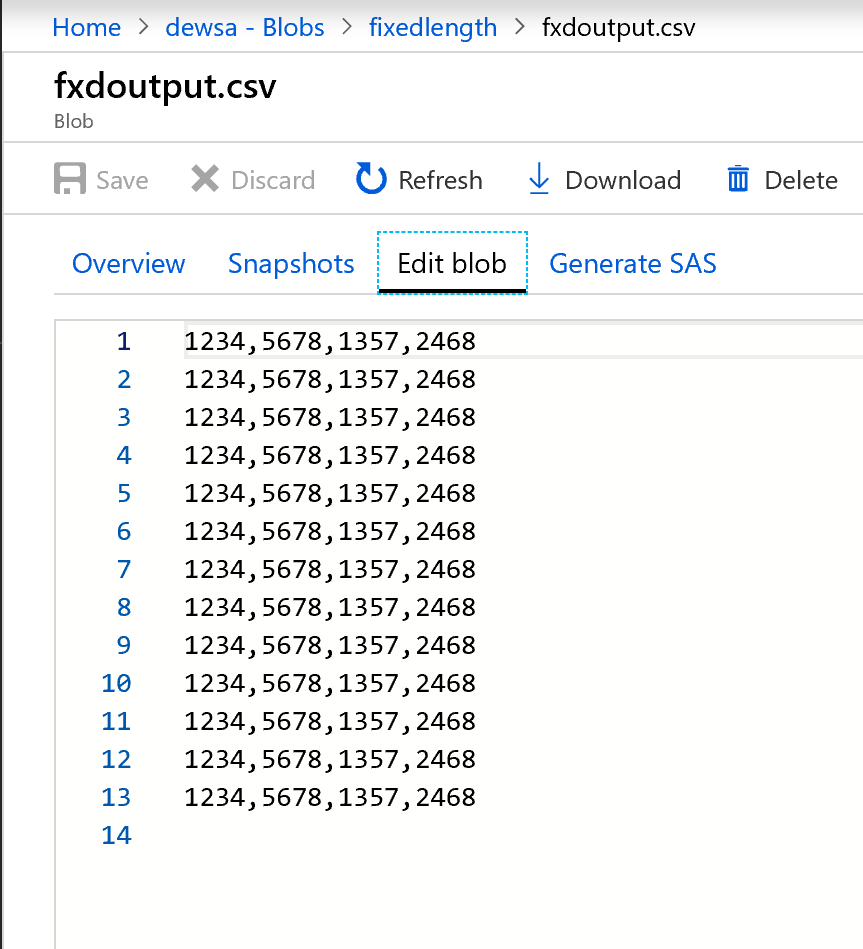
The fixed-width data is now split, with four characters each and assigned to col1, col2, col3, col4, and so on. Based on the preceding example, the data is split into four columns. Run the pipeline to confirm the Sink transformation writes the split columns to your target folder.
Related content
- Build the rest of your data flow logic by using mapping data flows transformations.