Note
Access to this page requires authorization. You can try signing in or changing directories.
Access to this page requires authorization. You can try changing directories.
This tutorial introduces Genie One, a simplified Azure Databricks interface for business users.
This tutorial walks you through:
- Opening the Genie One interface
- Discovering and searching for assets shared with you
- Viewing an AI/BI dashboard
- Asking natural language questions about dashboard data using Genie
Before you begin
- You must have the Consumer access entitlement in your workspace. See What is consumer access?.
- Your workspace administrator must have shared at least one dashboard with you.
Step 1: Open Genie One
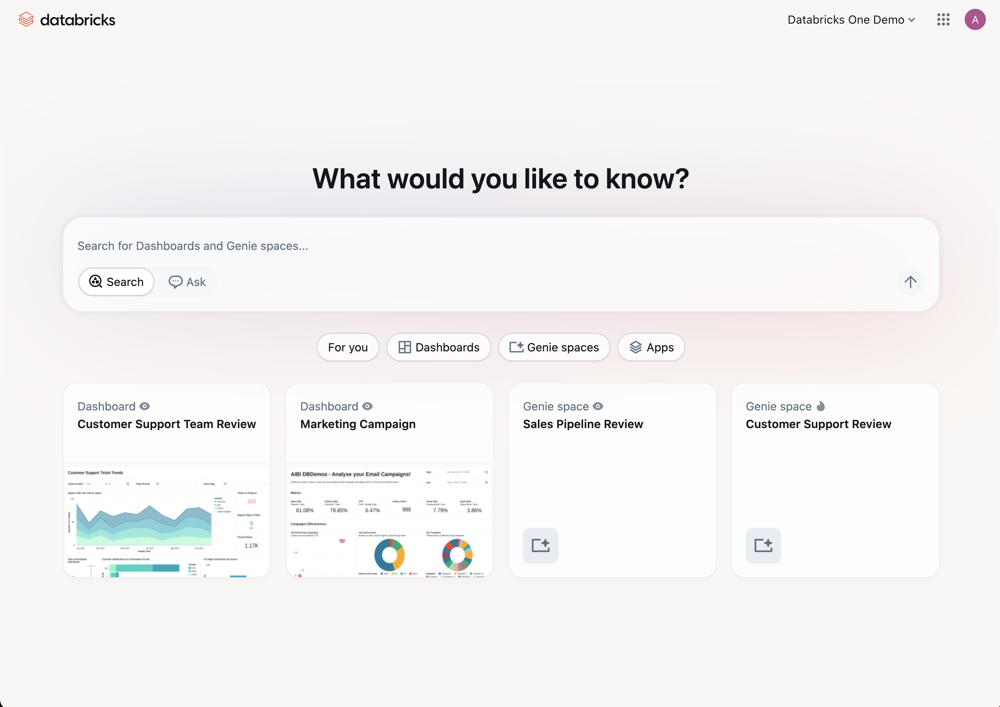
If your only entitlement is Consumer access, you land on the Genie One home page after signing in.
If you have additional entitlements such as Workspace access or Databricks SQL access, click  in the upper-right corner of the workspace and select Genie One.
Step 2: Discover your assets
Use the Genie One home page to find the assets available to you.
- In the For you section, browse recently opened assets, favorites, and items trending in your workspace.
- Click Dashboards in the left navigation to see all assets of that type shared with you.
- To search for a specific asset by name, type in the search bar at the top of the page.
- To filter results, click
 on the left of the listing page:
- Type: Show only dashboards.
- Status: Show only Certified assets or your Favorites.
- Owner: Search by the asset owner's user ID.
- Last modified: Filter by how recently the asset was updated.
- To mark an asset as a favorite, click the star icon next to the asset's name.
Step 3: View a dashboard
Dashboards display pre-built charts and metrics prepared by your team.
- Click Dashboards to open the dashboards listing page.
- Click a dashboard to open it.
- Interact with the visualizations by using filters, hovering over data points, and scrolling through the charts.
Next steps
Now that you know the basics of Genie One, you can:
Learn about the full Genie One interface. See Use Genie One.
Explore AI/BI dashboards. See Dashboards.
Understand what consumer access includes. See What is consumer access?.