Note
Access to this page requires authorization. You can try signing in or changing directories.
Access to this page requires authorization. You can try changing directories.
This article explains how to remove Defender for Containers from your Arc-enabled Kubernetes clusters. Follow these steps when you need to completely uninstall the service or troubleshoot deployment issues.
When you enable Defender for Containers capabilities that use automatic provisioning, or use recommendations to manually deploy container capabilities on specific resources, you install Defender components and extensions in your environment.
If you decide to stop using those capabilities, you might also want to remove these components from your environment. This article helps you understand the actions you can take to remove them.
Note
To remove this (or any) Defender for Cloud extension, you need more than just turning off automatic provisioning:
- When you turn on automatic provisioning, it can affect existing and future machines.
- When you turn off automatic provisioning for an extension, it only affects future machines. Nothing gets uninstalled when you turn off automatic provisioning.
Remove Arc extensions from clusters
You can remove extensions by using the Azure portal, Azure CLI, or REST API.
In the Azure portal, open Azure Arc.
In the infrastructure list, select Kubernetes clusters, then select the specific cluster.
Open the Extensions page, which lists extensions on the cluster.
Select the microsoft.azuredefender.kubernetes extension, then select Uninstall.
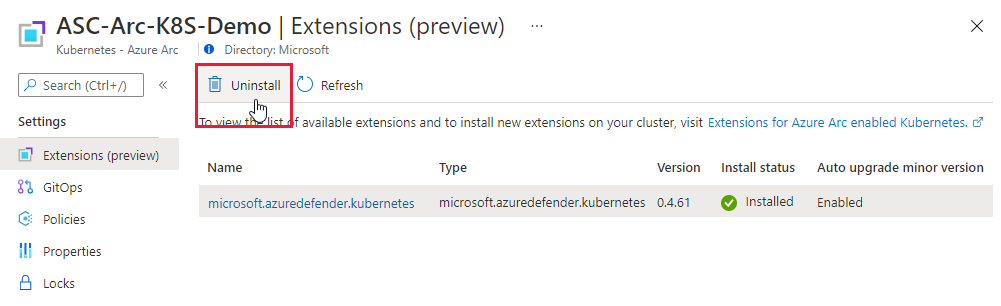
Repeat for the azurepolicy extension if installed.
Disconnect clusters from Azure Arc
Warning
Only disconnect from Azure Arc if you no longer use any Arc-enabled services on the cluster.
To disconnect a cluster from Azure Arc:
az connectedk8s delete \
    --name <cluster-name> \
    --resource-group <resource-group> \
    --yes
Disable Defender plan
Using Azure portal
Go to Microsoft Defender for Cloud > Environment settings.
Select your subscription.
On the Defender plans page, toggle Containers to Off.
Select Save.
Verify removal
Check Azure resources
az k8s-extension list \
    --cluster-type connectedClusters \
    --cluster-name <cluster-name> \
    --resource-group <resource-group>
Check cluster resources
kubectl get pods -n kube-system -l app=microsoft-defender
No pods should be returned after successful removal.