Note
Access to this page requires authorization. You can try signing in or changing directories.
Access to this page requires authorization. You can try changing directories.
This article is intended for nontechnical users who want to learn more about the Microsoft Entra Agent ID sign-in process. When signing in to an agent, product, or service that uses Microsoft Entra Agent ID for authentication and data access, you might see a consent page like the following:
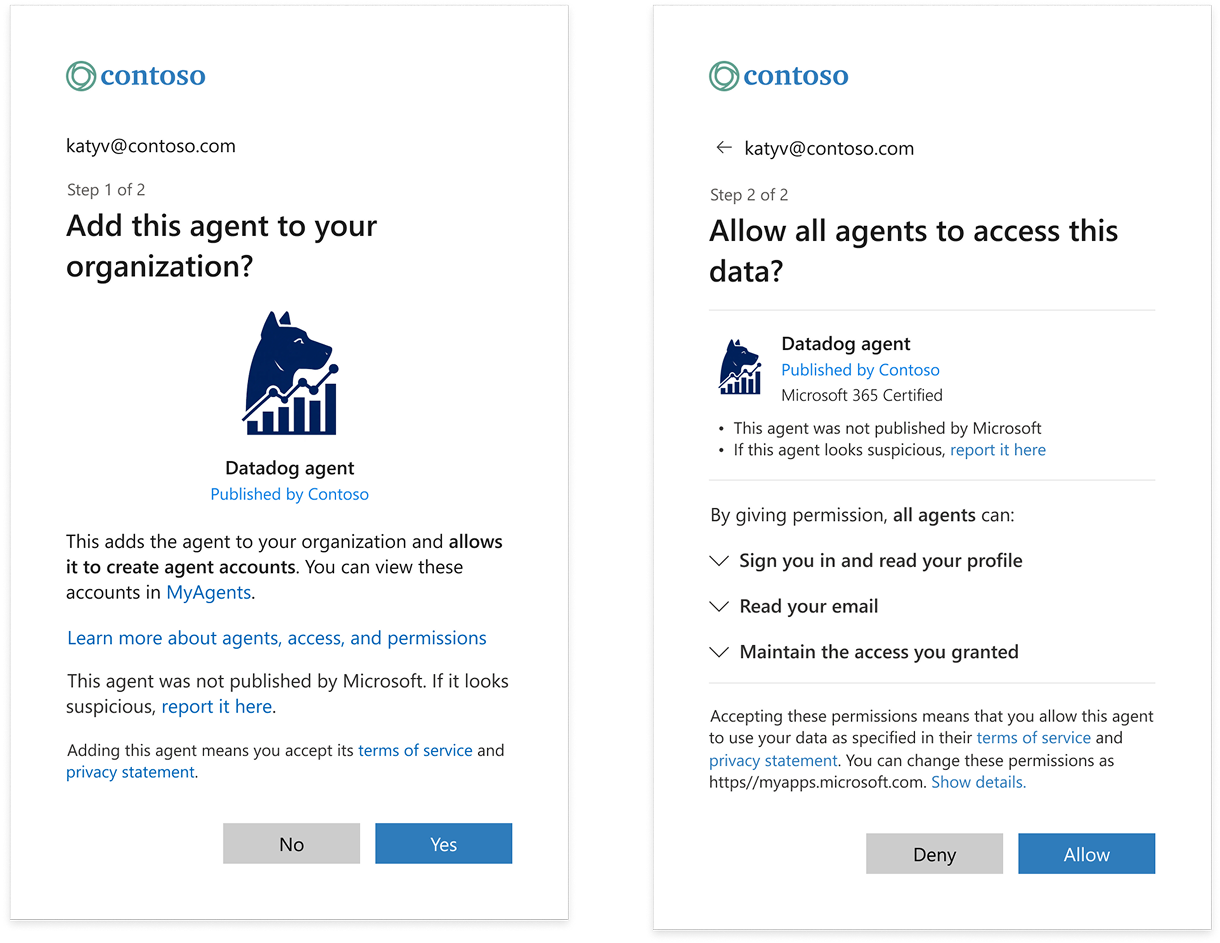
Sign-in to an agent
An AI agent is software that can perform tasks for you or your team. It might summarize information, watch for issues, send alerts, or prepare drafts you can review. Unlike a regular app that waits for you to select or type, an agent can act on its own within the limits you approve.
To sign you in, AI agents must register their product or service with Microsoft by creating an Agent ID. Each AI agent has a unique Agent ID.
An Agent ID allows the AI agent to:
- Sign you in and identify you.
- Request access to data and actions you allow.
Consent pages
You see consent pages because agents need permissions before they can operate in your organization. This process has two steps:
Add this agent to your organization. This allows the agent to participate as a member of your organization. This page is only shown the first time someone in your organization logs in to the agent.
Allow agent to access this data. This shows the specific types of information or actions the agent is requesting (for example, reading your profile or email). You choose to allow or deny.
This page gives you control over how AI agents use your accounts and data you have access to.
Trust an agent
The consent page includes information to help you assess the trustworthiness of an agent that you sign in to:
- The name of the agent, product, or service
- Whether the agent has completed Microsoft's publisher verification process
- The organization that published the agent
- Whether the agent is built by Microsoft
For more information about the details of the consent page, view this article.
If you did not intentionally sign-in to this agent, always deny access. Never sign-in to apps or agents you're unfamiliar with.
Add agent to your organization
AI agents can't participate in your organization unless a member approves them. When you add an agent to your organization, the agent becomes available to you and other employees or members to use. The agent is able to sign-in other members and request access to their data and information.
Adding an agent to your organization also allows it to create agent accounts. Like human users, AI agents can have accounts in your organization. These accounts can be used to give AI agents access to access apps, tools, files, and systems in your organization. They also help track what actions an AI agent takes.
When you add an agent, the agent gains the ability to create its own accounts in your organization and use them for access. The agent's accounts are always limited to the permissions and access granted by you or an administrator.
If you're uncertain whether to add an agent to your organization, pause and contact your administrator.
Allow an agent to access data
Approving the agent to access data means the following:
- The agent can use the listed permissions without asking again each time.
- The agent can run in the background to carry out tasks you or your organization configured.
It doesn't give the agent unlimited access. It only gets the specific items shown and can't go outside them unless you or an administrator later grant more permissions.
When in doubt, pause and ask your administrator if permissions are safe to grant to an agent.
Disable an agent or its permissions
You (or an administrator) can remove or disable the agent or its permissions. For more information, see manage agents in end user experience. For global removal, administrators can delete the agent identity using Microsoft Graph API or Microsoft Entra PowerShell.
Criteria to report a suspicious agent
Report an agent if:
- The publisher name looks wrong or suspicious.
- Permissions seem far too broad for the described task.
- You were prompted unexpectedly and no recent change explains it.
- The agent appears to misuse data.
Use the report it here link on the consent screen or notify your security desk.
Need help?
If you're unsure, don't approve. Capture a screenshot, note the agent name, and contact your helpdesk or security team for guidance.