Note
Access to this page requires authorization. You can try signing in or changing directories.
Access to this page requires authorization. You can try changing directories.
Overview
In Microsoft Entra ID, you can use Privileged Identity Management (PIM) to manage just-in-time membership in the group or just-in-time ownership of the group.
When a membership or ownership is assigned, the assignment:
- Can't be assigned for a duration of less than five minutes
- Can't be removed within five minutes of it being assigned
Note
Every user who is eligible for membership in or ownership of a PIM for Groups must have a Microsoft Entra ID P2 or Microsoft Entra ID Governance license. For more information, see License requirements to use Privileged Identity Management.
Permissions
You need appropriate permissions to manage group membership or ownership in Microsoft Entra PIM.
- To manage ownership of a role-assignable group, you need a Microsoft Entra role with the
microsoft.directory/groupsAssignableToRoles/owners/updatepermission, such as Privileged Role Administrator or Global Administrator, or be an active owner of the group. - To manage membership in a role-assignable group, you need a Microsoft Entra role with the
microsoft.directory/groupsAssignableToRoles/members/updatepermission, such as Privileged Role Administrator or Global Administrator, or be an active owner of the group. - To manage ownership of a non-role-assignable group, you need a Microsoft Entra role with the
microsoft.directory/groups/owners/updatepermission, such as Groups Administrator or Identity Governance Administrator, or be an active owner of the group. - To manage membership in a non-role-assignable group, you need a Microsoft Entra role with the
microsoft.directory/groups/members/updatepermission, such as Groups Administrator or Identity Governance Administrator, or be an active owner of the group.
Role assignments for administrators can be scoped at directory level or administrative unit level. Built-in and custom Microsoft Entra roles are supported.
Privileged Identity Management doesn't support permissions that start with microsoft.directory/groups.security/ or microsoft.directory/groups.unified/. Use permissions that start with microsoft.directory/groups/ instead.
Privileged Identity Management doesn't support groups in Restricted Management Administrative Units (RMAU).
Assign an owner or member of a group
Follow these steps to make a user an eligible member or owner of a group.
Note
Administrators and group owners can manage groups through the Groups experience and other interfaces, overriding changes made in Microsoft Entra PIM.
Sign in to the Microsoft Entra admin center.
Browse to ID Governance > Privileged Identity Management > Groups.
Here you can view groups that are already enabled for PIM for Groups.
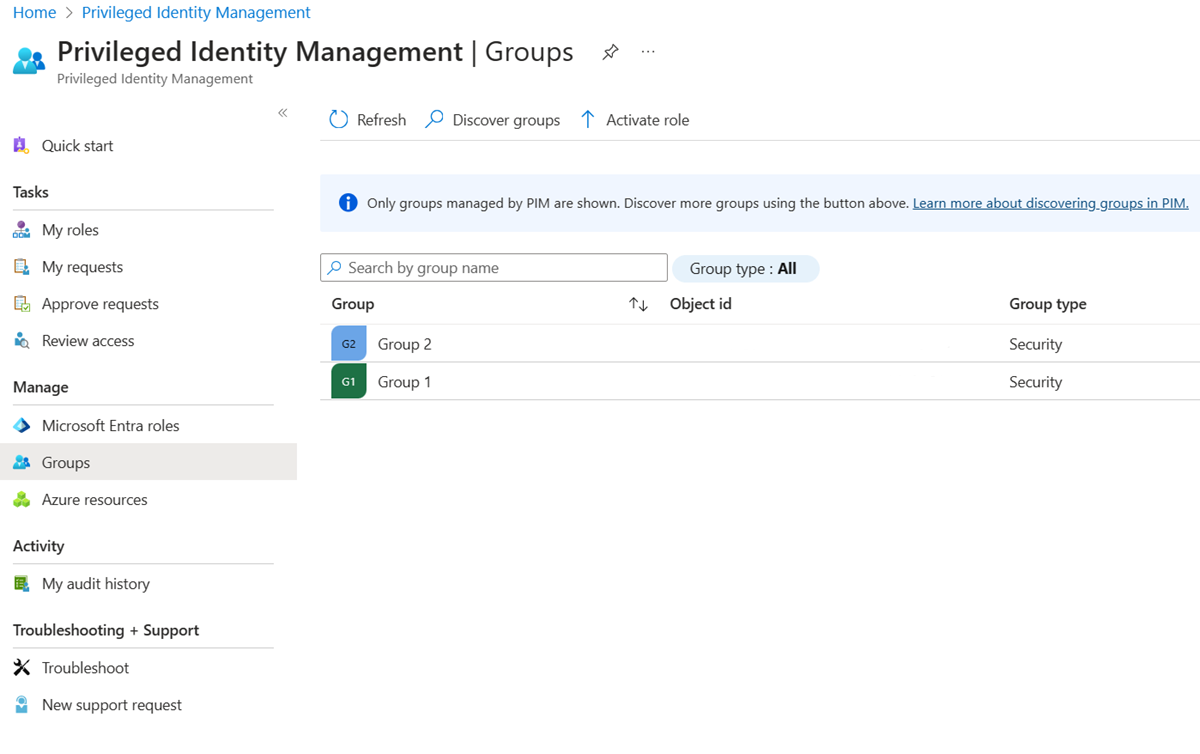
Select the group you need to manage.
Select Assignments.
Use Eligible assignments and Active assignments blades to review existing membership or ownership assignments for selected group.
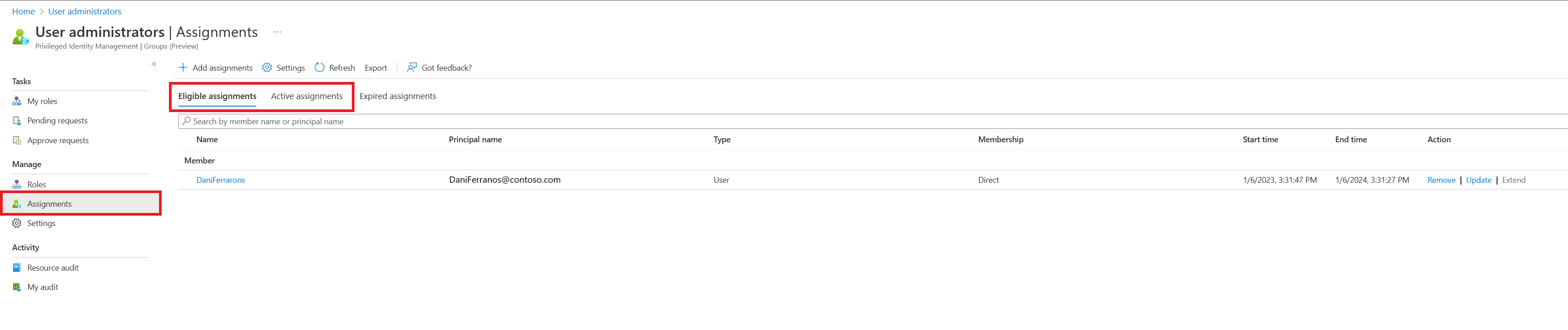
Select Add assignments.
Under Select role, choose between Member and Owner to assign membership or ownership.
Select the members or owners you want to make eligible for the group.
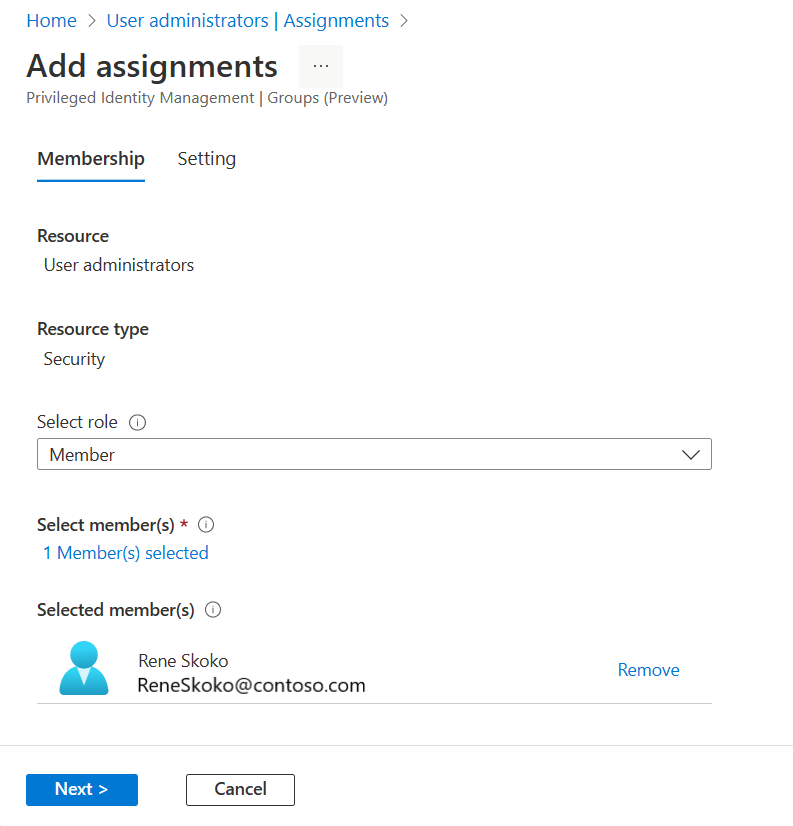
Select Next.
In the Assignment type list, select Eligible or Active. Privileged Identity Management provides two distinct assignment types:
- Eligible assignment requires member or owner to perform an activation to use the role. Activations might also require providing a multifactor authentication (MFA), providing a business justification, or requesting approval from designated approvers.
Important
For groups used for elevating into Microsoft Entra roles, Microsoft recommends that you require an approval process for eligible member assignments. Assignments that can be activated without approval can leave you vulnerable to a security risk from another administrator with permission to reset an eligible user's passwords.
- Active assignments don't require the member to perform any activations to use the role. Members or owners assigned as active have the privileges assigned to the role always.
If the assignment should be permanent (permanently eligible or permanently assigned), select the Permanently check box. Depending on the group's settings, the check box might not appear or might not be editable. For more information, check out the Configure PIM for Groups settings in Privileged Identity Management article.
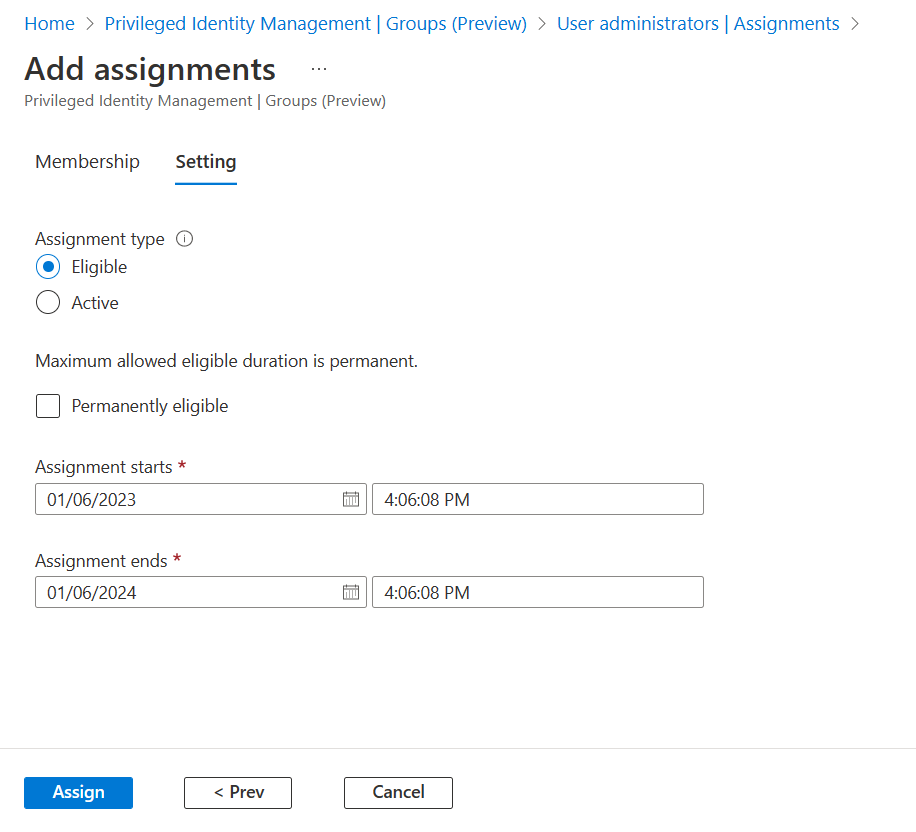
Select Assign.
Update or remove an existing role assignment
Follow these steps to update or remove an existing role assignment.
Note
Administrators and group owners can manage groups through the Groups experience and other interfaces, overriding changes made in Microsoft Entra PIM.
Sign in to the Microsoft Entra admin center with a role that has the required permissions.
Browse to ID Governance > Privileged Identity Management > Groups.
Here you can view groups that are already enabled for PIM for Groups.
Select the group you need to manage.
Select Assignments.
Use Eligible assignments and Active assignments blades to review existing membership or ownership assignments for selected group.
Select Update or Remove to update or remove the membership or ownership assignment.