Note
Access to this page requires authorization. You can try signing in or changing directories.
Access to this page requires authorization. You can try changing directories.
Overview
You can use the Microsoft Entra Privileged Identity Management (PIM) Resource audit logs to see role assignment changes, role activations, and PIM Policy changes. Data is available for the past 30 days.
The PIM Resource audit log is a subset of Microsoft Entra audit logs. Use Microsoft Entra security and activity reports to view the full audit history of Microsoft Entra ID activity including administrator, end user, and synchronization activity.
If you want to retain audit data for longer than the default retention period, you can use Diagnostic Settings in Azure Monitor to route it to an Azure storage account or Log Analytics. For more information, see Integrate Microsoft Entra logs with Azure Monitor logs.
Follow these steps to view the audit history for Microsoft Entra roles.
View resource audit history
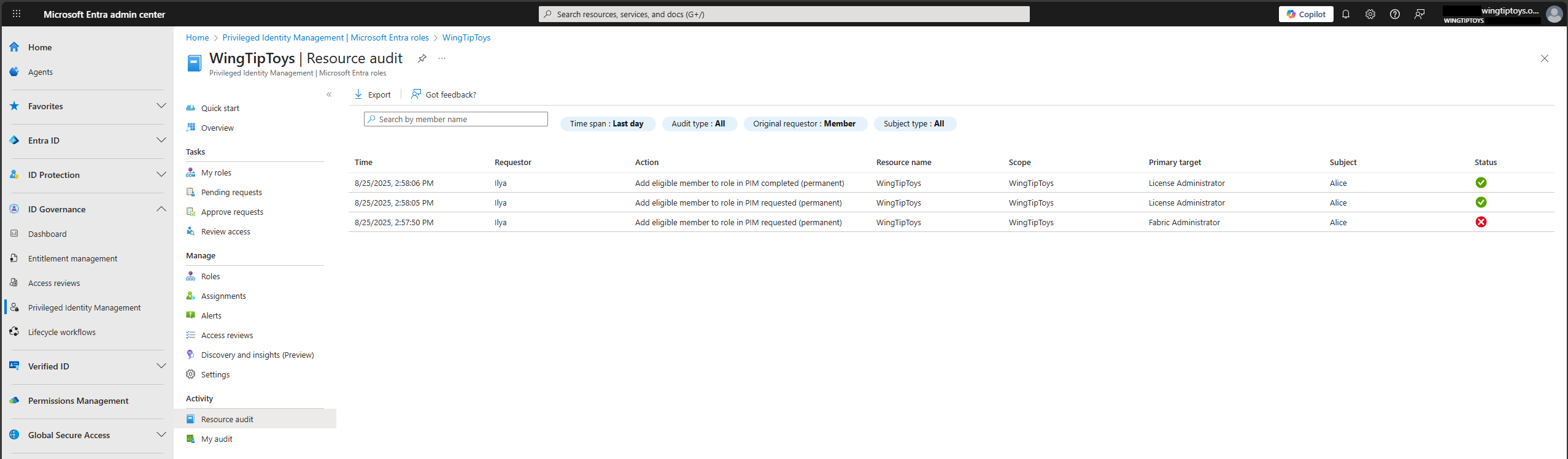
Use the Resource audit blade to view all activity associated with your Microsoft Entra role assignment and PIM policy management in PIM.
Sign in to the Microsoft Entra admin center as a Global Administrator, Global Reader, Privileged Role Administrator, Security Administrator, or Security Reader.
Browse to ID Governance > Privileged Identity Management > Microsoft Entra roles.
Select Resource audit.
Filter the history using a predefined date or custom range.
View my audit
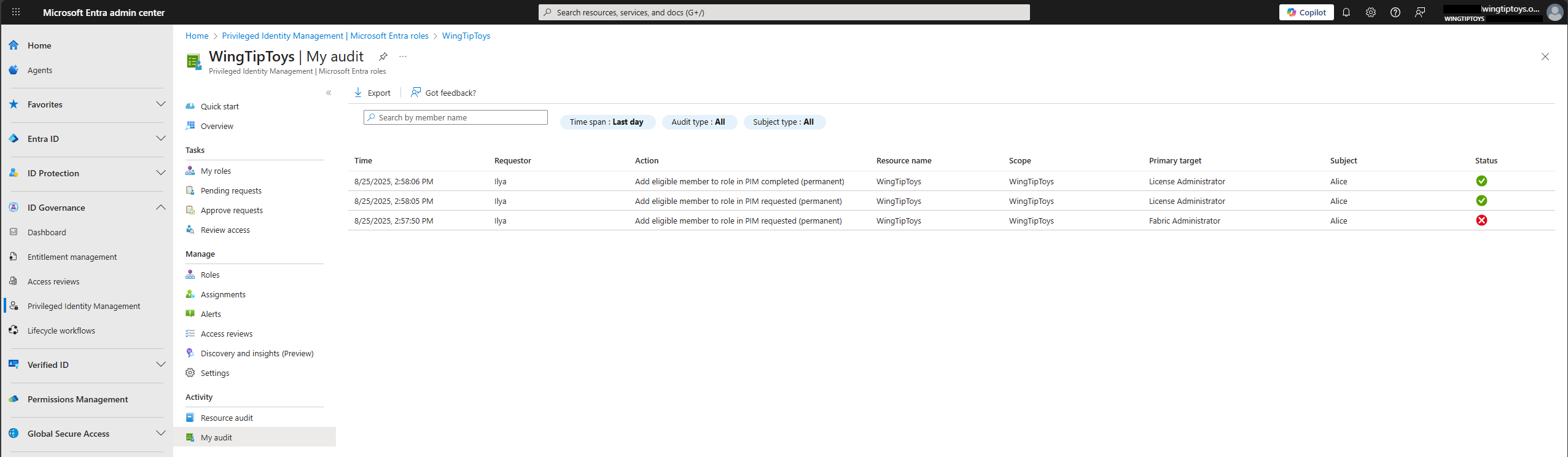
Use the My audit blade to view your role activity for Microsoft Entra role assignment and PIM policy management.
Sign in to the Microsoft Entra admin center.
Browse to ID Governance > Privileged Identity Management > Microsoft Entra roles.
Select My audit.
Filter the history using a predefined date or custom range.
Correlating events related to the same activation cycle
CorrelationId is generally used to correlate audit log events related to one request. With PIM, multiple asynchronously processed operations can be part of one activation/deactivation cycle. As a result, some events related to the same activation/deactivation cycle will have different CorrelationIds.
During role activation, the following operations may be processed asynchronously, resulting in multiple CorrelationIds being generated:
Scheduled activation in PIM allows eligible users to request role activation to begin at a specified future time. Once scheduled, the system tracks the activation request and automatically creates a role assignment at the designated start time — without requiring further user input. Because this operation is asynchronous, a new
CorrelationIdis generated at the time of actual activation, which may differ from the original request'sCorrelationId. This makes direct correlation usingCorrelationIdchallenging across the request and activation phases.Approval-gated activation: When PIM Policy requires approval for role activation, the activation request follows a two-step process: the request is created by an eligible user, then approval is provided by a designated approver. Once approved, the system proceeds with role assignment — this may happen immediately or later if the user chose a scheduled start. Due to the asynchronous nature of this flow, the
CorrelationIdmay differ across stages.In rare cases,
CorrelationIdmay change during the role activation flow due to the way requests are processed between systems.
Use roleAssignmentRequestId to correlate events related to one activation request in all of the examples above. roleAssignmentRequestId remains the same during the asynchronous processing of operations such as scheduled activation or approval.
Use the following example Log Analytics query to get audit log entries related to role activation:
AuditLogs
| where OperationName has "Add member to role"
Use the output of this query to get the roleAssignmentRequestId for the event you need to analyze.
Use the following example Log Analytics query to get audit log entries related to the same role activation:
let roleAssignmentRequestId = "{roleAssignmentRequestId}";
AuditLogs
| where AdditionalDetails has roleAssignmentRequestId
CorrelationId logged during the deactivation process depends on how deactivation was triggered:
- When deactivation is triggered automatically based on the expiration of an activated role assignment,
CorrelationIdof deactivation events matches the latestCorrelationIdused during the activation. - When deactivation is triggered by the assignee (user selected Deactivate on the portal),
CorrelationIdwill be different from the one used in the activation flow.
In both cases, roleAssignmentRequestId of the original activation request is logged under Additional details for audit log events of deactivation.
Use the following example Log Analytics query to get audit log entries related to the full activation/deactivation cycle:
let roleAssignmentRequestId = "{roleAssignmentRequestId}";
let relatedCorrelationIds = AuditLogs
   | where AdditionalDetails has roleAssignmentRequestId
   | summarize makeset(CorrelationId);
AuditLogs
| where AdditionalDetails has roleAssignmentRequestId
  or CorrelationId in (relatedCorrelationIds)