Note
Access to this page requires authorization. You can try signing in or changing directories.
Access to this page requires authorization. You can try changing directories.
Continuous Access Evaluation (CAE) is a security feature that provides real-time access control based on policy changes and user risk. CAE enforces access policies in near real time by continuously evaluating session validity. When a policy change, user risk update, or other critical security event occurs, CAE revokes access tokens and refresh tokens, ensuring that user access always complies with the latest security requirements.
Unlike traditional CAE, which requires each workload to adopt special libraries and is limited to first-party applications, CAE for Application Proxy extends these benefits to any on-premises applications published through Application Proxy, without requiring the application to be CAE-aware.
How CAE protects access
CAE for Application Proxy responds to critical identity and security events so administrators can limit access promptly. The following events trigger enforcement in near real time:
- User termination or password change/reset: CAE revokes user sessions and refresh tokens to prevent continued access.
- Network location change: CAE reevaluates and enforces Conditional Access location policies when a user's network context changes.
- Token export to a machine outside of a trusted network: CAE enforces Conditional Access location policies to block token use or require additional controls when a token is used from an untrusted machine.
Understand how CAE for Application Proxy works
When CAE is enabled for Application Proxy, the request and enforcement flow proceeds as follows:
- A user requests access to an on-premises application through Application Proxy.
- Microsoft Entra ID authenticates the request.
- After successful authentication, the user receives access tokens that are typically valid for 60-90 minutes.
- CAE continuously evaluates the active session for policy changes, risk signals, and revocation events.
- If a trigger occurs (for example, password reset, account disablement, or elevated risk), CAE revokes the session and requires the user to sign in again.
This workflow enables near-real-time enforcement of access policies for published applications without requiring application changes.
Microsoft Entra ID signals that trigger CAE reauthentication
Application Proxy receives signals from Microsoft Entra ID in near real time for these events:
- A user account is deleted or disabled.
- A user’s password is changed or reset.
- Multifactor authentication (MFA) is enabled for the user.
- An administrator revokes all refresh tokens for the user.
When Application Proxy receives any of these signals, it prompts the user to reauthenticate. If reauthentication succeeds, the user regains access to resources published through Application Proxy.
Disable CAE for Application Proxy
Disable CAE for specific Application Proxy applications
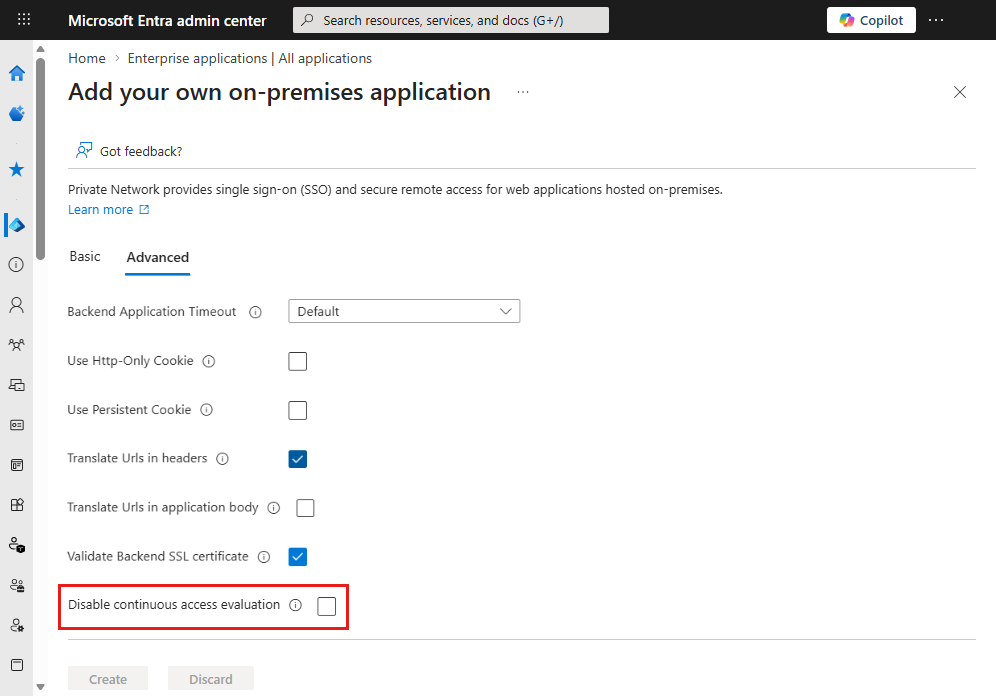
CAE for Application Proxy is enabled by default for all Application Proxy applications. You can disable CAE for individual applications either by using Microsoft Graph or in the Microsoft Entra admin center.
To disable CAE for an individual Application Proxy application, update the application's onPremisesPublishing settings in Microsoft Graph.
Send the following PATCH request:
PATCH https://microsoftgraph.chinacloudapi.cn/beta/applications/{objectId}/onPremisesPublishing
Content-Type: application/json

{
    "isContinuousAccessEvaluationEnabled": false
}
A successful request returns the following response:
HTTP/1.1 204 No Content
Ensure that the account or app calling Microsoft Graph has permission to update the application (for example, Application.ReadWrite.All).
You can also disable CAE for Application Proxy in the Microsoft Entra admin center.
Disable CAE for the entire tenant
Microsoft Entra ID Conditional Access controls tenant-wide CAE behavior. By default, CAE is enabled for all applications that support it. To disable CAE for all services, update your Conditional Access configuration. For steps, see Enable or disable CAE.
Note
CAE is opportunistic unless you enable Strict Enforcement in Conditional Access and apply it to the Application Proxy application. With a non-strict policy, Application Proxy can fall back to issuing a regular access token on reauthentication. Because of this fallback behavior, disabling tenant-wide CAE is rarely necessary.
Known limitations
For detailed information about known issues and limitations, see the Application Proxy FAQ.