Note
Access to this page requires authorization. You can try signing in or changing directories.
Access to this page requires authorization. You can try changing directories.
This document provides answers to frequently asked questions about password policies and password expiration, with a focus on how these policies apply to different user types in Microsoft Entra ID.
Password policy quick reference by user type
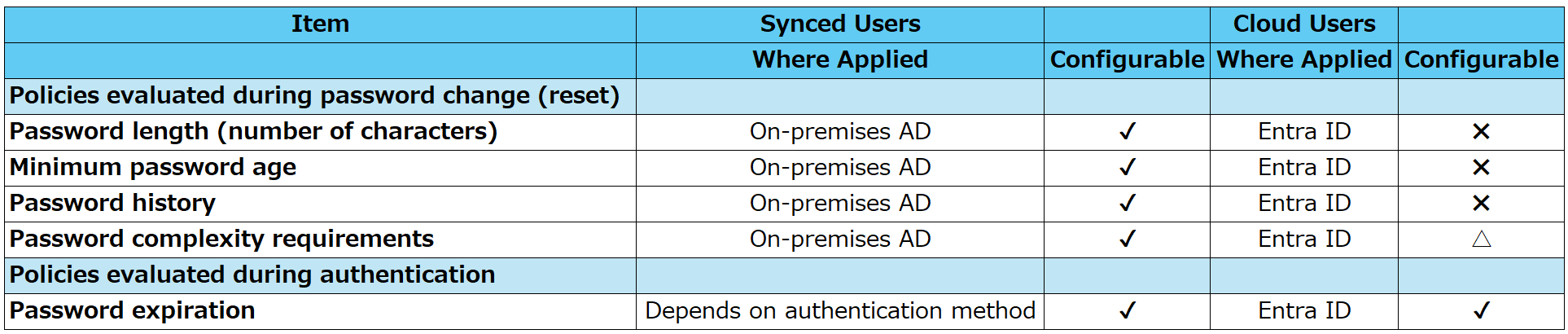
Policies evaluated during password change or reset (password length and complexity)
Synced users
The on-premises Active Directory Domain Services (AD DS) password policy that applies to synced users is modified under Account Policies > Password Policy. For example, by changing the minimum password length, you can reduce the requirement to six characters or fewer, or enforce a stricter policy such as ten or more characters.
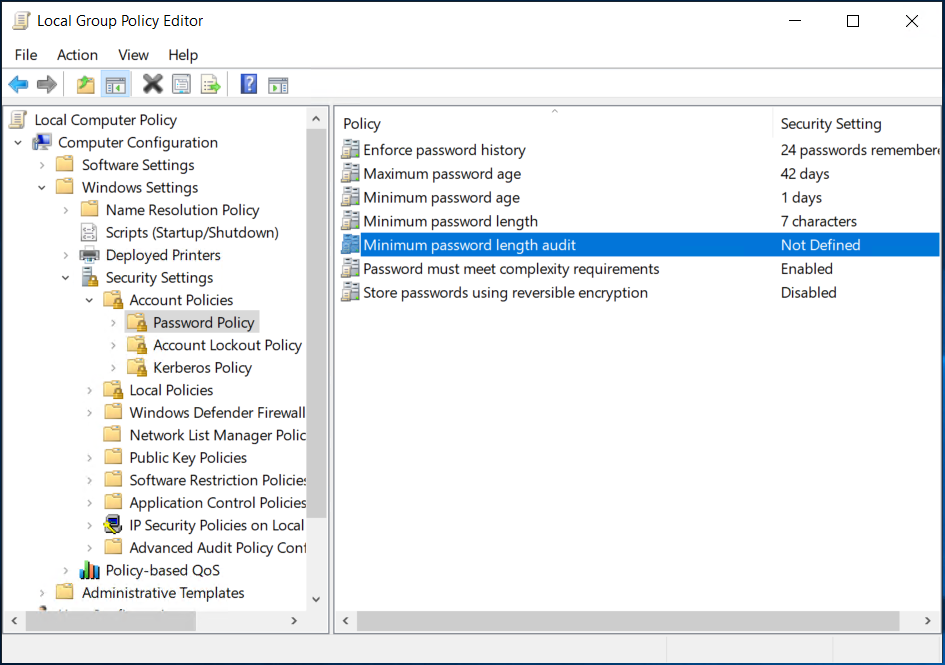
If the password writeback option in Microsoft Entra Connect is enabled, synced users can change or reset their passwords directly from Microsoft Entra ID. In this case, Microsoft Entra ID evaluates the password before the on-premises AD DS password policy applies. This process prevents users from setting easily guessable passwords. Depending on the environment, synced users might also be subject to Microsoft Entra ID restrictions such as the global banned password list. For more information, see the FAQ section.
Cloud-only users
For cloud users, the Microsoft Entra ID password policy can't be customized, except for password expiration. For detailed information about the Entra ID password policy, see Microsoft Entra password policies. Although Microsoft Entra ID doesn't provide the same granular password complexity settings as on-premises AD DS, it does include a global banned password list and a custom banned password list. The global banned password list is enabled for all tenants and can't be disabled. It blocks weak passwords such as admin or baseball. The custom banned password list allows organizations to register words such as the company name or abbreviations and prevent them from being used in passwords. For details, see Global banned password list.
Guest users
Guest users are subject to the settings of their home tenant, where they are originally registered as members. If you need to confirm which password policies apply to a guest user, contact the administrator of the home tenant.
Policies evaluated during authentication (password expiration)
Password expiration specifies the maximum number of days a single password can be used. When the expiration date is reached, users are required to change their password the next time they sign in. When considering password expiration, it's helpful to look not only at whether the user is a synced user or a cloud user, but also whether authentication occurs on-premises or in the cloud. Each scenario is described in the next sections. Refer to the section that matches the user type and environment you want to review
Synced users with password hash synchronization
Some administrators think the on-premises AD DS password expiration syncs directly to Microsoft Entra ID. However, password expiration values for synced users are stored separately in on-premises AD DS and in Microsoft Entra ID. Because password information exists in both environments, the applied expiration policy depends on where the user signs in (where authentication occurs). For example:
- When signing in to a domain-joined client device, authentication occurs in on-premises AD DS, so the on-premises AD DS password expiration applies.
- When signing in to the Azure portal or Microsoft 365, the Microsoft Entra ID password expiration policy applies.
When the on-premises AD DS password expires, the user is prompted to change the password during the next on-premises sign-in.
After the password changes, Microsoft Entra ID synchronizes it. The user can then sign in with the new password.
By default, for password hash-synchronized users, the Microsoft Entra ID password expiration is set to never expire.
As a result, even after the on-premises AD DS password expires, users can still sign in to Microsoft Entra ID using the expired password.
If you don't want users to sign in to Microsoft Entra ID with an expired on-premises password, enable the
CloudPasswordPolicyForPasswordSyncedUsersEnabled option so that Microsoft Entra ID doesn't treat passwords as non-expiring.
Synced users who authenticated on-premises (pass-through authentication or AD FS)
When using pass-through authentication or Active Directory Federation Services (AD FS), authentication for Azure portal and Microsoft 365 sign-ins is performed in on-premises AD DS, not in Microsoft Entra ID. Therefore, the on-premises AD DS password expiration policy applies even when users sign in to the Azure portal.
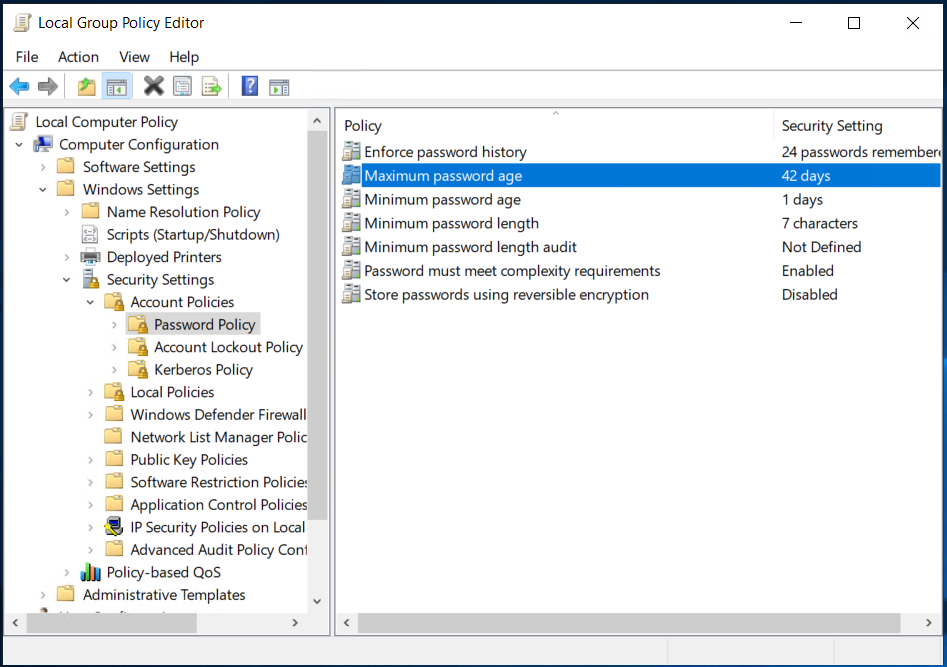
To check password expiration settings, review the on-premises AD DS password policy. You can view the on-premises AD DS password policy by editing the Default Domain Policy in the Group Policy Management Console and navigating to Account Policies > Password Policy.
Account policies can be defined in only one Group Policy Object (GPO) linked to the domain. For this reason, configure these settings by editing the Default Domain Policy.
Cloud-only users created directly in Microsoft Entra ID
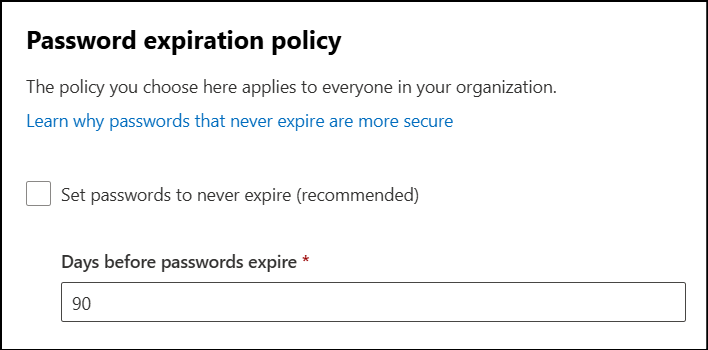
For cloud users created directly in Microsoft Entra ID, the password expiration period specified in the Microsoft Entra ID password policy applies. After specified number of days has passed, users are prompted to change their password when signing in to Microsoft Entra ID. Password expiration in Microsoft Entra ID can be changed using the Microsoft 365 admin center or PowerShell.
In the following image, the password expiration is set to Never expire.
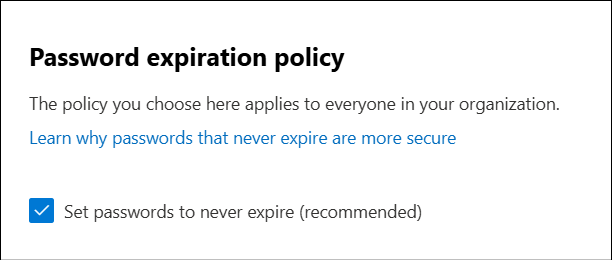
If you want to configure a password expiration, clear the checkbox.
Tip
Even in environments where the password expiration is set to 90 days using the above setting, there may be scenarios where you want to set the password to never expire for only specific users, such as system accounts.
In this case, you can individually configure the account to never expire by setting DisablePasswordExpiration using the Update-MgUser command for that specific account. For more details, see Set an individual user's password to never expire.
Guest users
Password expiration for guest users is managed by the organization in the guest’s home tenant. The resource tenant that invited the guest doesn't manage this setting. If the guest user uses a Microsoft account such as user@outlook.com, the password policy defined by that service applies.
FAQ
In a password hash synchronization environment, users can still access Microsoft Entra ID with their old password after the on-premises AD DS password has expired. Can the Microsoft Entra ID password expiration for synced users be changed from "never expire"?
Yes. You can configure this behavior by enabling the CloudPasswordPolicyForPasswordSyncedUsersEnabled option at the tenant level. To allow users to change their passwords from Microsoft Entra ID, password writeback must also be enabled in Microsoft Entra Connect. By running the following commands, you can enable password expiration for synced users in Microsoft Entra ID.
$OnPremSync = Get-MgDirectoryOnPremiseSynchronization $OnPremSync.Features.CloudPasswordPolicyForPasswordSyncedUsersEnabled = $true
Update-MgDirectoryOnPremiseSynchronization -OnPremisesDirectorySynchronizationId $OnPremSync.Id
-Features $OnPremSync.Features
Warning
Password expiration values for synced users aren't synchronized from on-premises AD DS to Microsoft Entra ID. After enabling this feature, the on-premises password policy applies when signing in on-premises, and the Microsoft Entra ID password policy applies when authentication occurs in Microsoft Entra ID. As a result, the applicable password expiration policy depends on where the user signs in. If different expiration periods are configured (for example, 30 days on-premises and 90 days in Microsoft Entra ID), it can become difficult for users to determine when their password will expire. For this reason, it's recommended to configure the same expiration period for both on-premises AD DS and Microsoft Entra ID. For example, if both environments require a password change after 90 days, the password will expire at roughly the same time. When a password is changed either on-premises or in Microsoft Entra ID, the change is synchronized through password hash synchronization and password writeback, and the expiration timer is reset.
When "User must change password at next logon" is set on-premises, users see an "incorrect password" error when signing in to Microsoft Entra ID. Can users change their password in Microsoft Entra ID instead?
Yes. This is possible by enabling the UserForcePasswordChangeOnLogonEnabled option at the tenant level.
To allow password changes from Microsoft Entra ID, password writeback must be enabled in Microsoft Entra Connect.
$OnPremSync = Get-MgDirectoryOnPremiseSynchronization
$OnPremSync.Features.UserForcePasswordChangeOnLogonEnabled = $true

Update-MgDirectoryOnPremiseSynchronization
 -OnPremisesDirectorySynchronizationId $OnPremSync.Id
 -Features $OnPremSync.Features
By default, this feature is disabled. Without enabling it, users must change their password on-premises first, otherwise sign-in fails. After enabling this option, users are prompted to change their password in Entra ID. For details, see Enforce cloud password policy for synced users.
What is the default password expiration period shown in the Microsoft 365 admin center?
Previously, the default was 90 days. However, for tenants created around spring 2021 or later, the default value is never expire. As a result, some tenants have a 90-day expiration, while others are configured with no expiration by default.
The Microsoft Entra ID password policy is now set to never expire. Is there a way to check who changed it?
If the policy was changed recently, you can check the Microsoft Entra ID audit logs. Filter by the Set password policy activity and review the user listed as the Initiator (Actor).
When running Get-MgDomain in PowerShell, the password expiration shows 2147483647 days. What does this mean?
This value indicates that the password expiration for the domain is set to never expire.
I edited the password policy in the Microsoft 365 admin center or via PowerShell, but I don't receive expiration notifications.
Previously, notifications were displayed using a bell icon in the Microsoft 365 portal. However, this notification feature has been retired, and “password about to expire” notifications are no longer sent.
I can sign in to a Microsoft Entra-joined device even though my password has expired. When will I be required to change it?
You can sign in to the device and reach the Windows desktop even if the password has expired. You are prompted to change your password when signing in to Microsoft Entra ID-integrated cloud resources such as the Azure portal, Microsoft 365 admin center, or Exchange Online.
Is there a way to check the password expiration date for individual users rather than the tenant-wide setting?
There's no simple way to check this in the Azure portal. You must calculate it using values obtained from PowerShell. To check the tenant password expiration policy:
Run
Connect-MgGraph.Run
Get-MgContextto confirm you're connected to the correct tenant.Run the following command:
Get-MgDomain -DomainId contoso.partner.onmschina.cn | select Id, PasswordNotificationWindowInDays, PasswordValidityPeriodInDaysExample output:
Id                            PasswordNotificationWindowInDays PasswordValidityPeriodInDays
--                            -------------------------------- ----------------------------
contoso.partner.onmschina.cn                                   14                   90
To retrieve the date when a user last changed their password, run the following command:
Get-MgUser -UserId admin@contoso.partner.onmschina.cn ` -Property UserPrincipalName, LastPasswordChangeDateTime | fl UserPrincipalName, LastPasswordChangeDateTimeExample output:
UserPrincipalName          : admin@M365x61971868.partner.onmschina.cn
LastPasswordChangeDateTime : 2024/02/27 4:51:12
Compare the last password change date with the expiration period to determine the expiration date.
Is "change password" the same as "reset password"?
No. These terms represent different actions.

Password change refers to a scenario where the user changes their password to a new one when they already know their current password. When performing a password change, the user is required to enter their current (old) password. For example, the prompt shown below is also considered a password change. In addition, even if the password has not yet expired, the user can explicitly change their password from the My Account page.
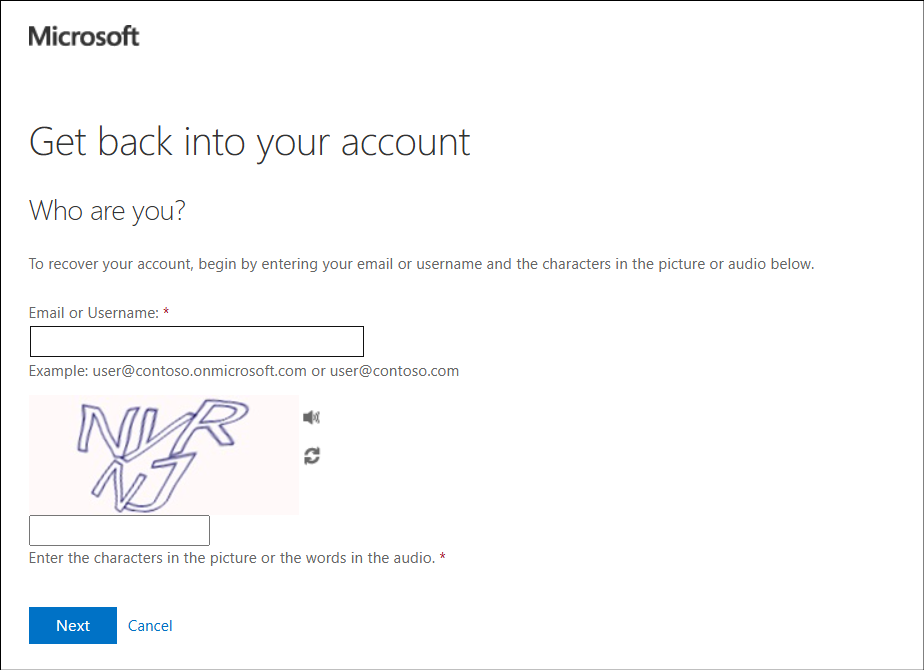
On the other hand, a password reset doesn't necessarily require the user to know their current password. Users can reset a password even if they know the current password. However, password reset is most common when the password is unknown or forgotten. (There are also scenarios where a password reset is required as a response to detected risks or security events.) When a user performs a password reset by themselves, the following Recover your account screen is displayed.
Is there a way to prevent users from changing their password?
No. Users can always change their own password. However, administrators can disable self-service password reset (SSPR).
Can I prevent specific words from being used in passwords?
Yes. You can add words such as your company name to the custom banned password list. Common weak passwords such as Admin or Password are already blocked by the global banned password list, which is automatically applied to all tenants.
When are global and custom banned passwords evaluated?
They are evaluated during password change and password reset operations. Depending on the password evaluation results described in How are passwords evaluated, a password containing a custom banned word might still be accepted in some cases.
When synced users change their password from Microsoft Entra ID, the screen always shows "Please wait a few minutes." Why?
This occurs when the password meets the on-premises AD password policy but doesn't meet the Entra ID password policy. For example, this can happen if:
- The on-premises minimum password length is seven characters or fewer
- Password complexity is disabled on-premises
If the password meets both the Microsoft Entra ID and on-premises policies (for example, at least eight characters and three of four character types), the password is updated immediately and the message doesn't appear. If only the on-premises policy is satisfied, the password is accepted on-premises and synchronized to Microsoft Entra ID during the next password hash synchronization cycle (up to two minutes). This is expected behavior and doesn't require remediation.
The same "Please wait a few minutes" message appears when resetting a password from Microsoft Entra ID. Why?
The reason and behavior are the same as during password change, although the displayed screens differ slightly.
Does Microsoft provide recommended password policy guidance?
Microsoft's recommended password policy includes the following principles:
- Set a minimum password length of 8 characters
- Don't require specific character composition (such as mandatory symbols)
- Don't force periodic password changes
- Block commonly used or weak passwords
- Don't reuse organizational passwords for non-business purposes
Research has shown that enforcing frequent password changes or complex symbol requirements can reduce security, as users tend to reuse or simplify passwords. Microsoft recommends modern password practices based on these guidelines rather than outdated assumptions.