Note
Access to this page requires authorization. You can try signing in or changing directories.
Access to this page requires authorization. You can try changing directories.
Microsoft Entra Health monitoring provides a set of tenant-level health metrics you can monitor and alerts when a potential issue or failure condition is detected. There are multiple health scenarios that can be monitored, including two related to devices:
- Sign-ins requiring a Conditional Access compliant device
- Sign-ins requiring a Conditional Access managed device
This article describes the health metrics related to compliant and managed devices and how to troubleshoot a potential issue when you receive an alert. For details on how to interact with the Health Monitoring scenarios and how to investigate all alerts, see How to investigate health scenario alerts.
Important
Microsoft Entra Health scenario monitoring and alerts are currently in PREVIEW. This information relates to a prerelease product that might be substantially modified before release. Microsoft makes no warranties, expressed or implied, with respect to the information provided here.
Prerequisites
There are different roles, permissions, and license requirements to view health monitoring signals and configure and receive alerts. We recommend using a role with least privilege access to align with the Zero Trust guidance.
- A tenant with a Microsoft Entra P1 or P2 license is required to view the Microsoft Entra health scenario monitoring signals.
- A tenant with both a non-trial Microsoft Entra P1 or P2 license and at least 100 monthly active users is required to view alerts and receive alert notifications.
- The Reports Reader role is the least privileged role required to view scenario monitoring signals, alerts, and alert configurations.
- The Helpdesk Administrator is the least privileged role required to update alerts and update alert notification configurations.
- The
HealthMonitoringAlert.Read.Allpermission is required to view the alerts using the Microsoft Graph API. - The
HealthMonitoringAlert.ReadWrite.Allpermission is required to view and modify the alerts using the Microsoft Graph API. - For a full list of roles, see Least privileged role by task.
Investigate the signals and alerts
Investigating an alert starts with gathering data. With Microsoft Entra Health in the Microsoft Entra admin center, you can view the signal and alert details in one place. You can also view the signals and alerts using the Microsoft Graph API. For more information, see How to investigate health scenario alerts for guidance on how to gather data using the Microsoft Graph API.
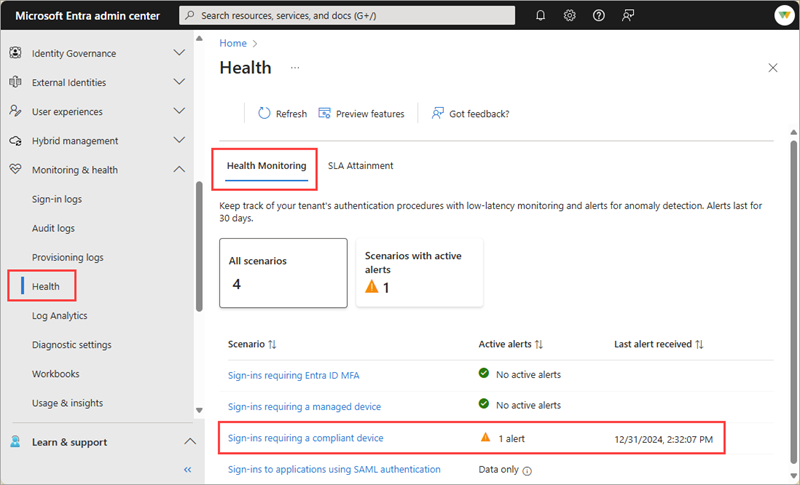
Sign into the Microsoft Entra admin center as at least a Reports Reader.
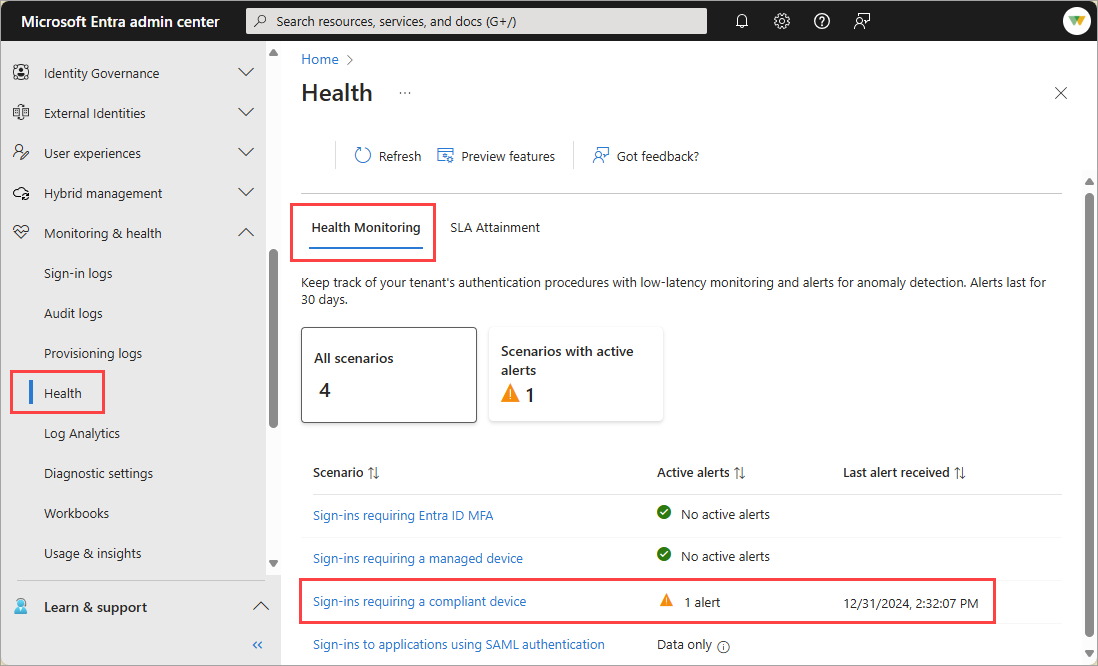
Browse to Entra ID > Monitoring & health > Health. The page opens to the Service Level Agreement (SLA) Attainment page.
Select the Health Monitoring tab.
Select the Sign-ins requiring a compliant device or Sign-ins requiring a managed device scenario and then select an active alert.
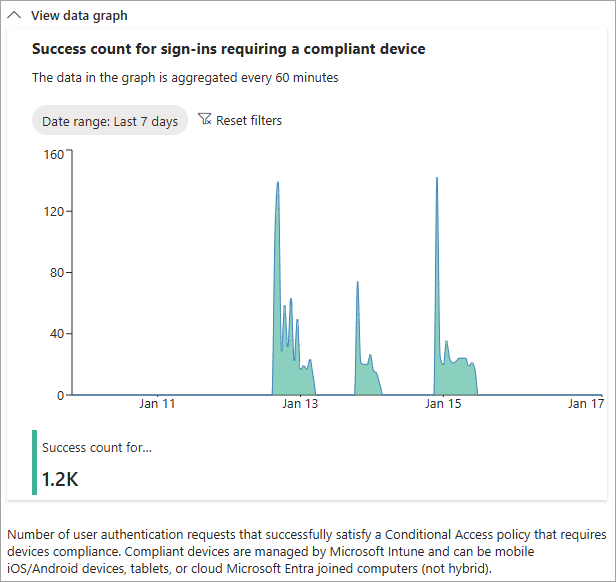
View the signal from the View data graph section to get familiar with the pattern and identify anomalies.
Review your Intune device compliance policies.
- For more information, see Intune device compliance overview.
- Learn how to Monitor device compliance policies.
- If you're not using Intune, review your device management solution's compliance policies.
Investigate common Conditional Access issues.
Review the sign-in logs.
- Review the sign-in log details.
- Look for users being blocked from signing in and have a compliant device policy applied.
Check the audit logs for recent policy changes.
Mitigate common issues
The following common issues could cause a spike in sign-ins requiring a compliant or managed device. This list isn't exhaustive, but provides a starting point for your investigation.
Many users are blocked from signing in from known devices
If a large group of users are blocked from signing in to known devices, a spike could indicate that these devices have fallen out of compliance. If the number of affected users indicates a high percentage of your organization's users, you might be looking at a widespread issue.
To investigate:
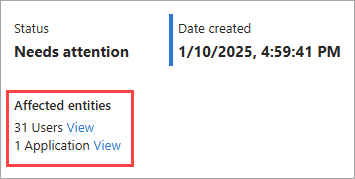
From the Affected entities section of the selected scenario, select View for users.
- A sample of affected users appears in a panel. Select a user to navigate directly to their profile where you can view their sign-in activity and other details.
- With the Microsoft Graph API, look for the "user"
resourceTypeand theimpactedCountvalue in the impact summary.
Check your Intune device compliance policy.
Check your Conditional Access device compliance policies.
User is blocked from signing in from an unknown device
If the increase in blocked sign-ins is coming from an unknown device, that spike could indicate that an attacker has acquired a user's credentials and is attempting to sign in from a device used for such attacks. If the number of affected users shows a small subset of users, the issue might be user-specific.
To investigate:
- From the Affected entities section of the selected scenario, select View for users.
- A list of affected users appears in a panel. Select a user to navigate directly to their profile where you can view their sign-in activity and other details.
- With the Microsoft Graph API, look for the "user"
resourceTypeand theimpactedCountvalue in the impact summary.
- Review the sign-in logs.
Network issues
There could be a regional system outage that required a large number of users to sign in at the same time.
To investigate:
From the Affected entities section of the selected scenario, select View for users.
- A list of affected users appears in a panel. Select a user to navigate directly to their profile where you can view their sign-in activity and other details.
- With the Microsoft Graph API, look for the "user"
resourceTypeand theimpactedCountvalue in the impact summary.
Check your system and network health to see if an outage or update matches the same timeframe as the anomaly.
-
- Adjust your filter to show sign-ins from a region where an affected user is located.