Note
Access to this page requires authorization. You can try signing in or changing directories.
Access to this page requires authorization. You can try changing directories.
Overview
This article gives simple steps to get the identity of the currently signed in account. You can use this identity information later to grant role-based access control access to the signed in account to either manage data or resources in Azure.
The current Azure CLI session could be signed in with a human identity (your account), a managed identity, a workload identity, or a service principal. No matter what type of identity you use with Azure CLI, to steps to get the details of the identity can be similar. For more information, see Microsoft Entra identity fundamentals.
Prerequisites
- An Azure account with an active subscription. Create an account.
If you prefer to run CLI reference commands locally, install the Azure CLI. If you're running on Windows or macOS, consider running Azure CLI in a Docker container. For more information, see How to run the Azure CLI in a Docker container.
If you're using a local installation, sign in to the Azure CLI by using the az login command. To finish the authentication process, follow the steps displayed in your terminal. For other sign-in options, see Sign in with the Azure CLI.
When you're prompted, install the Azure CLI extension on first use. For more information about extensions, see Use extensions with the Azure CLI.
Run az version to find the version and dependent libraries that are installed. To upgrade to the latest version, run az upgrade.
- If you choose to use Azure PowerShell locally:
- Install the latest version of the Az PowerShell module.
- Connect to your Azure account using the Connect-AzAccount cmdlet.
Get signed in account identity
Use the command line to query the graph for information about your account's unique identifier.
Get the details for the currently logged-in account using
az ad signed-in-user.az ad signed-in-user showThe command outputs a JSON response containing various fields.
{
  "@odata.context": "<https://microsoftgraph.chinacloudapi.cn/v1.0/$metadata#users/$entity>",
  "businessPhones": [],
  "displayName": "Kai Carter",
  "givenName": "Kai",
  "id": "aaaaaaaa-0000-1111-2222-bbbbbbbbbbbb",
  "jobTitle": "Senior Sales Representative",
  "mail": "<kai@adventure-works.com>",
  "mobilePhone": null,
  "officeLocation": "Redmond",
  "preferredLanguage": null,
  "surname": "Carter",
  "userPrincipalName": "<kai@adventure-works.com>"
}
Tip
Record the value of the
idfield. In this example, that value would beaaaaaaaa-0000-1111-2222-bbbbbbbbbbbb. This value can then be used in various scripts to grant your current account role-based access control permissions to Azure resources.
Use the in-portal panes for Microsoft Entra ID to get details of your currently signed-in user account.
Sign in to the Azure portal (https://portal.azure.cn).
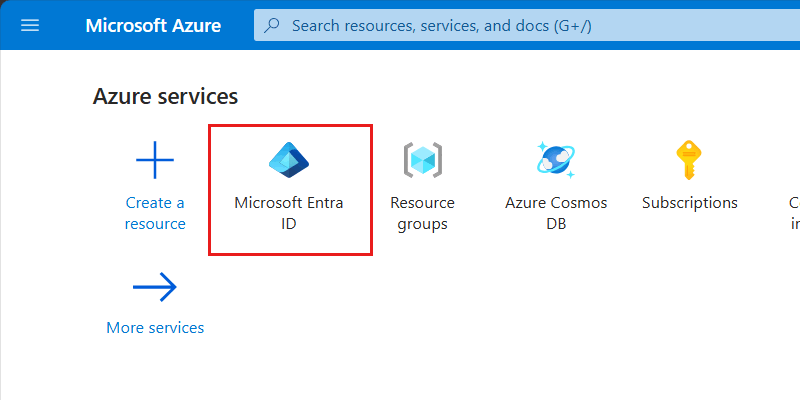
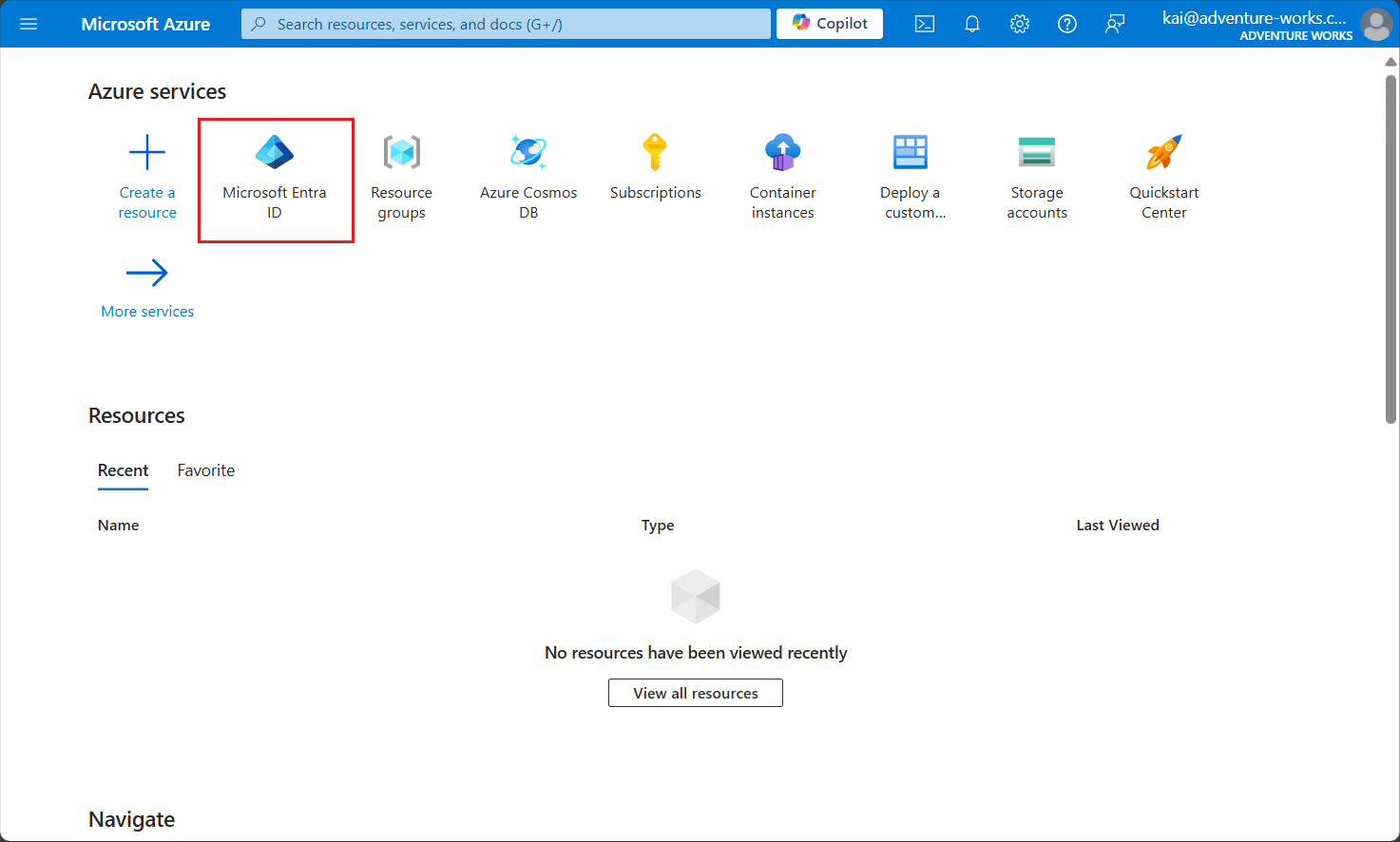
On the Home pane, locate and select the Microsoft Entra ID option.
Tip
If this option isn't listed, select More services and then search for Microsoft Entra ID using the search term "Entra".
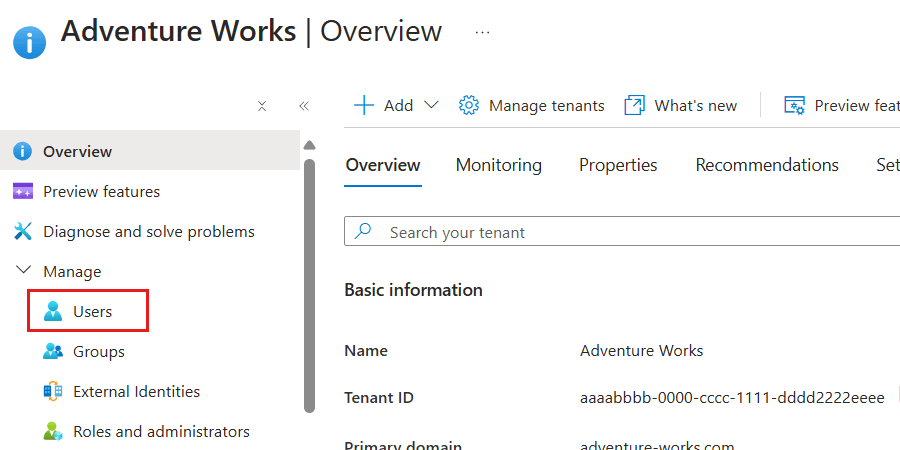
Within the Overview pane for the Microsoft Entra ID tenant, select Users inside the Manage section of the service menu.
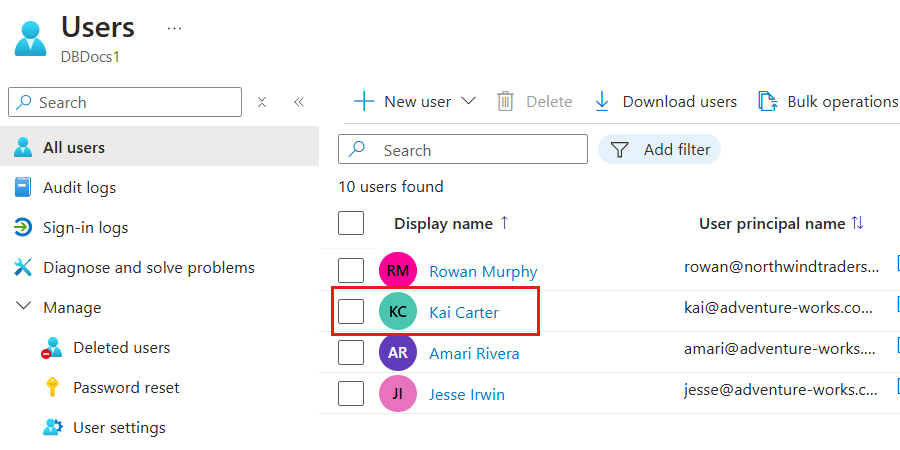
In the list of users, select the identity (user) that you want to get more details about.
Note
This screenshot illustrates an example user named "Kai Carter" with a principal of
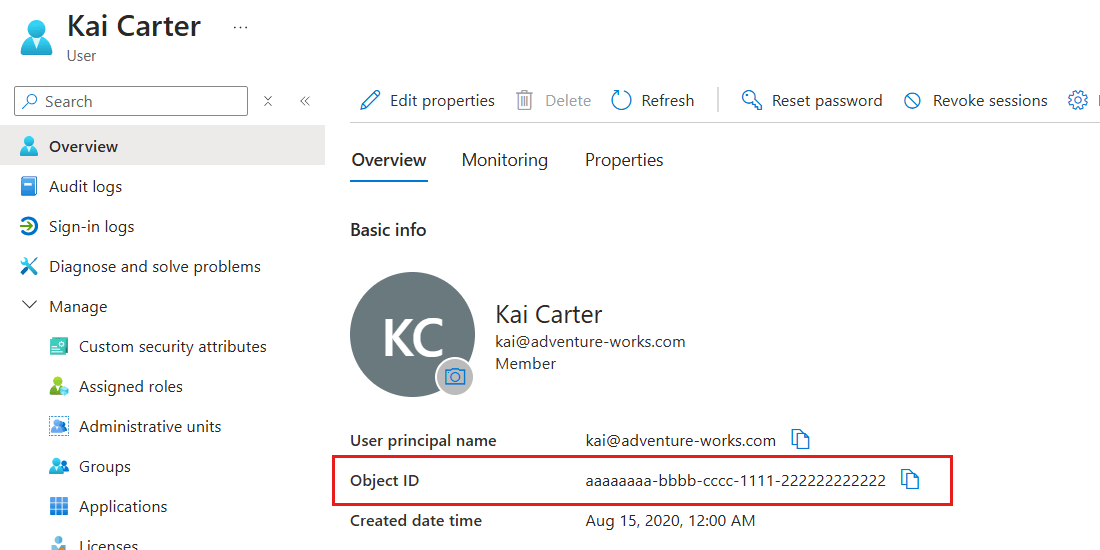
kai@adventure-works.com.On the details pane for the specific user, observe the value of the Object ID property.
Tip
Record the value of the Object ID property. In this example, that value would be
aaaaaaaa-0000-1111-2222-bbbbbbbbbbbb. This value can then be used in various scripts to grant your current account role-based access control permissions to Azure resources.
Get the details for the currently logged-in account using
Get-AzADUser.Get-AzADUser -SignedIn | Format-List ` -Property Id, DisplayName, Mail, UserPrincipalNameThe command outputs a list response containing various fields.
Id                : aaaaaaaa-0000-1111-2222-bbbbbbbbbbbb
DisplayName       : Kai Carter
Mail              : kai@adventure-works.com
UserPrincipalName : kai@adventure-works.com
Tip
Record the value of the
idfield. In this example, that value would beaaaaaaaa-0000-1111-2222-bbbbbbbbbbbb. This value can then be used in various scripts to grant your current account role-based access control permissions to Azure resources.