Note
Access to this page requires authorization. You can try signing in or changing directories.
Access to this page requires authorization. You can try changing directories.
Applies to: Azure Logic Apps (Consumption)
When you need to run your logic app workflow from a Power Apps environment, export your logic app resource and workflow as a custom connector from the Azure portal. You can then use that connector in Power Apps to call your workflow.
Prerequisites
An Azure account and subscription. Get a Azure account.
A Power Apps license.
A Consumption logic app workflow that starts with the Request trigger.
The Export capability is available only for Consumption logic app workflows in multitenant Azure Logic Apps.
A Power Apps flow from where to call your logic app workflow.
1: Export your logic app as a custom connector
Before you can call your workflow from Power Apps, first export your logic app resource as a custom connector by following these steps:
In the Azure portal search box, enter
logic apps. From the results, select Logic apps.From the Logic apps page, select the Consumption logic app resource to export.
On the logic app sidebar, select Overview. On the Overview page toolbar, select Export > Export to Power Apps.

On the Export to Power Apps pane, provide the following information:
Property Description Name Enter a name for the custom connector to create from your logic app. Environment Select the Power Apps environment from where to call your logic app workflow. Note
If you get the following error, make sure that your logic app workflow starts with the Request trigger:
The current Logic App cannot be exported. To export, select a Logic App that has a request trigger.
When you finish, select OK. To confirm that the portal successfully exported the logic app, on the Azure title bar, open the notifications pane.
2: Call your logic app workflow from Power Apps
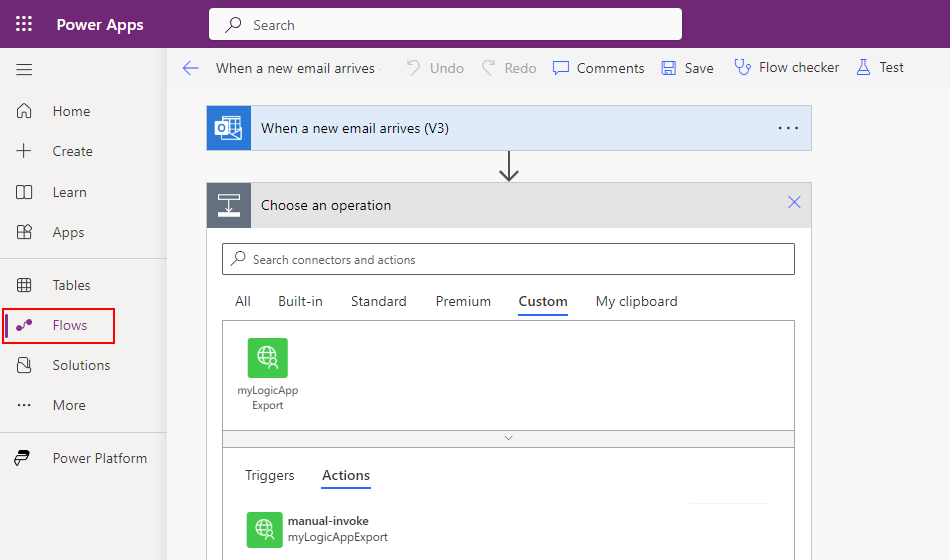
In Power Apps, on the sidebar, select Flows.
On the Flows page, select the flow from where you want to call your logic app workflow.
On the flow information page toolbar, select Edit.
In the flow designer, under the operation where you want to call the logic app workflow, select + New step.
In the Choose an operation search box, enter the name for your custom connector.
To show only custom connectors in your environment, select the Custom tab, for example:
Select the operation to call from your flow.
Provide the necessary information to run the selected operation.
Save your changes. On the flow designer toolbar, select Save.
3: Test your workflow
In Power Apps, run the flow to call and run the logic app workflow.
In the Azure portal, on the exported logic app resource sidebar, under Development Tools, select Run history. From the runs list, select the run triggered by your flow in Power Apps.
Confirm that your workflow ran as expected from your Power Apps flow.
For more information, see Review workflow run history.
Delete custom connector from Power Apps
When you don't need your custom connector anymore, delete the connector from your flow.
In Power Apps, on the sidebar, select Custom connectors. If Custom connectors doesn't exist on the sidebar, select More, and then select Discover all.
From the list, find your custom connector, select the ellipses (...) button, and then select Delete.

To finish, select Delete.
Troubleshoot problems
Environment not found
This error usually occurs when the connection to a logic app workflow is unavailable or incorrect. To help you troubleshoot this problem, try the following options:
| Option | Details |
|---|---|
| Check the environment name | Make sure that the environment name in the connection matches the deployment environment for your logic app resource. |
| Check environment availability | Make sure that the logic app resource environment is available and not disabled or deleted. To check the environment status, go to the Power Platform admin center. |
| Check connection settings | In Power Apps, check that the connection to the logic app is correctly set up and points to the correct environment. |
| Check permissions | Make sure you have the required permissions to access the logic app workflow and environment. You might need specific roles assigned to you. For more information, see: - Secure data and access to workflows - Access for inbound calls to request-based triggers |
| Update the logic app | Check whether the logic app workflow has recent changes. For example, if the resource moved to a different environment, update the connection in Power Apps to reflect these changes. |
| Review logs | Check the logs in Power Apps and Azure Logic Apps for any other error messages or information that might help identify the problem. |