Note
Access to this page requires authorization. You can try signing in or changing directories.
Access to this page requires authorization. You can try changing directories.
When you connect to an Azure Machine Learning workspace configured with a private endpoint, you might encounter a 403 error or a message saying that access is forbidden. This article explains how you can check for common configuration problems that cause this error.
Tip
Before using the steps in this article, try the Azure Machine Learning workspace diagnostic API. It can help identify configuration problems with your workspace. For more information, see How to use workspace diagnostics.
DNS configuration
The troubleshooting steps for DNS configuration differ based on whether you use Azure DNS or a custom DNS. Use the following steps to determine which one you're using:
In the Azure portal, select the private endpoint for your Azure Machine Learning workspace.
From the Overview page, select the Network Interface link.
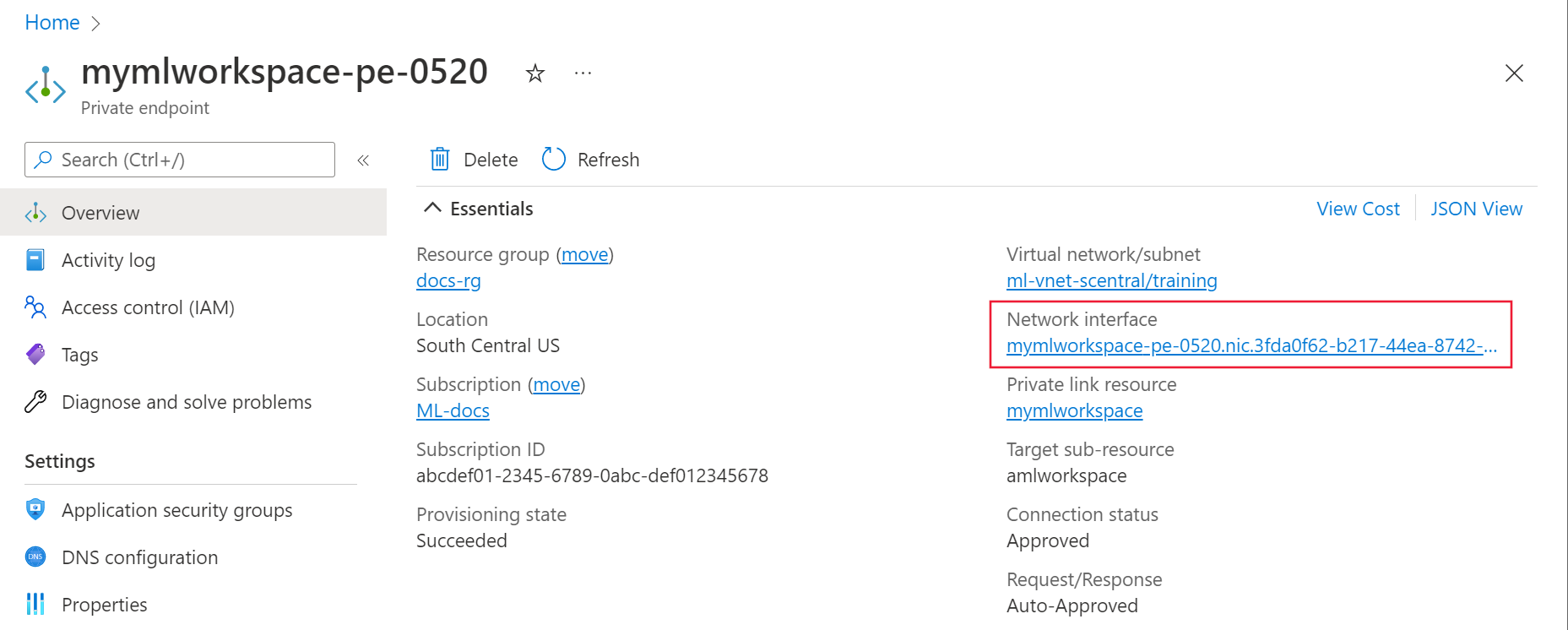
Under Settings, select IP Configurations and then select the Virtual network link.

From the Settings section on the left of the page, select the DNS servers entry.
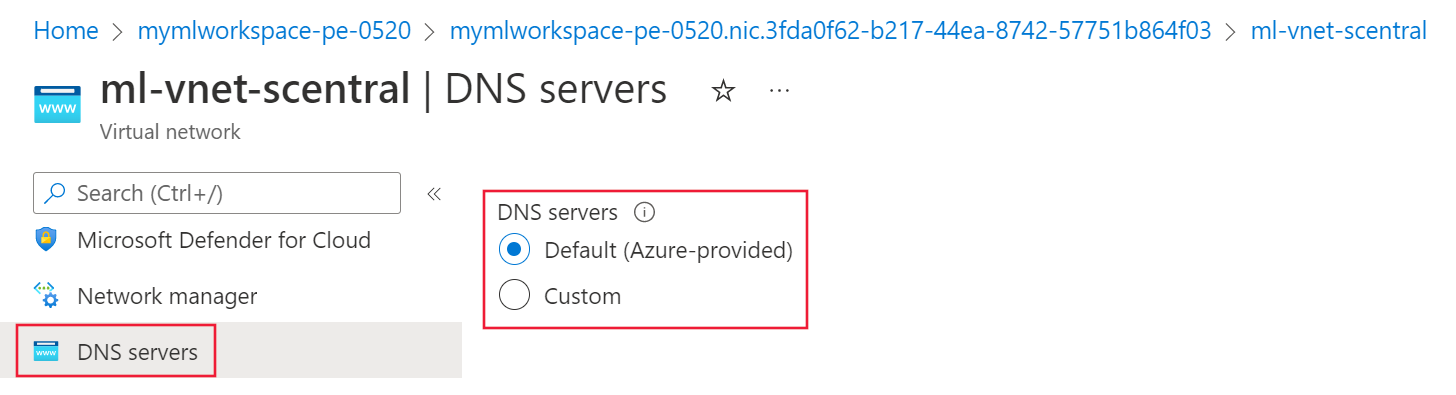
- If this value is Default (Azure-provided) or 168.63.129.16, the virtual network uses Azure-provided DNS. Verify that the affected client's network interface doesn't override this setting, then continue to Azure DNS troubleshooting.
- If a different IP address is listed, the virtual network uses custom DNS. Verify that the affected client uses that resolver, then continue to Custom DNS troubleshooting.

Custom DNS troubleshooting
Use the following steps to verify if your custom DNS solution is correctly resolving names to IP addresses:
From a virtual machine, laptop, desktop, or other compute resource that has a working connection to the private endpoint, open a web browser. In the browser, use the URL for your Azure region:
Azure region URL Azure operated by 21Vianet https://portal.azure.cn/?feature.privateendpointmanagedns=false
In the portal, select the private endpoint for the workspace. Make a list of FQDNs listed for the private endpoint.
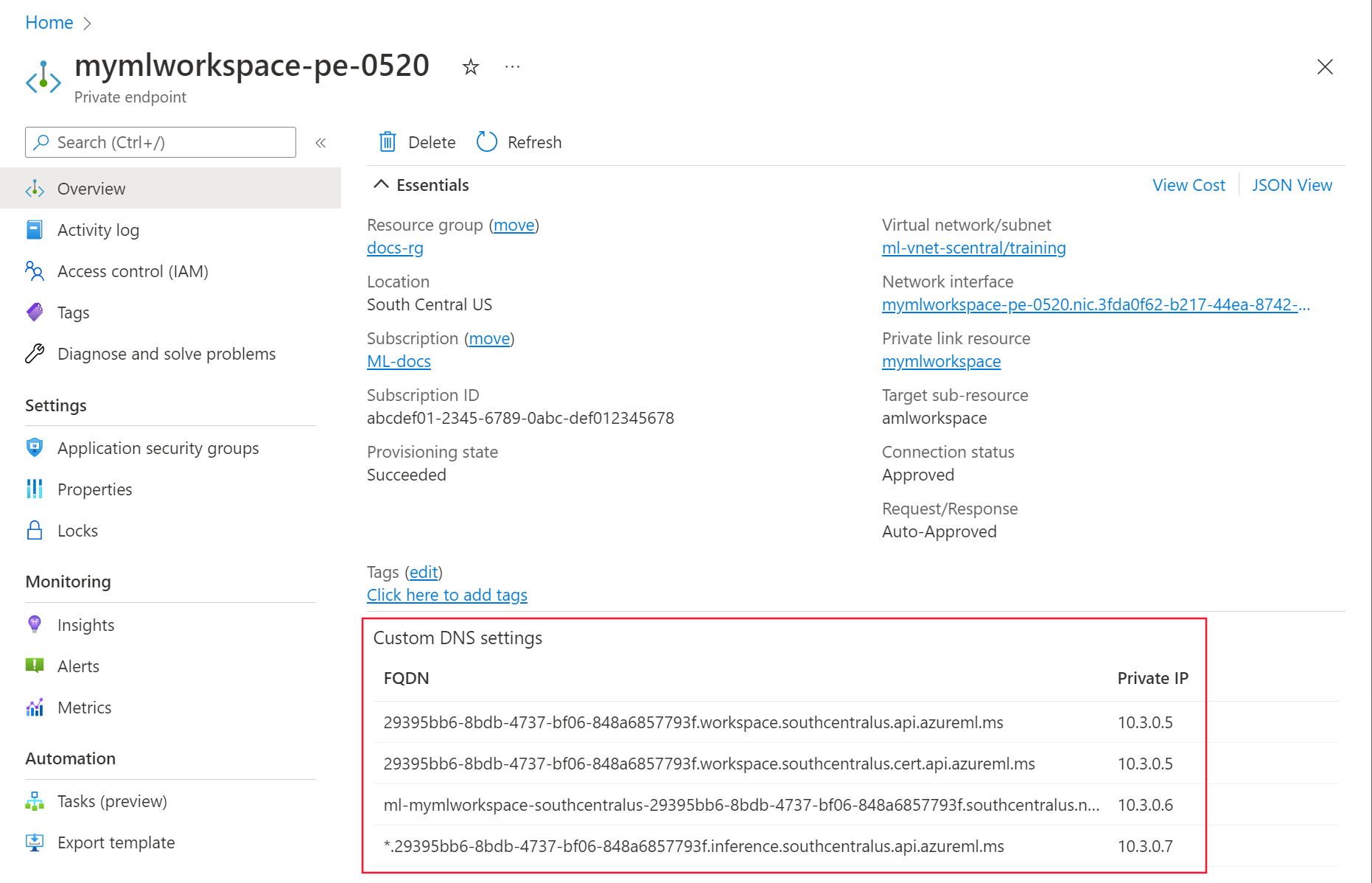
Open a command prompt, PowerShell, or other command line and run the following command for each FQDN returned from the previous step. Each time you run the command, verify that the IP address returned matches the IP address listed in the portal for the FQDN:
nslookup <fqdn>For example, running the command
nslookup a0a0a0a0-bbbb-cccc-dddd-e1e1e1e1e1e1.workspace.eastus.api.azureml.msreturns a value similar to the following text:Server: yourdnsserver Address: yourdnsserver-IP-address Name: a0a0a0a0-bbbb-cccc-dddd-e1e1e1e1e1e1.workspace.eastus.api.azureml.ms Address: 10.3.0.5If the
nslookupcommand returns an error, or returns a different IP address than displayed in the portal, the custom DNS solution isn't configured correctly. For more information, see How to use your workspace with a custom DNS server.Verify that your DNS server conditionally forwards the Azure Machine Learning DNS zones required for your scenario. For commercial Azure, these zones include
api.azureml.ms,notebooks.chinacloudapi.cn,instances.ml.azure.ms, andaznbcontent.net. Includeinference.studio.ml.azure.cnwhen you use managed online endpoints. Also verify private endpoints and DNS records for the workspace dependencies you use. For cloud-specific zones and managed online endpoint wildcard records, see How to use your workspace with a custom DNS server.
Azure DNS troubleshooting
When using Azure DNS for name resolution, use the following steps to verify that the Private DNS integration is configured correctly:
On the Private Endpoint, select DNS configuration. For each entry in the Private DNS zone column, there should also be an entry in the DNS zone group column.
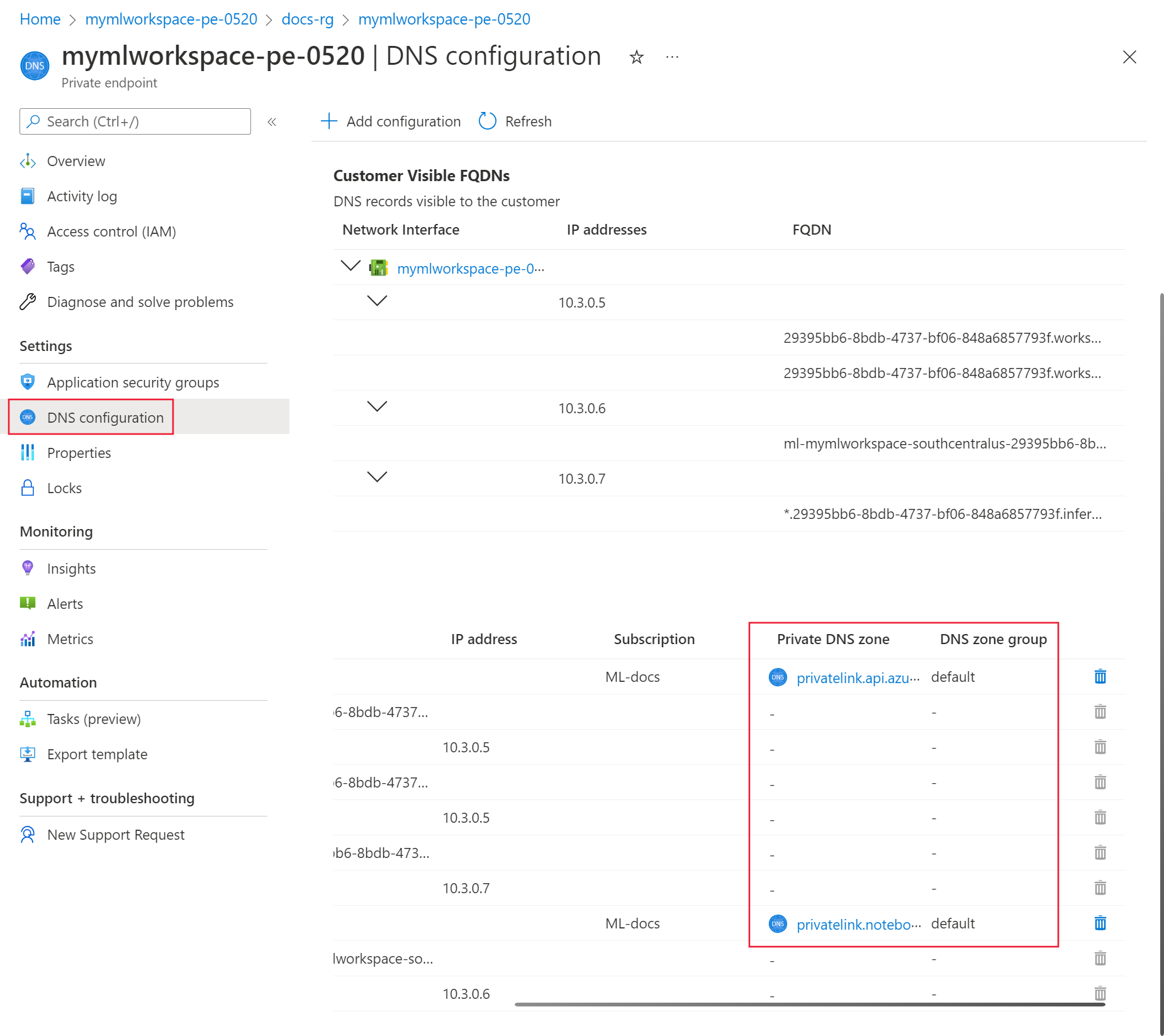
If a Private DNS zone entry has no DNS zone group entry, verify that the private endpoint connection is approved and that the private DNS zone names, records, and DNS zone group configuration are correct. Add or correct the DNS zone group without deleting the private endpoint when possible.
If DNS zone group isn't empty, select the link for the Private DNS zone entry.
From the Private DNS zone, select Virtual network links. Add links for each client virtual network and applicable peered virtual network that must resolve the private endpoint. Verify that the zone contains the expected private DNS records.
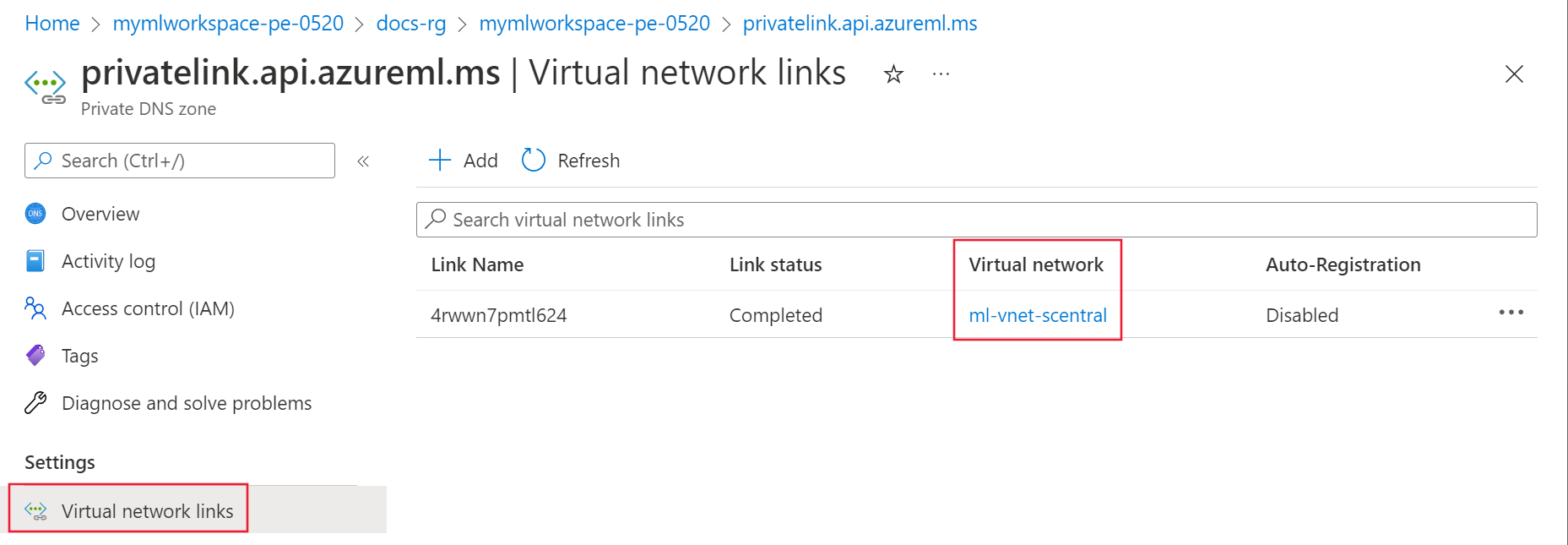
Repeat the previous steps for the rest of the Private DNS zone entries.
Browser configuration (DNS over HTTPS)
Check whether DNS over HTTPS is enabled in your web browser. DNS over HTTPS can bypass the operating system or corporate DNS resolver and return public IP addresses instead of the private endpoint address.
Mozilla Firefox: For more information, see Disable DNS over HTTPS in Firefox.
Microsoft Edge:
Select ... in the top right corner, then select Settings.
From settings, search for DNS and then disable Use secure DNS to specify how to look up the network address for websites.
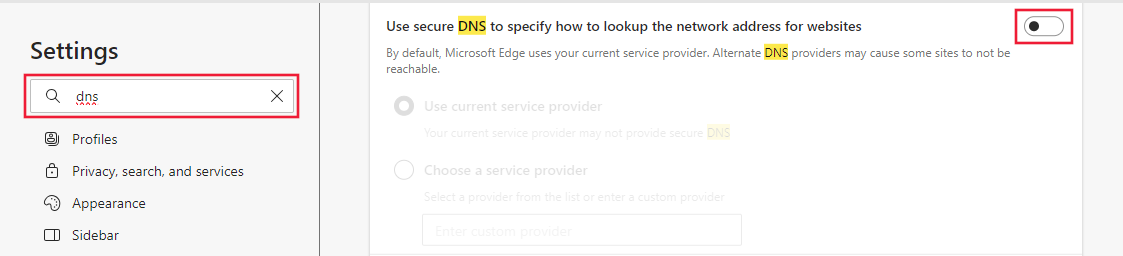
For managed devices, set the DnsOverHttpsMode policy to
off.
Proxy configuration
If you use a proxy, it might prevent communication with a secured workspace. To test, use one of the following options:
- Temporarily disable the proxy setting and see if you can connect.
- Create a Proxy auto-config (PAC) file that allows direct access to the private endpoint FQDNs and the dependent resource endpoints required by your workspace scenario. Verify the required endpoints by using Configure inbound and outbound network traffic.
- Configure conditional forwarding for the required private DNS zones in a DNS forwarder or Azure DNS Private Resolver. For on-premises DNS, forward requests through a DNS forwarder or Azure DNS Private Resolver hosted in a virtual network. Don't configure an HTTP or HTTPS proxy to forward DNS requests to
168.63.129.16.