Note
Access to this page requires authorization. You can try signing in or changing directories.
Access to this page requires authorization. You can try changing directories.
Azure Migrate is a unified migration platform that lets customers discover, assess, and migrate various workloads including servers, databases, and web apps. A typical customer's migration journey includes three phases: the Decide phase to discover the workloads, plan phase to assess the Azure readiness of workloads, right size the Azure targets and execute phase to migrate and modernize the workloads. The article explains how to implement Azure Role-based access control to grant least privileged Azure access in Azure Migrate using built-in roles. The built-in roles are purposefully mapped to the Decide, Plan, and Execute phases, so users have only the permissions needed for that phase of the migration journey.
Using built-in roles enables you to enforce the principle of least privilege, grant granular access, and ensure compliance with regulatory requirements. Assigning built-in roles is recommended over granting broad Owner or Contributor access to users at the subscription or resource group level.
Azure Migrate built-in roles
| S.no. | Built-in role | Description | ID | Scope |
|---|---|---|---|---|
| 1 | Azure Migrate Owner | Grants full access to create and manage Azure Migrate projects, including appliance or import based discovery, creation of business case, assessment and execution of migrations; Also grants the ability to assign Azure Migrate specific roles in Azure Role-Based Access Control (or RBAC). | fd8ea4d5-6509-4db0-bada-356ab233b4fa | Scope is Resource Group or subscription where Azure Migrate Project is created. |
| 2 | Azure Migrate Decide and Plan Expert | Grants restricted access on an Azure Migrate project to only perform planning operations including appliance or import-based discovery, managing inventory, identifying server dependencies, creation of business case, applications & assessment reports. | 7859c0b0-0bb9-4994-bd12-cd529af7d646 | Scope is Resource Group or subscription where Azure Migrate Project is created. |
| 3 | Azure Migrate Execute Expert | Grants restricted access on an Azure Migrate project to only perform migration related operations, including replication, execution of test migrations, tracking and monitoring of migration progress, and initiation of agentless and agent-based migrations. | 1cfa4eac-9a23-481c-a793-bfb6958e836b | Source Resource Group or subscription where Azure Migrate Project is created; Target Resource Group or subscription where servers and workloads are migrated to. |
Azure Migrate Owner
The Azure Migrate Owner role provides a superset of permissions to perform end-to-end operations across all migration phases (Decide, Plan, and Execute). A user must be part of Azure Migrate Owner or a higher privileged role to create an Azure Migrate project.
Scope
The resource group or subscription where the Azure Migrate project is created.
Role assignment
Users with the Azure Migrate Owner role can assign or remove the Azure Migrate Decide and Plan Expert and Azure Migrate Execute Expert roles for other users or groups. The role doesn't grant permissions to assign or remove non-Azure Migrate built-in roles.
Azure Migrate Decide and Plan Expert
The Azure Migrate Decide and Plan Expert role provides limited permissions to perform scoped operations in the Decide and Plan phases. The role includes permissions to discover IT estate using an appliance or inventory import, manage & review discovered inventory, identify server dependencies, create business case, waves, and assessment reports. The role doesn't grant permissions to create Migrate project or perform role assignments.
Scope
The resource group or subscription where the Azure Migrate project is created.
Azure Migrate Execute Expert
The Azure Migrate Execute Expert role provides limited permissions to only perform scoped operations in the Execute phase of migration journey. The role includes permissions to perform migration related operations including replication, execute waves, execute test migrations, execute agentless and agent-based migrations and track and monitor the progress of migrations.The role doesn't grant permissions to create Migrate project or perform role assignments.
Scope
The source resource group or subscription where the Azure Migrate project is set up. If the migration target is in a different resource group or subscription, assign the role in the target resource group or subscription where the servers and workloads are migrated to.
Operations allowed per user role
| Operations | Azure Migrate Owner | Azure Migrate Decide and Plan Expert | Azure Migrate Execute Expert |
|---|---|---|---|
| Create, manage, and delete a Migrate project | Yes | No | No |
| Generate project key | Yes | Yes | No |
| Deploy VMware, Hyper-V, physical, or Azure Site Recovery appliance for discovery | Yes | Yes | No |
| Register Migrate appliance* | Yes | Yes | No |
| Use Inventory import for discovery | Yes | Yes | No |
| Explore inventory | Yes | Yes | Yes |
| View, add & import tags | Yes | Yes | Yes |
| View and export server dependencies | Yes | Yes | Yes |
| View security insights | Yes | Yes | No |
| Create business case | Yes | Yes | No |
| View and export business case | Yes | Yes | Yes |
| Create assessment reports | Yes | Yes | No |
| View and export assessment reports | Yes | Yes | Yes |
| Create waves | Yes | Yes | Yes |
| View and manage waves | Yes | Yes | Yes |
| Execute waves | Yes | No | Yes |
| Execute replications | Yes | No | Yes |
| Test migrations | Yes | No | Yes |
| Perform agentless and agent-based migrations | Yes | No | Yes |
| Create support incidents | Yes | Yes | Yes |
Note
To register an Azure Migrate appliance or an ASR replication appliance users must have additional Application Developer role at Microsoft Entra ID level.
Role assignment and access management
In this section, you learn how to grant access to users by assigning Azure Migrate built-in roles. A subscription or resource group Owner can assign the Azure Migrate Owner role to the user who creates and manages the Azure Migrate project. Users with the Azure Migrate Owner role can then assign the Azure Migrate Decide and Plan Expert and Azure Migrate Execute Expert roles to other users or user groups.
Assigning Azure Migrate Owner
Select the resource group where the Migrate project is created.
In the navigation menu, select Access control (IAM)
Select Add > Add role assignment
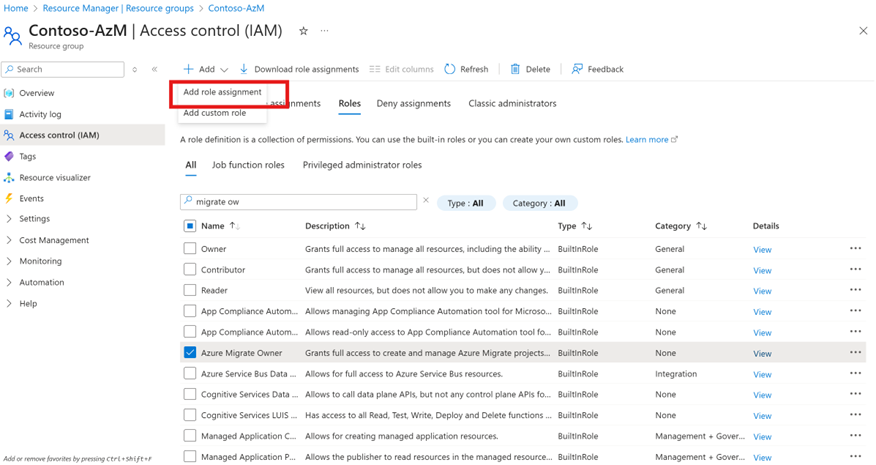
On the privileged administrator roles tab, select Azure Migrate Owner role.
On the members tab, select the user or group.
Select the preferred assignment type and duration. The recommended approach is to choose eligible type and time-bound assignment duration.
Select next and review + assign to complete the role assignment.
Assigning Decide and Plan Expert and Execute Expert role
An Azure Migrate Owner can assign the roles Azure Migrate Decide and Plan Expert and Azure Migrate Execute Expert to a user.
Select the resource group where the Migrate project is set up.
In the navigation menu, select Access control (IAM)
Select Add > Add role assignment
Select the role you want to assign. The Azure Migrate Decide and Plan Expert role and Azure Migrate Execute Expert role appear under Job function roles.
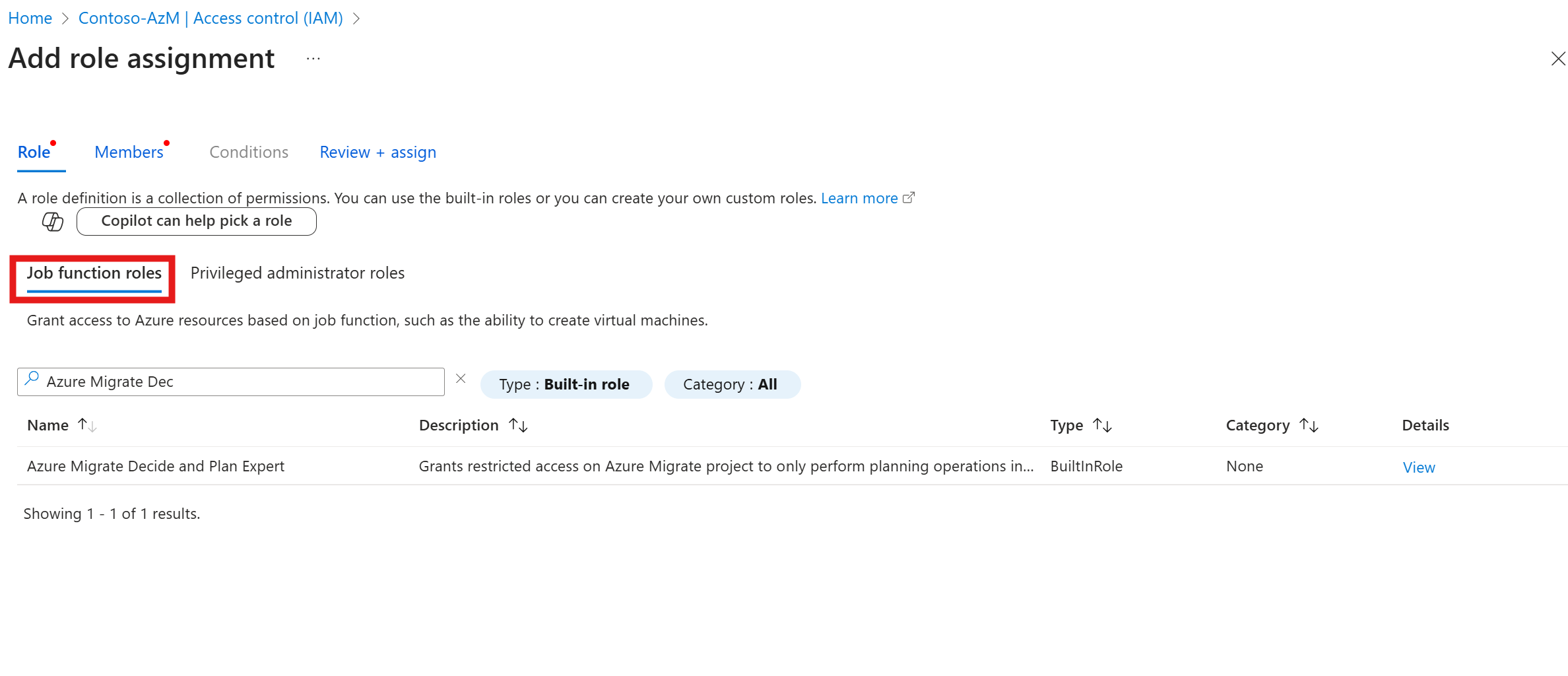
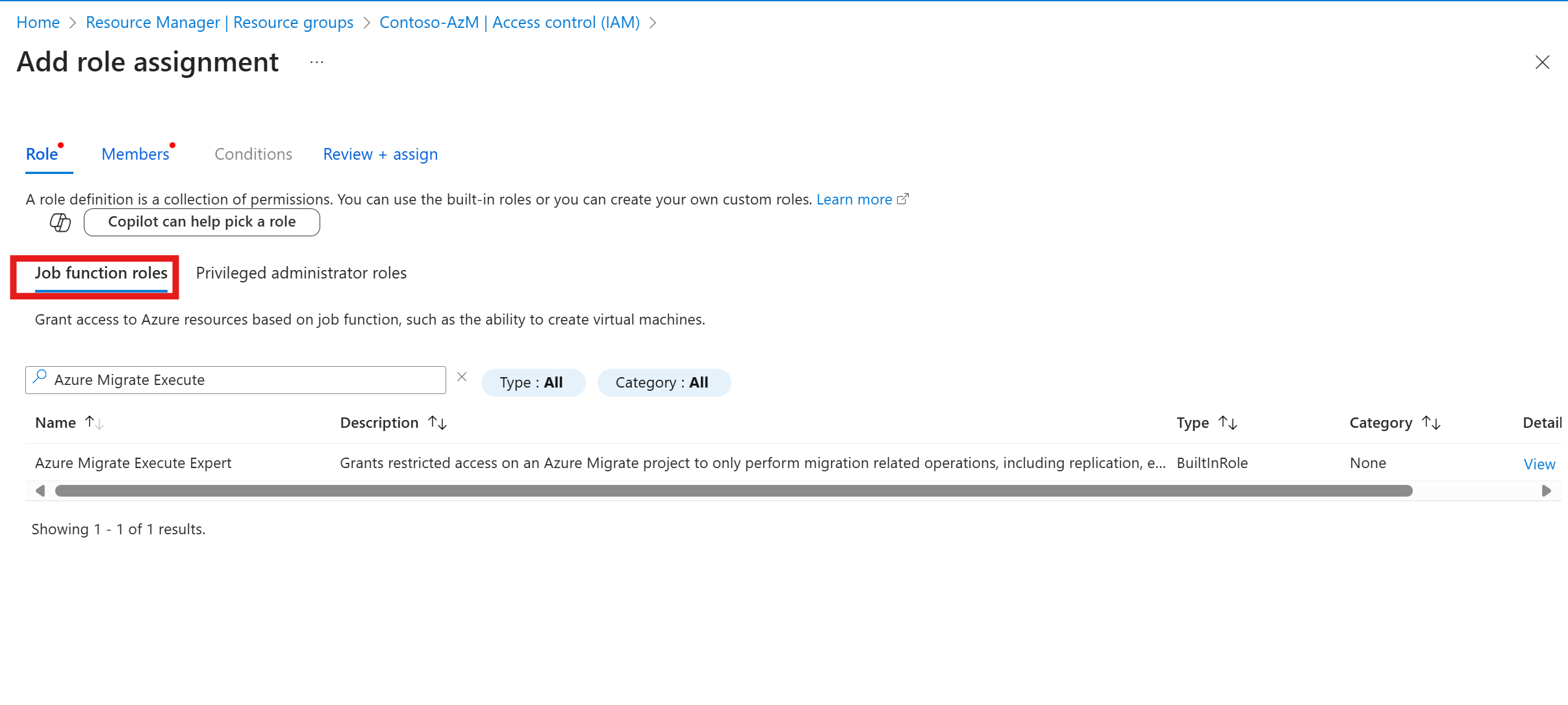
After selecting the role, on the members tab, select the user or group.
Select the preferred assignment type and duration. The recommended approach is to choose eligible type and time-bound assignment duration.
Select next and review + assign to complete the role assignment.
Check access and verify Role assignment
Follow these steps to check your access
From the resource group/subscription, select Access control (IAM) and view my access.
Verify if the role assignment is successful.
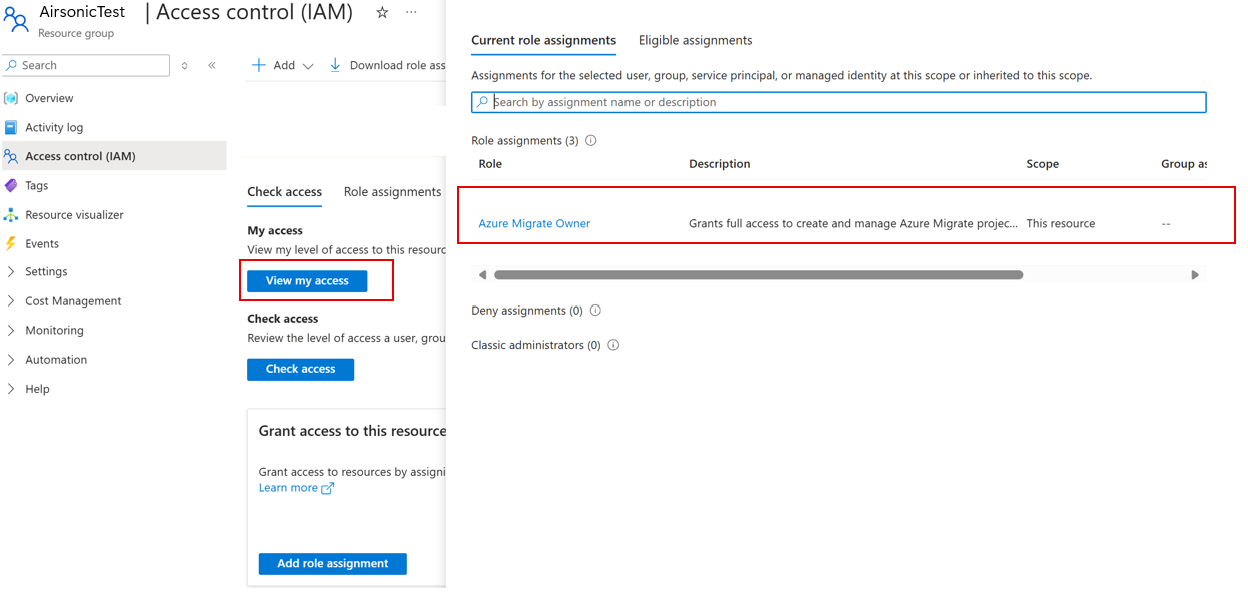
To check access for a user or group, select check access. Enter the user or group details and verify role assignment.
Remove access
Azure Migrate owner can only remove Azure Migrate Decide and Plan Expert and Azure Migrate Execute Expert role assignments. Subscription or resource group owners can remove the Azure Migrate owner role assignment.
Go to Access control (IAM) at scope subscription or resource group.
Select role assignments
Select the role assignment that you would like to remove
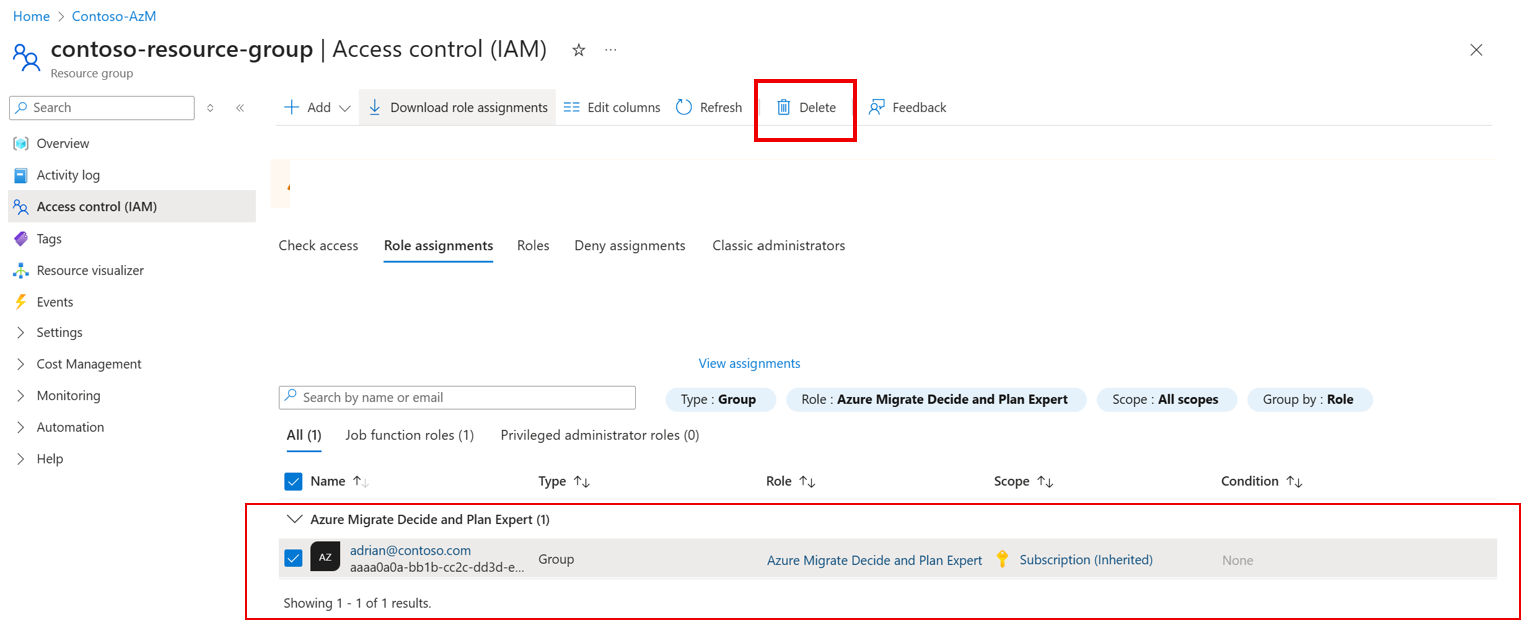
Select Delete to remove the role assignment.
Guidance for role assignments at the resource group scope
We recommend performing role assignments at resource group to operate in a least privilege access model. Note the following scenarios when role assignments are done at the resource group scope.
1. Register the Resource providers in advance
To enable all Azure Migrate capabilities, you must register the required resource providers at the subscription where the Azure Migrate project is created. The Azure Migrate Owner and Azure Migrate Decide and Plan Expert roles have permissions to automatically register resource providers if the role assignment is done at the subscription scope. However, if these roles are assigned at the resource group level, project key generation could fail if the resource provider isn't already registered on the subscription. In such cases, the subscription owner should manually register the listed resource providers as a prerequisite.
Required Resource Providers
| Resource Provider |
|---|
| Microsoft.OffAzure |
| Microsoft.Migrate |
| Microsoft.MySQLDiscovery |
| Microsoft.DependencyMap |
| Microsoft.ApplicationMigration |
| Microsoft.Insights |
| Microsoft.KeyVault |
| Microsoft.HybridCompute |
| Microsoft.Storage |
| Microsoft.Network |
| Microsoft.GuestConfiguration |
| Microsoft.Compute |
| Microsoft.HybridConnectivity |
| Microsoft.RecoveryServices |
| Microsoft.DataReplication |
| Microsoft.AzureArcData |
For more information, see register resource provider.
2. Support requests
If the role assignment is done at resource group scope, users can't create support requests.
3. Registration of Azure Site Recovery Replication appliance
If you assign the role at the resource group scope, users can't register the Azure Site Recovery replication appliance. To register the appliance, you must assign the Azure Migrate Decide and Plan Expert role at the subscription scope. This restriction applies only to the Azure Site Recovery appliance, not to the VMware, Hyper-V, or physical stacks of the Azure Migrate appliance.
Next steps
After setting up Azure accounts and role assignments, create an Azure Migrate project