Note
Access to this page requires authorization. You can try signing in or changing directories.
Access to this page requires authorization. You can try changing directories.
This tutorial describes how to configure an Azure Database for MySQL Flexible Server instance to:
- Deny all public network access and
- Allow only connections through private endpoints.
Deny public access during the creation of MySQL flexible server
During Quickstart: Create an instance of Azure Database for MySQL with the Azure portal: In the Networking tab, choose
Public access (allowed IP addresses)andPrivate endpointas the connectivity method.To disable public access on the Azure Database for MySQL Flexible Server instance you're creating, uncheck Allow public access to this resource through the internet using a public IP address under
Public access.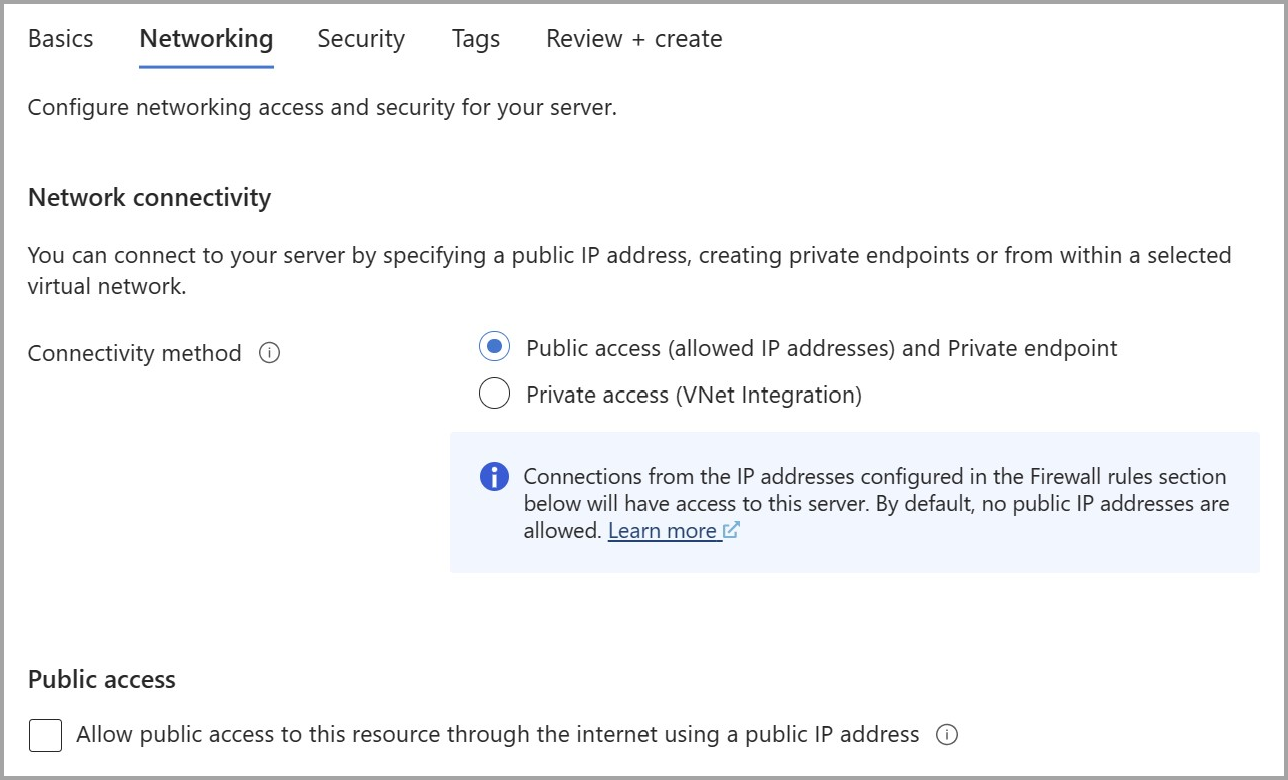
After entering the remaining information in the other tabs, select
Review + Createto deploy the Azure Database for MySQL Flexible Server instance without public access.
Deny public access to an existing MySQL flexible server
Note
Requirement: the server is deployed with connectivity Public access (allowed IP addresses) and Private endpoint.
On the Azure Database for MySQL Flexible Server page, under Settings, select Networking.
To disable public access on the Azure Database for MySQL Flexible Server instance, uncheck Allow public access to this resource through the internet using a public IP address under Public access.
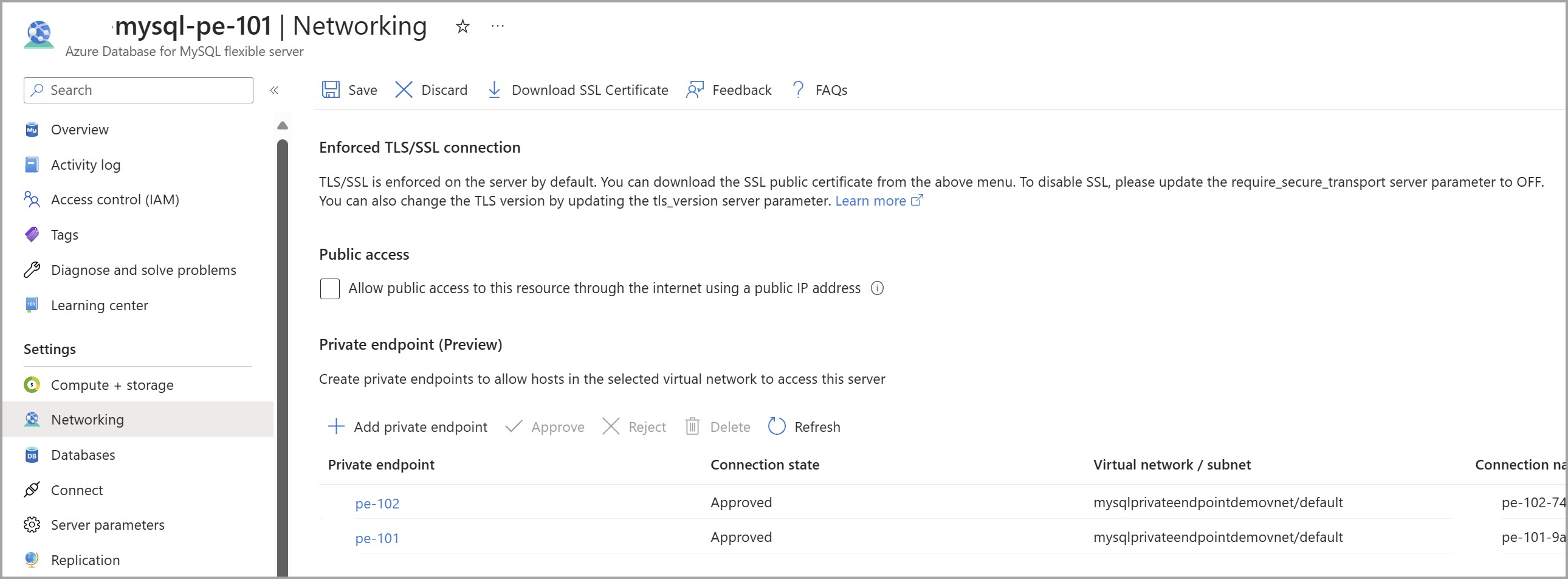
Select Save to save the changes.
Related content
- Create and manage Private Link for Azure Database for MySQL - Flexible Server using the portal
- Connectivity and networking concepts for Azure Database for MySQL - Flexible Server
- Data encryption with customer managed keys for Azure Database for MySQL
- Microsoft Entra authentication for Azure Database for MySQL - Flexible Server