Note
Access to this page requires authorization. You can try signing in or changing directories.
Access to this page requires authorization. You can try changing directories.
Monitoring data about your servers helps you troubleshoot and optimize for your workload. Your Azure Database for PostgreSQL flexible server provides various monitoring options to give you insight into how your server is performing.
Metrics
Azure Database for PostgreSQL provides various metrics that give insight into the behavior of the resources that support the Azure Database for PostgreSQL flexible server. Each metric is emitted at a one-minute interval and has up to 93 days of retention. You can configure alerts on the metrics. Other options include setting up automated actions, performing advanced analytics, and archiving the history. For more information, see the Azure Metrics overview.
Note
While metrics are stored for 93 days, you can only query (in the Metrics tile) for a maximum of 30 days' worth of data on any single chart. If you see a blank chart or your chart displays only part of metric data, verify that the difference between start and end dates in the time picker doesn't exceed the 30-day interval. After you select a 30-day interval, you can pan the chart to view the full retention window.
Default metrics
The following metrics are available for an Azure Database for PostgreSQL flexible server:
| Display name | Metric ID | Unit | Description | Default enabled |
|---|---|---|---|---|
| Active Connections | active_connections |
Count | Total number of connections to the database server, including all connection states such as active, idle, and others, as seen in pg_stat_activity view. This figure represents the overall sum of connections across all states, without distinguishing between specific states. For an in-depth analysis on a specific state, such as active connections, refer to the 'Sessions By State' metric. |
Yes |
| Backup Storage Used | backup_storage_used |
Bytes | Amount of backup storage used. This metric represents the sum of storage that's consumed by all the full backups, differential backups, and log backups that the server retains based on the backup retention period that you set. The frequency of the backups is service managed. For geo-redundant storage, backup storage usage is twice the usage for locally redundant storage. | Yes |
| Failed Connections | connections_failed |
Count | Number of failed connections. | Yes |
| Succeeded Connections | connections_succeeded |
Count | Number of succeeded connections. | Yes |
| CPU Credits Consumed ^ | cpu_credits_consumed |
Count | Number of credits used by the flexible server. Applies to the Burstable tier. | Yes |
| CPU Credits Remaining ^ | cpu_credits_remaining |
Count | Number of credits available to burst. Applies to the Burstable tier. | Yes |
| CPU percent | cpu_percent |
Percent | Percentage of CPU in use. | Yes |
| Database Size | database_size_bytes |
Bytes | Database size in bytes. | Yes |
| Disk Queue Depth ^ | disk_queue_depth |
Count | Number of outstanding I/O operations to the data disk. | Yes |
| IOPS | iops |
Count | Number of I/O operations to disk per second. | Yes |
| Maximum Used Transaction IDs | maximum_used_transactionIDs |
Count | Maximum number of transaction identifiers in use. | Yes |
| Memory percent | memory_percent |
Percent | Percentage of memory in use. | Yes |
| Network Out | network_bytes_egress |
Bytes | Total sum of outgoing network traffic on the server for a selected period. This metric includes outgoing traffic from your database and from an Azure Database for Postgres flexible server, including features like monitoring, logs, WAL archive, replication, and more. | Yes |
| Network In | network_bytes_ingress |
Bytes | Total sum of incoming network traffic on the server for a selected period. This metric includes incoming traffic to your database and to an Azure Database for Postgres flexible server, including features like monitoring, logs, WAL archive, replication, and more. | Yes |
| Read IOPS ^ | read_iops |
Count | Number of data disk I/O read operations per second. | Yes |
| Read Throughput ^ | read_throughput |
Bytes | Bytes read per second from disk. | Yes |
| Storage Free | storage_free |
Bytes | Amount of storage space that's available. | Yes |
| Storage percent | storage_percent |
Percentage | Percent of storage space that's used. The storage that's used by the service can include database files, transaction logs, and server logs. | Yes |
| Storage Used | storage_used |
Bytes | Amount of storage space that's used. The storage used by the service can include the database files, transaction logs, and the server logs. | Yes |
| Transaction Log Storage Used | txlogs_storage_used |
Bytes | Amount of storage space that's used by the transaction logs. | Yes |
| Write Throughput ^ | write_throughput |
Bytes | Bytes written to disk per second. | Yes |
| Write IOPS ^ | write_iops |
Count | Number of data disk I/O write operations per second. | Yes |
Note
Metrics marked with ^ are emitted every minute but are processed and displayed in five-minute batches. This process results in up to a five-minute delay in metric visibility. When creating alerts on these metrics, account for this latency to ensure accurate and timely alerting.
Enhanced metrics
Use enhanced metrics for your Azure Database for PostgreSQL flexible server to get fine-grained monitoring and alerting on databases. Each metric is emitted at a 1-minute interval and has up to 93 days of retention. You can configure alerts on the metrics. Some enhanced metrics include a Dimension parameter that you can use to split and filter metrics data by using a dimension like database name or state.
Enabling enhanced metrics
- Most of these new metrics are disabled by default. The rightmost column in the following tables indicates whether each metric is enabled by default or not. A few metrics are enabled by default.
- To enable metrics that aren't enabled by default, set the parameter
metrics.collector_database_activitytoON. This parameter is dynamic and doesn't require a server restart.
List of enhanced metrics
Choose from the following categories of enhanced metrics:
- Activity
- Database
- Logical replication
- Replication
- Saturation
- Traffic
Activity
| Display name | Metric ID | Unit | Description | Dimension | Default enabled |
|---|---|---|---|---|---|
| Sessions By State | sessions_by_state |
Count | Sessions by state as shown in pg_stat_activity view. It categorizes client backends into various states, such as active or idle. |
State | No |
| Sessions By WaitEventType | sessions_by_wait_event_type |
Count | Sessions by the type of event for which the client backend is waiting. | Wait Event Type | No |
| Oldest Backend | oldest_backend_time_sec |
Seconds | Age in seconds of the oldest backend (irrespective of the state). | Doesn't apply | No |
| Oldest Query | longest_query_time_sec |
Seconds | Age in seconds of the longest query that's currently running. | Doesn't apply | No |
| Oldest Transaction | longest_transaction_time_sec |
Seconds | Age in seconds of the longest transaction (including idle transactions). | Doesn't apply | No |
| Oldest xmin | oldest_backend_xmin |
Count | The actual value of the oldest xmin. If xmin isn't increasing, it indicates that there are some long-running transactions that can potentially hold dead tuples from being removed. |
Doesn't apply | No |
| Oldest xmin Age | oldest_backend_xmin_age |
Count | Age in units of the oldest xmin. Indicates how many transactions passed since the oldest xmin. |
Doesn't apply | No |
Database
| Display name | Metric ID | Unit | Description | Dimension | Default enabled |
|---|---|---|---|---|---|
| Backends | numbackends |
Count | Number of backends that are connected to this database. | DatabaseName | No |
| Deadlocks | deadlocks |
Count | Number of deadlocks that are detected in this database. | DatabaseName | No |
| Disk Blocks Hit | blks_hit |
Count | Number of times disk blocks were found already in the buffer cache, so that a read wasn't necessary. | DatabaseName | No |
| Disk Blocks Read | blks_read |
Count | Number of disk blocks that were read in this database. | DatabaseName | No |
| Temporary Files | temp_files |
Count | Number of temporary files that were created by queries in this database. | DatabaseName | No |
| Temporary Files Size | temp_bytes |
Bytes | Total amount of data that's written to temporary files by queries in this database. | DatabaseName | No |
| Total Transactions | xact_total |
Count | Number of total transactions that executed in this database. | DatabaseName | No |
| Transactions Committed | xact_commit |
Count | Number of transactions in this database that are committed. | DatabaseName | No |
| Transactions per second | tps |
Count | Number of transactions executed within a second. | DatabaseName | No |
| Transactions Rolled back | xact_rollback |
Count | Number of transactions in this database that are rolled back. | DatabaseName | No |
| Tuples Deleted | tup_deleted |
Count | Number of rows that are deleted by queries in this database. | DatabaseName | No |
| Tuples Fetched | tup_fetched |
Count | Number of rows that are fetched by queries in this database. | DatabaseName | No |
| Tuples Inserted | tup_inserted |
Count | Number of rows that are inserted by queries in this database. | DatabaseName | No |
| Tuples Returned | tup_returned |
Count | Number of rows that are returned by queries in this database. | DatabaseName | No |
| Tuples Updated | tup_updated |
Count | Number of rows that are updated by queries in this database. | DatabaseName | No |
Logical replication
| Display name | Metric ID | Unit | Description | Dimension | Default enabled |
|---|---|---|---|---|---|
| Max Logical Replication Lag | logical_replication_delay_in_bytes |
Bytes | Maximum lag across all logical replication slots. | Doesn't apply | Yes |
Read Replication
| Display name | Metric ID | Unit | Description | Dimension | Default enabled |
|---|---|---|---|---|---|
| Max Physical Replication Lag | physical_replication_delay_in_bytes |
Bytes | Maximum lag across all asynchronous physical replication slots. | Doesn't apply | Yes |
| Read Replica Lag | physical_replication_delay_in_seconds |
Seconds | Read replica lag in seconds. | Doesn't apply | Yes |
Saturation
| Display name | Metric ID | Unit | Description | Dimension | Default enabled |
|---|---|---|---|---|---|
| Disk Bandwidth Consumed Percentage ^ | disk_bandwidth_consumed_percentage |
Percent | Percentage of data disk bandwidth consumed per minute. | Doesn't apply | Yes |
| Disk IOPS Consumed Percentage ^ | disk_iops_consumed_percentage |
Percent | Percentage of data disk I/Os consumed per minute. | Doesn't apply | Yes |
Note
Metrics marked with ^ are emitted every minute but are processed and displayed in five-minute batches. This process results in up to a five-minute delay in metric visibility. When creating alerts on these metrics, account for this latency to ensure accurate and timely alerting.
Traffic
| Display name | Metric ID | Unit | Description | Dimension | Default enabled |
|---|---|---|---|---|---|
| Max Connections ** | max_connections |
Count | Number of maximum connections. | Doesn't apply | Yes |
** Max Connections represents the configured value for the max_connections parameter. The system polls this metric every 30 minutes.
Considerations for using enhanced metrics
- Enhanced metrics that use the DatabaseName dimension have a 50-database limit.
- On the Burstable SKU, the limit is 10 databases for metrics that use the DatabaseName dimension.
- The DatabaseName dimension limit applies to the database identifier (datid) column of the pg_stat_database system view, which reflects the order of creation for the database.
- The
DatabaseNamein the metrics dimension is case insensitive. That means that after queryingpg_stat_databaseview, filtering out rows in whichdatnameis eithertemplate1ortemplate0, ordering bydatid, and limiting the returned rows to the first 50 (or 10 in the case of Burstable SKU), the metrics for database names in that result set, that is the same except for case (for example,contoso_databaseandContoso_database) are merged and might not show accurate data.
Autovacuum metrics
Use autovacuum metrics to monitor and tune autovacuum performance for your Azure Database for PostgreSQL flexible server. Each metric is emitted at a 30-minute interval and has up to 93 days of retention. You can create alerts for specific metrics, and you can split and filter metrics data by using the DatabaseName dimension.
How to enable autovacuum metrics
- Autovacuum metrics are disabled by default.
- To enable these metrics, set the parameter
metrics.autovacuum_diagnosticstoON. - This parameter is dynamic, so a server restart isn't required.
List of autovacuum metrics
| Display name | Metric ID | Unit | Description | Dimension | Default enabled |
|---|---|---|---|---|---|
| Analyze Counter User Tables | analyze_count_user_tables |
Count | Number of times user-only tables are manually analyzed in this database. | DatabaseName | No |
| AutoAnalyze Counter User Tables | autoanalyze_count_user_tables |
Count | Number of times user-only tables are analyzed by the autovacuum daemon in this database. | DatabaseName | No |
| AutoVacuum Counter User Tables | autovacuum_count_user_tables |
Count | Number of times user-only tables are vacuumed by the autovacuum daemon in this database. | DatabaseName | No |
| Estimated Dead Rows User Tables | n_dead_tup_user_tables |
Count | Estimated number of dead rows for user-only tables in this database. | DatabaseName | No |
| Estimated Live Rows User Tables | n_live_tup_user_tables |
Count | Estimated number of live rows for user-only tables in this database. | DatabaseName | No |
| Estimated Modifications User Tables | n_mod_since_analyze_user_tables |
Count | Estimated number of rows that were modified since user-only tables were last analyzed. | DatabaseName | No |
| User Tables Analyzed | tables_analyzed_user_tables |
Count | Number of user-only tables that are analyzed in this database. | DatabaseName | No |
| User Tables AutoAnalyzed | tables_autoanalyzed_user_tables |
Count | Number of user-only tables that are analyzed by the autovacuum daemon in this database. | DatabaseName | No |
| User Tables AutoVacuumed | tables_autovacuumed_user_tables |
Count | Number of user-only tables that are vacuumed by the autovacuum daemon in this database. | DatabaseName | No |
| User Tables Counter | tables_counter_user_tables |
Count | Number of user-only tables in this database. | DatabaseName | No |
| User Tables Vacuumed | tables_vacuumed_user_tables |
Count | Number of user-only tables that are vacuumed in this database. | DatabaseName | No |
| Vacuum Counter User Tables | vacuum_count_user_tables |
Count | Number of times user-only tables are manually vacuumed in this database (not counting VACUUM FULL). |
DatabaseName | No |
Considerations for using autovacuum metrics
- Autovacuum metrics that use the DatabaseName dimension have a 30-database limit.
- On the Burstable SKU, the limit is 10 databases for metrics that use the DatabaseName dimension.
- The DatabaseName dimension limit applies on the OID column, which reflects the order of creation for the database.
PgBouncer metrics
Use PgBouncer metrics to monitor the performance of the PgBouncer process. These metrics include details for active connections, idle connections, total pooled connections, and the number of connection pools. Each metric is emitted at a one-minute interval and has up to 93 days of retention. You can configure alerts on the metrics and access the new metrics dimensions to split and filter metrics data by database name.
How to enable PgBouncer metrics
- To monitor PgBouncer metrics, ensure that the pgbouncer feature is enabled through the parameter
pgbouncer.enabledand enable the metrics parametermetrics.pgbouncer_diagnostics. - These parameters are dynamic and don't require a server restart.
- PgBouncer metrics are disabled by default.
List of PgBouncer metrics
| Display name | Metric ID | Unit | Description | Dimension | Default enabled |
|---|---|---|---|---|---|
| Active client connections | client_connections_active |
Count | Client connections that are either linked to a PostgreSQL server connection or connected and idle with no query waiting to be processed. | DatabaseName | No |
| Waiting client connections | client_connections_waiting |
Count | Connections from clients that are waiting for an Azure Database for PostgreSQL flexible server connection to service them. | DatabaseName | No |
| Active server connections | server_connections_active |
Count | Connections to an Azure Database for PostgreSQL flexible server that are in use by a client connection. | DatabaseName | No |
| Idle server connections | server_connections_idle |
Count | Connections to an Azure Database for PostgreSQL flexible server that are idle and ready to service a new client connection. | DatabaseName | No |
| Total pooled connections | total_pooled_connections |
Count | Current number of pooled connections. | DatabaseName | No |
| Number of connection pools | num_pools |
Count | Total number of connection pools. | DatabaseName | No |
Considerations for using the PgBouncer metrics
- PgBouncer metrics that use the DatabaseName dimension have a 30-database limit.
- On the Burstable SKU, the limit is 10 databases that use the DatabaseName dimension.
- The DatabaseName dimension limit is applied to the OID column, which reflects the order of creation for the database.
Database availability metric
The is-db-alive metric is a database server availability metric for an Azure Database for PostgreSQL flexible server. It returns 1 for available and 0 for not available. Each metric is emitted at a one-minute frequency and has up to 93 days of retention. You can configure alerts on the metric.
| Display Name | Metric ID | Unit | Description | Dimension | Default enabled |
|---|---|---|---|---|---|
| Database Is Alive | is_db_alive |
Count | Indicates if the database is up or not. | N/A | Yes |
Considerations when using the Database availability metrics
- Aggregate this metric with
MAX()to determine whether the server was up or down in the last minute. - Aggregate these metrics with any desired frequency (5m, 10m, 30m, and so on) to suit your alerting requirements and avoid any false positive.
- Other possible aggregations are
AVG()andMIN().
Filter and split on dimension metrics
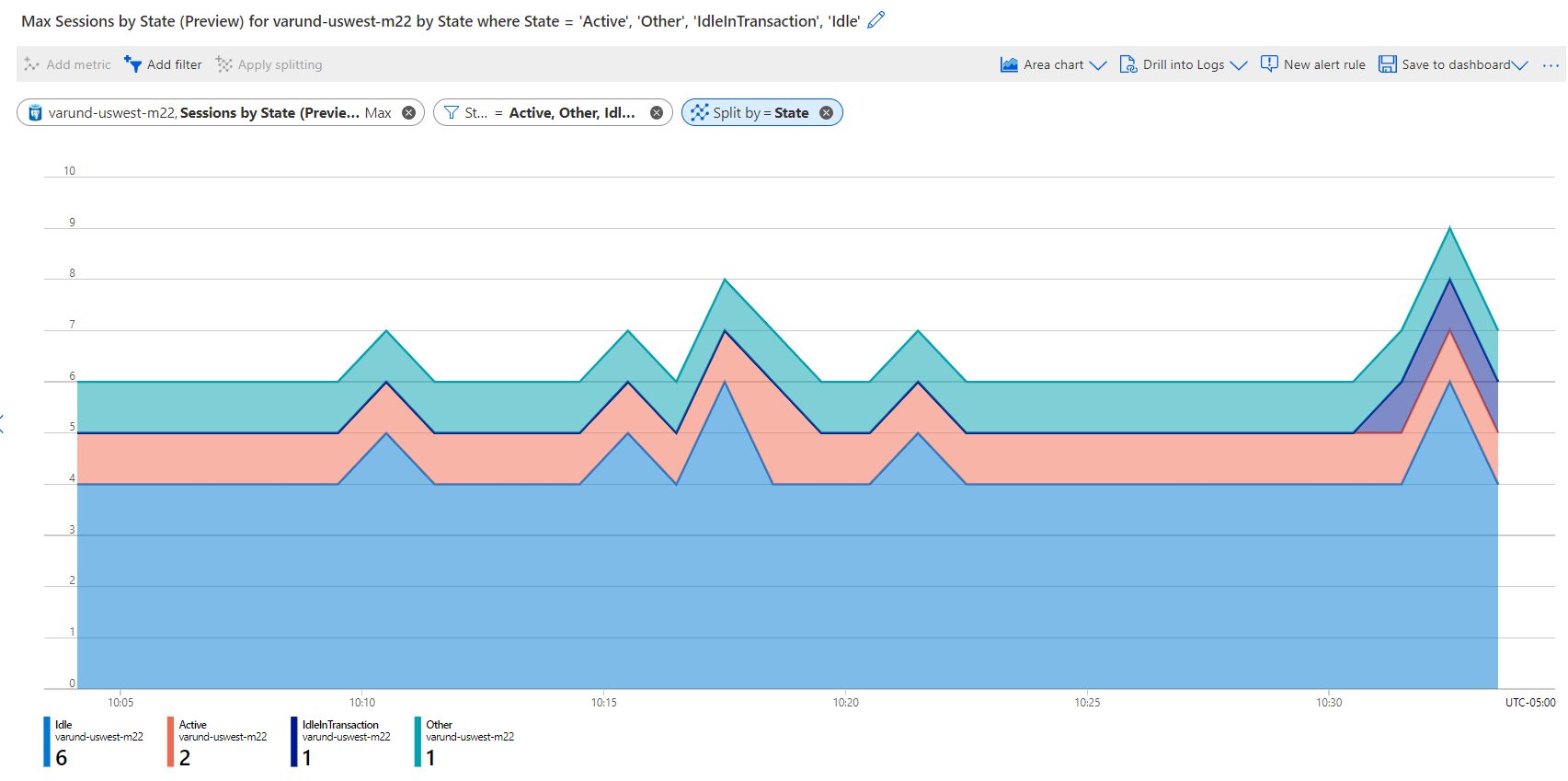
In the preceding tables, some metrics have dimensions like DatabaseName or State. You can use filtering and splitting for the metrics that have dimensions. These features show how various metric segments (or dimension values) affect the overall value of the metric. You can use them to identify possible outliers.
- Filtering: Use filtering to choose which dimension values are included in the chart. For example, you might want to show idle connections when you chart the
Sessions-by-Statemetric. You set the filter for Idle in the State dimension. - Splitting: Use splitting to control whether the chart displays separate lines for each value of a dimension or if it aggregates the values in a single line. For example, you can see one line for a
Sessions-by-Statemetric across all sessions. You can see separate lines for each session grouped by State value. Apply splitting on the State dimension to see separate lines.
The following example demonstrates splitting by the State dimension and filtering on specific State values:
For more information about setting up charts for dimensional metrics, see Metric chart examples.
Metrics visualization
You can use several options to visualize Azure Monitor metrics. For most routine monitoring needs, the embedded Grafana dashboards and Metrics Explorer provide out-of-the-box visibility with no extra setup. Consider Azure Managed Grafana for cross-environment, multicloud, or highly customized dashboards and alerting.
| Component | Description | Required training and configuration |
|---|---|---|
| Overview page | Most Azure services include an Overview page in the Azure portal with a Monitor section that shows recent, commonly used metrics. This view is intended for a quick health and performance check of an individual Azure PostgreSQL server. | Platform metrics are collected automatically. No configuration required. |
| Metrics Explorer | Use Metrics Explorer to interactively analyze Azure Monitor metrics and create metric-based alerts. It provides flexible filtering, aggregation, and visualization capabilities. | - Platform metrics for Azure resources are available automatically. - No extra configuration required after data collection is enabled. - Guest metrics require the Azure Monitor Agent (VMs only). - Application metrics require Application Insights. |
| Embedded Grafana dashboards (Azure portal) | Prebuilt Grafana dashboards are embedded directly in the Azure portal for Azure Database for PostgreSQL at no extra cost and without any setup. Use these dashboards for quick, built-in monitoring of your PostgreSQL servers. For details, see Embedded Grafana dashboards in Azure portal. | No configuration required. Dashboards are available immediately in the Azure portal. |
| Azure Managed Grafana | Use Azure Managed Grafana for advanced scenarios such as extended plugins, advanced authentication and provisioning, fine-grained multitenant control, and multicloud connectivity. All Grafana distributions include the Azure Monitor data source plug-in, enabling rich dashboards and cross-metric correlations. | Familiarity with Grafana concepts is recommended. Setup can be simplified by using the prebuilt Azure PostgreSQL Grafana dashboard, which enables monitoring across multiple Azure PostgreSQL flexible servers with minimal configuration. |
Embedded Grafana dashboards in Azure portal
Prebuilt Grafana dashboards are embedded directly in the Azure portal for Azure Database for PostgreSQL at no extra cost and with no setup required. These dashboards are refreshed near real time to provide visibility into server health and performance.
The dashboards visualize core Azure Monitor platform metrics, including:
- Availability
- Connections
- CPU
- Memory
- Storage
- WAL
- Disk I/O
- Network
- Transactions
When you configure diagnostic settings to stream PostgreSQL logs to Azure Monitor Logs, the dashboards can display metrics and logs side by side. This capability enables you to correlate performance spikes with specific queries. For more information about enabling log streaming, see logs.
The embedded dashboards are Azure resources scoped to a subscription and resource group, and access is governed by Azure role-based access control (RBAC). You can export and deploy dashboards across environments by using Azure Resource Manager templates.
Logs
These logs come from operations at the data plane level.
The system doesn't automatically collect these logs. To collect these logs in a supported external location, you must configure the system. Ingestion, retention, and subsequent querying have associated costs.
These logs are organized in categories, and those categories are grouped into category groups. The two category groups are audit and allLogs. By selecting either or both, you select all individual log categories.
You can stream the following logs to an external destination like a Log Analytics workspace, a storage account, an event hub, or a partner solution by using Diagnostic Settings. To learn more, see Configure and access logs.
The following sections enumerate and describe each of the log categories that you can configure.
PostgreSQL server logs
Events written to PostgreSQL server logs.
Running frequency: 10 seconds.
Category name: PostgreSQLLogs.
Display name: PostgreSQL Server Logs.
Resource specific table: PGSQLServerLogs.
Function to concatenate events from AzureDiagnostics and resource specific table: _PGSQL_GetPostgresServerLogs.
Additional requirements: None.
Active sessions
Snapshot of active PostgreSQL sessions that shows details about current database connections and their activity. This snapshot includes session metadata, timing, and wait states.
Running frequency: 5 minutes.
Category name: PostgreSQLFlexSessions.
Display name: PostgreSQL Sessions data.
Resource specific table: PGSQLPgStatActivitySessions.
Function to concatenate events from AzureDiagnostics and resource specific table: _PGSQL_GetPgStatActivitySessions.
Additional requirements: None.
Query store runtime statistics
Detailed query performance statistics that the query store captures.
Running frequency: 5 minutes when pg_qs.interval_length_minutes is between 1 and 5. Number of minutes specified in pg_qs.interval_length_minutes when pg_qs.interval_length_minutes is higher than 5 minutes.
Category name: PostgreSQLFlexQueryStoreRuntime.
Display name: PostgreSQL Query Store Runtime.
Resource specific table: PGSQLQueryStoreRuntime.
Function to concatenate events from AzureDiagnostics and resource specific table: _PGSQL_GetQueryStoreRuntime.
Additional requirements: Set pg_qs.query_capture_mode to either top or all.
Query store waits statistics
Details about the waits on which each backend was waiting every time query store captured a sample of waits.
Running frequency: 5 minutes when pg_qs.interval_length_minutes is between 1 and 5. Number of minutes specified in pg_qs.interval_length_minutes when pg_qs.interval_length_minutes is higher than 5 minutes.
Category name: PostgreSQLFlexQueryStoreWaitStats.
Display name: PostgreSQL Query Store Wait Statistics.
Resource specific table: PGSQLQueryStoreWaits.
Function to concatenate events from AzureDiagnostics and resource specific table: _PGSQL_GetQueryStoreWaits.
Additional requirements: pg_qs.query_capture_mode must be set to either top or all, and pgms_wait_sampling.query_capture_mode must be set to on.
Table statistics
Schema-level aggregated statistics about all tables in the database, summarizing table activity and maintenance metrics.
Running frequency: 30 minutes.
Category name: PostgreSQLFlexTableStats.
Display name: PostgreSQL Autovacuum and schema statistics.
Resource specific table: PGSQLAutovacuumStats.
Function to concatenate events from AzureDiagnostics and resource specific table: _PGSQL_GetAutovacuumStats.
Additional requirements: None.
Transactions related information
Database-level view of transaction ID (XID) and multixact ID age and wraparound risk, along with thresholds for autovacuum and emergency vacuum actions.
Running frequency: 30 minutes.
Category name: PostgreSQLFlexDatabaseXacts.
Display name: PostgreSQL remaining transactions.
Resource specific table: PGSQLDbTransactionsStats.
Function to concatenate events from AzureDiagnostics and resource specific table: _PGSQL_GetDbTransactionsStats.
Additional requirements: None.
Logs visualization
| Component | Description | Required training and configuration |
|---|---|---|
| Log Analytics | By using Log Analytics, you can create log queries to interactively work with log data and create log query alerts. | You need some training to become familiar with the query language, but you can use prebuilt queries for common requirements. |
Server logs
The Server Logs feature in your Azure Database for PostgreSQL flexible server allows you to enable, configure, and download server logs. These logs are essential for troubleshooting and performing historical analyses of server activity. By default, the server logs feature is disabled. However, after you enable the feature, your Azure Database for PostgreSQL flexible server starts capturing events of the selected log type and writes them to a file. You can then use the Azure portal or the Azure CLI to download the files to assist with your troubleshooting efforts.
Server logs retention
Server logs have a minimum retention of one day and a maximum retention of seven days. If you exceed this limit, the oldest logs are deleted to make room for new logs. For details on enabling and managing server logs, see Configure capture of PostgreSQL server logs and major version upgrade logs.