Note
Access to this page requires authorization. You can try signing in or changing directories.
Access to this page requires authorization. You can try changing directories.
This article provides step-by-step instructions to enable or disable a system assigned managed identity for an Azure Database for PostgreSQL flexible server.
Steps to enable for existing servers
Use the Azure portal:
Select your Azure Database for PostgreSQL flexible server.
In the resource menu, under the Security section, select Identity.
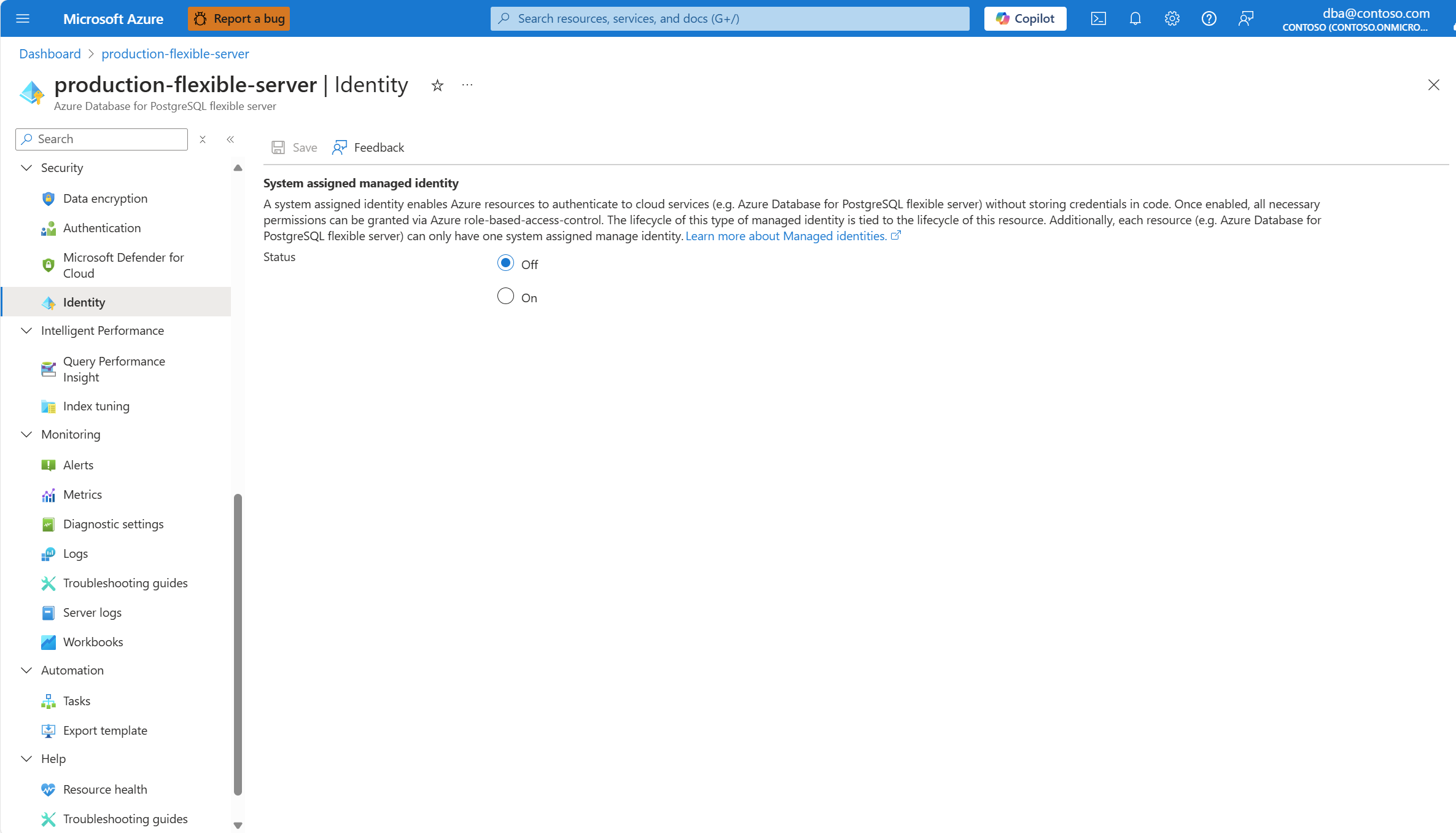
In the System assigned managed identity section, select On.
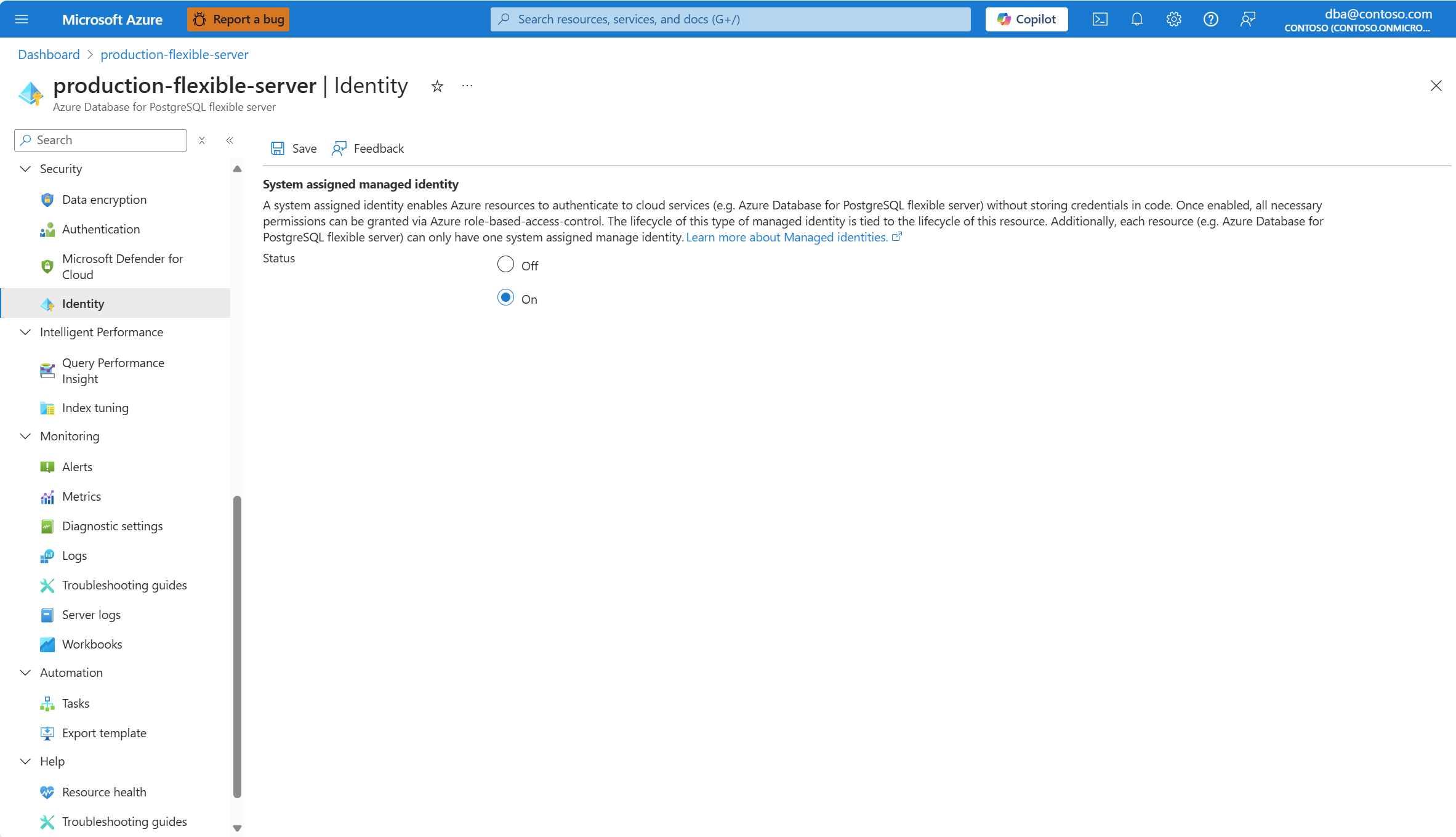
Select Save.
If the server has data encryption configured to use customer managed keys, you can't disable the system assigned managed identity of the server after you enable it. For that reason, if the portal detects this condition, it asks you to confirm that you want to enable the system assigned managed identity.
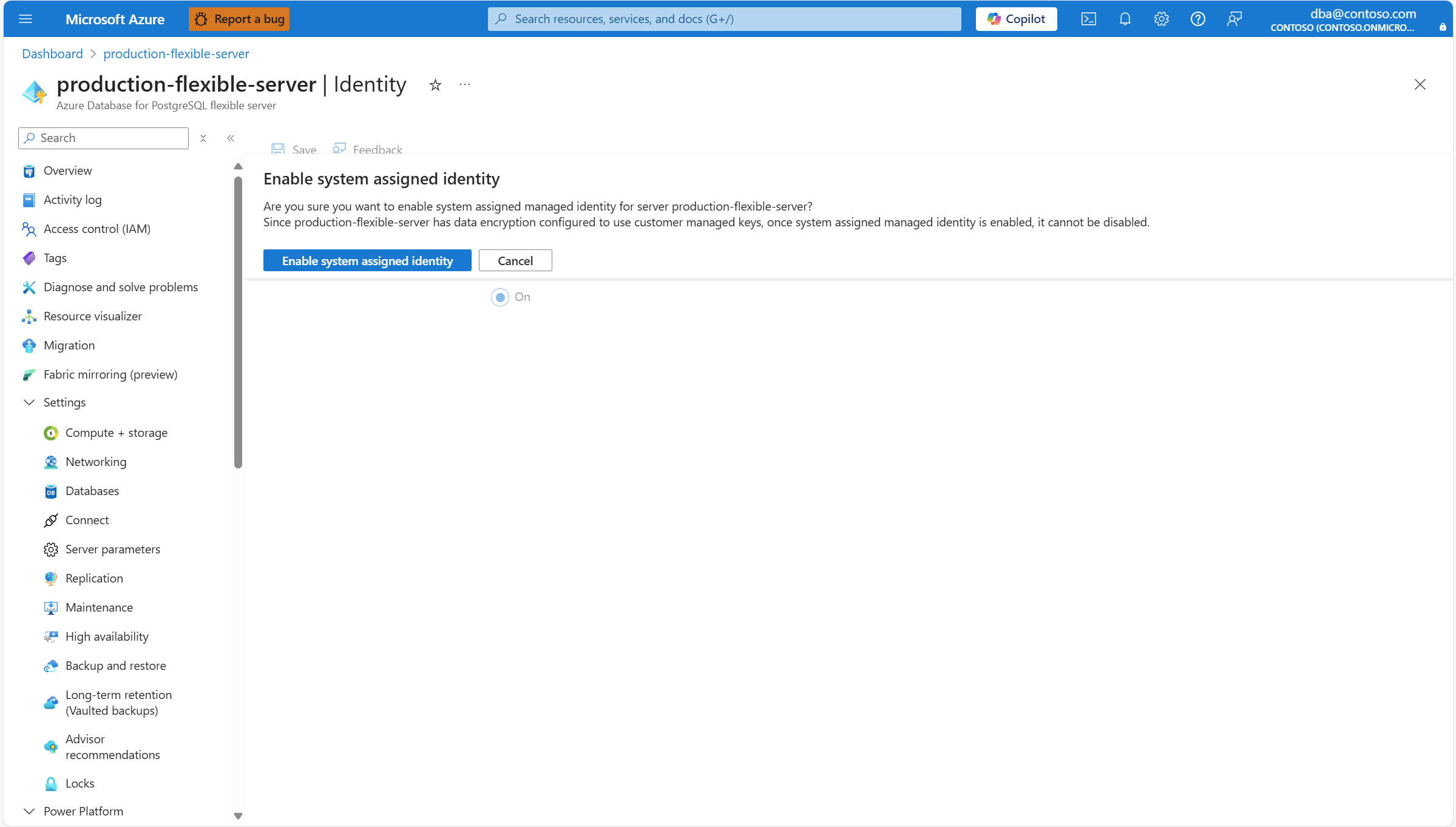
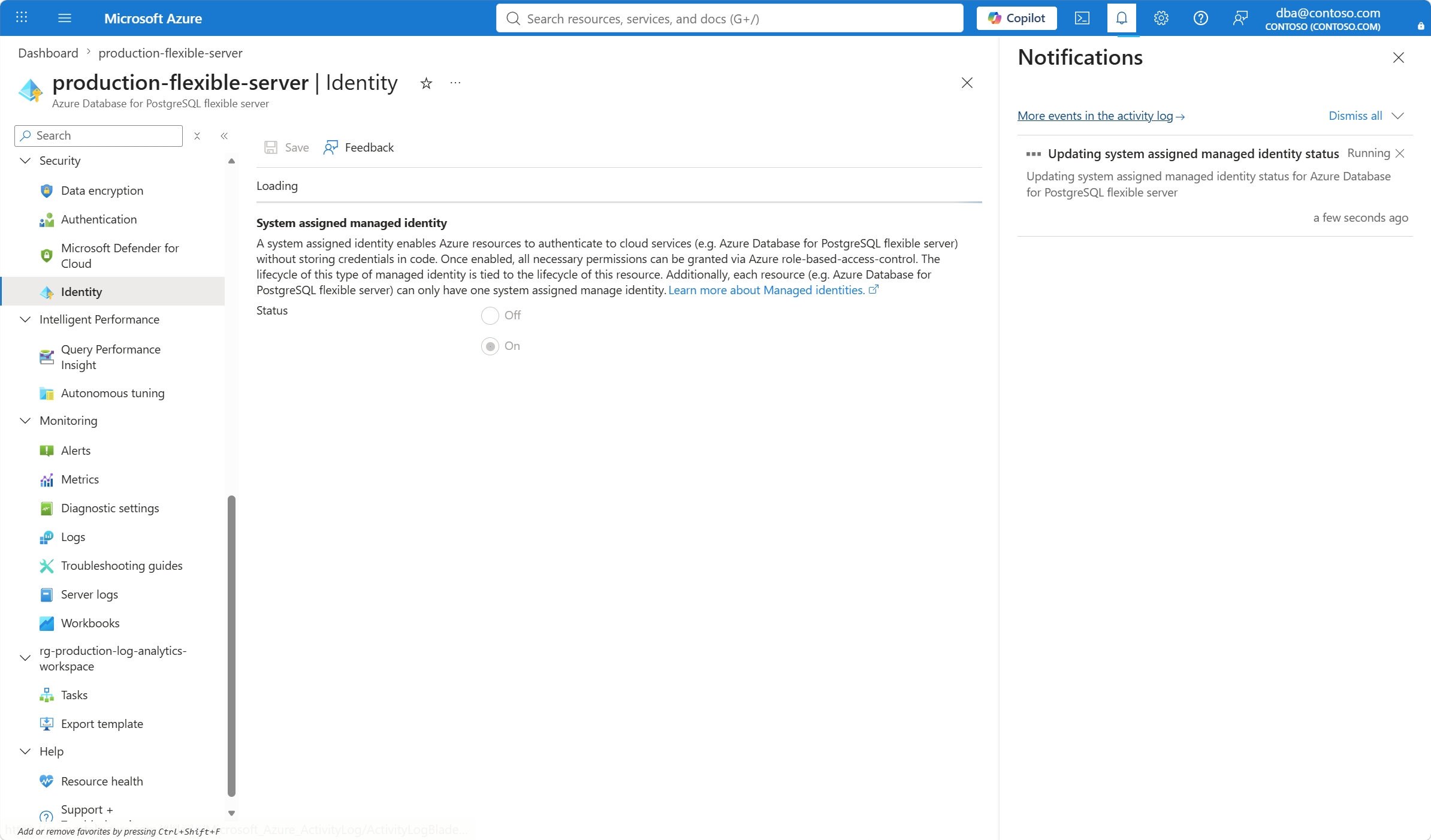
When the process starts, a notification informs you that the system assigned managed identity is being enabled.
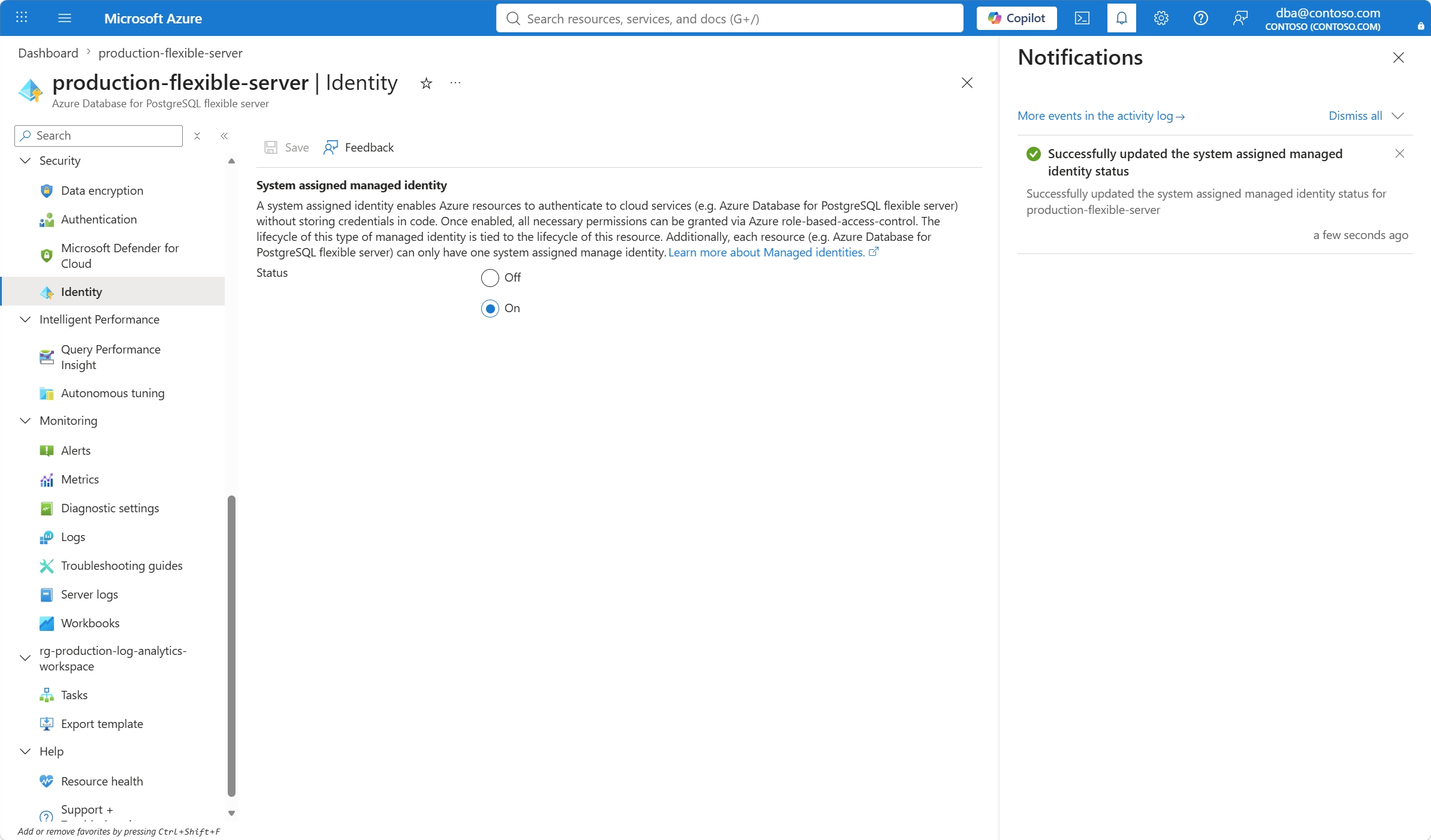
When the process finishes, a notification informs you that the system assigned managed identity is enabled.
Steps to disable for existing servers
Use the Azure portal:
Select your Azure Database for PostgreSQL flexible server.
In the resource menu, under the Security section, select Identity.
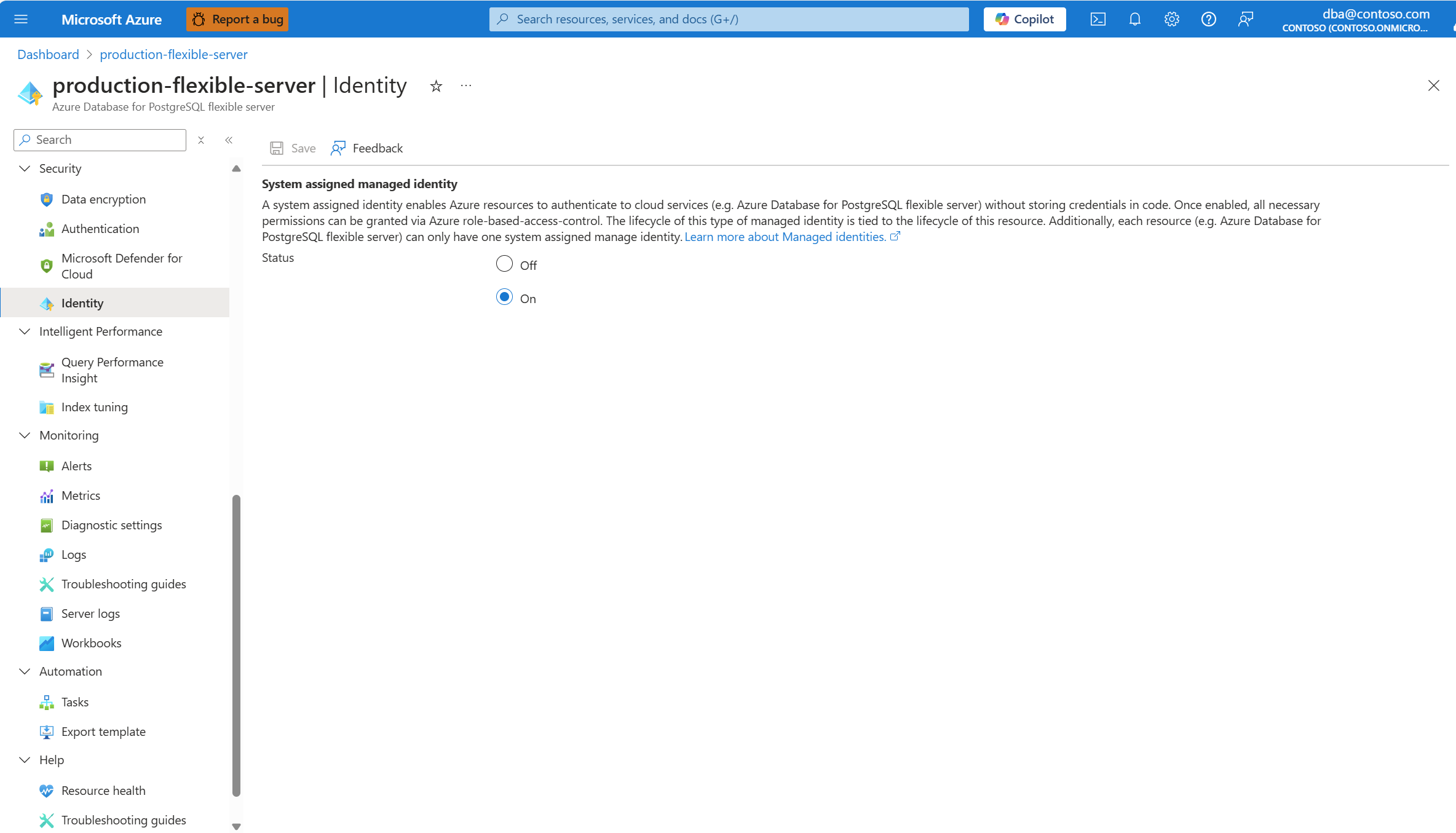
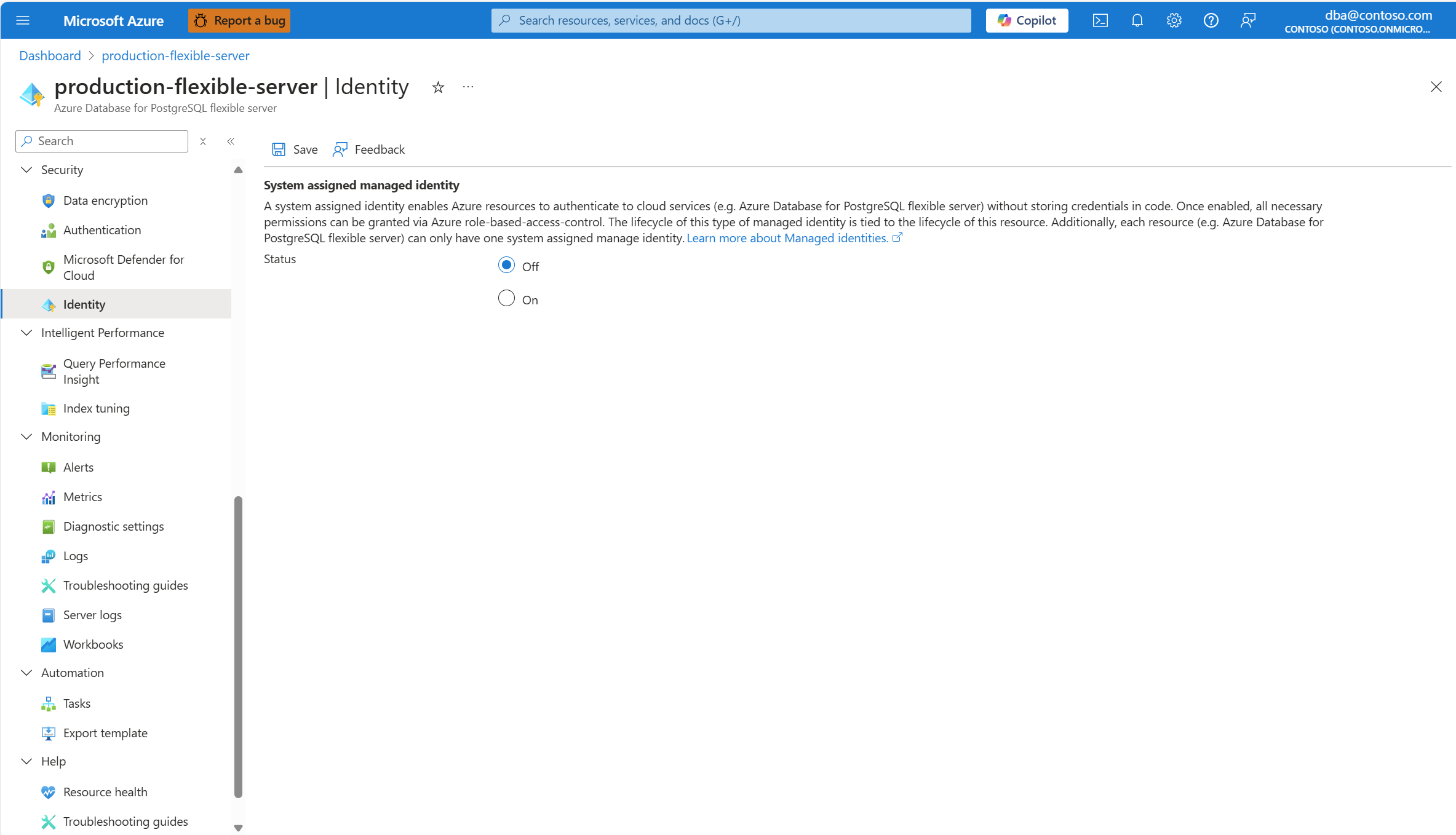
In the System assigned managed identity section, select Off.
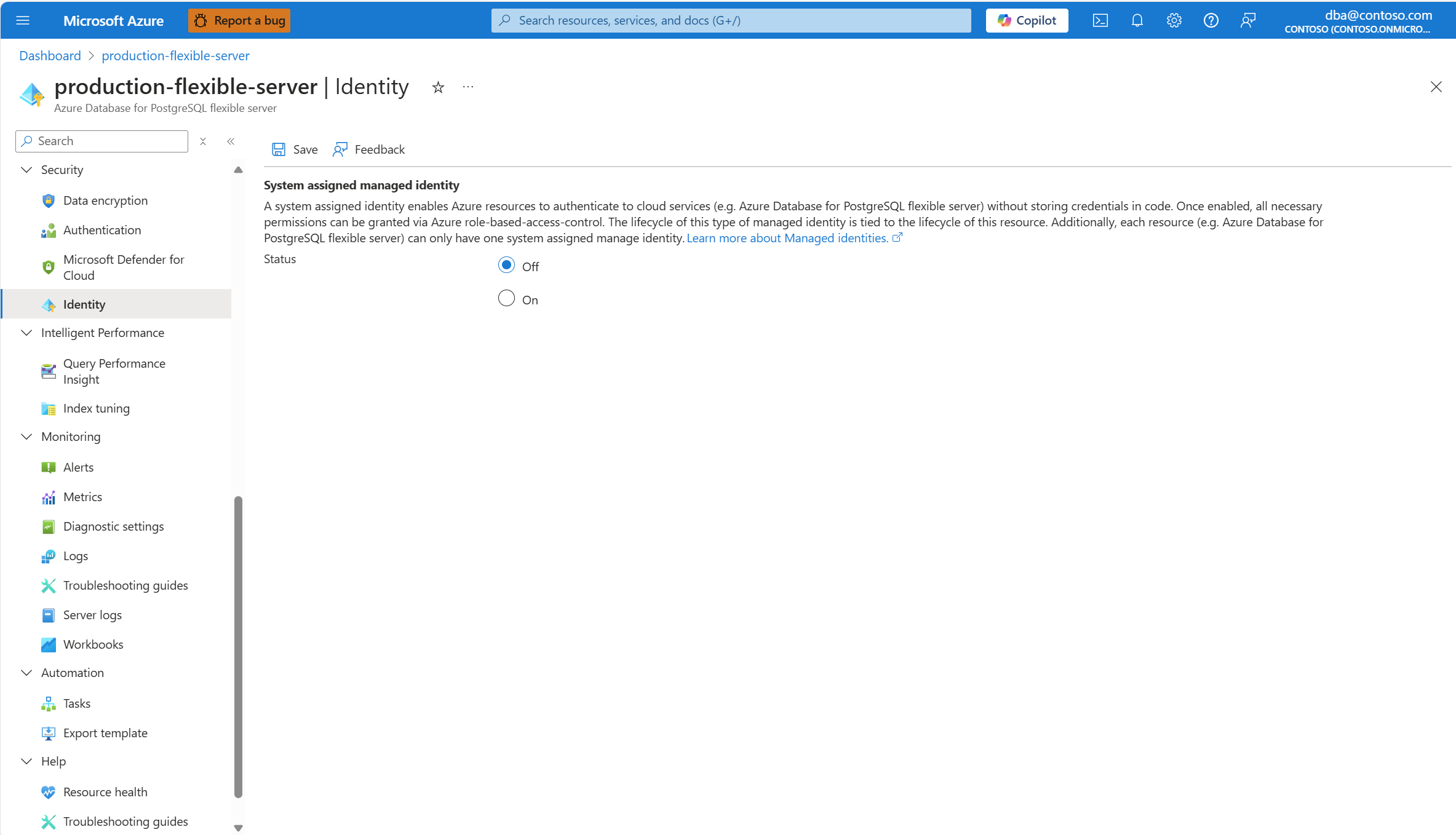
Select Save.
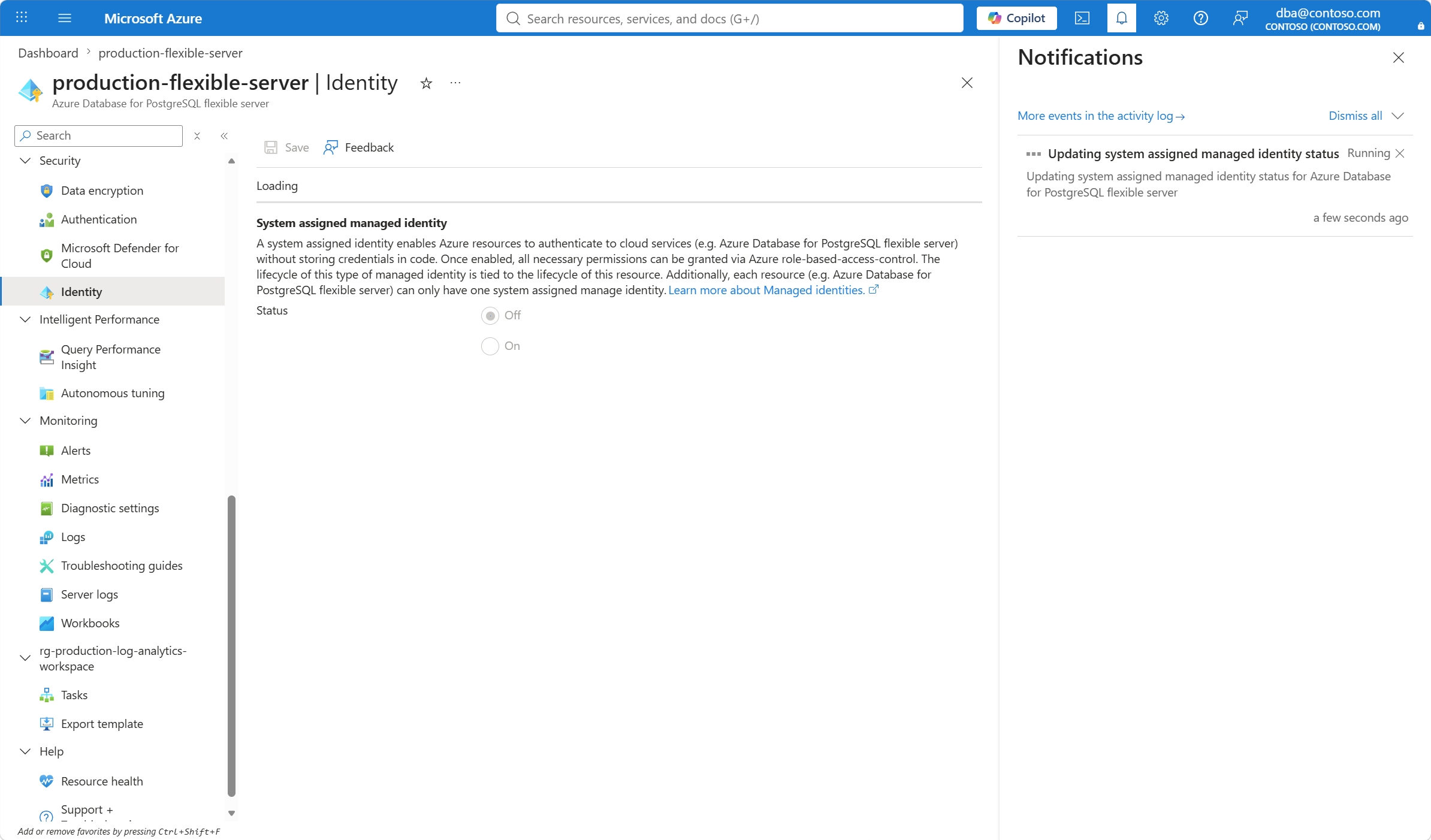
When the process starts, a notification informs you that the system assigned managed identity is being disabled.
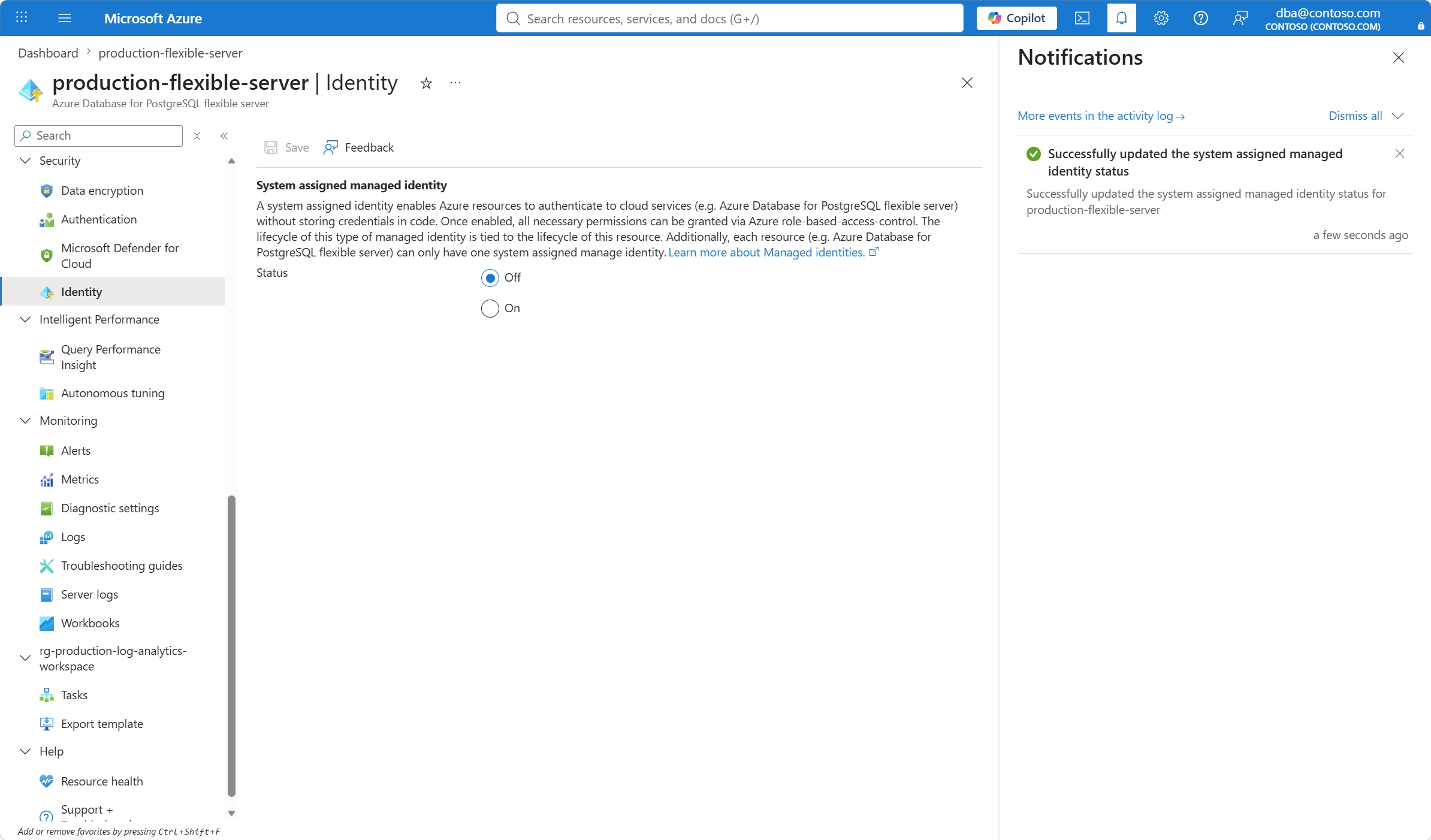
When the process finishes, a notification informs you that the system assigned managed identity is disabled.
Steps to show currently assigned
Use the Azure portal:
Select your Azure Database for PostgreSQL flexible server.
In the resource menu, select Overview.
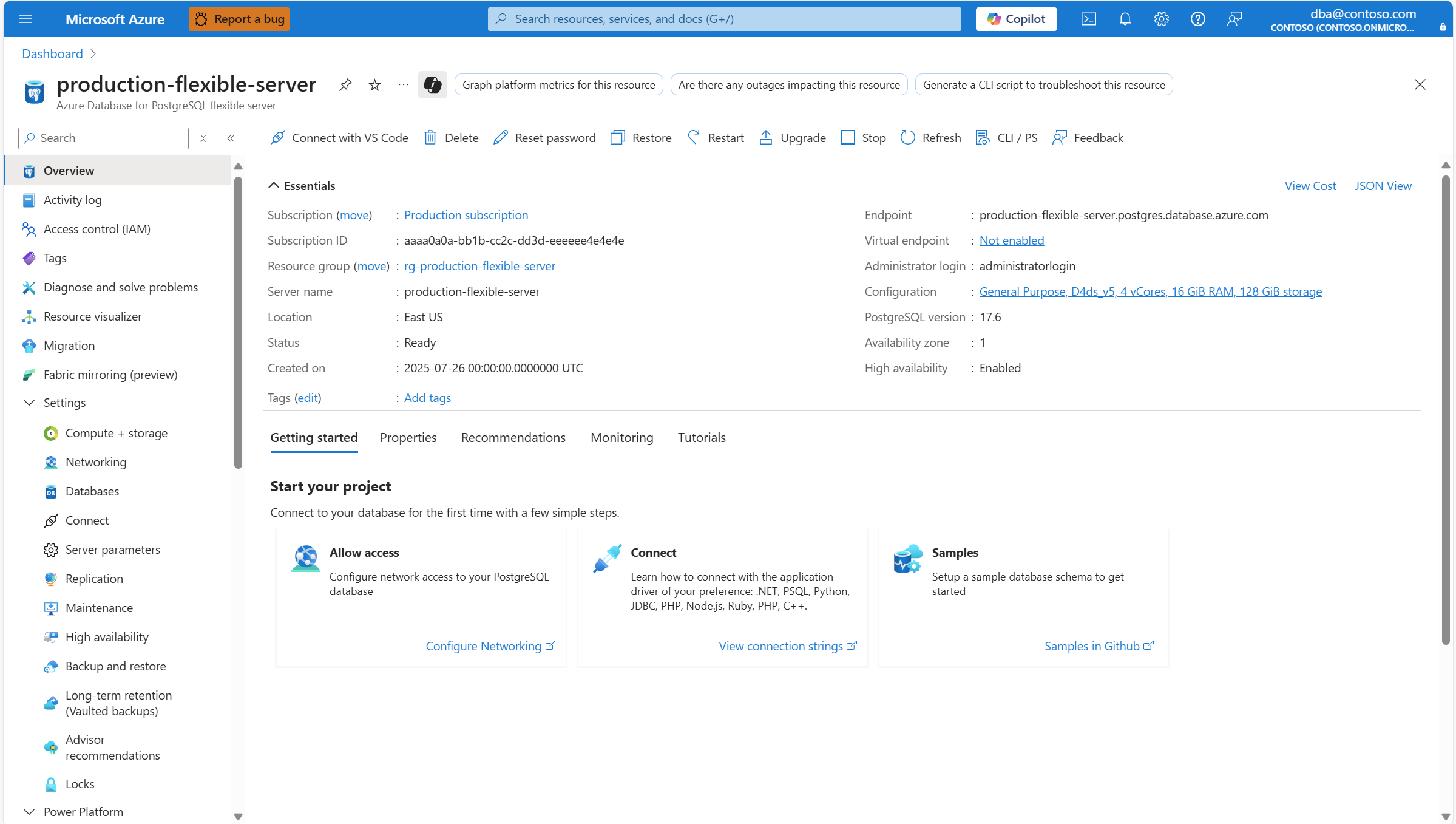
Select JSON View.
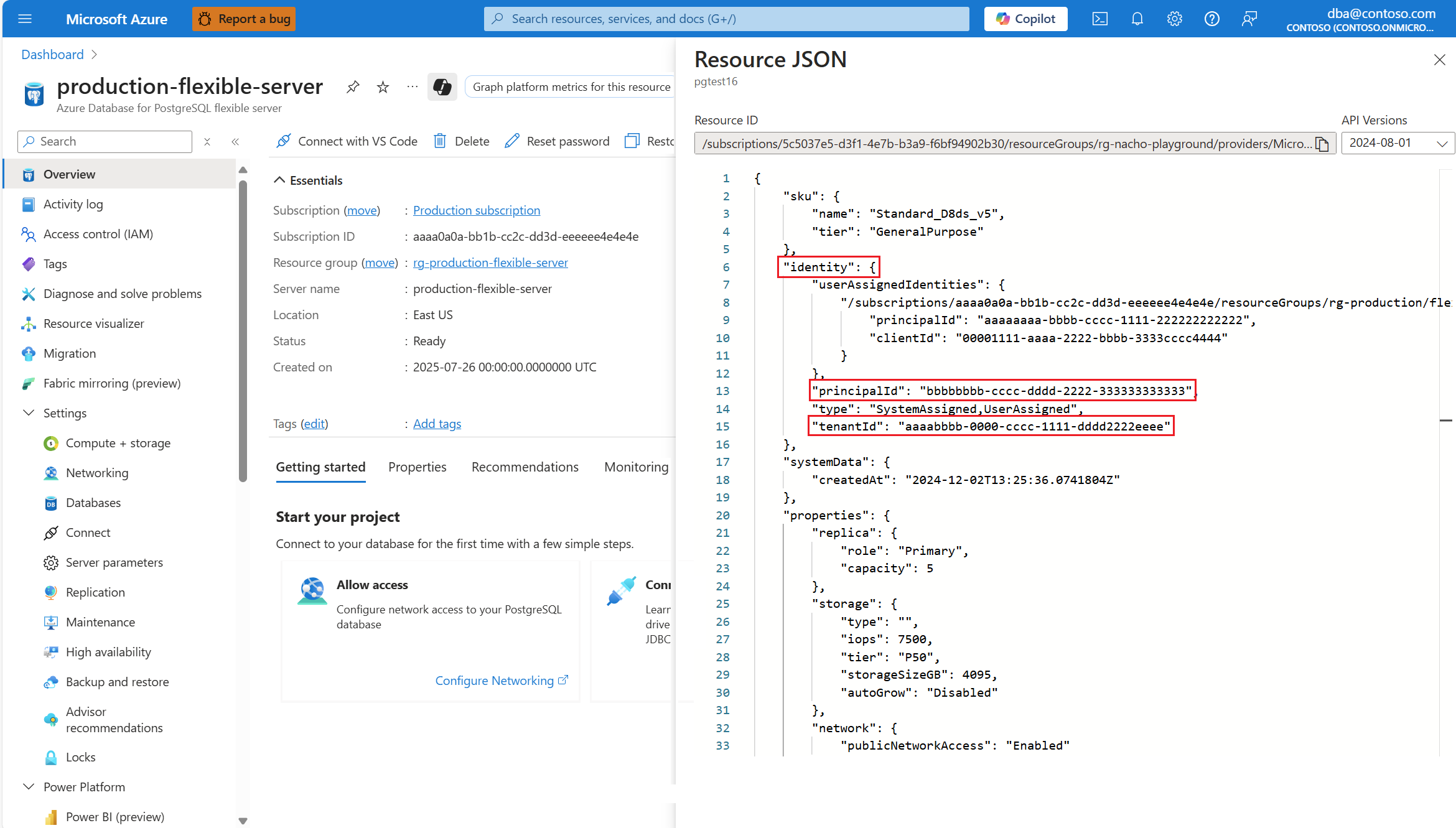
In the Resource JSON panel that opens, find the identity property. Inside it, you can find the principalId and tenantId for the system assigned managed identity.
Steps to verify in Microsoft Entra ID
Use the Azure portal:
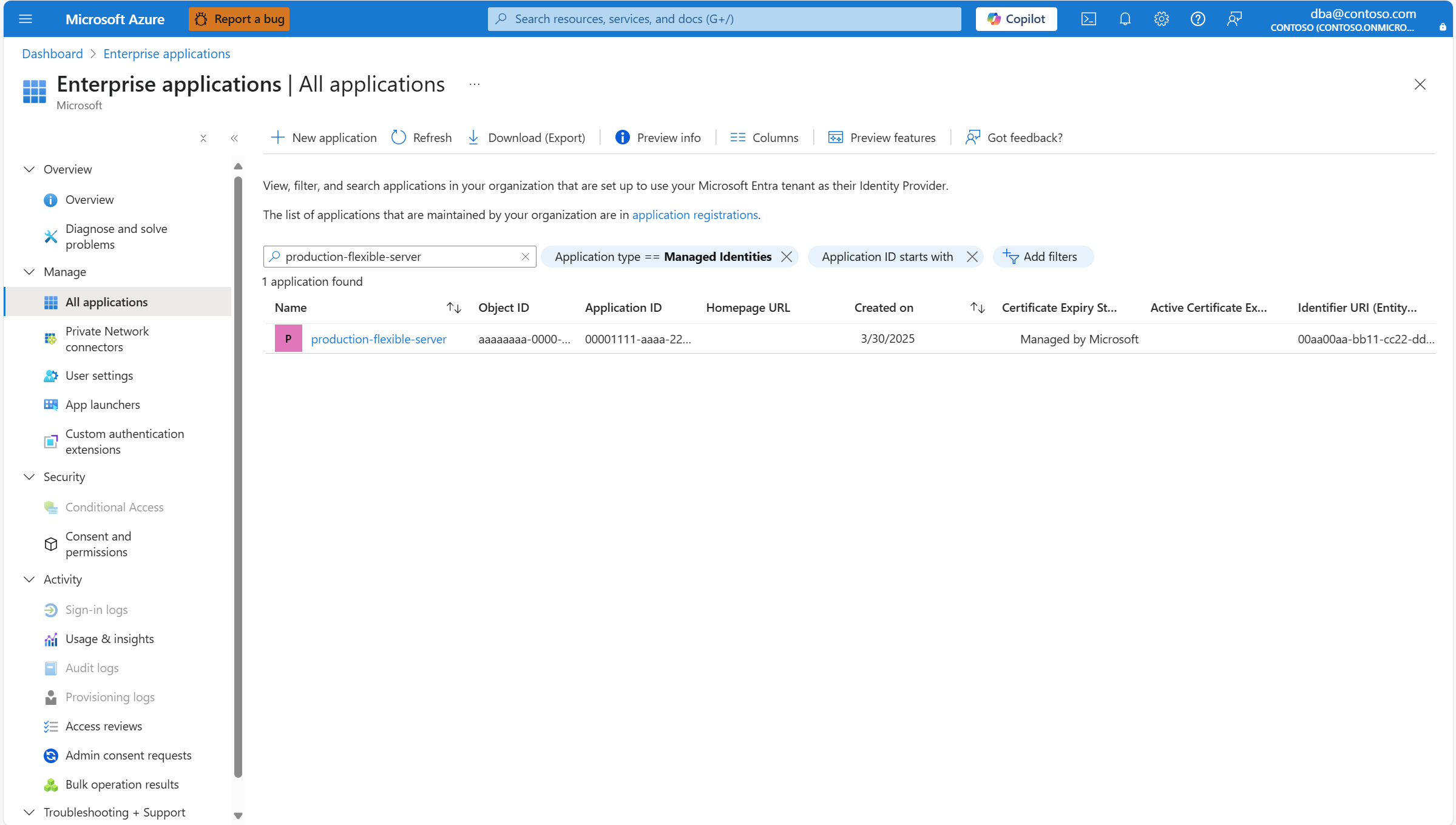
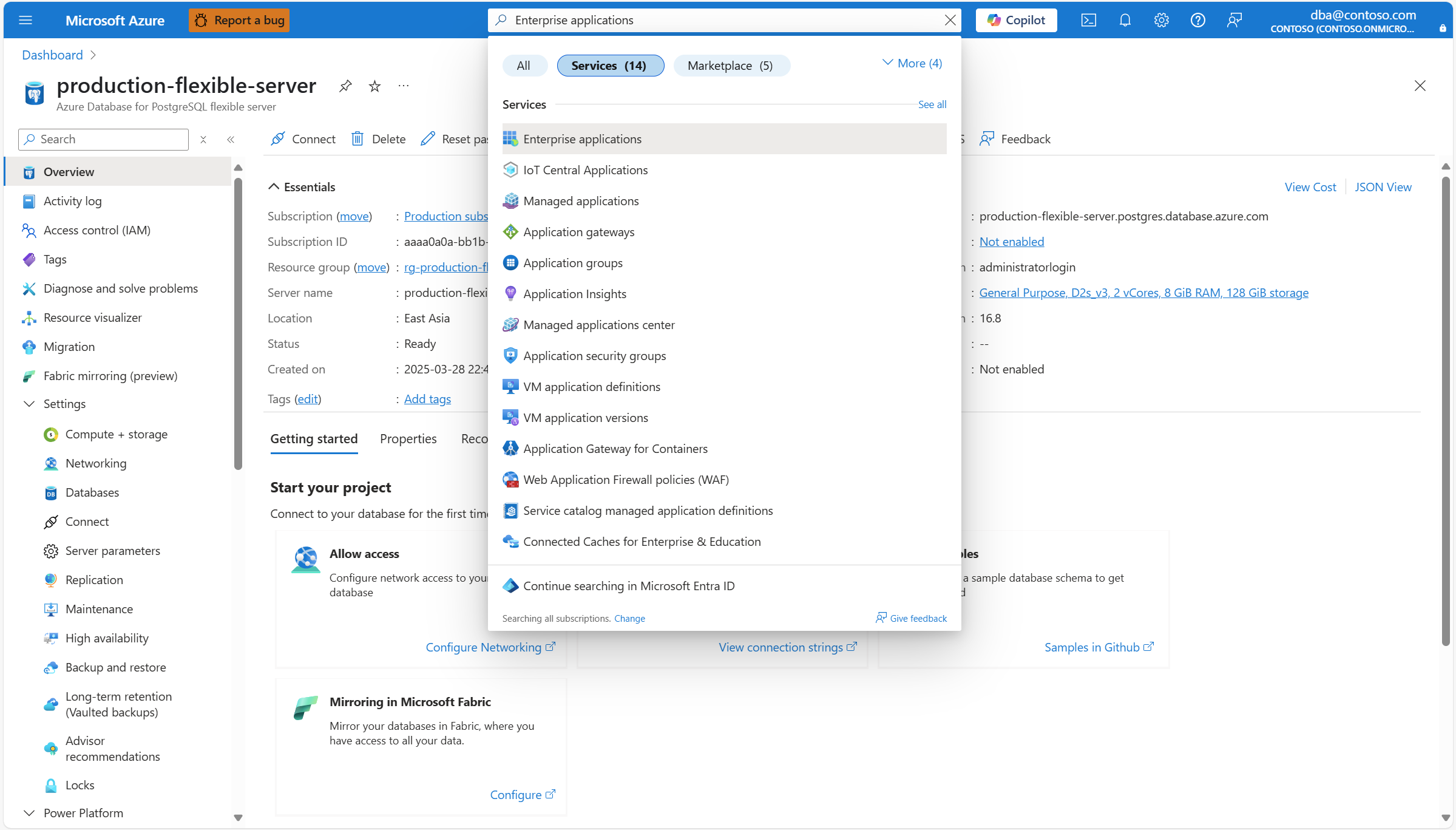
Locate the Enterprise Applications service in the portal, if you don't have it open. One way to do it is by typing its name in the search bar. When the service with the matching name is shown, select it.
Choose Application Type == Managed Identity.
Provide the name of your Azure Database for PostgreSQL flexible server in the Search by application name or object ID text box.