Note
Access to this page requires authorization. You can try signing in or changing directories.
Access to this page requires authorization. You can try changing directories.
1. Overview
To support advanced capabilities, we are retiring the China East 1 (CE1) and China North 1 (CN1) regions for Power BI. These regions do not meet the infrastructure requirements for modern workloads. Customers with their home tenants in these regions will have their home tenants migrated to China North 3 (CN3), which offers improved performance, scalability, and support for the latest features.
- CE1 and CN1 regions will be retired and no longer supported after 1 July, 2026
- We will work with customers to migrate impacted Power BI tenants to CN3 between now and 1 July, 2026
- Customers cannot initiate or control the home tenant regional migration by themselves
- Customers not migrated to CN3 before 1 July, 2026, will suffer complete, and unrecoverable data loss
This document provides guidance for customers on migrating their Power BI home region to CN3.
Note
⚠️ Read about common risks here.
2. Who is affected?
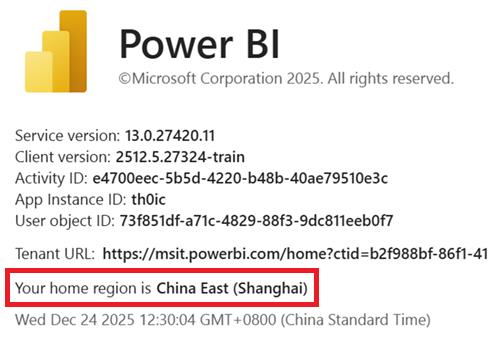
Check where your Power BI home tenant is by:
- Going to the Power BI web portal
- Click the “?” icon in the top-right corner
- Select About Power BI
- Check the “Your home region is” field
- If your home region is China East (Shanghai) or China North (Beijing) continue reading this notification. Even if you have no dedicated capacities and shared workspaces in CE1 or CN1, if your home region is in CE1 or CN1 you need to have your home region migrated to CN3.
- If your home region is neither CE1 nor CN1, please ignore these instructions. You will not be migrated, and you do not need to do anything.
3. Migration Schedule
The retirement date for CE1 and CN1 is 1 July, 2026. Please coordinate with your Microsoft account representative for a preferred migration window (UTC+8) between 1 Jan 2026 – 15 Feb 2026 (inclusive) or 24 Feb 2026 – 30 April 2026 (inclusive). Your available migration time windows are below, for any day of the week, and are dependent on how many dedicated capacities you have.
If you do not reach out to a Microsoft account representative by 3 March 2026, we will assume you are incommunicado, and we will auto-migrate you between 3 March 2026 – 31 Mar 2026. Auto-migration involves automatic deletion of your dedicated capacities (if you have any), and after migration you the customer (specifically the Power BI tenant admin) will need to reprovision new capacities and reattach workspaces to restore full service. Microsoft cannot reprovision new capacities on your behalf. If you reach out to a Microsoft account representative after 3 March 2026, but before we have migrated you, we will migrate you at a time of your choosing.
Please work with your Microsoft account representative to try and schedule your migration at least two weeks in advance. If there is insufficient advance notice, your chosen date may conflict with Microsoft's code deployment schedule that would take precedence. With two or more weeks notice, the deployment schedule can work around customer migration schedules.
3.1 If you have no dedicated capacities (A/P/EM SKUs)
Preference is Option 1 Monday – Friday (UTC+8), so that Microsoft can better monitor and assist your migration during normal Microsoft business hours. Note the below migration time window does not include pre-migration and post-migration work. You should budget around 1 hour before the start of your migration window to execute your pre-migration tasks and around 1 hour after migration to execute your post-migration tasks.
| # | Migration Window | Downtime Range |
|---|---|---|
1 |
23:00 - 05:00 Beijing Time (UTC+8) 07:00 - 13:00 Redmond Time (UTC-8) 15:00 - 21:00 UTC |
🚫 6 hours - Power BI Fully Down |
2 |
05:00 - 11:00 Beijing Time (UTC+8) 13:00 - 19:00 Redmond Time (UTC-8) 21:00 - 03:00 UTC |
🚫 6 hours - Power BI Fully Down |
3 |
11:00 - 17:00 Beijing Time (UTC+8) 19:00 - 01:00 Redmond Time (UTC-8) 03:00 - 09:00 UTC |
🚫 6 hours - Power BI Fully Down |
4 |
17:00 - 23:00 Beijing Time (UTC+8) 01:00 - 07:00 Redmond Time (UTC-8) 09:00 - 15:00 UTC |
🚫 6 hours - Power BI Fully Down |
3.2 If you have < 10 dedicated capacities (A/P/EM SKUs)
Preference is Option 5 Saturday (UTC+8) so that Microsoft can better monitor and assist your migration during normal Microsoft business hours. Note the below migration time window does not include pre-migration and post-migration work. You should budget around 2 hours before the start of your migration window to execute your pre-migration tasks and around 2 hour after migration to execute your post-migration tasks. You must have your capacities deleted no later than 04:00 / 16:00 (UTC+8), and you will be in the No Capacities Stage for up to 5 hours, before entering the Migration Stage at 09:00 / 21:00 (UTC+8) which can last up to 7 hours.
# |
Migration Window |
Downtime Range Beijing Time (UTC+8) |
|---|---|---|
5 |
04:00 - 16:00 Beijing Time (UTC+8) 12:00 - 00:00 Redmond Time (UTC-8) 20:00 - 08:00 UTC |
⚠️ 5 hours - No Capacities Stage (04:00 - 09:00) 🚫 7 hours - Power BI Fully Down (09:00 - 16:00) |
6 |
16:00 - 04:00 Beijing Time (UTC+8) 00:00 - 12:00 Redmond Time (UTC-8) 08:00 - 20:00 UTC |
⚠️ 5 hours - No Capacities Stage (16:00 - 21:00) 🚫 7 hours - Power BI Fully Down (21:00 - 04:00) |
3.3 If you have ≥ 10 dedicated capacities (A/P/EM SKUs)
📢 Rare. Most customers in CE1/CN1 with dedicated capacities have < 10 dedicated capacities.
Preference is Option 7 Saturday (UTC+8) so that Microsoft can better monitor and assist your migration during normal Microsoft business hours. Note the below migration time window does not include pre-migration and post-migration work. You should budget around 2 hours before the start of your migration window to execute your pre-migration tasks and around 2 hour after migration to execute your post-migration tasks. You must have your capacities deleted no later than 00:00 / 12:00 (UTC+8), so you will be in the No Capacities Stage for up to 9 hours, before entering the Migration Stage at 09:00 / 21:00 (UTC+8) which can last up to 7 hours.
# |
Migration Window |
Downtime Range Beijing Time (UTC+8) |
|---|---|---|
7 |
00:00 - 16:00 Beijing Time (UTC+8) 08:00 - 00:00 Redmond Time (UTC-8) 16:00 - 08:00 UTC |
⚠️ 9 hours - No Capacities Stage (00:00 - 09:00) 🚫 7 hours - Power BI Fully Down (09:00 - 16:00) |
8 |
12:00 - 04:00 Beijing Time (UTC+8) 20:00 - 12:00 Redmond Time (UTC-8) 04:00 - 20:00 UTC |
⚠️ 9 hours - No Capacities Stage (12:00 - 21:00) 🚫 7 hours - Power BI Fully Down (21:00 - 04:00) |
3.4 No Capacities Stage (5 or 9 hours)
📢 Ignore this if you have no dedicated capacities.
When you have deleted all your dedicated capacities, and workspaces are automatically moved back to shared capacities, Power BI access may be slower and restricted. Specifically:
- For all datasets ≥ 1GB, the dataset and all reports dependent on those datasets will be inaccessible for all users, and scheduled data refreshes will not work, until the dataset is back on a dedicated capacity after migration.
- For all datasets with large storage mode enabled, regardless of the size of the dataset, the dataset and all reports dependent on those datasets will be inaccessible for all users, and scheduled data refreshes will not work, until the dataset is back on a dedicated capacity after migration. Furthermore, the newly provisioned dedicated capacity must be in the same region as before migration. Note that large storage mode datasets are only supported in CE2, CN2, CN3. They are not supported in CE1 or CN1, so you do not have to worry about reprovisioning a new dedicated capacity in CE1 or CN1 after migration.
- For all datasets < 1GB and in small storage mode, users with Free licenses will lose access to those datasets and associated reports. Only users with Pro or PPU (Premium Per User) licenses will retain their access. Users with Free licenses will regain their access once the workspace is back on a dedicated capacity after migration. If you want users to have access to these workspaces during the No Capacities Stage, you will need to upgrade those users to Pro or PPU licenses.
3.5 Migration Stage (6 or 7 hours)
For up to 7 hours Power BI will be inaccessible, and will show up as under maintenance when you log in. There is a 90% chance migration will be completed within 4 hours and will not take the full 7 hours.
4. What can I do today?
These are steps you can take today to prepare for the migration. These steps won’t result in degradation to service.
4.1 Review Checklist
| # | Check | Note |
|---|---|---|
1 |
How many dedicated capacities (P-SKUs, A-SKUs, EM-SKUs) do I have? |
Check Power BI Admin Portal P-SKUs and EM-SKUS are under the Power BI Premium tab A-SKUs are under the Power BI Embedded tab |
1.1 |
Can I caputre basic capacity settings and dedicated capacity-workspace mappings? |
Use this PS script to capture A-SKU capacity settings Use this PS script to capture basic capacity settings (A-SKUs, P-SKUs, and EM-SKUs) & workspace mappings |
1.2 |
Do I have permission to delete all dedicated capacities the day of migration? |
|
1.3 |
Do I have permission to reprovision dedicated capacities after migration? Will I do this manually, or will I use a script? |
For a small number of capacities, this could be done manually, or you could use this PS script to reprovision the same A-SKUs as before migration. We do not have scripts for reprovisioning P-SKUs and EM-SKUs. |
1.4 |
Do I have permission to reattach all workspaces back to these newly provisioned dedicated capacities after migration? Will I do this manually, or do I have a script to do this? |
Recommend to use this PS script that remaps workspaces to dedicated capacities based on what was saved before migration. Requires capacities to have the same name. |
1.5 |
Do I need to hand out Pro or PPU licenses to some users so they can access pro workspaces and reports during the No Capacities Stage (5 – 9 hours). This will only work for datasets in small file format and < 1GB. |
I should remember to take back these licenses after migration, when dedicated capacities are reprovisioned and reattached to workspaces – users with free licenses will then be able to access reports on those premium workspaces. |
2 |
Do I have On-Premises Data Gateways connecting Azure Analysis Services (AAS) models to Power BI? Or do I use LogicApps? |
These will not work after migration. After migration you will need to recreate your LogicApps / AAS Gateways in CN3. |
3 |
Do I use BYOLA or BYOS? |
Detach before migration, then reattach after migration. |
4 |
Do I want to save my logs & usage metrics? |
Save reports and datasets before migration. After migration, Workspace-level Usage Metrics will not retain usage data from before migration. |
5 |
Do I have Tenant Level Private Links enabled? |
Disable and remove Private Link resources before migration. |
6 |
If I have dedicated capacities, am I using Azure Analysis Services (AAS) migration? |
Delete AAS migrations before home tenant migration. |
5. What do I need to do immediately before Migration?
These are the steps that should be carried out in sequence immediately before migration. The disabling of tenant level private links begins the temporary scale down of your Power BI service.
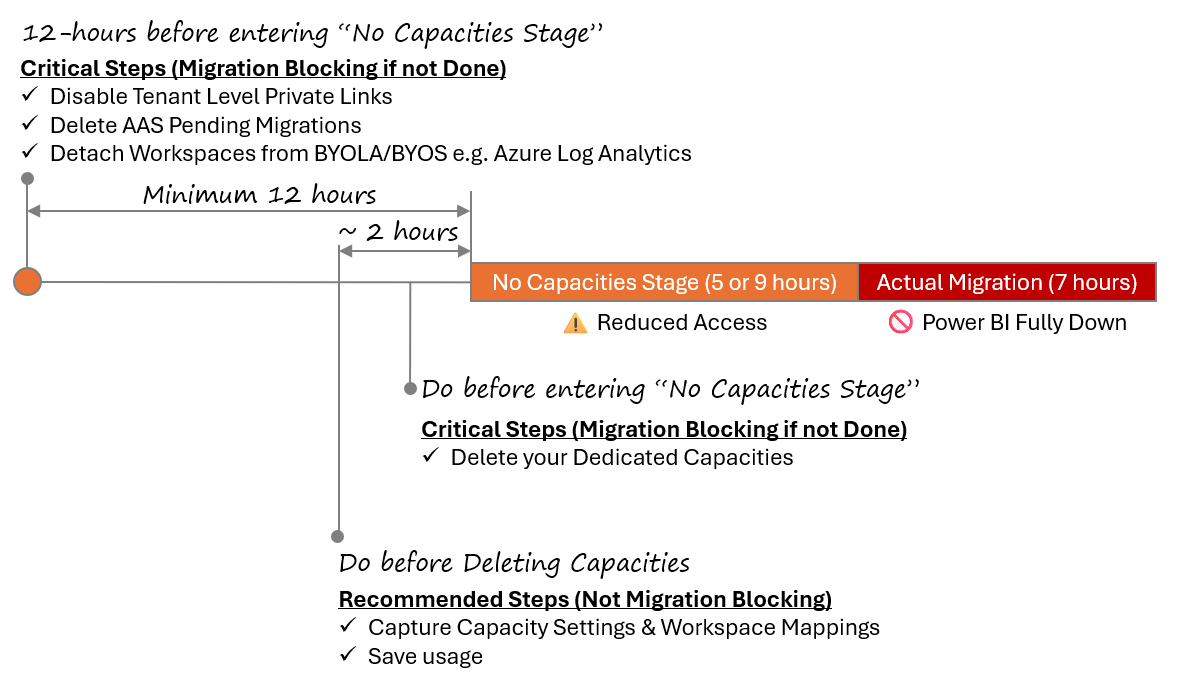
5.1 Disable Tenant Level Private Links
🛑 Critical step - migration blocking if not done.
⌛ Do minimum 12 hours before entering No Capacities Stage.
📢 Not common. Majority of customers do not have TL-PL enabled.
If you have private links, then minimum 12 hours before migration follow the below steps in sequence:
- Enable public internet access:
Power BI => Admin portal => Tenant settings => Public Internet Access - In the Azure portal, delete all the associated private endpoints you created
- In the Azure portal, delete the corresponding private DNS zones
- In the Azure portal, delete the private link service (should be only one). Turn on "Show hidden types" when exploring Resource Groups.
- Disable the setting:
Power BI => Admin portal => Tenant settings => Tenant-level Private Link
Disabling tenant level private links will restore public internet access – users can connect from any network, not just approved private endpoints. Data traffic to Power BI services no longer exclusively traverses Microsoft’s backbone network; it can now go over public routes. After migration – you can reenable tenant level private link setting and recreate private endpoints.
Note, that in order for tenant level private links to work, three things are required:
- Tenant Level Private Link admin setting enabled in the Power BI Tenant admin portal
- Private Link Service (PLS) (
Microsoft.PowerBI/privateLinkServicesForPowerBI) - Private Endpoints (PEs) tied to the PLS
If you have the tenant admin setting enabled only, or setting enabled with PLS, but no PEs, then before your migration, we will disable the setting, and delete the PLS. Since there were no PEs, there will be no degradation to your service when we delete this setting.
If you have the setting enabled, and the PLS, and PEs, then you, the customer, need to follow the above 5 steps and fully disable tenant level private links before migration. Failure to do so will block your migration.
5.2 Delete AAS Pending Migrations
🛑 Critical step - migration blocking if not done.
⌛ Do minimum 12 hours before entering No Capacities Stage.
As Power BI tenant admin go to Settings => Azure Analysis Services migrations and look for any pending AAS migrations. They must be deleted before proceeding with the tenant migration, as it may lead to tenant migration failure. You ca utilize this provided link for comprehensive guidance on AAS migrations.
5.3 Detach Workspaces from BYOLA & BYOS
⚠️ Not blocking, but BYOLA like Azure Log Analytics will not work after migration.
⌛ Do minimum 12 hours before entering No Capacities Stage.
If you are using Bring your own Log Analytics (BYOLA) or Bring your own Storage (BYOS) then before migration, workspaces need to be detached from BYOLA like Azure Log Analytics. If this step is not followed, Azure Log Analytics will not work after the migration.
5.4 Capture Capacity Settings & Workspace Mapping
⚠️ Not migration blocking, but you need to know what workspaces go back on what dedicated capacities after migration.
⌛ Recommend to do 1 – 2 hours before entering the No Capacities Stage.
📢 Skip this step if you have no dedicated capacities.
Use this PowerShell script to capture A-SKU capacity settings and this PowerShell script to capture premium workspace mapping. Once you have captured this info you can use it during the post-migration stage stage to reprovision dedicated capacities and reattach workspaces to those capacities. Note that not all capacity settings can be captured through APIs – some settings like Contributor Permissions and Power BI workloads will need to be manually captured before migration and manually configured when the capacities are reprovisioned after migration. Also, PPU (Premium Per User) capacities (SKU = PP3) that show up in the API response can be ignored. These are not dedicated capacities and do not need to be deleted before migration.
5.5 Capture Logs & Usage
⚠️ Not migration blocking.
⌛ Recommend to do 1 – 2 hours before entering the No Capacities Stage.
📢 Skip this step if you are not capturing usage today.
Some usage data is not available after migration, so save the following before migration:
- Download Power BI Activity Logs before migration
- View count in Lineage view
- Data protection metrics report (Part of Purview)
- Workspace-level Usage metrics will not retain data from before migration.
5.6 Delete Dedicated Capacities
🛑 Critical step - migration blocking if not done.
⌛ Do before entering No Capacities Stage.
📢 Skip this step if you have no dedicated capacities.
This step needs to be completed by you, the customer, before entering the No Capacities Stage of your migration window. If you have dedicated capacities (A-SKUs, P-SKUs, or EM-SKUs) in active or paused states in any Azure region in China (you should have no capacities in CN1 – it is an unsupported region for capacities), then you will need to manually delete all these dedicated capacities, before entering the No Capacities Stage of your migration window. Workspaces on Pro or PPU licenses can remain as they are. All your dedicated capacities, in every region, must be deleted before migration. It is recommended that do you not detach workspaces from dedicated capacities before deleting the capacities i.e. do not migrate your workspaces from dedicated capacities to per-user license mode (Pro or Premium Per User (PPU)). However, if Microsoft reaches out to you and recommends workspace migration before capacity deletion, then please read this section. Dedicated capacity deletion does not result in data loss. There are three types of dedicated capacity listed in the table below that you will need to delete, including how they can be deleted.
| SKU Type | Visible | Delete capacity from |
|---|---|---|
| A-SKU (Azure) | Power BI Admin portal => Capacity Settings => Power BI Embedded | Azure Portal, Azure CLI, PowerShell |
P-SKU (Premium) EM-SKU (Office) |
Power BI Admin Portal => Capacity Settings => Power BI Premium | Power BI Admin Portal (UI) Power BI REST API (P-SKU only) The M365 billing subscription can remain – it does not need to be cancelled. |
Remember to save your capacity settings and capacity-to-premium-workspace mappings before you delete your capacities! While dedicated capacity deletion does not result in data loss, it can result in limitations to functionality to premium workspaces that have now become Pro workspaces.
- For all datasets ≥ 1GB, the dataset and all reports dependent on those datasets will be inaccessible, and scheduled dataset refreshes will not work, until the dataset is back on a dedicated capacity after migration.
- For all datasets with large storage mode enabled (CE2, CN2, CN3), regardless of the size of the dataset, the dataset and all reports dependent on those datasets will be inaccessible, and scheduled dataset refreshes will not work, until the dataset is back on a dedicated capacity after migration, and in the same region as before migration.
- For all datasets < 1GB and in small storage mode, users with Free licenses will lose access to those datasets and associated reports. Only users with Pro or PPU (Premium Per User) licenses will retain their access. Users with Free licenses will regain their access once the workspace is back on a dedicated capacity after migration. If you want users to have access to these workspaces during the No Capacities Stage, you will need to upgrade those users to Pro or PPU licenses.
- All semantic models on dedicated capacities with BYOK (Bring Your Own Key) will not work until they are back on dedicated capacities with BYOK.
When you delete an A-SKU, you stop paying upon deletion and you lose your dedicated vCores. When you reprovision an A-SKU, you start paying again and get reassigned dedicated v-Cores. When you delete a P-SKU, since these are licensing add-ons, your vCores go back to the pool that you’re still paying for, and then will be reallocated when you reprovision new P-SKU capacities.
5.7 Confirm Capacity Deletion
⚠️ Not migration blocking, but recommended.
⌛ Recommend to do after you have deleted your capacities and right before entering the No Capacities Stage.
📢 Run this step even if you think you have no dedicated capacities.
Run this PowerShell script to confirm all your dedicated capacities have been deleted. Failure to delete all your dedicated capacities will block your migration.
6. What do I need to do during Migration?
Sit tight. Power BI will be inaccessible during this stage which should last between 4 – 7 hours. Microsoft will email your technical contact once migration is complete. Once you receive the email, or once Power BI is accessible for you, please proceed to the next step in this document.
7. What do I need to do after Migration?
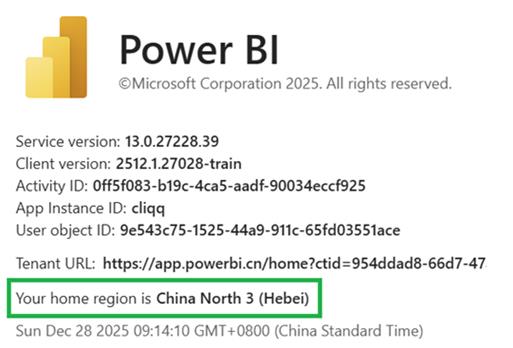
After your migration, you can confirm you have been migrated by:
- Going to the Power BI web portal
- Click the “?” icon in the top-right corner
- Select About Power BI
- Check the “Your home region is” field
- Confirm your home region has been updated to China North 3
Below are the steps that should be carried out in sequence immediately after migration to fully restore your service.
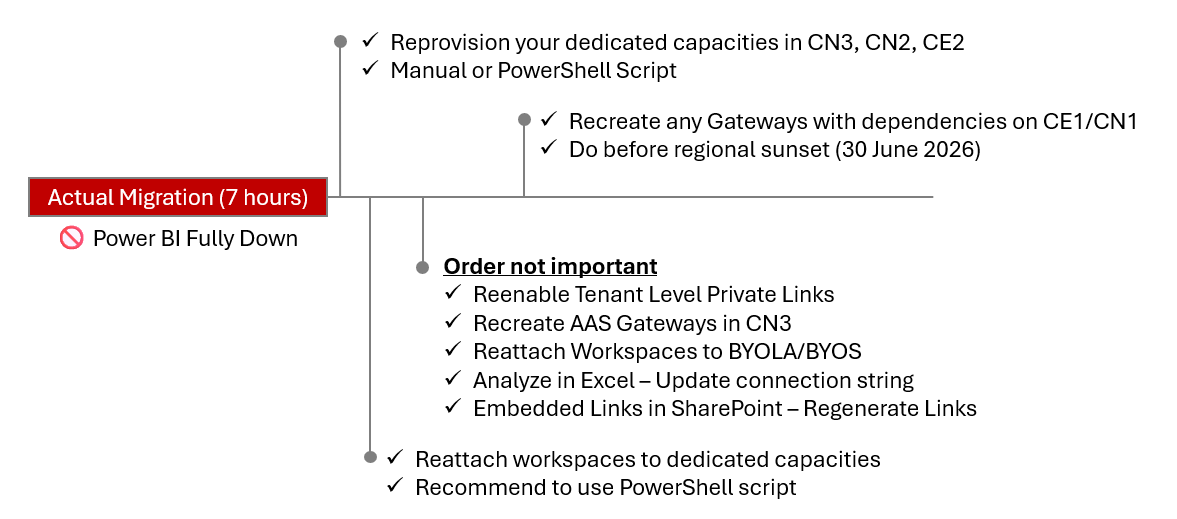
7.1 Reprovision Capacities
📢 Skip this step if you had no dedicated capacities before migration.
After migration you will need to reprovision dedicated capacities in supported Azure regions in China (CE2, CN2, CN3). You will not be able to reprovision capacities in CE1 or CN1. Capacities will not be automatically reprovisioned after migration. Capacity IDs on your new capacities will be different to Capacity IDs on your capacities from before migration, but the names can remain the same. You should have captured capacity settings before migration to aid you in this step using these two PowerShell scripts: 9.1 Save A-SKU Capacity Settings and 9.2 Save Basic Capacity Settings & Workspace Mappings.
- A-SKU (Azure Embedding) capacities can be provisioned via Azure portal (or Azure CLI/ARM templates)
- P-SKU (Premium) capacities can be provisioned via
Power BI Admin Portal => Capacity settings => Power BI Premium - EM-SKU (Enterprise Embedding) capacities can be provisioned via
Power BI Admin Portal => Capacity settings => Power BI Premium
If you only have a small number of capacities, they can be created manually, or you could use this PowerShell script to reprovision A-SKUs: 9.4 Reprovision A-SKU Capacities.
7.2 Reattach Workspaces to Capacities
📢 Skip this step if you had no dedicated capacities before migration. ⚠️ After reattachment to P-SKUs, there can be a delay of around 4 hours before users with Free licenses can access content
After the dedicated capacities have been reprovisioned, you need to reattach workspaces to those capacities to restore full functionality. You should have captured workspace-capacity mapping before migration with this PowerShell script: 9.2 Save Basic Capacity Settings & Workspace Mappings. With the mapping file, you can reattach workspaces to capacities using this PowerShell script: 9.5 Reassign Workspaces back to Capacities. Until you reattach workspaces to capacities:
- Datasets (and associated reports) that are ≥ 1GB – the parent workspace needs to be put back on a dedicated capacity. Until they are, they will be inaccessible for all users, and scheduled dataset refreshes won't work.
- Datasets (and associated reports) that are in large file format (regardless of size) – the parent workspace needs to be put back on a dedicated capacity, and in the same region as before migration. Until they are, they will be inaccessible for all users, and scheduled dataset refreshes will not work.
- Datasets (and associated reports) that are < 1GB and in small file format – the parent workspace needs to be put back on a dedicated capacity. Until they are, access is limited to users with Pro or PPU licenses. Putting the workspace back on a dedicated capacity grants access for users with only Free licenses.
- Semantic models that were on dedicated capacities with BYOK (Bring Your Own Key) before migration, will not work until they are back on dedicated capacities with BYOK.
After reattachment of workspaces back to P-SKU capacities, there can be a delay of around 4 hours before users with Free licenses can access those workspaces, and their related datasets and reports. There is no such delay with reattachment of workspaces back to A-SKU capacities.
As part of home tenant migration, if you also want to move your workspaces to capacities in a different region (e.g. CE2 => CN3) read this section: 10. Tenant Migration & Workspace Migration.
7.3 Reenable Tenant Level Private Links
📢 Skip this step if you do not use Tenant Level Private Links.
Follow these steps to reenable Tenant Level Private Links. If you do not reenable this setting, you may not be able to sign into the gateway app.
7.4 Recreate LogicApps / AAS Gateways in CN3
📢 Skip this step if you do not use AAS Gateways.
If you previously had On-Premises Data Gateways connecting Azure Analysis Services (AAS) models to Power BI, these would have been configured to your home region - CE1/CN1. These will no longer work after migration, and you will need to recreate these AAS Gateways in CN3.
7.5 Recreate Azure Analysis Service Migration
📢 Skip this step if you do not use AAS migrations.
If you deleted pending AAS migrations before the CE1/CN1 => CN3 migration, you can recreate a new migration pairing. As Power BI tenant admin go to Settings => Azure Analysis Service Migrations. Select Setup migration and follow the steps.
7.6 Dataflows
📢 Skip this step if you do not use Dataflows
After migration, some dataflows may not refresh correctly or may not expose all of their tables to downstream consumers (e.g., models or reports) until they are re-saved in the new region. For each impacted dataflow:
- Open the dataflow in the Power Query editor (Edit tables)
- Without making any changes to the queries or logic, select Publish
- Trigger a manual refresh, and confirm that all expected tables are available to downstream items.
No logic changes are required; the save/publish action re-binds the dataflow to the new regional endpoints.
7.7 Reattach Workspaces to BYOLA & BYOS
📢 Skip this step if you do not use BYOLA/BYOS.
If you are using Bring your own Log Analytics (BYOLA) AND Bring your own Storage (BYOS) then after migration the workspaces should be re-attached to these services e.g. Azure Log Analytics. They should have been detached before migration.
7.8 Analyze in Excel - Update Connection String
📢 Skip this step if you do not use Analyze in Excel.
For Excel workbooks that use the Analyze in Excel feature, after migration, if they fail to refresh you may need to update the connection string or re-download the ODC connection for that dataset, since it could contain a reference to the old home region (CE1/CN1). See this tutorial for help with this step if required.
7.9 Embedded Links in SharePoint - Regenerate Links
📢 Skip this step if you do not use embedded links in SharePoint.
Power BI Embedded Links in SharePoint may fail to connect when migration is complete - the link could contain a reference to the old home region (CE1/CN1) and would need to be updated. To resolve this problem, after migration, you must re-generate the embedded link in Power BI and then update the locations where they are used.
7.10 Gateways & VNets
📢 Skip this step if you do not use Gateways & VNets
If you have gateways, there is nothing to do before migration. After migration, all gateways with their relay endpoint in CE1/CN1 will continue working - same for VNets scoped to CE1/CN1. You can confirm the rely endpoint by checking your gateway logs. However, as there are more configuration on the machine that may be pointing to CE1/CN1, the gateway software will need to be uninstalled and reinstalled before all of the capabilities of the Gateway software are available. Furthermore, if no reinstall has occurred by 1 July 2026, these gateways will stop working on that date, as the Relay endpoint in CE1/CN1 will be purged. Public documentation here. You can also install a gateway on a different machine and recover there. You do not need to delete and re-create the gateways clusters and re-configure the data source connections in Power BI service.
For Personal Gateways (PGW) - uninstalling and reinstalling PGWs is required, along with re-entering of all credentials. PGWs do not have recovery keys, they are going to be autogenerated on the machine every time. That's why the PGW credentials will be invalidated after uninstall.
7.11 Workspace-level Usage Metrics
📢 Skip this step if you do not use Usage Metrics.
After migration, Workspace-level Usage Metrics (UM) will begin to automatically capture data in your new region. UM data from before migration will not be retained.
8. Frequently Asked Questions
Q: “What happens if migration fails?”
A: Your home region will rollback to CE1/CN1 with no data loss. Rollback will be immediate, since the migration is copy & paste, not cut & paste, so the original metadata still remains in CE1/CN1 during & after migration. After a successful migration, the metadata will eventually be deleted from CE1/CN1. Regardless if migration fails or succeeds, you'll need to reprovision capacities and reattach workspaces. However, please note that if you had a dedicated capacity in CE1 before migration, you'll need to reprovision a new capacity in CE2, CN2, or CN3, since we have blocked creation of new capacities in CE1.
Q: “Why does the No Capacities Stage take 5 or 9 hours?”
A: We need to wait on capacity sync jobs that run every 12 hours at noon UTC and midnight UTC, to inform us that metadata is synced correctly and we can start migration.
Q: “After migration, will IDs such as Workspace ID Dataset ID, Report ID, Group ID, Gateway Object ID, and Data Source Connection ID change?”
A: No, the IDs will remain the same after migration.
Q: “Will gateway connections, data source connections, and credentials work after migration?”
A: Yes. But gateways which had a dependency on CE1/CN1 before migration will need to be deleted and reconfigured before 1 July 2026.
Q: “Will capacity IDs change after migration?”
A: Yes. Since new dedicated capacities will need to be reprovisioned after migration. The capacity names can be the same though.
Q: “Can I do my single tenant migration in batches?”
A: No. A single tenant can only be migrated wholly.
Q: “Will scheduled refreshes work when I delete my capacities?”
A: They will only continue working for datasets that are in small file format and < 1GB in size.
Q: “Why no migration between 16 Feb 2026 – 23 Feb 2026?”
A: That is Lunar New Year time period. We have a CCOA (Critical Change Only Advisory) in effect during that time window.
Q: “Why do I have to delete my capacities in CE2, CN2, CN3?”
A: Dedicated capacities in CE2, CN2, CN3 still have their metadata in the home region in CE1. We need to delete dedicated capacities in CE2, CN2, CN3 so the metadata flows back to shared capacities in CE1. Then, with everything in one place, we can migrate everything from CE1 to CN3. Deleting the dedicated capacities in every region is absolutely a necessary step - failing to do so will block migration.
Q: “Why can't I detach my workspaces from capacities before deleting the capacities?
A: After detachment, you could inadvertently delete your dedicated capacities before all workspaces and content has moved back to Shared capacities - this would block migration. You can confirm everything has moved back via public APIs, prior to deleting your capacities, but we strongly advise customers to simply delete capacities before migration, rather than detach workspaces, confirm, then delete capacities.
Q: “After migration, I can't access content in my workspace.”
A: The workspace was probably on a dedicated capacity before migration, so it needs to go back on a dedicated capacity. If the workspace is already on a dedicated capacity, and if the workspace has datasets in large file format, it will need to go back on a dedicated capacity in the same region as before migration.
Q: “After migration, I put my workspace back on a dedicated capacity, but users with free licenses still cannot access reports on those workspaces.”
A: If the workspaces is back on a P-SKU, it can take around four hours before users with free licenses will be able to access reports.
Q: “Do scheduled refreshes block migration?”
A: No. Scheduled refreshes do not need to be paused or deleted before migration.
Q: “Can users with Pro Licenses still access reports and dashboards when the capacities are deleted?"
A: Yes, but limited to datasets in small storage mode AND < 1GB. For datasets in large storage mode or ≥ 1GB, all users, including users with Pro or PPU (Premium Per User) licenses, will need to wait for the parent workspace to be back on a dedicated capacity.
Q: “What is a dedicated capacity?”
A: Dedicated capacity refers to capacities like P-SKU (Premium), A-SKU (Azure - Embedded), EM-SKU (Office - Embedded). These are tenant-level resources that can host multiple workspaces and are centrally managed.
Q: “What is a premium workspace?”
A: A premium workspace is on a dedicated capacity (P-SKU, A-SKU, or EM-SKU).
Q: “Is there a recovery key for VNet Gateways?”
A: No.
Q: “What is PP3?”
A: It's a capacity SKU for Premium Per User (PPU) licenses. If there are any PPU licenses for the Power BI tenant, there'll be one (and only one) PP3 SKU. It does not need to be deleted before migration.
9. PowerShell Scripts
9.1 Save A-SKU Capacity Settings
Customer runs this before migration. Note this may not capture ALL capacity metadada. Please review the generated JSON file.
# ============================================
# Export all Power BI Embedded Capacities in Azure China, does not include P-SKU or EM-SKU Premium capacities
# Need Azure subscription contributor role
# Change $logPath and $outputFile to your path
# Run "Install-Module -Name Az" first to install necessary modules
# Please use default PowerShell v5.1 to run the script, running with PowerShell v7.0 may fail
# ============================================

# Enable logging, change logpath to your actual path
$logPath = "C:\Users\shita\Logs\export-capacity-$(Get-Date -Format 'yyyyMMdd-HHmmss').log"
Start-Transcript -Path $logPath -Append

Write-Host "Connecting to Azure China"
Connect-AzAccount -Environment AzureChinaCloud

# Output file path, change to your path to save the exported data
$outputFile = "C:\Users\shita\A_CapacityMap.json"

# Get all Azure subscriptions you can access
$subscriptions = Get-AzSubscription
Write-Host "Found : $($subscriptions.Count) subscriptions"

$exportData = @()

foreach ($sub in $subscriptions) {
    Write-Host "`n=============================="
    Write-Host "Change to subscription: $($sub.Name) ($($sub.Id))"
    Write-Host "=============================="
    try {
        Set-AzContext -SubscriptionId $sub.Id -ErrorAction Stop | Out-Null
    } catch {
        Write-Warning "Change subscription failed: $($_.Exception.Message)"
        continue
    }

    # Get resources with type Microsoft.PowerBIDedicated/capacities
    try {
        $capacities = Get-AzResource -ResourceType "Microsoft.PowerBIDedicated/capacities" -ErrorAction Stop
    } catch {
        Write-Warning "Can't list resources for subscription $($_.Exception.Message)"
        continue
    }

    # Get sku info
    $aCapacities = $capacities | Where-Object {
        # sku info might be under .Sku or .Sku.Name
        $skuName = $null
        if ($_.Sku -and ($_.Sku.Name)) { $skuName = $_.Sku.Name } elseif ($_.Sku) { $skuName = $_.Sku }
        return $skuName #-and ($skuName -match '^A\d+')
    }

    if (-not $aCapacities -or $aCapacities.Count -eq 0) {
        Write-Host "There's no A SKU capacity in this sub"
        continue
    }

    foreach ($cap in $aCapacities) {
        Write-Host "Processing capacity: $($cap.Name) (resource group: $($cap.ResourceGroupName))"

        # Use Get-AzResource -ResourceId -ExpandProperties to read properties
        $details = $null
        try {
            $details = Get-AzResource -ResourceId $cap.ResourceId -ExpandProperties -ErrorAction Stop
        } catch {
            Write-Warning "Can not get details (Get-AzResource -ExpandProperties) : $($_.Exception.Message)"
            # Fallback to use backup Invoke-AzRest (if your module supports it)
            try {
                # build Path for Invoke-AzRest
                $relativePath = $cap.ResourceId
                $apiVersion = "2017-10-01"
                $resp = Invoke-AzRest -Path $relativePath -Method GET -ApiVersion $apiVersion -ErrorAction Stop
                $details = $resp.Content | ConvertFrom-Json
            } catch {
                Write-Warning "Calling backup REST API failed too: $($_.Exception.Message)"
                continue
            }
        }


        # Use cap.Sku to get SKU name
        $skuVal = if ($cap.Sku -and $cap.Sku.Name) { $cap.Sku.Name } elseif ($cap.Sku) { $cap.Sku } else { "" }

        $exportData += [PSCustomObject]@{
            SubscriptionId = $sub.Id
            SubscriptionName = $sub.Name
            CapacityName = $cap.Name
            ResourceGroup = $cap.ResourceGroupName
            Region = $cap.Location
            Sku = $skuVal
            ResourceId = $cap.ResourceId
        }
    }
}

if ($exportData.Count -eq 0) {
    Write-Warning "Did not find any A SKU capacity"
} else {
    $exportData | ConvertTo-Json -Depth 6 | Out-File -FilePath $outputFile -Encoding UTF8
    Write-Host "`nExported A SKU capacities in all subscriptions to: $outputFile"
}

#Stop logging
Stop-Transcript
9.2 Save Basic Capacity Settings & Workspace Mappings
Customer runs this before migration. Will generate CapacityWorkspaceMap.json file.
# ============================================
# Run this script in Azure PowerShell to save basic capacity settings and workspace mapping to a local JSON File
# Please use default PowerShell v5.1 to run the script, run with PowerShell v7.0 may fail
# Need at least Fabric Administrator role
# Change $logpath to your path
# Run "Get-InstalledModule -Name Az", if your Az version is not 15.0.0 or above, run "Update-Module -Name Az" to update
# If you do not have az installed, run "Install-Module -Name Az" to install necessary modules,
# ============================================

#Enable logging
$logPath = "C:\Users\Logs\export-capacity-workspace-mappings-$(Get-Date -Format 'yyyyMMdd-HHmmss').log"
Start-Transcript -Path $logPath -Append

Connect-AzAccount -Environment AzureChinaCloud
$accessToken = (Get-AzAccessToken -AsSecureString -ResourceUrl "https://analysis.chinacloudapi.cn/powerbi/api").Token #(Mooncake Cloud)

$ptr = [System.Runtime.InteropServices.Marshal]::SecureStringToBSTR($accessToken)
try {
    $accessToken = [System.Runtime.InteropServices.Marshal]::PtrToStringBSTR($ptr)
} finally {
    [System.Runtime.InteropServices.Marshal]::ZeroFreeBSTR($ptr)
}

# Define headers
$headers = @{
    "Authorization" = "Bearer $accessToken"
    "Content-Type"  = "application/json"
}

# Rate limit delay (200 calls/hour = 1 call every 18 seconds)
$rateLimitDelay1 = 20
$rateLimitDelay2 = 75

# Function to get all capacities with pagination and rate limiting
function Get-AllCapacities {
    $capacities = @()
    $url = 'https://api.powerbi.cn/v1.0/myorg/admin/capacities'
    do {
        $response = Invoke-RestMethod -Uri $url -Headers $headers -Method Get
        $capacities += $response.value
        $url = $response.'@odata.nextLink'
        Start-Sleep -Seconds $rateLimitDelay1
    } while ($url)
    return $capacities
}

# Function to get all workspaces with pagination and rate limiting
function Get-AllWorkspaces {
    $workspaces = @()
    $top = 1000
    $skip = 0
    do {
        $url = "https://api.powerbi.cn/v1.0/myorg/admin/groups?`$top=$top&`$skip=$skip"
        Write-Host "Calling: $url"
        $response = Invoke-RestMethod -Uri $url -headers $Headers -Method Get
        $batch = $response.value
        $workspaces += $batch
        $skip += $top
        Start-Sleep -Seconds $rateLimitDelay2
    }
    while ($batch.Count -gt 0)

    return $workspaces
}

# Main logic
$capacities = Get-AllCapacities | Where-Object { $_.sku -ne "PP3" }

$allWorkspaces = Get-AllWorkspaces

# Group workspaces by capacityId, saving only workspace IDs and full capacity metadata
$groupedData = @()
foreach ($capacity in $capacities) {
    $capacityId = $capacity.id
    $workspaceIds = ($allWorkspaces | Where-Object { $_.capacityId -eq $capacityId }).id

    $groupedData += [PSCustomObject]@{
        CapacityId   = $capacityId
        CapacityName = $capacity.displayName
        Metadata     = $capacity
        WorkspaceIds = $workspaceIds
    }
}

# Output to JSON
$groupedData | ConvertTo-Json -Depth 10 | Out-File -FilePath "CapacityWorkspaceMap.json" -Encoding utf8
Write-Host "Data exported to CapacityWorkspaceMap.json"

#Stop logging
Stop-Transcript
9.3 Confirm all Dedicated Capacities Have been Deleted
Customer runs this before migration.
# ============================================
# Run this script in Azure PowerShell to check capacities in your tenant
# Need at least Fabric Administrator role
# Please use default PowerShell v5.1 to run the script, running with PowerShell v7.0 may fail
# Run "Install-Module -Name MicrosoftPowerBIMgmt" to install necessary modules
# Change $logPath to your path
# ============================================

# ENABLE LOGGING
$logPath = "C:\Users\Logs\check-existing-capacity-$(Get-Date -Format 'yyyyMMdd-HHmmss').log"
Start-Transcript -Path $logPath -Append

# SIGN INTO POWER BI CHINA, WITH AT LEAST FABRIC ADMIN ROLE
Connect-PowerBIServiceAccount -Environment China

# Call ADMIN CAPACITIES API
$capacities = Invoke-PowerBIRestMethod -Url "admin/capacities" -Method GET | ConvertFrom-Json

# Exclude SKU = PP3(PPU)
$filteredCaps = $capacities.value | Where-Object { $_.sku -ne "PP3" }

if ($filteredCaps.Count -eq 0) {
    Write-Output "No capacities found"
}
else {
   Write-Output "Capacities found:"
   $filteredCaps | Select-Object displayName, sku
   Write-Output "`nPlease backup configurations and delete them before migration"
}

# STOP LOGGING
Stop-Transcript
9.4 Reprovision A-SKU Capacities
Customer runs this after migration. References file A_CapacityMap.json that was captured previously from [9.1 Save A-SKU Capacity Settings]. Note if you had dedicated capacities in CE1 before migration, you won't be able to reprovision new capacities in CE1 so please update A_CapacityMap.json accordingly.
# ============================================
# Create capacities based on A_CapacityMap.json
# Need to manually set at least one capacity administrator for each capacity
# Need Azure subscription contributor role
# Change $jsonFilePath and $logPath to your path
# Run "Install-Module -Name Az" first to install necessary modules
# Please use default PowerShell v5.1 to run the script, running with PowerShell v7.0 may fail
# ============================================

#Enable logging, change logpath to your path
$logPath = "C:\Users\shita\Logs\create-capacity-$(Get-Date -Format 'yyyyMMdd-HHmmss').log"
Start-Transcript -Path $logPath -Append

Write-Host "Connecting to Azure China"
Connect-AzAccount -Environment AzureChinaCloud

#Change jsonFilePath to your path
$jsonFilePath = "C:\Users\shita\A_CapacityMap.json"
$capacityMap = Get-Content -Raw -Path $jsonFilePath | ConvertFrom-Json

foreach ($item in $capacityMap) {
    $subscriptionId = $item.SubscriptionId
    $name = $item.CapacityName
    $region = $item.Region
    $sku = $item.Sku
    $resourceGroup = $item.ResourceGroup

    Write-Host "`n=============================="
    Write-Host "Creating capacity $name ($sku, $region)"
    Write-Host "Subscription: $subscriptionId"
    Write-Host "Resource group: $resourceGroup"
    Write-Host "=============================="

    Set-AzContext -SubscriptionId $subscriptionId | Out-Null

    $existing = Get-AzResource -ResourceType "Microsoft.PowerBIDedicated/capacities" `
                               -ResourceGroupName $resourceGroup `
                               -Name $name `
                               -ErrorAction SilentlyContinue
    if ($existing) {
        Write-Host "Existing: $name"
        continue
    }

    try {
        New-AzPowerBIEmbeddedCapacity -ResourceGroupName $resourceGroup `
                       -Name $name `
                       -Location $region `
                       -Sku $sku | Out-Null
        Write-Host "Created: $name"
    } catch {
        Write-Warning "Creation failed: $($_.Exception.Message)"
        continue
    }


}

Write-Host "`nCreated embedded capacities for all subscriptions"

#Stop logging
Stop-Transcript
9.5 Reassign Workspaces back to Capacities
Customer runs this after migration. References file CapacityWorkspaceMap.json that was captured previously from 9.2 Save Basic Capacity Settings & Workspace Mappings. Matches on capacity name, since capacity ID will have changed.
# ============================================
# Assign capacity back to workspaces based on CapacityWorkspaceMap.json
# Change $jsonFilePath and $logPath to your path
# Need at least Fabric Administrator role
# Run "Install-Module -Name MicrosoftPowerBIMgmt" to install necessary modules
# Please use default PowerShell v5.1 to run the script, running with PowerShell v7.0 may fail
# ============================================

#Enable logging, change logpath to your actual path
$logPath = "C:\Users\shita\Logs\Assign-workspace-back-to-capacity-$(Get-Date -Format 'yyyyMMdd-HHmmss').log"
Start-Transcript -Path $logPath -Append

#Sign in to Power BI as admin user
Connect-PowerBIServiceAccount -Environment China

# Change the file path to CapacityWorkspaceMap.json
$jsonFilePath = "C:\Users\shita\CapacityWorkspaceMap.json"

# === Step 1: Read json file ===
$capacityMap = Get-Content -Raw -Path $jsonFilePath | ConvertFrom-Json

# === Step 2: Get all capacities in tenant ===
$allCapacities = Get-PowerBICapacity -Scope Organization

# === Step 3: Get capacity workspace mappings ===
foreach ($item in $capacityMap) {
    $oldCapacityName = $item.CapacityName
    $workspaceIds = $item.WorkspaceIds

    # Convert format
    if ($workspaceIds -is [string]) {
        $workspaceIds = @($workspaceIds)
    }

    # Find new capacity with same name
    $newCapacity = $allCapacities | Where-Object { $_.DisplayName -eq $oldCapacityName }

    if (-not $newCapacity) {
        Write-Warning "Can not find capacity:$oldCapacityName"
        continue
    }

    Write-Host "Processing Capacity: $oldCapacityName (New ID: $($newCapacity.Id))"

    # === Step 4: assign workspace to capacity one by one ===
    foreach ($wsId in $workspaceIds) {
        try {
            Write-Host "Assigning Workspace [$wsId] to Capacity [$oldCapacityName]..."
            Set-PowerBIWorkspace -Id $wsId -CapacityId $newCapacity.Id -Scope Organization
            Write-Host "Completed"
        } catch {
            Write-Warning "Failed:$($_.Exception.Message)"
        }
    }
}
10. Tenant Migration & Workspace Migration
After your tenant migration, if you want to put your workspaces back on a capacity in a different region to before migration, please read this section as additional work may be required.
10.1 Workspaces in CE1 (Before Migration)
No additional work required beyond what is covered previously in this document. This is because premium files are not supported in CE1. After migration, you can reattach these workspaces to a newly provisioned dedicated capacity in CE2/CN3. Note that CE2/CN3 are preferred regions, and CE3/CN3 are considered backup regions.
10.2 Workspaces in CN1 (Before Migration)
Not possible - there are no dedicated capacities in CN1. After migration, you can attach these workspaces to a newly provisioned dedicated capacity in CE2/CN3.
10.3 Workspaces in CE2, CE3, CN2, CN3 (Before Migration)
Additional work may be required. Consider a workspace (WS1) that is on CE2 before tenant migration, but after migration, customer wants to put WS1 back on a capacity in CN3. Before migration, all datasets in WS1 in large file format need to be converted to small file format. This can be done via:
- UI for each dataset (Semantic model), and toggling
Large semantic model storage formatto off. - API for each dataset, and updating
targetStorageModevalue fromPremiumFilestoAbf. Note API only works for shared workspaces. It does not work for personal workspaces.
# === Switch a single dataset from large file format (PremiumFiles) to small file format (Abf) ===
# === Will not work on a personal workspace ===
# === Will not work if dataset > 10 GB ===
Connect-PowerBIServiceAccount -Environment China
$workspaceID = "368da6e4-2366-4152-9d4b-4048d8d93da5"
$datasetID = "e3204660-3e98-4c54-810d-02cbe2d88f95"
$body = @{targetStorageMode = "Abf"} | ConvertTo-Json
Invoke-PowerBIRestMethod `
      -Method Patch `
      -Url "groups/$workspaceId/datasets/$datasetID" `
      -Body $body `
      -ContentType "application/json"
However, you will not be able to this for datasets ≥ 10GB in size. You will first need to reduce the size of these datasets to < 10GB before you can switch them to small file format, or you can delete them and republish the datasets after migration. Once WS1 has all datasets in small file format, you delete the capacity in Region1, undergo tenant migration, then provision a new capacity in Region2 and reattach WS1 to it.
If, before migration there remains one or more datasets in large file format, regardless of the size of the actual datasets, then after migration, WS1 needs to go back on a dedicated capacity in CE2. You will encounter a warning if you try and attach WS1 to a capacity in CN3. You could put WS1 temporarily back on a capacity in CE2, shrink any ≥ 10 GB datasets, switch all datasets to small file format, then put it on a dedicated capacity in CN3.
11. Risks
Common pitfalls for customers during migration process.
11.1 Workspace migration before capacity deletion
Before tenant migration, the guidance is to simply delete your dedicated capacities. However, if you migrate your workspaces to per-user license mode, and do not wait a sufficient amount of time before deleting your dedicated capacities, you can end up with workspaces and datasets in an orphaned state. If this happens, you will be blocked from migrating. Furthermore, you will need to reach out to Microsoft to repair the orphaned workspaces and datasets. The guidance is to simply delete your dedicated capacities before the start of your migration window.
However, if Microsoft reaches out to you and recommends workspace migration before capacity deletion then this is the order-of-operations:
- Microsoft opens a bridge call with the customer
- Microsoft instructs customer to migrate all their workspaces back to Shared capacities
- Microsoft monitors workspace migrations, and informs customer when workspace migration is complete
- Microsoft tells customer to delete their dedicated capacities
With step 3, we eliminate the risk of the customer prematurely deleting their dedicated capacities before workspace migration has completed.
11.2 Failure to delete Pending AAS Migrations
Before tenant migration, some customers forget to check for and delete their pending AAS migrations. This has a high likelihood of blocking tenant migration. Please ensure pending AAS migrations are all deleted before migration is scheduled.
11.3 Workspaces back on Capacities in different region
After tenant migration, if the workspace has datasets in large file format, they need to go back on dedicated capacities in the same region as before migration. Otherwise, you'll encounter an error that that the workspace is inaccessible. To fix this issue, delete the capacity, and reprovision a new capacity in the same region as before migration and put the workspaces on that new capacity.
11.4 Forget to delete Capacities before Migration
Before tenant migration, customers can forget to delete their dedicated capacities. If this happens the customer will miss their scheduled migration window, and we will need to reschedule another migration.
11.5 Reprovisioning Capacities during Migration Window
Deleting your dedicated capacities is your last step before migration. After that step, do not provision new capacities until after your migration window has passed, and you are able to log back into Power BI.
12. Change Log
4/28/26
- Updated guidance and risks around workspace migration before capacity deletion
4/25/26
- Added failure to delete pending AAS migrations to risk section
4/20/26
- Added after-migration section on dataflows
- Updated guidance on after-migration for Usage Metrics
- Add more details on workspace migration
3/24/26
- Updated guidance on Tenant Level Private Links
3/2/26
- Added more content to risk section
- Added more guidance on repairing usage metrics after migration
2/27/26
- Added guidance on usage metrics
- For delay on access to workspaces and content for users with free licenses, when workspaces are reattached to P-SKUs after migration. Updated from multi-hour to around 4 hours.
2/23/26
- Added risk section - do not migrate workspaces back to Shared before deleting dedicated capacities
- Added note on multi-hour delay on access to workspaces and content for users with free licenses, when workspaces are reattached to P-SKUs after migration.
2/13/26
- Fixed bug in PowerShell script for confirming deletion of dedicated capacities
2/12/26
- Removed after migration section on Live Connections - Power BI Semantic Models & Excel
2/11/26
- Added after migration section on Live Connections - Power BI Semantic Models & Excel
2/10/26
- Fixed bug in PowerShell script for confirming deletion of dedicated capacities
2/9/26
- Updated customer guidance on capacity deletion. Customers should not detach workspaces from capacities before deleting the capacities.
1/30/26
- Updated CCOA (Critical Change Only Advisory) dates for Lunar New Year
- Updated guidance on semantic models and BYOK (Bring your own Key)
1/22/26
- Updated guidance on SharePoint - Embedded links
- Updated guidance on Analyze in Excel - Connection Strings
- Updated guidance on Private Gateways (PGWs)
- Provided timeline example for No Capacities Stage
12/27/25
- Tenant Level Private Links - Added more details
- Added screenshot of UI showing how to determine before migration tenant home region
- Added screenshot of UI showing how to determine after migration tenant home region
12/8/25
- Tenant Level Private Links - They must be disabled & deleted minimum 12 hours before migration
- AAS Pending Migrations - They must be deleted minimum 12 hours before migration
- Detach Workspaces from BYOLA/BYOS - They must be detached minimum 12 hours before migration
- Added timeline graphic for before migration steps
- Added timeline graphic for after migration steps
- Added more details to F&Q - What happens if migration fails