Note
Access to this page requires authorization. You can try signing in or changing directories.
Access to this page requires authorization. You can try changing directories.
The Service Bus autoforwarding feature chains a queue or subscription to another queue or topic in the same namespace. When you enable autoforwarding, Service Bus automatically removes messages from the first queue or subscription (source) and puts them in the second queue or topic (destination). You can still send a message directly to the destination entity.
Note
The basic tier of Service Bus doesn't support the autoforwarding feature. For differences between tiers, see Service Bus pricing.
The destination entity must exist at the time the source entity is created. If the destination entity doesn't exist, Service Bus returns an exception when asked to create the source entity.
Scenarios
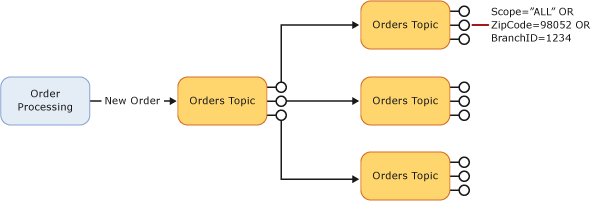
Scale out an individual topic
You can use autoforwarding to scale out an individual topic. Service Bus limits the number of subscriptions on a given topic to 2,000. You can accommodate more subscriptions by creating second-level topics. Even if you aren't bound by the Service Bus limitation on the number of subscriptions, adding a second level of topics can improve the overall throughput of your topic.
Decouple message senders from receivers
You can also use autoforwarding to decouple message senders from receivers. For example, consider an Enterprise Resource Planning (ERP) system that consists of three modules: order processing, inventory management, and customer relations management. Each of these modules generates messages that are enqueued into a corresponding topic. John Doe and Jane are sales representatives who are interested in all messages that relate to their customers. To receive those messages, John Doe and Jane Doe each create a personal queue and a subscription on each of the ERP topics that automatically forward all messages to their queue.
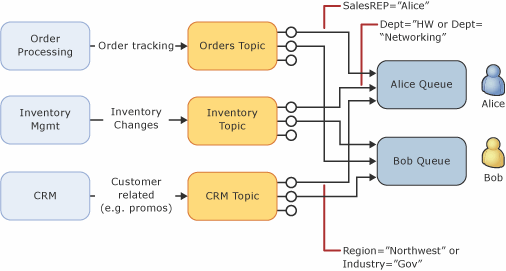
If Alice goes on vacation, her personal queue, rather than the ERP topic, fills up. In this scenario, because a sales representative hasn't received any messages, none of the ERP topics ever reach quota.
Note
When autoforwarding is setup, the value for AutoDeleteOnIdle on the source entity is automatically set to the maximum value of the data type.
- On the source side, autoforwarding acts as a receive operation, so the source that has autoforwarding enabled is never really "idle" and hence it won't be automatically deleted.
- Autoforwarding doesn't make any changes to the destination entity. If
AutoDeleteOnIdleis enabled on destination entity, the entity is automatically deleted if it's inactive for the specified idle interval. We recommend that you don't enableAutoDeleteOnIdleon the destination entity because if the destination entity is deleted, the source entity will continually see exceptions when trying to forward messages that destination.
Autoforwarding considerations
Warning
A principal with Azure resource management permissions to configure autoforwarding on a source queue or subscription can forward its messages to a destination where the principal has receive access, even if it doesn't have receive access on the source. The authorization requirements for configuring forwarding on the source and destination still apply.
Grant permissions to create or update queues and subscriptions only to principals trusted with their message contents. For applications that only send or receive messages, use the Azure Service Bus Data Sender or Azure Service Bus Data Receiver role instead of granting management permissions. Scope role assignments to the narrowest required entity scope, and review inherited role assignments. For more information, see Azure built-in roles for Azure Service Bus.
- Service Bus doesn't allow creating a message receiver on a source entity with autoforwarding enabled.
- If the destination entity accumulates too many messages and exceeds the quota, or the destination entity is disabled, the source entity adds the messages to its dead-letter queue until there's space in the destination (or the entity is re-enabled). Those messages continue to live in the dead-letter queue, so you must explicitly receive and process them from the dead-letter queue.
- When chaining together individual topics to obtain a composite topic with many subscriptions, it's recommended that you have a moderate number of subscriptions on the first-level topic and many subscriptions on the second-level topics. For example, a first-level topic with 20 subscriptions, each of them chained to a second-level topic with 200 subscriptions, allows for higher throughput than a first-level topic with 200 subscriptions, each chained to a second-level topic with 20 subscriptions.
- Service Bus bills one operation for each forwarded message. For example, sending a message to a topic with 20 subscriptions, each of them configured to autoforward messages to another queue or topic, is billed as 21 operations if all first-level subscriptions receive a copy of the message.
- To create a subscription that is chained to another queue or topic, the creator of the subscription must have Manage permissions on both the source and the destination entity. Sending messages to the source topic only requires Send permissions on the source topic.
- Don't create a chain that exceeds four hops. Messages that exceed four hops are dead-lettered. The hop count of a message is incremented when a message is autoforwarded from one queue or topic to another queue or topic. The hop count of a message can also be incremented in the send via scenario in which a message is sent via a transfer queue.
- A session-enabled queue or subscription can't be the source of autoforwarding: a single entity can't have both session support and autoforwarding enabled, so setting
ForwardToon a session-enabled queue or subscription fails. Autoforwarding into a session-enabled destination is supported, though. A forwarded message keeps its session ID, so the destination can be a session-enabled queue (or a topic that has session-enabled subscriptions). A forwarded message that has no session ID is dead-lettered on the source entity, because a session-enabled entity only accepts messages that have a session ID. - Source queue tries to forward messages to the destination entity in the same order it received, but the destination could be a topic that doesn't support ordering. If either the source or destination entity is a partitioned entity, order isn't guaranteed.
Autoforwarding and metrics
When a message is successfully auto-forwarded, it counts toward the Incoming Messages metric on the destination entity. The source entity's Outgoing Messages metric doesn't include auto-forwarded messages.
When an auto-forward attempt fails because the destination has sessions enabled or hits a transient error, Service Bus retries the send. Each retry that reaches the destination is counted in the destination's Incoming Messages metric, so one source message that retries can produce more than one entry in the destination's incoming count.
When the destination entity is deleted or disabled, the source dead-letters the message and no incoming count is recorded on the destination.
For the full list of Service Bus metrics, see Monitoring data reference.
Autoforwarding throughput and message size
Autoforwarding moves each message from the source entity to the destination entity. As with direct send and receive, message size affects how quickly messages move: smaller messages forward faster, so keep messages small where you can. For high-volume or large-payload workloads, plan capacity so the destination keeps pace with the source.
Keep the following points in mind as message size grows:
- Maximum message size differs by tier. Standard allows up to 256 KB. Premium allows up to 1 MB by default, or up to 100 MB with large message support over AMQP. Because Standard caps messages at 256 KB, large payloads mainly apply to Premium.
- Set the source entity's maximum size large enough to hold messages briefly while they forward. If the source fills to its size quota, Service Bus rejects new messages sent to it until forwarding frees up space, so size it to absorb your expected bursts.
Note
Autoforwarding doesn't change the maximum message size or any quota. It moves messages between entities that you already sized. Size the source entity and the destination for the throughput and message sizes your workload produces.
Recommendations
To keep autoforwarding fast with large or high-volume workloads:
- Keep forwarded messages as small as practical. Large messages take longer to send and receive, so they lower end-to-end forwarding throughput.
- Size the source entity's maximum size to absorb short bursts, so a temporary slowdown in forwarding doesn't immediately reach quota.
- Make sure the destination entity can receive as fast as the source forwards. A slow or backed-up destination limits how quickly the source drains, and if the destination fills to its quota or is disabled, the source dead-letters the messages it can't forward.
- On the Premium tier, allocate enough messaging units for the message sizes and rates your workload requires.
Troubleshoot slow autoforwarding
If messages take longer than expected to appear in the destination entity, work through the following checks:
| Symptom | Likely cause | What to check |
|---|---|---|
| Destination receives messages slowly and the source depth is rising | The source is forwarding slower than it receives | Compare the source entity's active message count over time with the destination's Incoming Messages metric. Check the average message size and whether the destination is keeping up. |
| The source entity reaches its quota and rejects new incoming messages | Messages accumulate in the source faster than they can be forwarded | Review the source's size against its size quota, then reduce message size or increase the source's maximum size. |
| Messages appear in the source's dead-letter queue | The source can't forward because the destination is full, disabled, or deleted | Confirm the destination exists, is enabled, and is below its quota, then process the source's dead-letter queue. |
| Forwarding is slow only for some entities | Large payloads or a backed-up destination on those specific chains | Check the message-size distribution and destination health for the affected entities. |
Common mitigations:
- Keep messages small. Large messages lower throughput and increase latency.
- Increase the source entity's maximum size to absorb bursts.
- Scale the destination's consumers so it drains as fast as the source forwards.
- On the Premium tier, add messaging units.
Tip
The destination's Incoming Messages metric counts successfully forwarded messages. Comparing it with the source entity's active message count over the same window shows whether forwarding is keeping up with incoming traffic. For the full list of metrics, see Monitoring data reference.
Related content
To learn how to enable or disable auto forwarding in different ways (Azure portal, PowerShell, CLI, Azure Resource Management template, etc.), see Enable auto forwarding for queues and subscriptions.