Note
Access to this page requires authorization. You can try signing in or changing directories.
Access to this page requires authorization. You can try changing directories.
Use a Microsoft Entra ID access token to authorize a REST request to Service Bus. This article shows how to request a token for an application's identity and send a message with Postman. For authentication options in an application, see Authenticate an application.
Prerequisites
- An Azure Service Bus namespace and a queue. To create them, follow Create a Service Bus queue.
- Permission to register an application in your Microsoft Entra ID tenant and assign an Azure role at the queue or namespace scope.
- The Postman desktop app.
This example uses Azure public cloud endpoints and a client secret for a manual test. For production applications hosted in Azure, prefer managed identity where available.
1. Register the application and grant send access
Register an application in Microsoft Entra ID. Record the Application (client) ID and Directory (tenant) ID.
For this test, create a client secret. Store the secret value securely; use the value, not the secret identifier.
Assign the Azure Service Bus Data Sender role to the application's service principal at the queue scope, or at the namespace scope if the application needs to send to multiple entities. Follow Assign Azure roles using the Azure portal.
Allow up to five minutes for the role assignment to propagate.
Important
Keep the client secret and access token private. Use local secret storage for this test and exclude these values from shared collections, source control, screenshots, and logs.
2. Request an access token in Postman
The OAuth 2.0 client credentials flow uses a POST request with a URL-encoded form body.
Create a request in Postman and select POST.
Enter
https://login.chinacloudapi.cn/<tenant-id>/oauth2/v2.0/token. Replace<tenant-id>with the application's directory tenant ID.On the Body tab, select x-www-form-urlencoded and enter these fields:
Key Value grant_typeclient_credentialsclient_idYour application client ID client_secretYour client secret value scopehttps://servicebus.azure.net/.defaultConfirm that the request has
Content-Type: application/x-www-form-urlencoded. Postman encodes the form values, including special characters in the secret.Select Send. A successful response contains an
access_tokenvalue. Use that value without the enclosing JSON quotes in the next request.
Request the token for https://servicebus.azure.net/.default, rather than for the individual namespace URL.
3. Send a message to the queue
Create another Postman request and select POST.
Enter
https://<namespace-name>.servicebus.chinacloudapi.cn/<queue-name>/messages. Replace the placeholders with your namespace and queue names, for examplehttps://your-namespace.servicebus.chinacloudapi.cn/orders/messages.On the Headers tab, add the following values:
Key Value AuthorizationBearer <access-token>Content-Typetext/plain; charset=utf-8On the Body tab, select raw and enter
This is a message..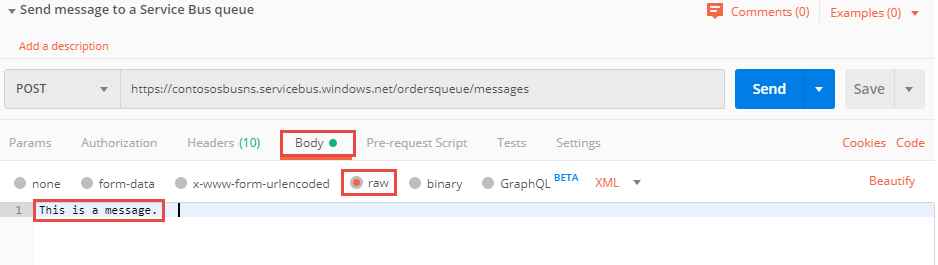
Select Send. A successful Send message request returns
201 Created.
The equivalent HTTP request has the following shape:
POST https://your-namespace.servicebus.chinacloudapi.cn/orders/messages HTTP/1.1
Authorization: Bearer <access-token>
Content-Type: text/plain; charset=utf-8

This is a message.
Verify the result
In the Azure portal, open the queue and use Service Bus Explorer to peek at the message body. Peeking inspects the message without removing it. If another consumer is running, it might receive the message before you inspect it.
If the send request returns 401 Unauthorized, check the token's audience and expiration, the Bearer header, and the application's role assignment and scope. Obtain a new token after the current token expires. If the token request itself fails, inspect the Microsoft identity platform error response and verify the tenant ID, client ID, secret value, and form encoding.
After the test, remove the test client secret and any role assignment or application registration you created solely for this walkthrough.