Note
Access to this page requires authorization. You can try signing in or changing directories.
Access to this page requires authorization. You can try changing directories.
To support the experience of viewing impacted resources, Service Health provides features that:
- Display resources impacted by Health Advisory events.
- Through the Service Health portal, provide information about impacted resources for Health Advisory events.
This article explains what communication is available to users, and where they can view information about their impacted resources.
Note
The Impacted Resources tab for Health Advisory events displays information for a subset of active services and features.
View impacted resources for Health Advisory events in the Service Health portal
In the Azure portal, the Impacted Resources tab in the Health advisories panel shows the resources affected by a Health Advisory event. The following example shows how the tab highlights a Health Advisory scenario with impacted resources.
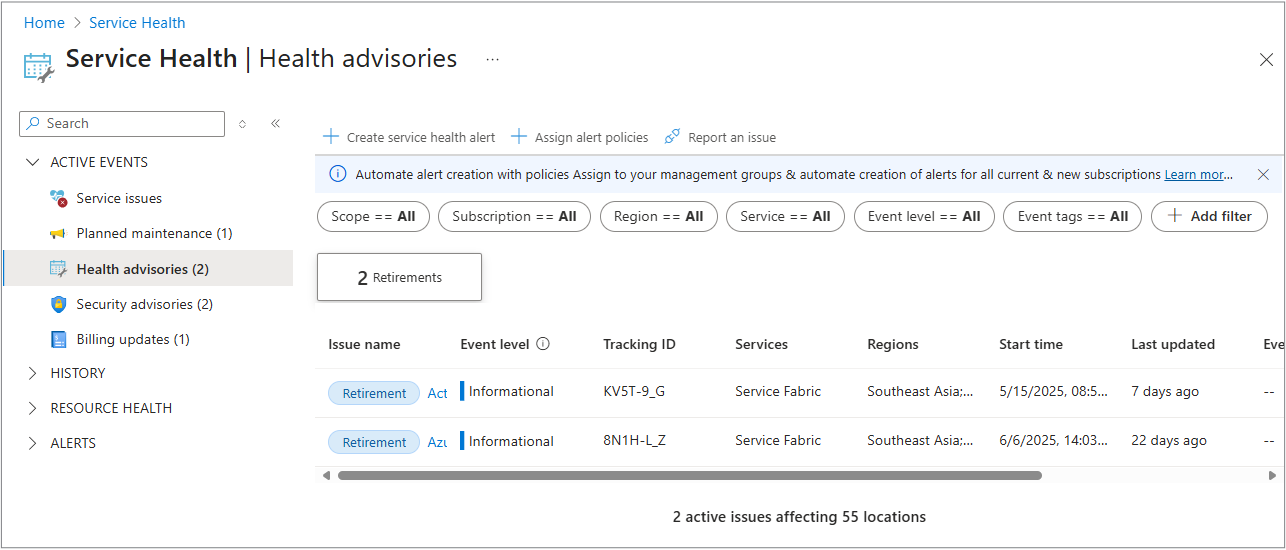
The Impacted Resources tab displays the affected resources.
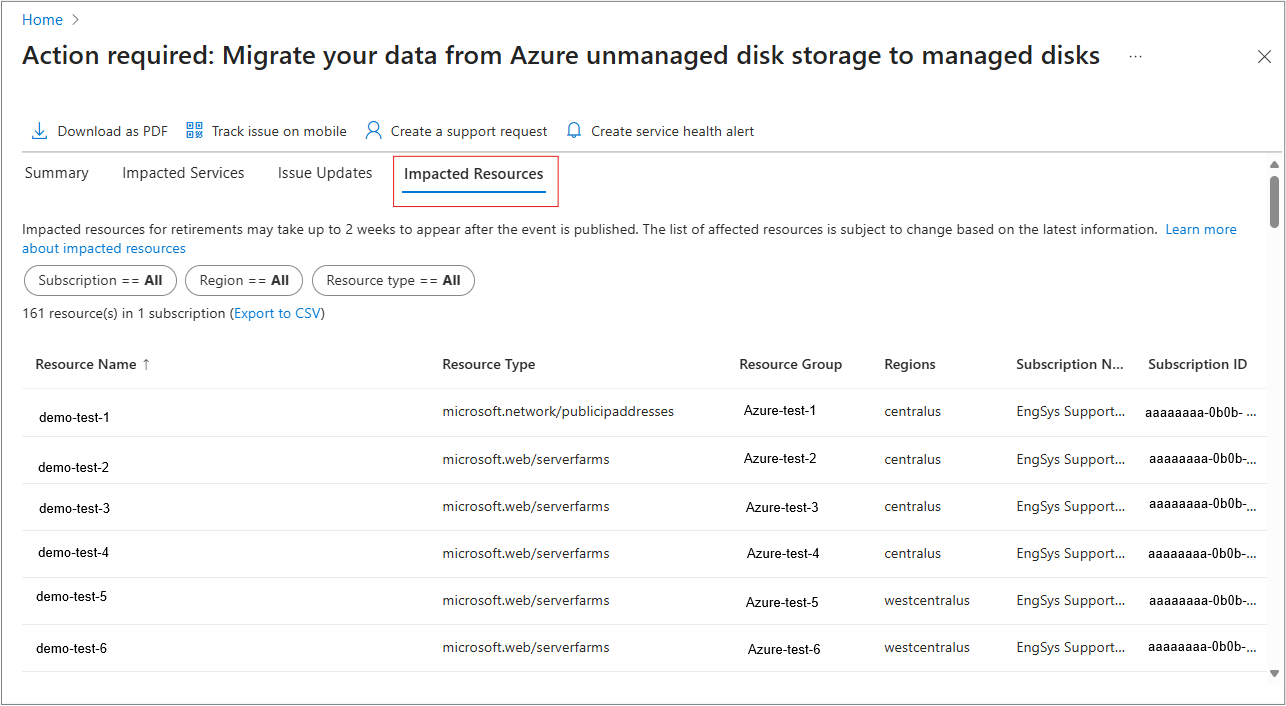
Service Health provides the following information on resources impacted by a Health Advisory event.
| Field | Description |
|---|---|
| Resource Name | The name of the resource impacted by the event. |
| Resource Type | The type of resource impacted by the event. |
| Resource Group | The resource group that contains the impacted resource. |
| Region | The region where the impacted resource is located. |
| Subscription ID | The unique ID for the subscription that contains the impacted resource. |
| Subscription name | The name of the subscription that contains the impacted resource. |
Filter the results
Filter the results by:
- Region
- Subscription ID
- Resource Type

Export to a CSV file
Select Export to CSV to export the list of impacted resources to an Excel file.
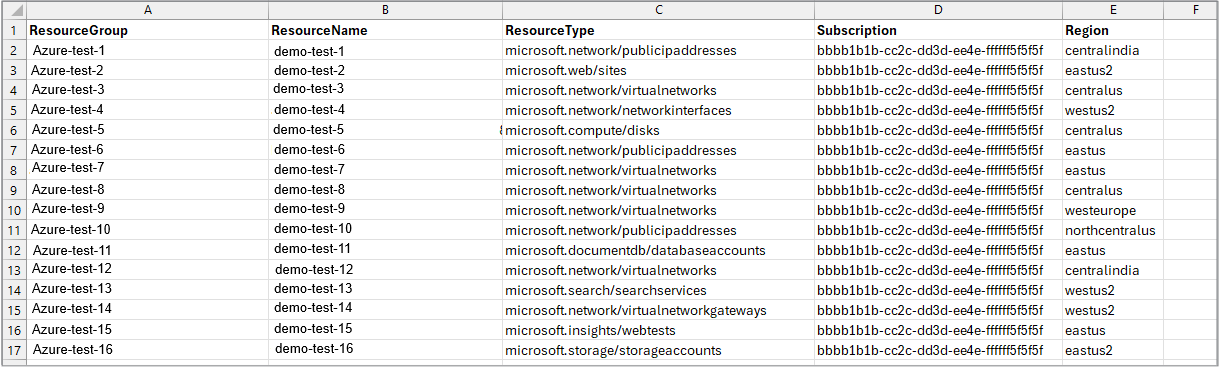
The CSV file contains the following fields:
| Column property | Description |
|---|---|
| ResourceGroup | The name of the resource group. |
| ResourceName | The name of the impacted resource. |
| ResourceType | The type of resource impacted. |
| Subscription | The SubscriptionIds that are in the scope of the published event. |
| Region | The location where the affected resources are located. |
Access impacted resources programmatically
Follow these steps to get information about resources impacted by Health Advisory events.
Step 1. Query impacted resources
For all Health Advisory events such as retirements, action required, and informational, use this sample query.
servicehealthresources
| where type =~ "microsoft.resourcehealth/events/impactedresources"
| where id contains "{0}"
| extend resourceId = tolower(tostring(properties.targetResourceId))
| extend resourceName = tostring(properties.resourceName)
| extend resourceType = tostring(properties.targetResourceType)
| extend region = tostring(properties.targetRegion)
| extend resourceGroup = tostring(properties.resourceGroup)
| project resourceId, resourceName, resourceType, region, resourceGroup, subscriptionId
For tenant-scoped events, use the Impacted Resources - List By Tenant Id And Event Id REST API instead.
Step 2. Use API + ARG Query (retirement events only)
If Step 1 returns no data and the event type is retirement, use the event's tracking ID to retrieve the ID from the Recommendation Metadata API, then use it to query advisorresources. For more information, see Recommendation Metadata - List - REST API.
GET https://management.chinacloudapi.cn/providers/Microsoft.Advisor/metadata?api-version={apiVersion}&$filter={$filter}
URI Parameters
| Name | In | Required | Type | Description |
|---|---|---|---|---|
| api-version | query | True | string | The version of the API to use with the client request. Example: 2025-01-01 |
| $filter | query | string | Example:$filter=trackingIds/any(t: t eq '<TrackingId>') |
Sample response
Recommendation metadata returned for a retirement tracking ID
{
    "value": [
        {
            "properties": {
                "displayName": "Recommendation Type",
                "dependsOn": [
                    "recommendationCategory",
                    "recommendationImpact",
                    "supportedResourceType"
                ],
                "applicableScenarios": [
                    "Alerts"
                ],
                "supportedValues": [
                    {
                        "recommendationCategory": "HighAvailability",
                        "recommendationDataSourceQuery": "resources | where type =~ 'Microsoft.Network/loadBalancers' | where sku.name == 'Basic' | project id, subscriptionId",
                        "recommendationImpact": "Medium",
                        "supportedResourceType": "microsoft.network/loadbalancers",
                        "recommendationSubCategory": "ServiceUpgradeAndRetirement",
                        "id": "aaaa0a0a-bb1b-cc2c-dd3d-eeeeee4e4e4e",
                        "displayName": "Azure Basic Load Balancer is being retired",
                        "properties": [
                            {
                                "name": "recommendationCategory",
                                "value": "HighAvailability"
                            },
                            {
                                "name": "recommendationImpact",
                                "value": "Medium"
                            },
                            {
                                "name": "supportedResourceType",
                                "value": "microsoft.network/loadbalancers"
                            }
                        ],
                        "recommendationControl": "ServiceUpgradeAndRetirement",
                        "sourceProperties": {
                            "serviceRetirement": {
                                "retirementDate": "2025-09-30",
                                "retirementFeatureName": "Basic Load Balancer",
                                "serviceHealth": {
                                    "trackingIds": [
                                        "TEST-123"
                                    ]
                                }
                            }
                        },
                        "_rid": "",
                        "_self": "",
                        "_etag": "",
                        "_attachments": "attachments/",
                        "_ts": 1750000000
                    }
                ]
            },
            "id": "/providers/Microsoft.Advisor/metadata/recommendationType",
            "type": "Microsoft.Advisor/metadata",
            "name": "recommendationType"
        },
        {
            "properties": {
                "displayName": "Category",
                "applicableScenarios": [
                    "Alerts"
                ],
                "supportedValues": [
                    {
                        "id": "HighAvailability",
                        "displayName": "High Availability"
                    }
                ]
            },
            "id": "/providers/Microsoft.Advisor/metadata/recommendationCategory",
            "type": "Microsoft.Advisor/metadata",
            "name": "recommendationCategory"
        },
        {
            "properties": {
                "displayName": "Impact",
                "applicableScenarios": [
                    "Alerts"
                ],
                "supportedValues": [
                    {
                        "id": "Medium",
                        "displayName": "Medium"
                    }
                ]
            },
            "id": "/providers/Microsoft.Advisor/metadata/recommendationImpact",
            "type": "Microsoft.Advisor/metadata",
            "name": "recommendationImpact"
        },
        {
            "properties": {
                "displayName": "Supported Resource Type",
                "supportedValues": [
                    {
                        "id": "microsoft.network/loadbalancers",
                        "displayName": "Load balancer"
                    }
                ]
            },
            "id": "/providers/Microsoft.Advisor/metadata/supportedResourceType",
            "type": "Microsoft.Advisor/metadata",
            "name": "supportedResourceType"
        },
        {
            "properties": {
                "displayName": "Level",
                "applicableScenarios": [
                    "Alerts"
                ],
                "supportedValues": [
                    {
                        "id": "Informational",
                        "displayName": "Informational"
                    }
                ]
            },
            "id": "/providers/Microsoft.Advisor/metadata/level",
            "type": "Microsoft.Advisor/metadata",
            "name": "level"
        },
        {
            "properties": {
                "displayName": "Status",
                "applicableScenarios": [
                    "Alerts"
                ],
                "supportedValues": [
                    {
                        "id": "Active",
                        "displayName": "Active"
                    }
                ]
            },
            "id": "/providers/Microsoft.Advisor/metadata/status",
            "type": "Microsoft.Advisor/metadata",
            "name": "status"
        },
        {
            "properties": {
                "displayName": "Initiated By",
                "applicableScenarios": [
                    "Alerts"
                ],
                "supportedValues": [
                    {
                        "id": "Microsoft.Advisor",
                        "displayName": "Microsoft.Advisor"
                    }
                ]
            },
            "id": "/providers/Microsoft.Advisor/metadata/caller",
            "type": "Microsoft.Advisor/metadata",
            "name": "caller"
        }
    ]
}
Use the ID to fetch impacted resources from Azure Resource Graph (ARG).
advisorresources
| where type == "microsoft.advisor/recommendations"
// Use the ID fetched from the Recommendation Metadata API
| where properties.recommendationTypeId == "<RecommendationTypeId>"
| extend resourceId = tolower(properties.resourceMetadata.resourceId)
| project resourceId
| join kind=inner (
    resources
    | extend region = location, resourceId = tolower(id), resourceName = name, resourceGroup = resourceGroup, subscriptionId, resourceType = type
) on resourceId
| project region = location, resourceId = tolower(id), resourceName = name, resourceGroup = resourceGroup, subscriptionId, resourceType = type
Frequently Asked Questions
| Question | Answer |
|---|---|
| Are the impacted resources only available for active Health Advisory events? | Yes, the Azure portal supports impacted resources for active Health Advisory events, including retirements, action required, and informational events. |
| When do impacted resources appear after an event is published? | Impacted resources might take up to two weeks to appear after a Health Advisory event is published. The list of affected resources can also change as new information becomes available. |