Note
Access to this page requires authorization. You can try signing in or changing directories.
Access to this page requires authorization. You can try changing directories.
The Health Alerts panel in Azure Service Health helps you view and manage alerts about service problems, planned maintenance, health advisories, and security advisories. These alerts notify you about events that could affect your resources.
It shows only the alerts that you create based on the criteria you configured, such as subscription, services, regions, and event types. Health alerts are tied to your alert rules, not to all events occurring in Azure.
For information about how to create Service Health alerts, see How to create Service Health alerts.
Service Health alert notifications
You’re notified when Azure sends relevant Service Health notifications to your subscription or tenant directory. The alerts must be configured using the Service Health interface, including selecting subscriptions, services, and regions.
Get started with Health alerts
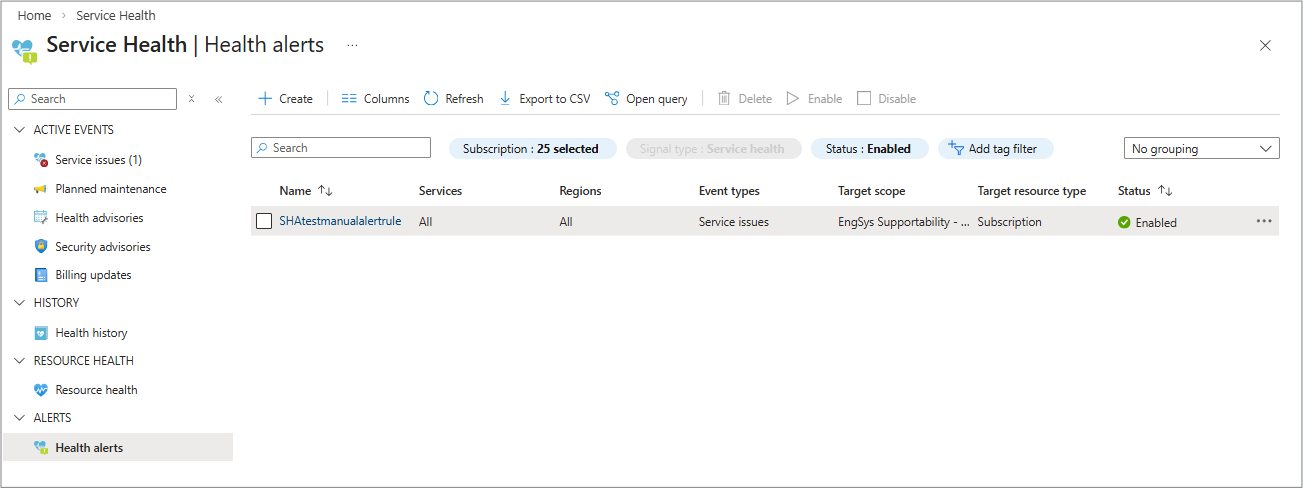 When you open the health alerts panel, it displays a list of all the alerts you created for:
- Service issues
- Planned maintenance
- Health advisories
- Security advisories
Filtering and sorting
At the top of each tab, there's a command bar with several options of how to view the information displayed.
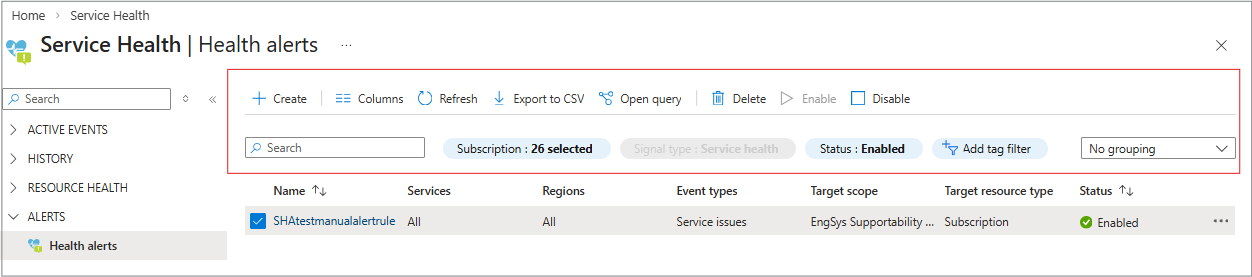
- Create a new alert
- Select the columns you want to see on this page
- Refresh the screen
- Export to a CSV file
- Open a query to start Azure Graph Explorer and run a query
You can also:
- Tag by subscription or status
- Add a filter
- Group by subscription or status
View the alert details
Select the name of the alert to open a new panel that displays the details of the alert and all the information that's collected.
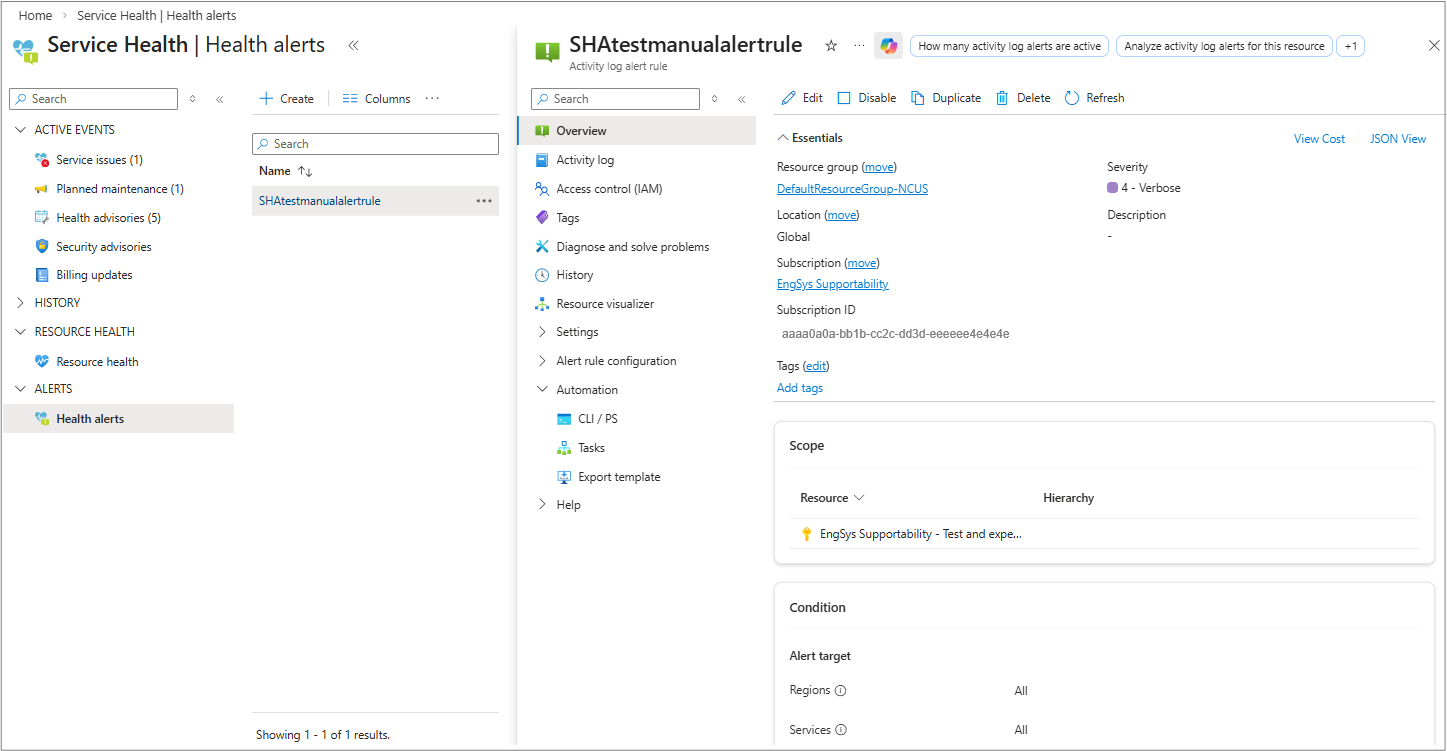
The Overview panel displays the basic information in the alert that you set up when you created the Health alert.
There's an option on this panel to show information about the JSON View.
JSON View opens the raw JSON payload of the Service Health alert. This JSON is the same structure used by:
- Resource ID, subscription, region
- Health status and status change timestamps
- Reason codes / cause category
- Platform‑initiated vs. user‑initiated actions
- Correlated event IDs
- Metadata used by automation tools (for example, Action Groups, Logic Apps, Functions)
- Full activityLog.properties as not all fields are shown in the UI
Activity log
Select Activity log to open the panel showing information from the Activity log located in Azure Monitor.
Note
This panel isn't exclusive to Service Health alerts. It's part of the general Activity Log alert experience that includes both Resource Health and Service Health alerts.
For more information about the Activity log, see Azure Monitor data sources and data collection.
Access control (IAM)
Select Access Control (IAM) to open the panel that shows what access you have, and also where you can assign role access. For more information, see Check access for a user.
Tags
Select Tags to open the panel with an option to select tags by Name and Value.
For more information, see Use tags to organize your resources.
Diagnose and solve problems
Select Diagnose and solve problems to open the panel showing what options for diagnosing what the issue is on this alert.
History
Select History to open the panel showing any available history for this issue. You can filter by a time range if you need it.
Resource visualizer
Select Resource visualizer to open the panel to see the position of the resource in the hierarchy (subscription > resource group > resource). This view helps you understand relationships or dependencies when you're troubleshooting a Service Health or Resource Health alert.