Note
Access to this page requires authorization. You can try signing in or changing directories.
Access to this page requires authorization. You can try changing directories.
This article describes how to monitor the Site Recovery process server.
- Use the process server when you set up disaster recovery for on-premises VMware VMs and physical servers to Azure.
- By default, the process server runs on the configuration server. It's installed by default when you deploy the configuration server.
- To scale and handle larger numbers of replicated machines and higher volumes of replication traffic, you can deploy additional, scale-out process servers.
Learn more about the role and deployment of process servers.
Monitoring overview
Since the process server has many roles, particularly in replicated data caching, compression, and transfer to Azure, it's important to monitor process server health on an ongoing basis.
Several situations commonly affect process server performance. Issues that affect performance have a cascading effect on VM health, and eventually push both the process server and its replicated machines into a critical state. These situations include:
- High numbers of VMs use a process server, and the number approaches or exceeds recommended limitations.
- VMs that use the process server have a high churn rate.
- Network throughput between VMs and the process server isn't enough to upload replication data to the process server.
- Network throughput between the process server and Azure isn't sufficient to upload replication data from the process server to Azure.
All of these issues can affect the recovery point objective (RPO) of VMs.
Why? Because generating a recovery point for a VM requires all disks on the VM to have a common point. If one disk has a high churn rate, replication is slow, or the process server isn't optimal, it impacts how efficiently recovery points are created.
Monitor proactively
To avoid issues with the process server, make sure to:
- Understand the specific requirements for process servers by using capacity and sizing guidance. Deploy and run process servers according to these recommendations.
- Monitor alerts and troubleshoot issues as they occur to keep process servers running efficiently.
Process server alerts
The process server generates several health alerts, which the following table summarizes.
| Alert type | Details |
|---|---|
 |
Process server is connected and healthy. |
 |
CPU utilization is greater than 80% for the last 15 minutes. |
|
Memory usage is greater than 80% for the last 15 minutes. |
|
Cache folder free space is less than 30% for the last 15 minutes. |
|
Site Recovery monitors pending and outgoing data every five minutes, and estimates that data in the process server cache can't be uploaded to Azure within 30 minutes. |
|
Process server services aren't running for the last 15 minutes. |
 |
CPU utilization is greater than 95% for the last 15 minutes. |
|
Memory usage is greater than 95% for the last 15 minutes. |
|
Cache folder free space is less than 25% for the last 15 minutes. |
|
Site Recovery monitors pending and outgoing data every five minutes, and estimates that data in the process server cache can't be uploaded to Azure within 45 minutes. |
|
No heartbeat from the process server for 15 minutes. |

Note
The overall health status of the process server is based on the worst alert generated.
Monitor process server health
You can monitor the health state of your process servers as follows:
To monitor the replication health and status of a replicated machine, and of its process server, in vault > Replicated items, select the machine you want to monitor.
In Replication Health, monitor the VM health status. Select the status to view error details.
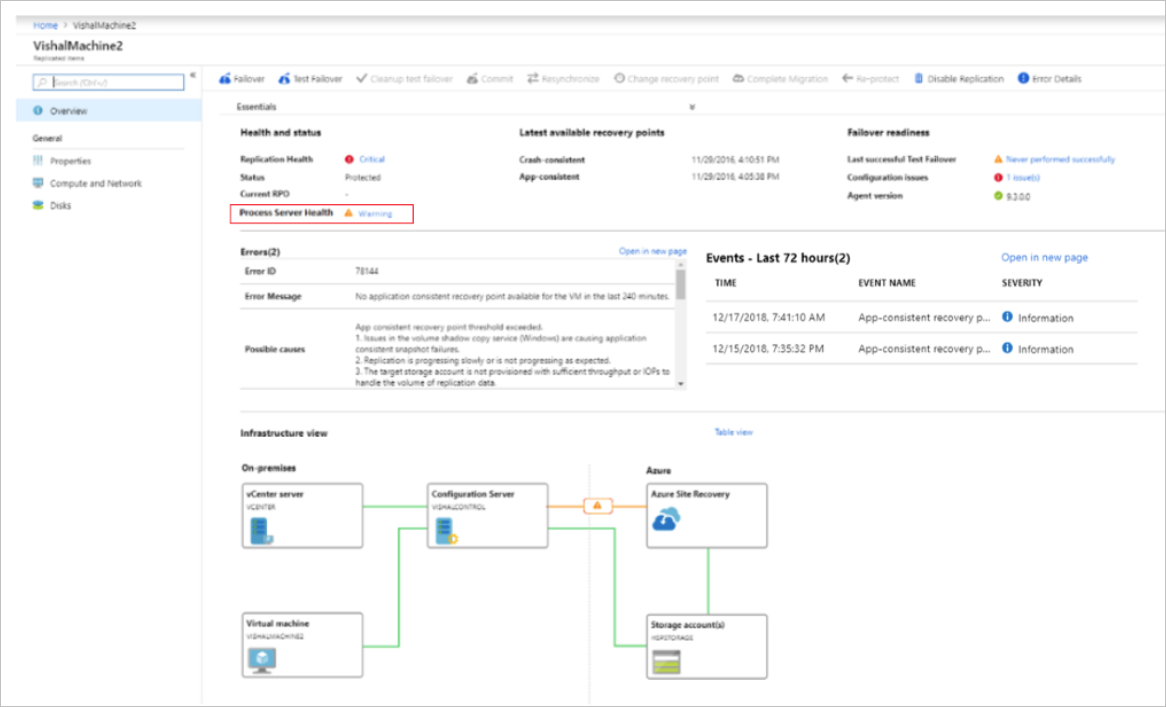
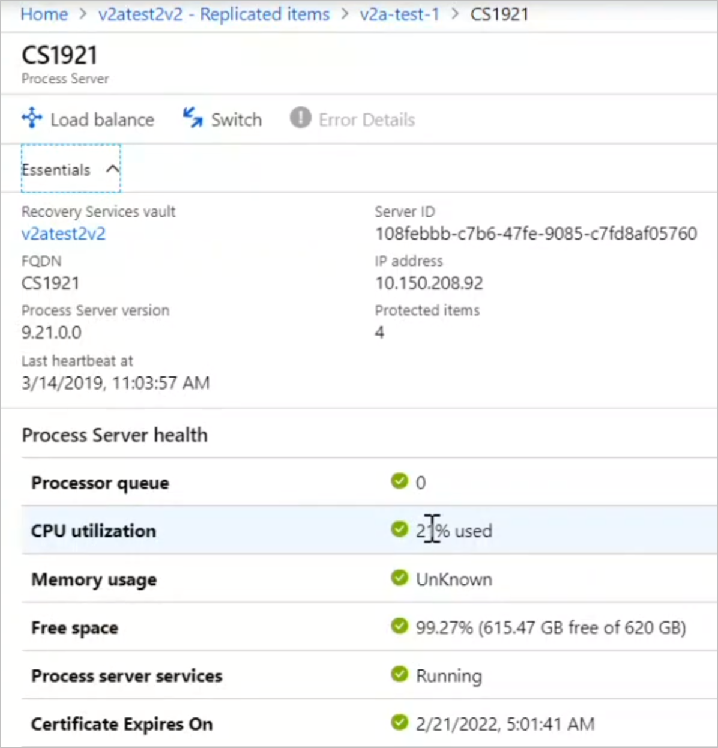
In Process Server Health, monitor the status of the process server. Select it for more details.
You can also monitor health by using the graphical representation on the VM page.
- A scale-out process server appears in orange if there are warnings associated with it, and red if it has any critical problems.
- If the process server runs in the default deployment on the configuration server, the portal highlights the configuration server accordingly.
- To view more details, select the configuration server or process server. Note any issues, and any remediation recommendations.
You can also monitor process servers in the vault under Site Recovery Infrastructure. In Manage your Site Recovery infrastructure, select Configuration Servers. Select the configuration server associated with the process server, and view process server details.
Next steps
- If you encounter any process server issues, follow the troubleshooting guidance.
- If you need more help, post your question in the Microsoft Q&A question page for Azure Site Recovery.