Note
Access to this page requires authorization. You can try signing in or changing directories.
Access to this page requires authorization. You can try changing directories.
In Azure Site Recovery, an on-premises replication appliance handles disaster recovery for VMware virtual machines. This appliance coordinates communication between your on-premises VMware setup and Azure, ensuring smooth data replication and recovery.
This article describes how to troubleshoot a replication appliance health issue.
Before you start
Before you start troubleshooting, make sure that you:
- Understand how to deploy Azure Site Recovery replication appliance - Modernized.
- Review the support requirements for Azure Site Recovery replication appliance.
Troubleshoot process
If you see the following error in the appliance health status:
Troubleshoot certificate renewal
This article describes how to troubleshoot replication appliance health issues in Azure Site Recovery for the following critical replication appliance issues:
| Issue | Error ID |
|---|---|
| Process Server | 549009 |
| Proxy server | 549003 |
| Replication service | 549005 |
| Recovery services agent | 549011 |
| Site Recovery provider | 305 |
| Reprotection server | 549007 |
To troubleshoot these issues, follow these steps:
- Go to the replication appliance and sign in.
- Open the Microsoft Appliance configuration manager and upgrade all the appliance components to the latest version. Find the latest versions here and follow the upgrade steps here.
- Go to the Certificate renewal section and select Renew certificate. This action starts the certificate renewal process. Wait for it to finish.
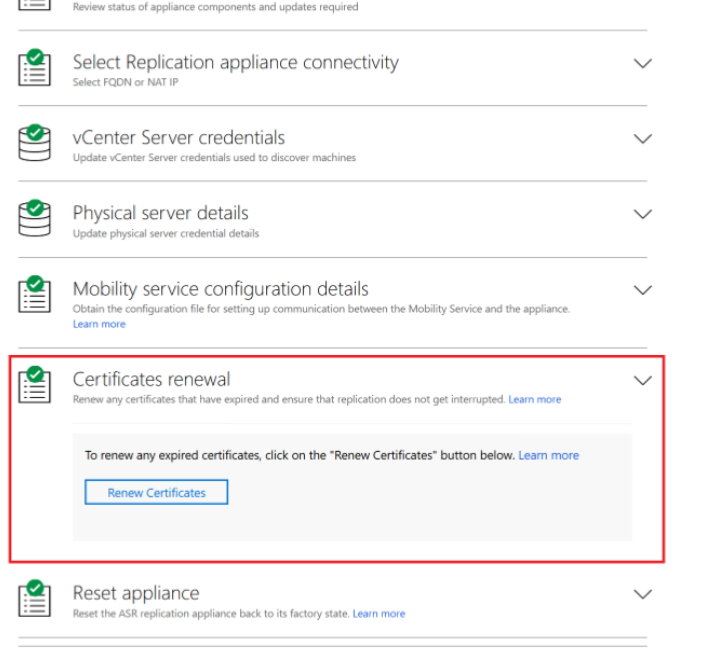
Troubleshoot other errors
If you see the following error for your web app in replication appliance:

Follow these steps:
- Open PowerShell.
- Enter
cd "C:\Program Files\Azure Appliance Configuration Manager\Scripts\PowerShell". - Enter
.\WebBinding.ps1to complete the process.
Next steps
If you're still facing issues, contact Microsoft Support for further assistance.