Note
Access to this page requires authorization. You can try signing in or changing directories.
Access to this page requires authorization. You can try changing directories.
Note
The Basic and Standard plans entered a retirement period on March 17, 2025. For more information, see the Azure Spring Apps retirement announcement.
Azure Spring Apps supports Spring applications on Azure. Increasing business can require multiple data centers with management of multiple instances of Azure Spring Apps.
Azure already provides different load-balance solutions. There are three common options to integrate Azure Spring Apps with Azure load-balance solutions:
- Integrate Azure Spring Apps with Azure Traffic Manager
- Integrate Azure Spring Apps with Azure App Gateway
In the examples below, we will load balance requests for a custom domain of www.contoso.com towards two deployments of Azure Spring Apps in two different regions: chinaeast2.microservices.azure.cn and chinanorth2.microservices.azure.cn.
We recommend that the domain name, as seen by the browser, is the same as the host name which the load balancer uses to direct traffic to the Azure Spring Apps back end. This recommendation provides the best experience when using a load balancer to expose applications hosted in Azure Spring Apps. If the domain exposed by the load balancer is different from the domain accepted by Azure Spring Apps, cookies and generated redirect URLs (for example) can be broken. For more information, see Host name preservation.
Prerequisites
- A custom domain to be used to access the application: Tutorial: Map an existing custom domain to Azure Spring Apps
- Azure Spring Apps: How to create an Azure Spring Apps service
- Azure Traffic Manager: How to create a traffic manager
- Azure App Gateway: How to create an application gateway
Integrate Azure Spring Apps with Azure Traffic Manager
To integrate Azure Spring Apps with Traffic Manager, add its public endpoints as traffic manager's endpoints and then configure custom domain for both traffic manager and Azure Spring Apps.
Add Endpoint in Traffic Manager
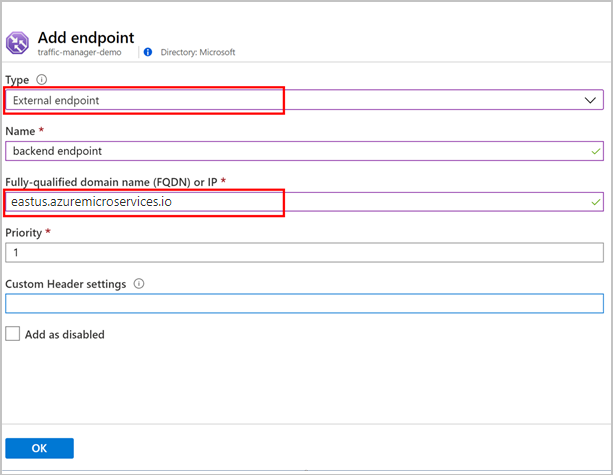
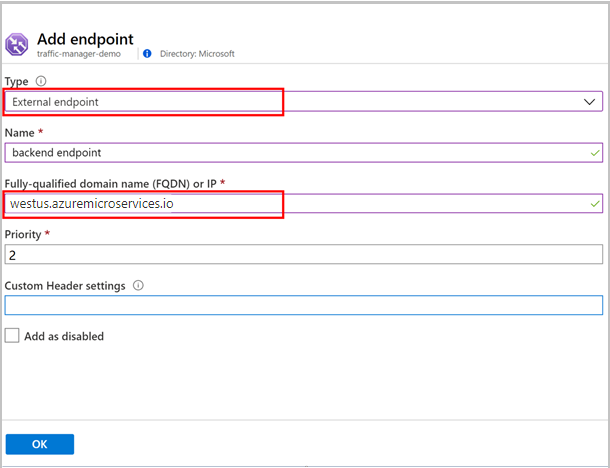
Add endpoints in traffic manager:
Specify Type to be External endpoint.
Input fully qualified domain name (FQDN) of each Azure Spring Apps public endpoint.
Select OK.
Configure Custom Domain
To finish the configuration:
- Sign in to the website of your domain provider, and create a CNAME record mapping from your custom domain to traffic manager's Azure default domain name.
Integrate Azure Spring Apps with Azure App Gateway
To integrate with Azure Spring Apps service, complete the following configurations:
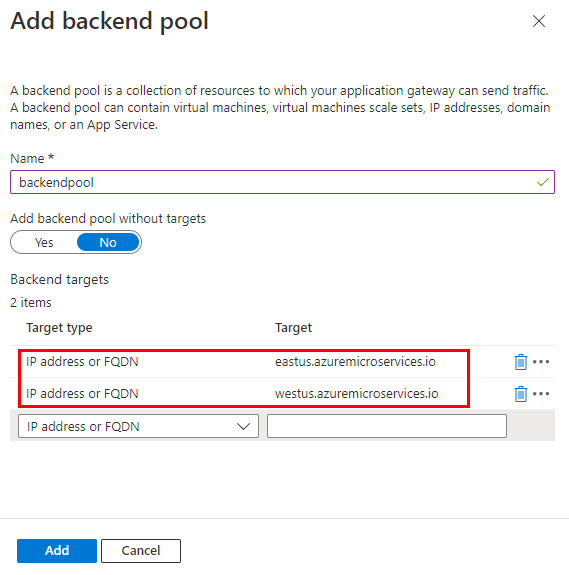
Configure Backend Pool
Specify Target type as IP address or FQDN.
Enter your Azure Spring Apps public endpoints.
Add Custom Probe
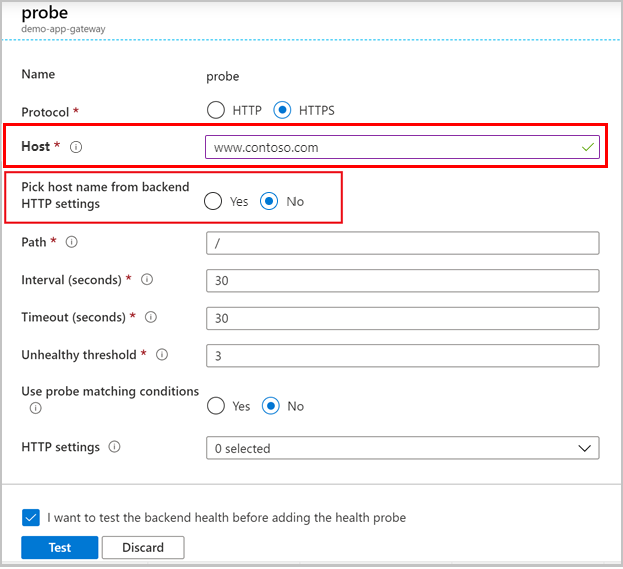
Select Health Probes then Add to open custom Probe dialog.
The key point is to select No for Pick host name from backend HTTP settings option and explicitly specify the host name. For more information, see Application Gateway configuration for host name preservation.
Configure Backend Setting
Select Backend settings then Add to add a backend setting.
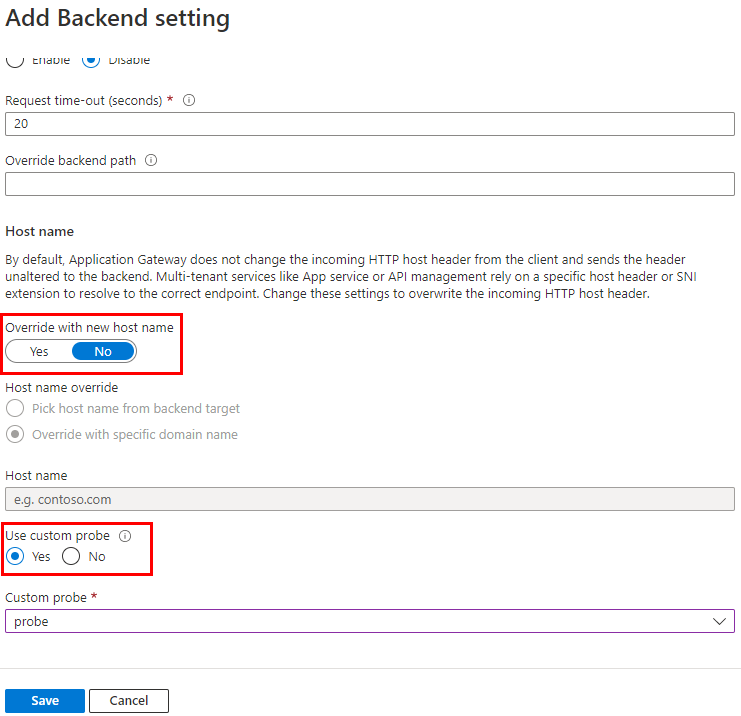
Override with new host name: select No.
Use custom probe: select Yes and pick the custom probe created above.