Note
Access to this page requires authorization. You can try signing in or changing directories.
Access to this page requires authorization. You can try changing directories.
This article shows you how to use Azure portal to manage the access control list (ACL) of a directory or blob in storage accounts that have the hierarchical namespace feature enabled.
For information about the structure of the ACL, see Access control lists (ACLs) in Azure Data Lake Storage.
To learn about how to use ACLs and Azure roles together, see Access control model in Azure Data Lake Storage.
Prerequisites
An Azure subscription. See Get Azure trial.
A storage account that has the hierarchical namespace feature enabled. Follow these instructions to create one.
You must have one of the following security permissions:
Your user identity is assigned the Storage Blob Data Owner role in the scope of either the target container, storage account, parent resource group, or subscription.
You're the owning user of the target container, directory, or blob to which you plan to apply ACL settings.
Set access permissions
Use these steps to grant a user or group access to a specific directory.
Sign in to the Azure portal.
Locate your storage account and display the account overview.
Under Data storage, select Containers.
The containers in the storage account appear.
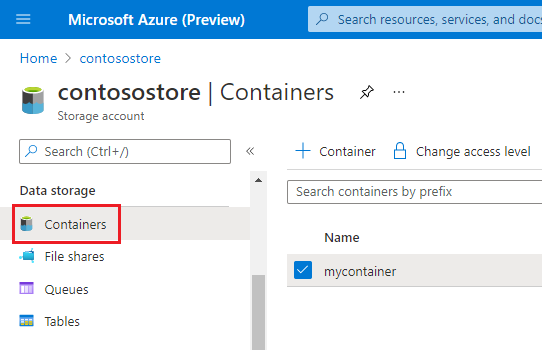
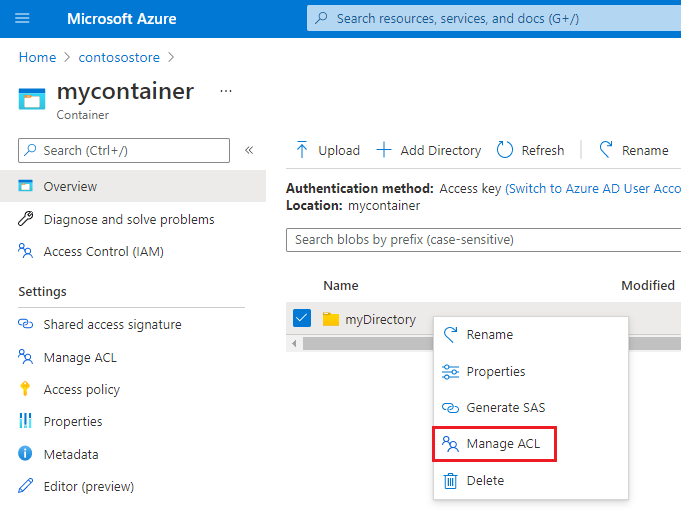
Go to any container, directory, or blob. Right-click the object, and then select Manage ACL.
The Access permissions tab of the Manage ACL page appears. Use the controls in this tab to manage access to the object.
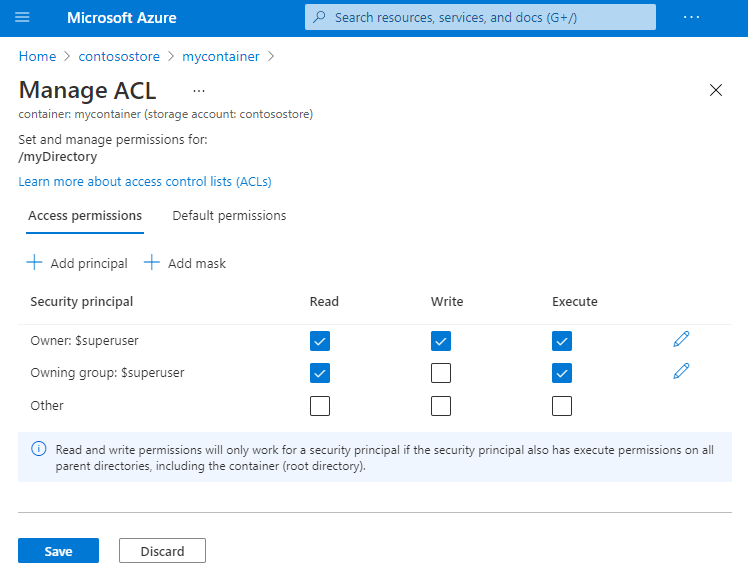
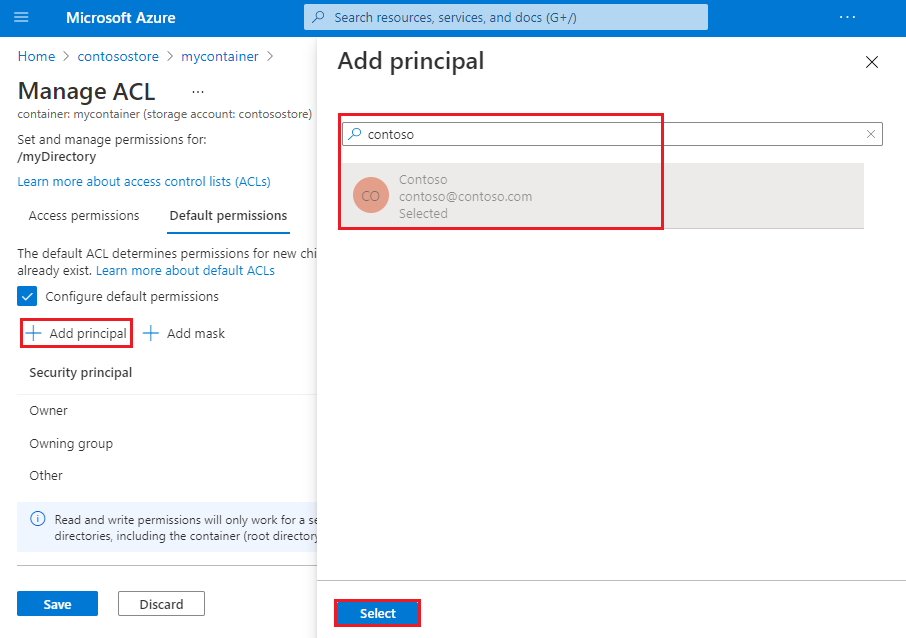
To add a security principal to the ACL, select the Add principal button.
Tip
A security principal is an object that represents a user, group, service principal, or managed identity defined in Microsoft Entra ID.
Find the security principal by using the search box, and then select the Select button.
Note
Create a security group in Microsoft Entra ID, and maintain permissions on the group rather than for individual users. For details on this recommendation, as well as other best practices, see Access control model in Azure Data Lake Storage.
The security principal appears in the access control list with the permissions you assigned.
Set default permissions
A default ACL is a template that determines the access permissions for child items created under a directory. Blobs don't have default ACLs.
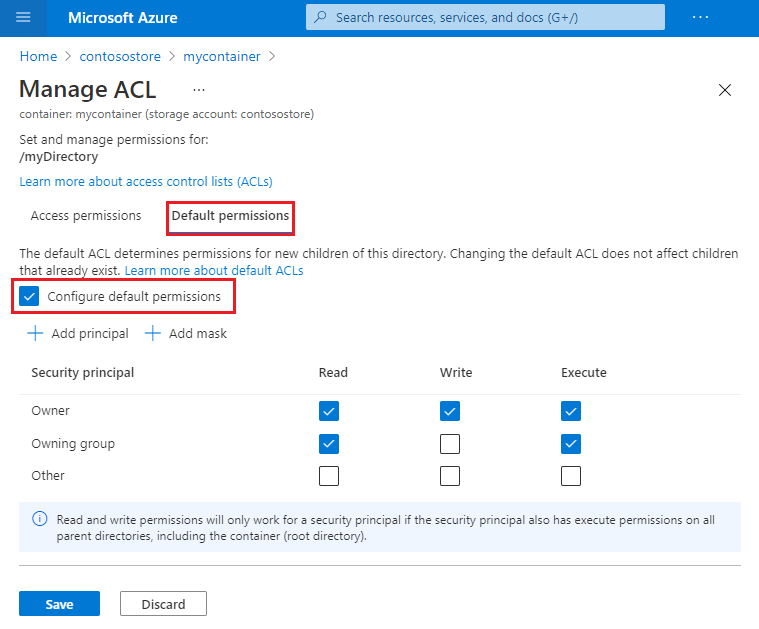
To set default permissions on a directory, go to the directory in your storage account, right-click it, select Manage ACL, and then:
Select the default permissions tab, and then select the Configure default permissions checkbox.
Tip
A blob doesn't have a default ACL, so this tab appears only for directories.
Apply ACL entries recursively
You can apply ACL entries recursively on the existing child items of a parent directory without making these changes individually for each child item. However, you can't apply ACL entries recursively by using the Azure portal because the portal applies ACL entries to a single object at a time.
To apply ACLs recursively, use Azure Storage Explorer, PowerShell, or the Azure CLI. If you prefer to write code, you can also use the .NET, Java, Python, or Node.js APIs.
For the complete list of guides, see How to set ACLs.
Next steps
Learn about the Data Lake Storage permission model.