Note
Access to this page requires authorization. You can try signing in or changing directories.
Access to this page requires authorization. You can try changing directories.
This article explains how to use managed identity with Azure Compute Gallery to securely publish Azure VM applications using blob URLs, eliminating the need for SAS URLs or publicly accessible storage accounts.
Overview
Deploying applications through Azure VM applications requires you to upload the application package to a storage account and provide a URL to the blob. Azure Compute Gallery uses this URL to access the blob and publish it as a VM application version.
Without managed identity, you have two options to provide blob access:
- Blob URL - Requires the storage account to enable anonymous access.
- SAS URL - The SAS token is stored as plain text in the application version resource, and you must manage token expiration and regeneration.
Both approaches are insecure as blob URLs expose your storage account to the public internet, and SAS URLs, which are secrets must be stored in plain text.
Managed identity for Azure Compute Gallery
A managed identity is a security feature that lets an Azure service prove its identity to other Azure services without storing passwords, keys, or tokens in your code or configuration. Instead of you managing credentials, Microsoft Entra ID handles authentication automatically.
By attaching a user-assigned managed identity to your Azure Compute Gallery, you give the gallery permission to access blobs in your storage account on your behalf. The gallery presents this identity when it needs to read your application package, and Microsoft Entra ID verifies the identity and grants access. Because Azure Compute Gallery is a trusted Microsoft service, this access works even when the storage account is behind a virtual network.
This approach enables you to:
- Restrict storage account access to specific virtual networks.
- Disable shared key access on the storage account and use plain blob URLs.
- Ensure access credentials like SAS URLs aren't stored as plain text.
How it works
At a high level, the authentication and access flow work as follows:
- You upload your application package to a blob in your storage account.
- You create a user-assigned managed identity and grant it the Storage Blob Data Contributor role on the storage account.
- You attach the managed identity to your Azure Compute Gallery.
- When you publish a VM application version, you provide a plain blob URL instead of a SAS URL.
- Azure Compute Gallery attempts to access the blob using the blob URL directly.
- Microsoft Entra ID verifies the identity and grants the gallery access to the blob.
Prerequisites
- An Azure Compute Gallery
- A storage account with your VM application package uploaded to a blob container.
Step 1: Create a user-assigned managed identity
Create a user-assigned managed identity that Azure Compute Gallery uses to authenticate with your storage account.
For detailed steps, see Create a user-assigned managed identity.
Step 2: Assign storage access permission to the identity
Assign the Storage Blob Data Contributor role to the managed identity so it can access the application package in your storage account.
For detailed steps, see Assign Azure roles using the Azure portal. When assigning the role:
- Select Storage Blob Data Contributor as the role.
- Assign access to Managed identity.
- Select the user-assigned managed identity you created in the previous step.
Step 3: Attach managed identity to Azure Compute Gallery
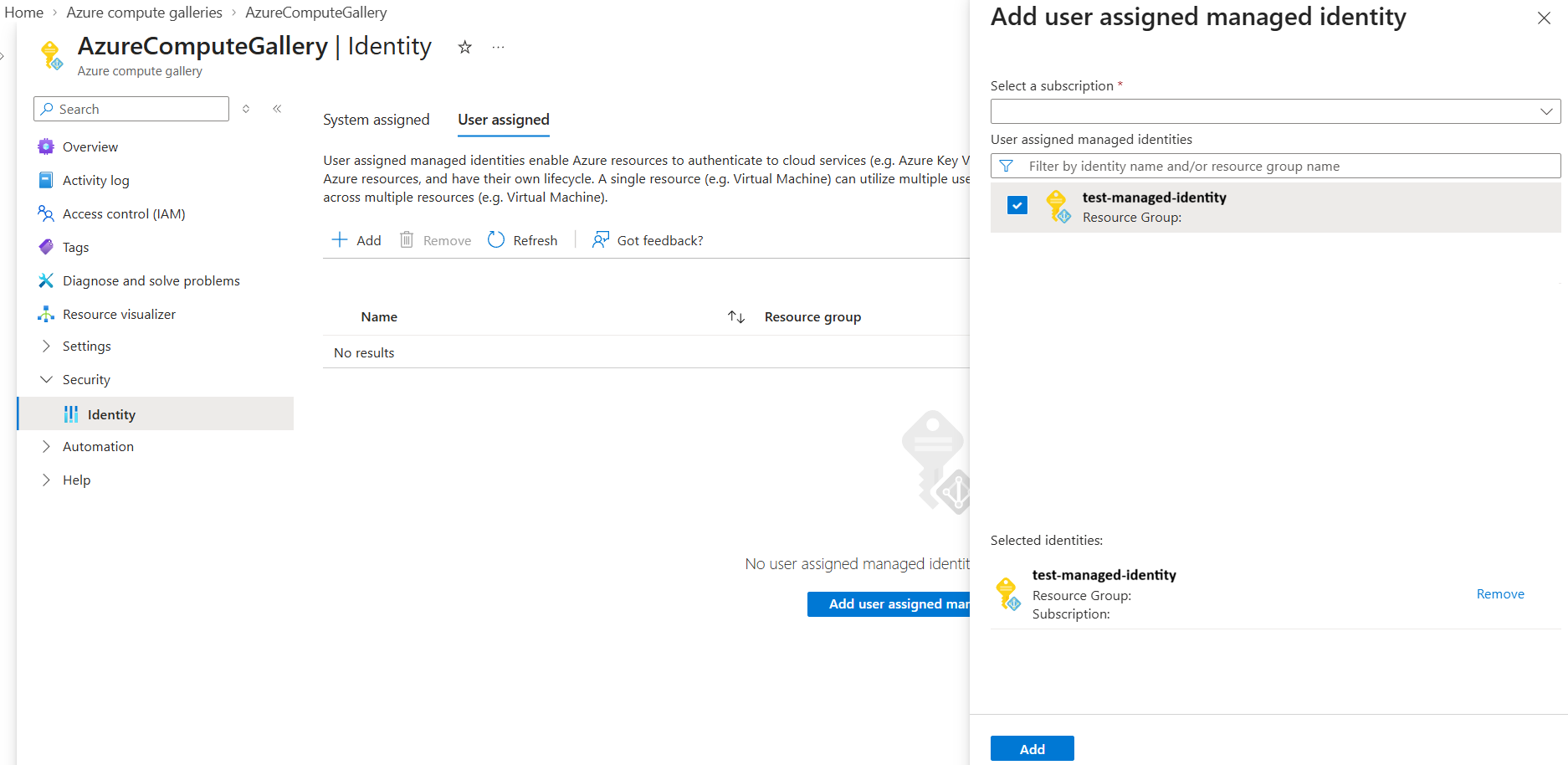
Update your Azure Compute Gallery to use the user-assigned managed identity. Portal experience isn't currently available for this step.
- In the Azure portal, open your Azure Compute Gallery.
- Under Security, select Identity.
- Select the User assigned tab.
- Select Add.
- In the Add user assigned managed identity pane, select the subscription that contains the managed identity.
- Select the user-assigned managed identity that you want to attach.
- Select Add to attach the identity to the gallery.
Step 4: Get the blob URL for your application package
Retrieve the blob URL for the application package stored in your storage account. When you publish an application by using the Azure portal, the portal automatically pulls the blob URL.
The URL format is:
https://<storage-account-name>.blob.core.chinacloudapi.cn/<container-name>/<blob-name>
Step 5: Publish a VM application version using the blob URL
Use the blob URL in the mediaLink property of the publishing profile when creating or updating your VM application version. Azure Compute Gallery uses the attached managed identity to authenticate and access the blob.
For detailed steps on creating a VM application version, see Create a VM application version.
Technical details
- Authentication flow - Azure Compute Gallery first attempts to access the blob using the provided URL. If direct access fails due to insufficient permissions, the gallery falls back to the attached managed identity for authentication.
- Trusted service access - Azure Compute Gallery is a trusted Microsoft service. The managed identity provides trusted access that bypasses storage account virtual network restrictions, so the gallery doesn't need to be inside a virtual network to reach a network-restricted storage account.
Limitations
- Managed identity access is supported only when publishing a VM application version to Azure Compute Gallery. It can't be used when deploying a VM application to a VM or Virtual Machine Scale Sets.
- Portal experience for attaching managed identity to the gallery isn't currently available. Use the REST API, Azure CLI, or Azure PowerShell.