Note
Access to this page requires authorization. You can try signing in or changing directories.
Access to this page requires authorization. You can try changing directories.
This article walks you through the setup of a BGP-enabled connection between Azure and Amazon Web Services (AWS). You'll use an Azure VPN gateway with BGP and active-active enabled and an AWS virtual private gateway with two site-to-site connections.
Architecture
In this setup, you create the following resources:
Azure
- One virtual network
- One virtual network gateway with active-active and BGP enabled
- Four local network gateways
- Four site-to-site connections
AWS
- One virtual private cloud (VPC)
- One virtual private gateway
- Two customer gateways
- Two site-to-site connections, each with two tunnels (total of four tunnels)
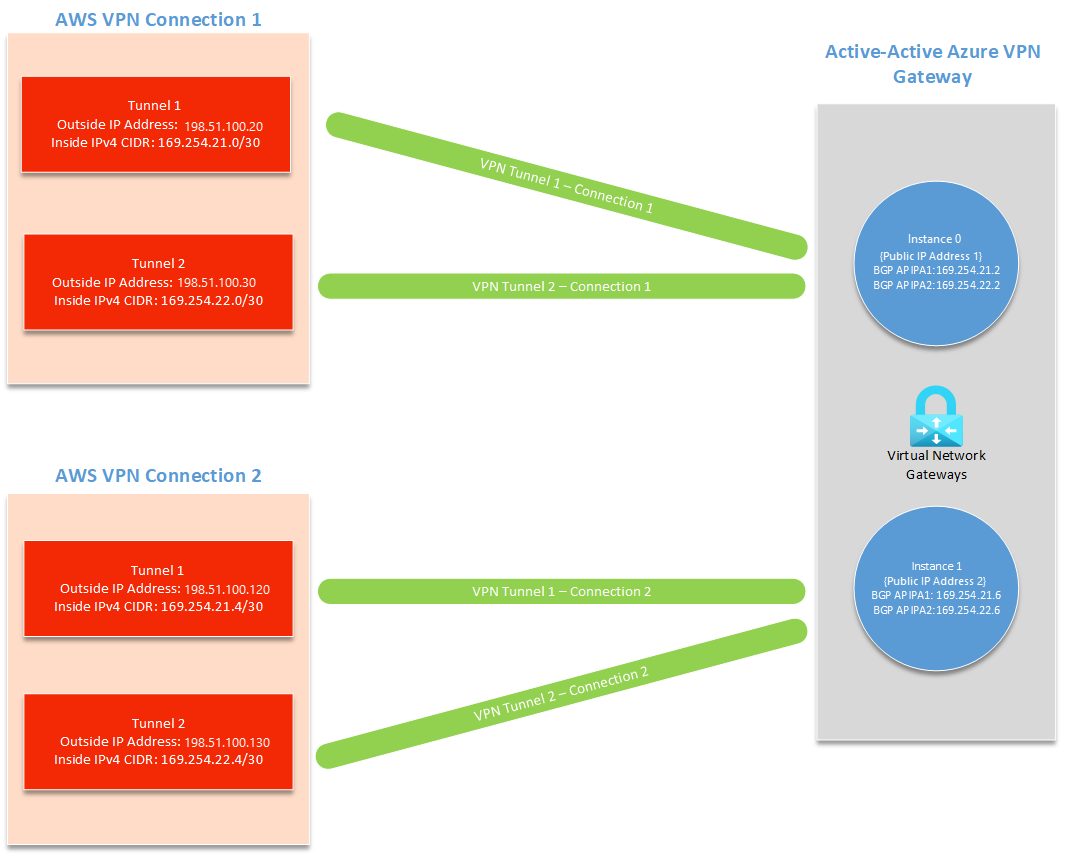
A site-to-site connection on AWS has two tunnels, each with their own outside IP address and inside IPv4 CIDR (used for BGP APIPA). An active-passive VPN gateway only supports one custom BGP APIPA. You'll need to enable active-active on your Azure VPN gateway to connect to multiple AWS tunnels.
On the AWS side, you create a customer gateway and site-to-site connection for each of the two Azure VPN gateway instances (total of four outgoing tunnels). In Azure, you need to create four local network gateways and four connections to receive these four AWS tunnels.
Choosing BGP APIPA addresses
You can use the following values for your BGP APIPA configuration throughout the tutorial.
| Tunnel | Azure Custom Azure APIPA BGP IP Address | AWS BGP Peer IP Address | AWS Inside IPv4 CIDR |
|---|---|---|---|
| AWS Tunnel 1 to Azure Instance 0 | 169.254.21.2 | 169.254.21.1 | 169.254.21.0/30 |
| AWS Tunnel 2 to Azure Instance 0 | 169.254.22.2 | 169.254.22.1 | 169.254.22.0/30 |
| AWS Tunnel 1 to Azure Instance 1 | 169.254.21.6 | 169.254.21.5 | 169.254.21.4/30 |
| AWS Tunnel 2 to Azure Instance 1 | 169.254.22.6 | 169.254.22.5 | 169.254.22.4/30 |
You can also set up your own custom APIPA addresses. AWS requires a /30 Inside IPv4 CIDR in the APIPA range of 169.254.0.0/16 for each tunnel. This CIDR must also be in the Azure-reserved APIPA range for VPN, which is from 169.254.21.0 to 169.254.22.255. AWS uses the first IP address of your /30 inside CIDR and Azure uses the second. This means you need to reserve space for two IP addresses in your AWS /30 CIDR.
For example, if you set your AWS Inside IPv4 CIDR to be 169.254.21.0/30, AWS uses the BGP IP address 169.254.21.1 and Azure uses the IP address 169.254.21.2.
Important
- Your APIPA addresses must not overlap between the on-premises VPN devices and all connected Azure VPN gateways.
- If you choose to configure multiple APIPA BGP peer addresses on the VPN gateway, you must also configure all Connection objects with their corresponding IP address of your choice. If you fail to do so, all connections use the first APIPA IP address in the list no matter how many IPs are present.
Prerequisites
You must have both an Azure account and AWS account with an active subscription. If you don't already have an Azure subscription, you can sign up for a trial account.
Create an active-active VPN gateway in Azure
Create a virtual network
Create a virtual network. You can refer to the Site-to-site Tutorial for steps. For this exercise, we use the following example values:
| Setting | Value |
|---|---|
| Subscription | If you have more than one subscription, verify that you're using the correct one. |
| Resource group | TestRG1 |
| Name | VNet1 |
| Location | China North 3 |
| IPv4 address space | 10.1.0.0/16 |
| Subnet name | FrontEnd |
| Subnet address range | 10.1.0.0/24 |
Create an active-active VPN gateway with BGP
In this section, you create active-active VPN gateway. You can refer to the Site-to-site Tutorial for steps. When you get to the Configuration section of the tutorial, use the following settings to enable BGP and active-active mode. For this exercise, we use the following example values:
| Setting | Value |
|---|---|
| Name | VNet1GW |
| Region | China North 3 |
| Gateway type | VPN |
| VPN type | Route-based |
| SKU | VpnGw2AZ |
| Generation | Generation2 |
| Virtual network | VNet1 |
| Gateway subnet address range | 10.1.1.0/24 |
| Public IP address | Create new |
| Public IP address name | VNet1GWpip |
| Availability zone | Zone-redundant |
| Enable active-active mode | Enabled |
| Second public IP address | Create new |
| Public IP address 2 name | VNet1GWpip2 |
| Availability zone | Zone-redundant |
| BGP settings | Value |
|---|---|
| Configure BGP | Enabled |
| ASN (Autonomous System Number) | 65000 (example value, must be different than the ASN used by AWS) |
| Custom Azure APIPA BGP IP address | Add two addresses to Custom Azure APIPA BGP IP address. Include the IP addresses for AWS Tunnel 1 to Azure Instance 0 and AWS Tunnel 2 to Azure Instance 0 from the APIPA configuration you chose. The second input will only appear after you add your first APIPA BGP IP address. Example: 169.254.21.2, 169.254.22.2 |
| Second Custom Azure APIPA BGP IP address | Add two addresses to Second Custom Azure APIPA BGP IP address. Include the IP addresses for AWS Tunnel 1 to Azure Instance 1 and AWS Tunnel 2 to Azure Instance 1 from the APIPA configuration you chose. The second input will only appear after you add your first APIPA BGP IP address. Example: 169.254.21.6, 169.254.22.6 |
Creating a gateway can often take 45 minutes or more, depending on the selected gateway SKU. You can see the deployment status on the Overview page for your gateway.
To view the public IP addresses that are assigned to your gateway, go to the virtual network gateway portal page Settings -> Properties.
Connect to your VPN gateway from AWS
In this section, you connect to your Azure VPN gateway from AWS. For updated instructions, always refer to the official AWS documentation.
Create a VPC
Create a VPC using the following values and the most recent AWS documentation.
| Setting | Value |
|---|---|
| Name | VPC1 |
| CIDR block | 10.2.0.0/16 |
Make sure that your CIDR block doesn't overlap with the virtual network you created in Azure.
Create a virtual private gateway
Create a virtual private gateway using the following values and the most recent AWS documentation.
| Setting | Value |
|---|---|
| Name | AzureGW |
| ASN | Amazon default ASN (64512) |
| VPC | Attached to VPC1 |
If you choose to use a custom ASN, make sure it's different than the ASN you used in Azure.
Enable route propagation
Enable route propagation on your virtual private gateway using the most recent AWS documentation.
Create customer gateways
Create two customer gateways using the following values and the most recent AWS documentation.
| Gateway 1 settings | Value |
|---|---|
| Name | ToAzureInstance0 |
| Routing | Dynamic |
| BGP ASN | 65000 (the ASN for your Azure VPN gateway) |
| IP Address | The first public IP address of your Azure VPN gateway. |
| Gateway 2 settings | Value |
|---|---|
| Name | ToAzureInstance1 |
| Routing | Dynamic |
| BGP ASN | 65000 (the ASN for your Azure VPN gateway) |
| IP Address | The second public IP address of your Azure VPN gateway. |
You can locate your Public IP address and your Second Public IP address on Azure in the Configuration section of your virtual network gateway.
Create site-to-site VPN connections
Create two site-to-site VPN connections using the following values and the most recent AWS documentation.
| Connection 1 settings | Value |
|---|---|
| Name | ToAzureInstance0 |
| Target Gateway Type | Virtual Private Gateway |
| Virtual Private Gateway | AzureGW |
| Customer Gateway | Existing |
| Customer Gateway | ToAzureInstance0 |
| Routing Options | Dynamic (requires BGP) |
| Local IPv4 Network CIDR | 0.0.0.0/0 |
| Tunnel Inside Ip Version | IPv4 |
| Inside IPv4 CIDR for Tunnel 1 | 169.254.21.0/30 |
| Pre-Shared Key for Tunnel 1 | Choose a secure key. |
| Inside IPv4 CIDR for Tunnel 2 | 169.254.22.0/30 |
| Pre-Shared Key for Tunnel 2 | Choose a secure key. |
| Startup Action | Start |
| Connection 2 settings | Value |
|---|---|
| Name | ToAzureInstance1 |
| Target Gateway Type | Virtual Private Gateway |
| Virtual Private Gateway | AzureGW |
| Customer Gateway | Existing |
| Customer Gateway | ToAzureInstance1 |
| Routing Options | Dynamic (requires BGP) |
| Local IPv4 Network CIDR | 0.0.0.0/0 |
| Tunnel Inside Ip Version | IPv4 |
| Inside IPv4 CIDR for Tunnel 1 | 169.254.21.4/30 |
| Pre-Shared Key for Tunnel 1 | Choose a secure key. |
| Inside IPv4 CIDR for Tunnel 2 | 169.254.22.4/30 |
| Pre-Shared Key for Tunnel 2 | Choose a secure key. |
| Startup Action | Start |
For Inside IPv4 CIDR for Tunnel 1 and Inside IPv4 CIDR for Tunnel 2 for both connections, refer to the APIPA configuration you chose.
Connect to your AWS customer gateways from Azure
Next, you connect your AWS tunnels to Azure. For each of the four tunnels, you'll have both a local network gateway and a site-to-site connection.
Important
Repeat the following sections for each of your four AWS tunnels, using their respective outside IP address.
Create local network gateways
Create each local network gateway using the following values. For steps, see Create a local network gateway. Make sure to use the correct Outside IP Address and BGP Peer IP Address for each tunnel based on the APIPA configuration you chose, Repeat the steps to create each local network gateway.
| Setting | Value |
|---|---|
| Name | Name for your new local network gateway. |
| Endpoint | IP Address. |
| IP Address | The Outside IP Address for the AWS tunnel you're connecting to (not the BGP Peer IP Address). |
| Address Space | Leave blank. |
| Advanced tab | Configure BGP settings: Yes |
| Autonomous system number (ASN) | The ASN for your AWS Virtual Private Network. Use the ASN 64512 if you left your ASN as the AWS default value. |
| BGP peer IP address | Enter the AWS BGP Peer IP Address based on the APIPA configuration you chose. |
Create connections
In this section, you create a site-to-site connection for each of your AWS tunnels. When you create the connection, make sure to select the local network gateway that corresponds to the tunnel you're connecting to and enter the correct BGP Peer IP Address based on the APIPA configuration you chose. For steps, see Create a connection.
Repeat these steps to create each of the required connections.
On the Basics page, complete the following settings:
Basics page Value Connection type Site-to-site (IPsec) Name Enter a name for your connection. Example: AWSTunnel1toAzureInstance0. On the Settings page, complete the following settings:
Settings page Value Virtual network gateway Select the VPN gateway. Local network gateway Select the local network gateway you created. Shared key (PSK) Enter the shared key that matches the preshared key you entered when making the AWS connections. Enable BGP Select to enable. Enable Custom BGP Addresses Select to enable. Under Custom BGP Addresses:
- Enter the Custom BGP Address based on the APIPA configuration you chose.
- The Custom BGP Address (Inside IPv4 CIDR in AWS) must match with the IP Address (Outside IP Address in AWS) that you specified in the local network gateway you're using for this connection.
- Only one of the two custom BGP addresses will be used, depending on the tunnel you're specifying it for.
- When making a connection from AWS to the first public IP address of your VPN gateway (instance 0), only the Primary Custom BGP Address is used.
- When making a connection from AWS to the second public IP address of your VPN gateway (instance 1), only the Secondary Custom BGP Address is used.
- Leave the other Custom BGP Address as default.
If you used the default APIPA configuration, you can use the following addresses:
Tunnel Primary Custom BGP Address Secondary Custom BGP Address AWS Tunnel 1 to Azure Instance 0 169.254.21.2 Not used (select 169.254.21.6) AWS Tunnel 2 to Azure Instance 0 169.254.22.2 Not used (select 169.254.21.6) AWS Tunnel 1 to Azure Instance 1 Not used (select 169.254.21.2) 169.254.21.6 AWS Tunnel 2 to Azure Instance 1 Not used (select 169.254.21.2) 169.254.22.6 Configure the following settings:
Setting Value FastPath Leave the default (deselected). IPsec / IKE policy Default Use policy based traffic selector Disable DPD timeout in seconds Leave the default. Connection Mode You can select any of the available options (Default, Initiator Only, Responder Only). For more information, see VPN Gateway settings - connection modes. Save your settings, review your configuration, and create the connection. Repeat these steps to create additional connections.
Before continuing to the next section, verify that you have a local network gateway and connection for each of your four AWS tunnels.
Check the status of your connections
These steps are optional, but can be helpful to verify that your connections are working properly.
Check your connections status on Azure
Open the page for your virtual network gateway and navigate to the Connections page.
Verify that all 4 connections show as Connected.

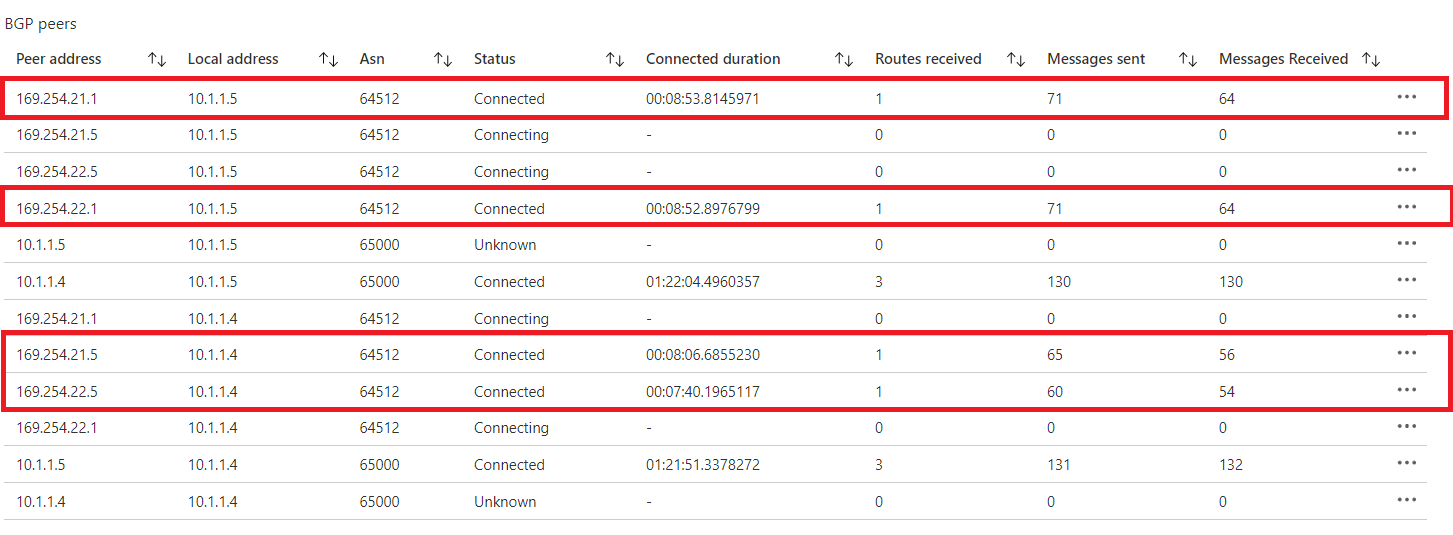
Check your BGP peers status on Azure
Open the page for your virtual network gateway and navigate to the BGP Peers page.
In the BGP Peers table, verify that all of the connections with the Peer address you specified show as Connected and are exchanging routes.
Check your connections status on AWS
- Open the Amazon VPC console
- In the navigation pane, select Site-to-Site VPN Connections.
- Select the first connection you made and then select the Tunnel Details tab.
- Verify that the Status of both tunnels shows as UP.
- Verify that the Details of both tunnels shows one or more BGP routes.
Next steps
For more information about VPN Gateway, see the FAQ.