Note
Access to this page requires authorization. You can try signing in or changing directories.
Access to this page requires authorization. You can try changing directories.
Applies to: ✔️ Front Door Standard/Premium
Rate limiting helps you detect and block abnormally high levels of traffic to your application. By using Azure Web Application Firewall (WAF) in Azure Front Door, you can mitigate some types of denial-of-service attacks. Rate limiting also protects you against clients that are accidentally misconfigured to send large volumes of requests in a short time period.
By default, a rate limit rule counts requests separately for each socket IP address. On Azure Front Door Premium, you can also group the count by country/region, autonomous system number (ASN), or JA4 client fingerprint, or count all matching requests together. These additional groupings are in preview.
How rate limits are counted
The socket IP address is the address of the client that initiated the TCP connection to Azure Front Door. Typically, the socket IP address is the IP address of the user, but it might also be the IP address of a proxy server or another device that sits between the user and Azure Front Door.
Unless you choose a different grouping, rate limits are counted per socket IP address. If you have multiple clients that access Azure Front Door from different socket IP addresses, they each have their own rate limits applied. Counting by socket IP address is generally available, and it's how every rate limit rule behaves when no grouping is specified. Azure Front Door terminates TLS before the WAF inspects a request, so requests sent over HTTP and HTTPS are counted the same way.
Configure a rate limit policy
Configure rate limiting by using custom WAF rules. When you configure a rate limit rule, specify the threshold. The threshold is the number of web requests that are allowed for each group, such as each socket IP address, within a time period of either one minute or five minutes. You also must specify at least one match condition, which tells Azure Front Door when to activate the rate limit. You can configure multiple rate limits that apply to different paths within your application.
If you need to apply a rate limit rule to all your requests, consider using a match condition like the following example:
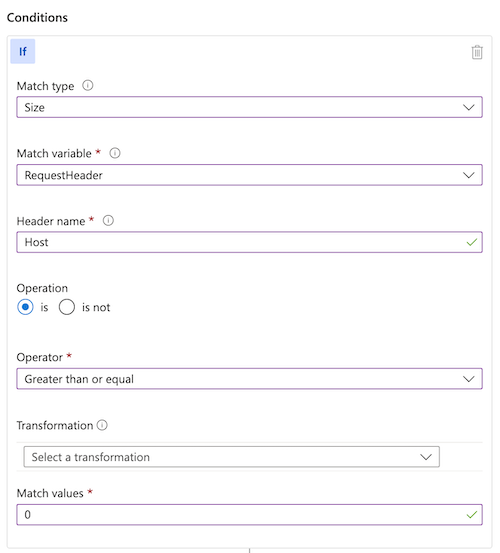
The preceding match condition identifies all requests with a Host header of a length greater than 0. Because all valid HTTP requests for Azure Front Door contain a Host header, this match condition has the effect of matching all HTTP requests.
Group rate limit traffic (preview)
Important
Grouping rate limit rules by country/region, AS number, JA4 fingerprint, or None is currently in preview. Rate limiting by socket IP address, the default grouping, is generally available. See the Supplemental Terms of Use for Microsoft Azure Previews for legal terms that apply to Azure features that are in beta, preview, or otherwise not yet released into general availability.
A per-IP rate limit is effective against clients that send a high volume of requests from a small number of IP addresses. It's less effective against distributed attacks, in which a botnet spreads its traffic across thousands of IP addresses so that each one stays under the threshold. Grouping counts requests by an attribute that those clients share instead, so traffic from many IP addresses can count toward a single threshold.
The group-by setting of a rate limit rule determines how requests are counted:
| Group by | API value | How requests are counted | Status |
|---|---|---|---|
| Socket address (default) | SocketAddr |
Each socket IP address has its own counter. | Generally available |
| Country/region | GeoLocation |
Clients from the same country/region share a counter. | Preview |
| AS number | Asn |
Clients on the same network, such as an internet service provider or a hosting provider, share a counter. | Preview |
| JA4 fingerprint | Ja4 |
Clients that negotiate TLS the same way share a counter, regardless of their IP addresses. | Preview |
| None | None |
All requests that match the rule share one counter. | Preview |
Keep the following in mind when you configure a grouping:
- Each rate limit rule groups requests by one variable. To count the same traffic in more than one way, create a separate rule for each grouping.
- Rules that don't specify a grouping count requests per socket IP address, so your existing rate limit rules aren't affected.
- The preview groupings are available only on Azure Front Door Premium.
- The country/region and AS number groupings use the socket IP address to determine each client's country/region and network.
- In the Azure portal, choose the grouping in the Group rate limit traffic by setting of a rate limit rule. In ARM templates, Bicep, and the REST API, set the
groupByproperty of the custom rule. In Azure PowerShell, useNew-AzFrontDoorWafCustomRuleGroupByVariableObject.
Choose a grouping
- JA4 fingerprint: Use it against distributed attacks that rotate through many IP addresses but reuse the same client software. In HTTP floods, the large majority of attack traffic often comes from a handful of fingerprints. For more information, see What is client fingerprint matching for Azure Front Door?
- AS number: Use it to cap traffic from networks your users don't usually come from, such as hosting and cloud providers, without maintaining lists of their IP ranges. For more information, see What is AS number matching for Azure Front Door?
- Country/region: Use it to cap the traffic that any single country/region can send, for example during a flood concentrated in one location.
- None: Use it with narrow match conditions, such as a sign-in page or a list of suspicious user agents, to cap the total request rate to that resource.
Example: Rate limit each JA4 fingerprint
The following rule allows each JA4 fingerprint up to 500 requests in a five-minute window. Because the count follows the fingerprint rather than the IP address, an attack that rotates through thousands of IP addresses with the same client software is still limited. The match condition matches every request. Size the threshold from your own traffic, as described in Set thresholds from your own traffic.
{
  "name": "RateLimitByJa4",
  "priority": 10,
  "enabledState": "Enabled",
  "ruleType": "RateLimitRule",
  "rateLimitDurationInMinutes": 5,
  "rateLimitThreshold": 500,
  "groupBy": [
    {
      "variableName": "Ja4"
    }
  ],
  "matchConditions": [
    {
      "matchVariable": "RequestUri",
      "operator": "Contains",
      "matchValue": [
        "/"
      ]
    }
  ],
  "action": "Block"
}
Example: Cap the total request rate to a sign-in page
The following rule counts all requests to a sign-in path together. When the total exceeds 2,000 requests in a minute, it presents a JavaScript challenge to requests for that path for the rest of the window. Legitimate browsers pass the challenge, while most scripted clients don't.
{
  "name": "RateLimitSignInTotal",
  "priority": 20,
  "enabledState": "Enabled",
  "ruleType": "RateLimitRule",
  "rateLimitDurationInMinutes": 1,
  "rateLimitThreshold": 2000,
  "groupBy": [
    {
      "variableName": "None"
    }
  ],
  "matchConditions": [
    {
      "matchVariable": "RequestUri",
      "operator": "Contains",
      "matchValue": [
        "/signin"
      ]
    }
  ],
  "action": "JSChallenge"
}
Set thresholds from your own traffic
A grouped rule needs a threshold above the highest rate any group reaches in normal traffic. Measure that rate over at least a week, so that daily and weekly peaks are represented. The following Log Analytics query shows the peak and 99th percentile request count for each JA4 fingerprint in five-minute windows:
AzureDiagnostics
| where Category =~ "FrontDoorAccessLog"
| where TimeGenerated > ago(7d)
| summarize Requests = count() by bin(TimeGenerated, 5m), clientJA4FingerPrint_s
| summarize P99 = percentile(Requests, 99), Peak = max(Requests) by clientJA4FingerPrint_s
| order by Peak desc
To size a country/region grouping, replace clientJA4FingerPrint_s with clientCountry_s. Match the bin size to the rule's time window.
Rate limits and Azure Front Door servers
Requests from the same client often arrive at the same Azure Front Door server. In that case, you see requests are blocked as soon as the rate limit is reached for each of the client IP addresses.
It's possible that requests from the same client might arrive at a different Azure Front Door server that doesn't have the rate limit counters updated yet. For example, the client might open a new TCP connection for each request, and each TCP connection could be routed to a different Azure Front Door server. If the threshold is low enough, the first request to the new Azure Front Door server could pass the rate limit check. So, for a low threshold (for example, less than about 200 requests per minute), you might see some requests above the threshold get through.
A few considerations to keep in mind while you determine threshold values and time windows for rate limiting:
A larger window size with the smallest acceptable request count threshold is the most effective configuration for preventing DDoS attacks. This configuration is more effective because when an attacker reaches the threshold they're blocked for the remainder of the rate limit window. Therefore, if an attacker is blocked in the first 30 seconds of a one-minute window, they're only rate limited for the remaining 30 seconds. If an attacker is blocked in the first minute of a five-minute window, they're rate limited for the remaining four minutes.
Setting larger time window sizes (for example, five minutes over one minute) and larger threshold values (for example, 200 over 100) tend to be more accurate in enforcing close to rate limit's thresholds than using the shorter time window sizes and lower threshold values.
Azure Front Door WAF rate limiting operates on a fixed time period. Once a group exceeds a rate limit threshold, all traffic in that group that matches the rule is blocked for the remainder of the fixed window. With the default grouping, the group is a single socket IP address.
Considerations for grouped rate limits
- A breach affects every client in the group. With a country/region, AS number, or JA4 fingerprint grouping, legitimate users who share that country/region, network, or client software are limited along with the attack traffic. With None, all traffic that matches the rule is limited. Size thresholds from normal traffic, deploy new rules with the Log action first, and consider a JavaScript challenge instead of Block.
- Common fingerprints are shared by many legitimate users. Popular browsers present the same JA4 fingerprint for very large numbers of users. If attack traffic uses the same fingerprint as your users, a JA4 rule limits both.
- Keep a per-IP rule. Use grouped rules alongside a rate limit rule that counts by socket IP address, not instead of it. A client can change its TLS fingerprint, while IP addresses remain the most expensive attribute for an attacker to change.
- Proxies and content delivery networks change what you count. If clients reach Azure Front Door through another proxy or content delivery network, the socket IP address, the country/region and AS number derived from it, and the JA4 fingerprint all describe that proxy rather than the end user.