Nota:
El acceso a esta página requiere autorización. Puede intentar iniciar sesión o cambiar directorios.
El acceso a esta página requiere autorización. Puede intentar cambiar los directorios.
本文介绍如何在 Azure Monitor Application Insights 中启用和配置基于 OpenTelemetry 的数据收集。 Azure Monitor OpenTelemetry 发行版:
- 提供 OpenTelemetry 发行版,其中包括对特定于 Azure Monitor 的功能的支持。
- 通过包含用于收集跟踪、指标、日志和异常的 OpenTelemetry 检测库来实现自动遥测。
- 允许收集自定义遥测数据。
- 支持 实时指标 的功能,以监视和收集来自实时生产环境的 Web 应用程序的遥测数据。
要详细了解 Azure Monitor OpenTelemetry 发行版的优点,请参阅“我为什么应该使用 Azure Monitor OpenTelemetry 发行版”。
若要详细了解如何使用 OpenTelemetry 收集数据,请查看 “收集 OpenTelemetry”以获取 Application Insights 体验 或 OpenTelemetry 常见问题解答。
OpenTelemetry 发布状态
OpenTelemetry 产品/服务适用于 .NET、Node.js、Python 和 Java 应用程序。 有关每项功能的发布状态,请参阅常见问题解答。
注意
有关 Azure Function Apps,请参阅 将 OpenTelemetry 与 Azure Functions 配合使用。
使用 Application Insights 启用 OpenTelemetry
按照本部分的步骤为您的应用程序集成 OpenTelemetry 工具。 选择一个用于特定语言说明的选项卡。
注意
.NET 涉及多个场景,包括经典 ASP.NET、控制台应用、Windows 窗体 (WinForms) 等。
先决条件
- Azure 订阅:创建 Azure 试用版订阅
- Application Insights 资源:创建 Application Insights 资源
- 使用一个官方支持版本的 .NET 的 ASP.NET Core 应用程序
提示
如果要从 Application Insights Classic API 迁移,请参阅我们的迁移文档。
安装客户端库
安装最新的 Azure.Monitor.OpenTelemetry.AspNetCoreNuGet 包:
dotnet add package Azure.Monitor.OpenTelemetry.AspNetCore
修改你的应用程序
在 Azure.Monitor.OpenTelemetry.AspNetCore 类中,导入 program.cs 命名空间,添加 OpenTelemetry,并将其配置为使用 Azure Monitor:
// Import the Azure.Monitor.OpenTelemetry.AspNetCore namespace.
using Azure.Monitor.OpenTelemetry.AspNetCore;

var builder = WebApplication.CreateBuilder(args);

// Add OpenTelemetry and configure it to use Azure Monitor.
builder.Services.AddOpenTelemetry().UseAzureMonitor();

var app = builder.Build();

app.Run();
从 Application Insights 资源复制连接字符串
连接字符串是唯一的,它可以指定 Azure Monitor OpenTelemetry 发行版将收集的遥测数据发送到的位置。
请复制连接字符串:
- 转到 Application Insights 资源的“概述”窗格。
- 查找你的连接字符串。
- 将鼠标指针悬停在连接字符串上,并选择“复制到剪贴板”图标。

将连接字符串粘贴到环境中
要粘贴连接字符串,请从以下选项中进行选择:
重要
建议仅在本地开发和测试环境中通过代码设置连接字符串。
对于生产环境,请使用环境变量或配置文件(仅限 Java)。
推荐通过环境变量设置 -
将以下命令中的
<Your connection string>替换为你的连接字符串。APPLICATIONINSIGHTS_CONNECTION_STRING=<Your connection string>通过配置文件设置 - 仅限 Java
创建包含以下内容的、名为
applicationinsights.json的配置文件,并将其置于applicationinsights-agent-3.7.5.jar所在的同一目录:{ "connectionString": "<Your connection string>" }将之前的 JSON 中的
<Your connection string>替换为你的唯一连接字符串。通过代码设置 - 仅限 ASP.NET Core、Node.js 和 Python
有关通过代码设置连接字符串的示例,请参阅连接字符串配置。
注意
如果在多个位置设置connection string,则环境变量按以下顺序排列:
- Code
- 环境变量
- 配置文件
确认有数据流
运行应用程序,然后在 Azure 门户中打开 Application Insights。 数据可能在数分钟后才会显示。
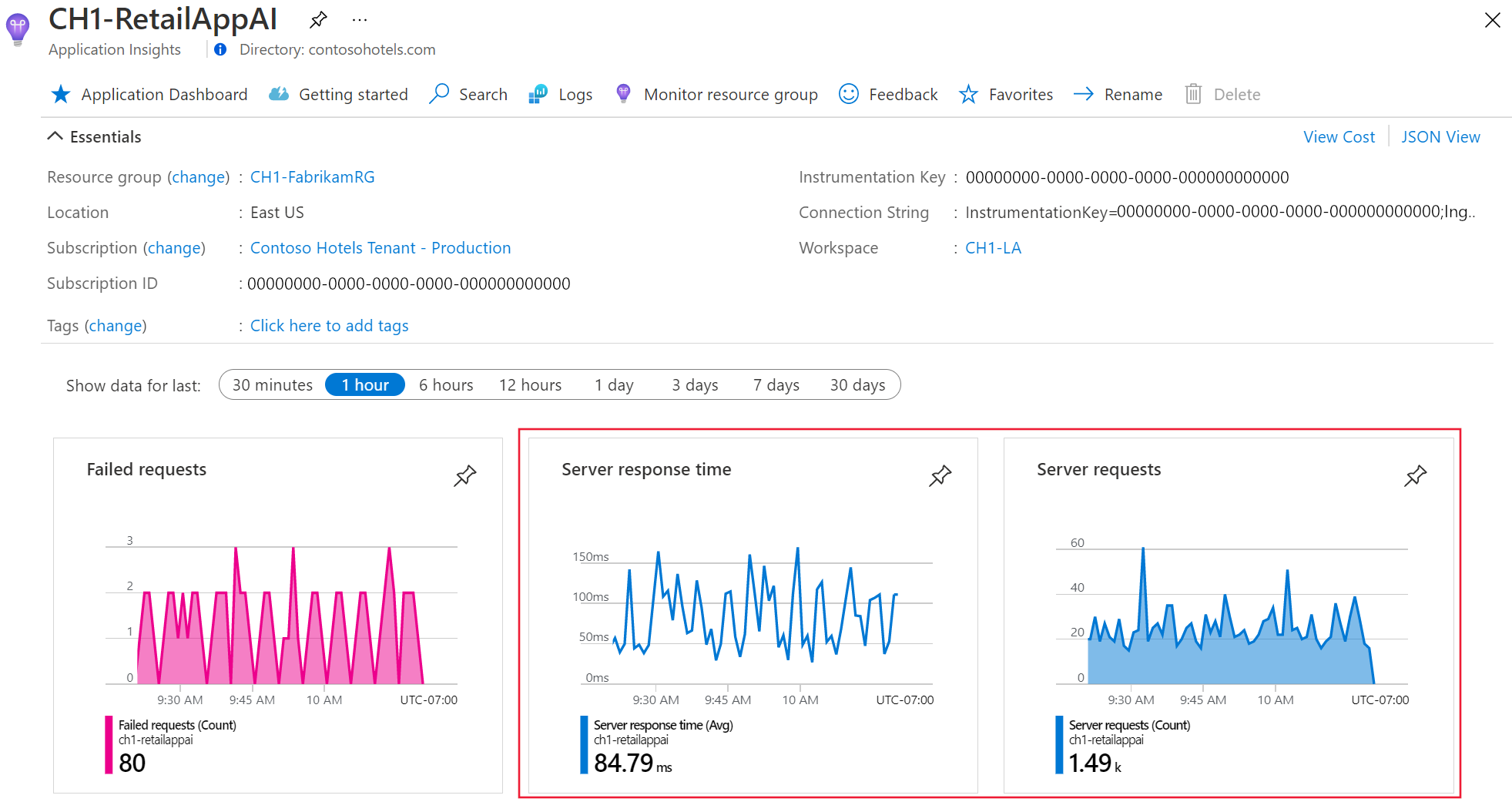
现已为你的应用程序启用了 Application Insights。 以下步骤是可选的,并允许进一步自定义。
重要
如果有两个或更多服务向同一 Application Insights 资源发出遥测数据,则需要设置云角色名称以在应用程序映射中正确表示这些服务。
注意
在使用 Application Insights 检测的过程中,我们会收集诊断数据并将其发送给 Microsoft。 这些数据可帮助我们运行和改进 Application Insights。 在 Application Insights 常见问题解答中了解详细信息。
示例应用程序
Azure Monitor OpenTelemetry 示例应用程序适用于所有支持的语言:
后续步骤
- 有关添加和修改 Azure Monitor OpenTelemetry 的详细信息,请参阅添加和修改 Azure Monitor OpenTelemetry。
- 若要进一步配置 OpenTelemetry 发行版,请参阅 Azure Monitor OpenTelemetry 配置。
- 若要查看源代码,请参阅 Azure Monitor AspNetCore GitHub 存储库。
- 若要安装 NuGet 包、检查更新或查看发行说明,请参阅 Azure Monitor AspNetCore NuGet 包页面。
- 若要进一步了解 Azure Monitor 和 OpenTelemetry,请参阅 Azure Monitor 示例应用程序。
- 若要详细了解 OpenTelemetry 及其社区,请参阅 OpenTelemetry .NET GitHub 存储库。
- 要提高使用体验,请启用Web或浏览器用户监视。
- 若要查看常见问题解答、故障排除步骤、支持选项或提供 OpenTelemetry 反馈,请参阅 有关 Azure Monitor Application Insights 的 OpenTelemetry 帮助、支持和反馈。