Demander à Learn
Demander à Learn
如何修改 Azure 文件共享
Dans cet article
本文介绍如何使用 Azure 门户、Azure PowerShell 和 Azure CLI 调整 Azure 文件共享的大小、成本和性能特征。
创建经典文件共享之后,可能需要调整共享的配置(已配置模型)或访问层(按需付费模型)。 以下部分介绍如何调整共享的相关属性。
创建预配的 v2 经典文件共享后,可以更改文件共享的一个或全部三个预配数量。 预配的存储、IOPS 和吞吐量可以根据需要动态纵向扩展或缩减。 但是,自上次增加数量以来,只能在 24 小时后减少预配数量。 存储量、IOPS 和吞吐量更改会在预配更改后的几分钟内生效。
按照以下说明更新文件共享的预配。
转到存储帐户。 在服务菜单中的“数据存储”下,选择“文件共享”
在文件共享列表中,选择要更改其预配的文件共享。
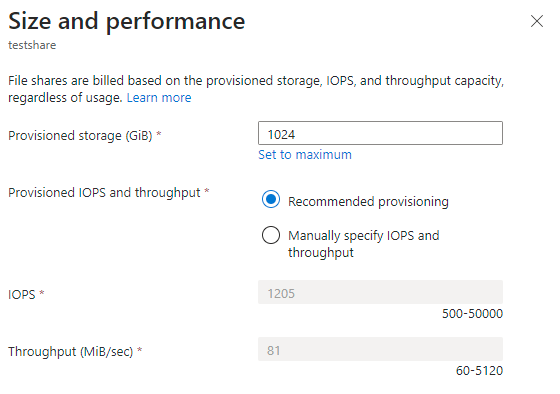
在文件共享概述中,选择“更改大小和性能”
“大小和性能”
选择“保存”
可以使用 Update-AzRmStorageShare cmdlet 修改预配 v2 文件共享。 请记得将变量 $resourceGroupName、$storageAccountName、$shareName、$provisionedThroughputMibPerSec、$provisionedIops 和 $provisionedStorageGib 的值替换为文件共享所需的值。
# The path to the file share resource to be modified.
$resourceGroupName = "<my-resource-group>"
$storageAccountName = "<my-storage-account-name>"
$shareName = "<name-of-the-file-share>"
# The provisioning desired on the file share. Delete the parameters if no
# change is desired.
$provisionedStorageGib = 10240
$provisionedIops = 10000
$provisionedThroughputMibPerSec = 2048
# Update the file share provisioning.
Update-AzRmStorageShare `
        -ResourceGroupName $resourceGroupName `
        -AccountName $storageAccountName `
        -ShareName $shareName `
        -QuotaGiB $provisionedStorageGib `
        -ProvisionedIops $provisionedIops `
        -ProvisionedBandwidthMibps $provisionedThroughputMibPerSec
$f = Get-AzRmStorageShare -ResourceGroupName $resourceGroupName -AccountName $storageAccountName -ShareName $shareName
$f | fl
可以使用 az storage share-rm update 命令修改预配 v2 文件共享。 请记得将变量 resourceGroupName、storageAccountName、fileShareName、provisionedStorageGib、provisionedIops 和 provisionedThroughputMibPerSec 的值替换为文件共享所需的值。
# The path to the file share resource to be modified.
resourceGroupName="<resource-group>"
storageAccountName="<storage-account>"
fileShareName="<file-share>"

# The provisioning desired on the file share. Delete the parameters if no
# change is desired.
provisionedStorageGib=10240
provisionedIops=10000
provisionedThroughputMibPerSec=2048

# Update the file share provisioning.
az storage share-rm update \
        --resource-group $resourceGroupName \
        --name $shareName \
        --storage-account $storageAccountName \
        --quota $provisionedStorageGib \
        --provisioned-iops $provisionedIops \
        --provisioned-bandwidth-mibps $provisionedThroughputMibPerSec
创建预配 v1 文件共享后,可以更改文件共享的预配存储大小。 更改共享的预配存储也会更改预配 IOPS 和预配吞吐量。 只能在上一次存储扩容操作完成 24 小时后,才可以减少已预配的存储。 存储量、IOPS 和吞吐量更改会在预配更改后的几分钟内生效。 有关详细信息,请参阅预配 v1 预配详细信息 。
按照以下说明更新文件共享的预配。
转到存储帐户。 在服务菜单中的“数据存储”下,选择“文件共享”
在文件共享列表中,选择要更改其预配的文件共享。
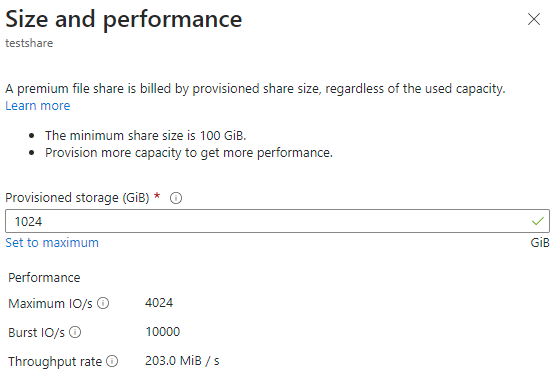
在文件共享概述中,选择“更改大小和性能”
“大小和性能”
选择“保存”
可以使用 Update-AzRmStorageShare cmdlet 修改预配 v1 文件共享。 请记得将变量 $resourceGroupName、$storageAccountName 和 $fileShareName 的值替换为文件共享所需的值。
# The path to the file share resource to be modified.
$resourceGroupName = "<resource-group>"
$storageAccountName = "<storage-account>"
$fileShareName = "<file-share>"
# The provisioning desired on the file share. Set to $null to keep at the
# current level of provisioning.
$provisionedStorageGib = 10240
# Configure parameter object for splatting.
$params = @{
    ResourceGroupName = $resourceGroupName;
    StorageAccountName = $storageAccountName;
    Name = $fileShareName;
}
if ($null -ne $provisionedStorageGib) {
    $params += @{ QuotaGiB = $provisionedStorageGib }
}
if ($null -ne $paidBurstingEnabled) {
    $params += @{ PaidBurstingEnabled = $paidBurstingEnabled }
}
if ($null -ne $paidBurstingMaxIops) {
    $params += @{ PaidBurstingMaxIops = $paidBurstingMaxIops }
}
if ($null -ne $paidBurstingMaxThroughputMibPerSec) {
    $params += @{
        PaidBurstingMaxBandwidthMibps = $paidBurstingMaxThroughputMibPerSec
    }
}
# Update the file share provisioning.
Update-AzRmStorageShare @params
可以使用 az storage share-rm update 命令修改预配 v1 文件共享。 请记得将变量 resourceGroupName、storageAccountName、fileShareName 和 provisionedStorageGib 的值替换为文件共享所需的值。
# The path to the file share resource to be modified.
resourceGroupName="<resource-group>"
storageAccountName="<storage-account>"
fileShareName="<file-share>"

# The provisioning desired on the file share.
provisionedStorageGib=10240

# Update the file share provisioning.
az storage share-rm update \
        --resource-group $resourceGroupName \
        --storage-account $storageAccountName \
        --name $fileShareName \
        --quota $provisionedStorageGib
创建即用即付文件共享后,可能需要更改两个属性:
访问层在访问层之间切换 。
配额
按照以下说明使用 Azure 门户更新文件共享的访问层。
转到存储帐户。 在服务菜单中的“数据存储”下,选择“文件共享”
在文件共享列表中,选择要更改访问层的文件共享。
在文件共享概述中,选择“更改层”
从提供的下拉列表中选择所需的访问层
选择“应用”
按照以下说明更新文件共享的配额。
转到存储帐户。 在服务菜单中的“数据存储”下,选择“文件共享”
在文件共享列表中,选择要更改配额的文件共享。
在文件共享概述中,选择“编辑配额”
在“编辑配额”弹出窗口中,输入所需的共享大小上限或选择“设置为最大值”
选择“确定”
可以使用 Update-AzRmStorageShare cmdlet 修改即用即付文件共享的访问层和配额设置。 请记得将变量 $resourceGroupName、$storageAccountName、$fileShareName、$accessTier 和 $quotaGib 的值替换为文件共享所需的值。
# The path to the file share resource to be modified.
$resourceGroupName = "<resource-group>"
$storageAccountName = "<storage-account>"
$fileShareName = "<file-share>"
# The settings to be changed on the file share. Set to $null to skip setting.
$accessTier = "Cool"
$quotaGib = $null
# Construct a parameters hash table for cmdlet splatting.
$updateParams = @{
    ResourceGroupName = $resourceGroupName
    StorageAccountName = $storageAccountName
    Name = $fileShareName
}
if ($null -ne $accessTier) { $updateParams += @{ AccessTier = $accessTier } }
if ($null -ne $quotaGib) { $updateParams += @{ QuotaGiB = $quotaGib } }
# Update the file share
Update-AzRmStorageShare @updateParams
可以使用 az storage share-rm update 命令修改即用即付文件共享的访问层和配额设置。 请记得将变量 resourceGroupName、storageAccountName、fileShareName、accessTier 和 quotaGib 的值替换为文件共享所需的值。
# The path to the file share resource to be modified.
resourceGroupName="<resource-group>"
storageAccountName="<storage-account>"
fileShareName="<file-share>"

# The settings to be changed on the file share. Set to the empty string to skip
# setting.
accessTier="Cool"
quotaGib=""

command="az storage share-rm update --resource-group $resourceGroupName"
command="$command --storage-account $storageAccountName --name $fileShareName"

if [ ! -z "${accessTier}" ]; then
    command="$command --access-tier $accessTier"
fi

if [ ! -z "${quotaGib}" ]; then
    command="$command --quota $quotaGib"
fi

# Update file share (command is in variable)
$command
删除经典文件共享
你可能想要删除未使用的或过时的文件共享。 可以在保留期内恢复启用软删除 的存储帐户中的文件共享。
按照以下说明使用 Azure 门户删除经典文件共享。
转到存储帐户。 在服务菜单中的“数据存储”下,选择“文件共享”
在文件共享列表中,选择要删除的文件共享的“...”
从上下文菜单中选择“删除共享”
“删除”
输入文件共享名称以确认删除,然后选择“删除”
可以使用 Remove-AzRmStorageShare cmdlet 删除文件共享。 请记得将变量 $resourceGroupName、$storageAccountName 和 $fileShareName 的值替换为文件共享所需的值。
# The path to the file share resource to be deleted.
$resourceGroupName = "<resource-group>"
$storageAccountName = "<storage-account>"
$fileShareName = "<file-share>"
# Remove the file share
Remove-AzRmStorageShare `
        -ResourceGroupName $resourceGroupName `
        -StorageAccountName $storageAccountName `
        -Name $fileShareName
可以使用 az storage share-rm delete 命令删除文件共享。 请记得将变量 resourceGroupName、storageAccountName 和 fileShareName 的值替换为文件共享所需的值。
resourceGroupName="<resource-group>"
storageAccountName="<storage-account>"
fileShareName="<file-share>"

az storage share-rm delete \
    --resource-group $resourceGroupName \
    --storage-account $storageAccountName \
    --name $fileShareName
后续步骤
Ressources supplémentaires
Last updated on
2026-06-01